In the dynamic world of digital art and photo manipulation, two names consistently rise to the forefront: GIMP and Adobe Photoshop. Both are incredibly powerful and versatile programs, capable of producing stunning results and executing a user's vision with precision. However, they cater to different needs, budgets, and skill levels, making the choice between them a significant one for aspiring and seasoned digital artists alike. This article aims to provide an in-depth comparison, exploring their functionalities, strengths, weaknesses, and how plugins can bridge any perceived gaps, ultimately helping you select the tool that best fits your unique workflow and creative aspirations.
The Pervasiveness of Photoshop and Cost Considerations
Photoshop's ubiquity in the realm of photo editing is undeniable. It has become synonymous with image enhancement, with the very act of editing often referred to as "Photoshopping." This has cemented its status as the industry standard, a position it has held for decades. The reasons for this dominance are multifaceted, stemming from its robust feature set, extensive plugin ecosystem, and consistent development cycles driven by Adobe's substantial financial backing.
However, the lofty price associated with Photoshop often prompts many to seek alternatives. Adobe operates on a subscription-based model, with the Adobe Photography plan, which includes Photoshop and Lightroom, costing $9.99 per month. This recurring expense can be a significant barrier for beginners, hobbyists, or even professionals working with tight budgets. The cost is a primary driver for many users exploring GIMP as a viable alternative. This affordability dilemma has also, unfortunately, led to widespread piracy, making cost a significant factor in the Photoshop vs. GIMP debate.
GIMP: A Free Alternative with Distinctions
Enter GIMP, the heralded free and open-source alternative to Photoshop. GIMP (GNU Image Manipulation Program) has a long history, originating in 1996 as a project to provide a powerful image editing solution for Linux users. Over the years, it has evolved through community-based development into a remarkably capable program that can rival Photoshop in many areas.
While GIMP is considered a powerful image editor, it's important to note that it is not always positioned as a direct, one-to-one replacement for Photoshop. The reasons behind this nuanced distinction are multifaceted. Part of it lies in the fact that Photoshop boasts a trusted name synonymous with image editing, endowing it with a professional appeal. This makes Photoshop an ideal choice for professional image editors who seek to align themselves with a renowned brand while attracting clients. Furthermore, Photoshop's integration within the broader Adobe Creative Cloud ecosystem offers a seamless workflow for those who utilize other Adobe products like Illustrator or InDesign.
GIMP's strength lies in its accessibility. Being free and open-source means it costs nothing to use, making it an ideal starting point for beginners and hobbyists. Its source code is also modifiable, allowing for deep customization and the development of specialized tools by its dedicated community.
Decoding the Ongoing Debate: Photoshop vs. GIMP
The ongoing debate between Photoshop and GIMP revolves around several pivotal questions:
- Is GIMP on par with Photoshop's capabilities?
- Why opt for Photoshop when GIMP is free?
- What sets Photoshop apart from GIMP?
- Are the advantages of Photoshop worth its substantial price tag?
While opinions may vary, a common sentiment is that GIMP, while not always considered equal to Photoshop by every metric, holds its ground remarkably well, lending significant weight to these questions.
The Robust Foundation of Photoshop and Its Unofficial Standard Status
Unquestionably, Photoshop is a well-built program that has set the standard for various imaging programs, including GIMP. The options Photoshop offers for editing images have become the yardstick for excellence in the realm of photo editing. Its development is backed by a world-class team of developers and software engineers. As the "Golden Goose" of a multi-billion-dollar company, Photoshop essentially has an endless supply of talent and resources to maintain and develop the program. As a result, the program is constantly innovating with new features, improved performance, and cross-platform functionality.
Photoshop's strengths start with its comprehensive feature set. It utilizes many AI-powered smart-selection tools, such as the Object Selection tool and Quick Selection tool, which are quite effective. The "Select Subject" button in the options bar quickly selects prominent subjects in a photo. Additionally, Photoshop has tons of intelligent tools for creating mock-ups for branding assets, web design, and more.
Photoshop’s AI Tool Has A Sense Of Humor
Advanced Features and Non-Destructive Editing
Photoshop provides advanced tools like non-destructive editing, content-aware fill, and a wide range of filters. Non-destructive editing is a cornerstone of professional workflows, allowing artists to make changes to an image without permanently altering the original pixel data. This is achieved through features like adjustment layers and smart objects. Adjustment layers apply color and tonal adjustments to an image without permanently changing pixel values, and they can be edited, masked, or deleted at any time. Smart objects allow you to place raster or vector content into a Photoshop document, and they preserve the source content's image data, enabling you to perform non-destructive transforms, edits, and filters.
Content-Aware Fill is another powerful tool that intelligently analyzes the surrounding pixels of a selected area and fills it with plausible content, making it incredibly effective for removing unwanted objects or blemishes seamlessly. Photoshop also offers a vast array of filters, from artistic effects to complex image manipulation tools, that can be applied non-destructively when used with smart objects or as smart filters.
Brush Tools and Digital Painting
There are a number of different brush tools in Photoshop. The regular brush tools allow artists to paint with unique and custom brushstrokes. There is also a mixer brush tool, which closely simulates the experience of traditional painting, with blending and wetness settings. Then, the history and art history brush tools enable artists to paint with pixels from an earlier version of the image. In Photoshop, you can toggle the wetness, shape dynamics, scattering, smoothing, noise, and much more of an existing brush. To create a new brush, you typically make a new document with a white background, draw the desired shape with an existing brush tool, and then go to Edit > Define Brush Preset.
When digital painting with a brush tool, the advantages of using a graphics tablet really become apparent. With a pressure-sensitive pen and drawing tablet, you can control the thickness and opacity of brush strokes with just your pen.
Retouching and Healing Tools
GIMP has a tool called the "healing brush," which can be used to fix imperfections in an image. Photoshop also has retouching tools, one of which is called the "clone stamp tool." The clone stamp tool samples textures from surrounding areas of an image, so you can smoothly edit out elements by duplicating the surroundings. Another feature that works in a similar way in Photoshop is the content-aware tool. Photoshop offers more powerful retouching tools, including multiple variations of healing brushes, the spot healing brush, the patch tool, and the aforementioned clone stamp tool. These tools provide greater control and precision when removing blemishes, distracting elements, or repairing damaged areas of an image.
Pen Tool, Shapes, and Vector Capabilities
The pen tool is used to create shapes and paths. GIMP and Photoshop use a Bézier curve system for drawing made from nodes (anchor points). Shapes in Photoshop are vector-based, which means they are made from mathematical points that can be resized indefinitely without losing quality. GIMP paths and shapes made from the pen tool are not vector-based but raster-based. Photoshop's vector capabilities extend to creating vector masks, which are made from mathematical points and can be resized without losing quality. This allows for sharp, scalable graphics and precise selections that can be manipulated without pixelation.
Typography and Font Management
Both GIMP and Photoshop offer text editing features. The text and typography tools in Photoshop are much more thorough. Adobe's font library, a catalog of thousands of beautifully designed typefaces, is available with a Photoshop subscription. Fonts are synced to your library and can be added to designs at the touch of a button. You can edit typography to suit your design, whether you want to change the spacing, kerning, or the character itself, for example, altering the color or ligatures. There's really no limit to the creative typographic possibilities in Photoshop. With GIMP, you can download free fonts online or get licenses for fonts through platforms like Creative Market and load them into GIMP.
Layer and Vector Masks
Photoshop has layer and vector masks, which allow you to make part of a layer invisible. Layer masks are raster-based and only affect the pixels on that layer, while vector masks are made from mathematical points and can be resized without losing quality. With a vector selection, you can draw a shape on a layer and then use that shape to mask the layer. So, if you have an image of a flower and you want to select just the petals, you could use the pen tool to draw a path around the petals. The path would be a vector selection, which you could then use to mask the layer and hide everything except the petals.
Batch Processing and Actions
Both Photoshop and GIMP have batch processing features. For example, let's say you have a folder of 100 images that need to be resized. In Photoshop, you can set up an "Action" that will resize the images, and then run the action in batch mode on the entire folder. Photoshop's Actions feature is a powerful tool for automating repetitive tasks, allowing users to record a series of steps and then apply them to multiple files.
Advanced AI-Powered Features
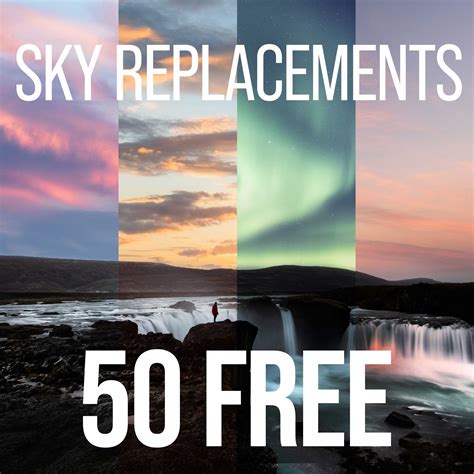
This is where Photoshop truly comes into its own. For example, the Adobe Sensei AI feature can be used to change the sky in an image, refine edges, and change the light direction. You can even use Neural Filters to add a smile to someone's face in a portrait and smooth out skin texture. The cool thing about these AI-powered features is that they donât just apply a one-size-fits-all filter to your photo. Instead, they analyze the image and apply the edits that are most appropriate. GIMP doesnât have anything comparable to these advanced AI functionalities.
CMYK Color Mode and Print Preparation
If you need to create files for print, then Photoshop is the better choice. This is because Photoshop has CMYK color mode, which is used for printing. RGB (Red, Green, Blue) is the color mode for digital displays, while CMYK (Cyan, Magenta, Yellow, Key/Black) is used for professional printing. Having direct CMYK support ensures accurate color representation when preparing images for commercial printing, avoiding potential color shifts and ensuring professional results.
RAW Image Editing
If you want to edit raw images, then Photoshop is the better choice. In GIMP, you cannot edit RAW images unless you get a plugin like Darktable. Adobe has the tool Camera RAW, which comes with Photoshop. It allows you to automatically edit RAW images when you open one from your camera roll. This is an important tool to have; itâs intuitive and easy to use with Photoshop, as images open with this tool automatically. Being able to edit RAW images is a must-have tool for photographers who want the quality of the colors and dynamic range that RAW images provide.
Digital Painting Capabilities
Both Photoshop and GIMP are great for digital painting. There are a larger number of brush types available in Photoshop, such as the mixer brush that blends multiple layers. Use Neural Filters to aid the digital painting process in Photoshop, for example, you can use the Landscape Mixer tool to make elements in a scene appear as if they are changing seasons, from spring to winter. You can also take the color scheme from one image and transpose it to another image with color transfer. Use Neural Filters to harmonize colors from one image that has been cut on top of another image, where the contrast, color profiles, and light are completely different. If youâre making a mock-up for a larger artwork, this is a great feature for merging reference photos together.
Vector Editing as Smart Objects
Both programs are raster-based, however, Photoshop has the ability to edit vector images as smart objects. In Photoshop, you can create paths and shapes as vector smart objects and save documents as SVG to then edit in Illustrator. This allows for the best of both worlds, combining the flexibility of vector graphics with the powerful raster editing capabilities of Photoshop.
3D Features
Photoshop has some basic 3D features, like the ability to create 3D objects from 2D images and edit 3D models that have been created in other programs. However, for creating more complex 3D designs, it's advisable to choose another program like Adobe Substance or Blender.
Customizable Workspace and Interface
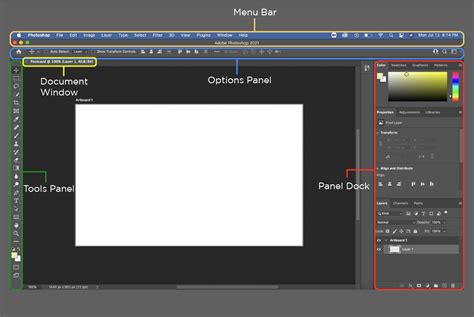
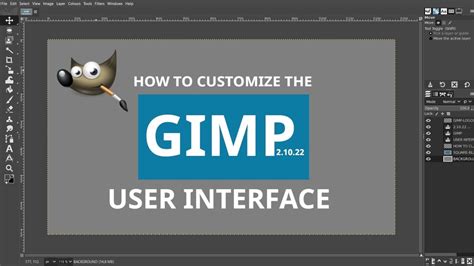
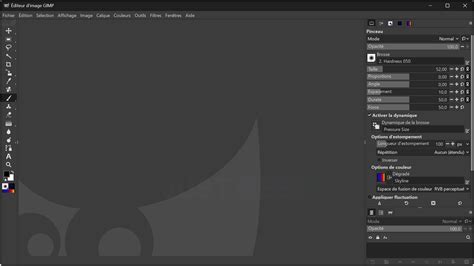
The interface for GIMP is very customizable; you can move the panels around and change their size and position. Photoshop also has a customizable workspace, where you can dock and undock panels of tools and features, move panels, change panel groups, or choose from a premade workspace that can optimize your workflow. For example, you can choose the premade digital painting workspace that has the color panel, brush panel, and layer panel readily available.
Regular Updates and Customer Support
Adobe Creative Cloud software is regularly updated with new features, bug fixes, and performance improvements. When you pay for a Creative Cloud subscription, you have access to customer support. This can be extremely helpful if you run into any problems while using the software. Photoshop is the industry standard, and this backing ensures it remains at the cutting edge of image editing technology.
GIMP's Adherence and Departure: A User's Perspective
GIMP, in its pursuit of aligning with Photoshop's standards, does so admirably with one significant departureâthe multiple-window setup, even in the Windows version. While many users find this customizable, some accustomed to Photoshop's single-window interface can find it disorienting. Given GIMP's open-source nature, there are variants like GIMPshop aiming to provide a single-window experience reminiscent of Photoshop. However, this departure from the conventional design of Windows programs can be somewhat inconvenient for users accustomed to a different layout.
Users who transition from Photoshop to GIMP often find the latter to be a competent alternative. While certain tasks may lack streamlined efficiency, and the UI/workflow for filters may not be as unified, GIMP's power becomes apparent with familiarity. With a layout and tools similar to Photoshop, a vast library of free plugins, and effect filters, GIMP emerges as a compelling choice, especially for those on a budget.
GIMP's Core Functionalities and Limitations
GIMP offers essential tools for photo editing, including layers, airbrush, clone/heal, curves, masks, and various filters. However, it's essential to acknowledge that GIMP, while free, may not match Photoshop in every aspect. Notably, it lacks direct support for CMYK color mode, a feature crucial for professional print work. While GIMP has introduced CMYK soft-proofing in recent versions, full native CMYK support is still a desired feature for many professionals.
GIMP also does not currently support full CMYK color modes natively. This means that all your images are edited in the RGB color space and thus may not properly display if you need to print your work. This is a deal-breaker for some, especially those who work a lot with printers, but for people who only post their work online, this is a non-factor. GIMP does offer CMYK soft-proofing modes that allow you to preview how your colors will look once your composition is printed, which can be covered in a dedicated tutorial. For some users, however, this is not enough as it still creates compatibility issues, especially if someone sends you a photo in CMYK mode and instructs you not to convert it to an RGB color space.
Furthermore, GIMP does not have fully integrated non-destructive editing in the same way Photoshop does. Changes directly affect the image file you are editing, unlike Photoshop's adjustment layers or smart objects where your edits can be reverted or modified later. GIMP has made up some ground on this front in recent years, but it still lacks features like adjustment layers or true smart objects. However, there are some workarounds to preserve your images as you work, and the GIMP team has promised adjustment layers in a future version (GIMP 3.2, to be exact).
Brush Tools in GIMP
GIMP only has one primary brush tool, however, you can customize it to create unique brushstrokes. To create your own brush in GIMP, you start with a new image the size you want your brush to be. Then, you draw the image you want to have as your brush stamp in any colors you want. Next, you export the brush as a GIMP brush and save it inside your personal GIMP folder. While this offers flexibility, Photoshop's array of specialized brush tools, like the mixer brush and history brush, offer more immediate and nuanced control for traditional painting simulation.
Retouching and Healing in GIMP
GIMP has a tool called the "healing brush," which can be used to fix imperfections in an image. This tool functions similarly to Photoshop's healing brush by sampling pixels from surrounding areas to blend and repair.
Pen Tool and Paths in GIMP
GIMP paths and shapes made from the pen tool are raster-based, not vector-based like in Photoshop. This means that while you can create precise paths for selections and masks, scaling them indefinitely without quality loss is not possible.
Typography and Font Management in GIMP
With GIMP, you can download free fonts online or get the license for fonts through Creative Market and load them into GIMP. This offers a good degree of flexibility, but it lacks the integrated font library and seamless syncing that Photoshop provides.
Batch Processing in GIMP
Although GIMP has limited built-in features for complex batch processing compared to Photoshop's Actions, you can improve its capabilities through plugins or by scripting. The community often develops solutions to automate repetitive tasks, making GIMP more versatile and customized to specific needs.
GIMP Plugins and Customization
Although GIMP has limited features, you can improve the basic set of features so that you have a more versatile program that is customized to your needs. Thereâs no single place to find an aggregated list of GIMP plugins, so you will have to search online for what youâre looking for. However, thousands of plugins are available for GIMP, and the active development community contributes to its already extensive plugin library, allowing users to extend its functionality significantly.
Bridging the Gap: Plugins and Their Role
The discussion of GIMP vs. Photoshop is incomplete without acknowledging the significant role of plugins. Both programs can be greatly enhanced by third-party extensions, allowing users to achieve effects and functionalities that might be native to the other.
Photoshop Plugins
Thousands of plugins are available on the Adobe Exchange, as well as from numerous third-party developers, allowing designers to improve their experience and customize Photoshop. These plugins can range from advanced filters and artistic effects to specialized tools for specific industries like photography, graphic design, or web development. For instance, plugins can add advanced noise reduction, sophisticated sharpening, or unique artistic stylization options.
GIMP Plugins
As mentioned, there isn't a single central repository for GIMP plugins, requiring users to search online. However, the availability of plugins for GIMP is extensive. From advanced color correction tools and artistic filters to specialized brushes and workflow enhancements, plugins can significantly augment GIMP's capabilities. Some plugins aim to replicate Photoshop's functionality, while others offer unique features not found in either program. For example, the "Wavelet Decompose" plugin offers advanced noise reduction and detail enhancement. For RAW processing, Darktable and RawTherapee are excellent free and open-source alternatives that integrate well with GIMP.
Comparing Core Functionalities: A Closer Look
Let's now compare how some basic image adjustments look in GIMP vs. Photoshop.
Exposure and Contrast Adjustments
There is hardly any difference between GIMP vs. Photoshop when looking at the basic Exposure adjustment. There is a tiny difference between how the programs treat the darks. Adjustments like Contrast are where the differences between GIMP and Photoshop become much more noticeable. Here, if each is adjusted by an increment of 30, we can see from this edit that GIMP can be much more dramatic in its contrast adjustments.
Saturation and Color Handling
When looking at a dramatic adjustment like saturation, it is hard to say which program performs this task better. Photoshop produces even-across-tones and more contrasty results. GIMP provides a subtle boost to the colors and leaves the tones alone.
File Format Support and Exporting
GIMP is only able to save images in its XCF format. You must use this file type if you want to retain all your edits and layers. If you want to save your file in a regular image format, you will have to export the image. There are many more file types to choose from in GIMP vs. Photoshop. In terms of control over your images, Photoshop gives you more options in the exporting process. Photoshop lets you edit both the image and canvas size at this stage. You have a preview at this point to check your resizing. So, when looking at exporting in GIMP vs. Photoshop, Photoshop provides a better process and offers more control.
The great thing about GIMP is that you can save an image as a PSD file, which preserves layers, offering some level of compatibility with Photoshop workflows. However, Photoshop supports a wider array of file formats natively and offers more granular control during the export process.
GIMP vs. Photoshop: A Summary of Strengths and Weaknesses
Photoshop's Advantages:
- Industry Standard: Widely recognized and used in professional environments.
- Advanced Features: Non-destructive editing, Content-Aware Fill, AI-powered tools (Sensei, Neural Filters), robust CMYK support.
- Extensive Brush Engine: Mixer brush, history brush, and advanced brush dynamics.
- Vector Capabilities: Vector shapes, smart objects for vector editing, and scalable vector masks.
- Integrated Ecosystem: Seamless integration with other Adobe Creative Cloud applications.
- Comprehensive Tutorials and Support: Abundant learning resources and official customer support.
- RAW Photo Editing: Built-in Camera RAW processor.
- Intuitive Interface: Generally considered more user-friendly for beginners, with a single-window design.
Photoshop's Disadvantages:
- Subscription Cost: Recurring monthly or annual fees can be substantial.
- Resource Intensive: Requires more powerful hardware to run smoothly.
- Not available on Linux: Primarily runs on Windows, macOS, and iPadOS.
GIMP's Advantages:
- Free and Open Source: No cost to use, modify, or distribute.
- Cross-Platform Compatibility: Available on Windows, macOS, GNU/Linux.
- Lightweight: Generally requires less system resources than Photoshop.
- Highly Customizable Interface: Users can tailor the workspace to their preferences.
- Strong Community Support: Active development and a wealth of free tutorials and resources.
- Extensive Plugin Support: Can be significantly enhanced with third-party plugins.
- Good for Budget-Conscious Users: An excellent option for those who cannot afford Photoshop.
GIMP's Disadvantages:
- Lacks Native CMYK Support: Primarily works in RGB, posing challenges for professional print work.
- Limited Non-Destructive Editing: Lacks adjustment layers and true smart objects.
- Fewer Advanced AI Features: Does not have the sophisticated AI tools found in Photoshop.
- Steeper Learning Curve for Some: The interface and workflow can be less intuitive for those accustomed to Photoshop.
- Less Comprehensive Brush Engine: Lacks specialized brushes like the mixer brush.
- No Official Customer Support: Relies on community forums for troubleshooting.
- RAW File Handling: Requires external plugins or software for RAW editing.
Choosing the Right Software: A Personal Journey
Choosing between GIMP and Photoshop is a decision rooted in individual needs and preferences. GIMP's open-source nature, continuous development, and community support make it appealing, especially for those on a budget or using multiple operating systems. On the other hand, Photoshop's professional features, refined interface, and robust ecosystem make it the preferred choice for demanding tasks, despite its higher cost.
If you are a beginner or hobbyist looking to explore photo editing without significant financial investment, GIMP is an excellent starting point. Its capabilities are more than sufficient for basic to intermediate editing tasks, and with the right plugins, it can handle many advanced operations.
For professional artists, designers, photographers, or anyone requiring the most advanced tools, seamless integration with other industry-standard software, and the assurance of CMYK support and non-destructive workflows, Photoshop is likely the better investment. The Adobe Photography plan, which includes Lightroom, offers a compelling package for photographers.
Ultimately, the "best" software depends on your specific requirements, budget, and willingness to learn. Both programs are powerful tools capable of producing exceptional results in the right hands.
Photoshop’s AI Tool Has A Sense Of Humor
The Artistry Beyond Tools: A Skilled Artist's Perspective
Both GIMP and Photoshop serve as means to an end, with a skilled artist capable of achieving remarkable results with either. While GIMP excels as a free and evolving option, Photoshop remains unparalleled in the realm of 2D image editing software due to its comprehensive feature set and industry backing. The most crucial element in creating stunning visuals is not just the software itself, but the creativity, skill, and vision of the artist wielding the tools.
Kick-start Your Designer Career with the Right Tools
Starting your journey into the world of digital art? You can hardly go wrong with the best standard design program, Photoshop, as long as a long-term subscription isnât a problem for you. With customizable shortcut features and a range of top-notch design features, Photoshop is tailored to boost your professional capabilities and efficiency.
Your early exploration gets even easier with a drawing tablet at hand. Designed to replicate the natural drawing experience with paper and pencils, a drawing tablet can help seamlessly transfer your traditional painting skills into the digital realm. Its built-in shortcut keys and dials can streamline your workflow, reducing stress and hassle.
If your focus is on short-term projects or you're set on avoiding the constraints of paid plans, the free, open-source, and capable design app GIMP is just for you. Although GIMP does require a steeper learning curve, with a little more patience fiddling around its interface, you can unlock features that many seasoned designers enjoy.