Photoshop's text and layer tools are powerful instruments for crafting visually stunning and impactful designs. The ability to manipulate text, applying a myriad of styles and effects, opens up a world of creative possibilities. This guide delves into the art of Photoshop text effects, providing insights into various techniques and offering a curated selection of resources to elevate your design skills. Whether you're a beginner looking to grasp the fundamentals or an experienced designer seeking to refine your craft, understanding how to create compelling text effects is crucial in today's visual landscape.
The Art and Science of Typography in Photoshop
Typography is more than just placing words on a page; it's an art form that involves feeling the form, admiring the curves, and connecting with the flow of letters. Photoshop provides a robust environment for exploring typographic possibilities, allowing designers to move beyond standard fonts and create truly unique visual statements. The interplay of text with shapes, textures, and other graphic elements can transform simple words into captivating design components.
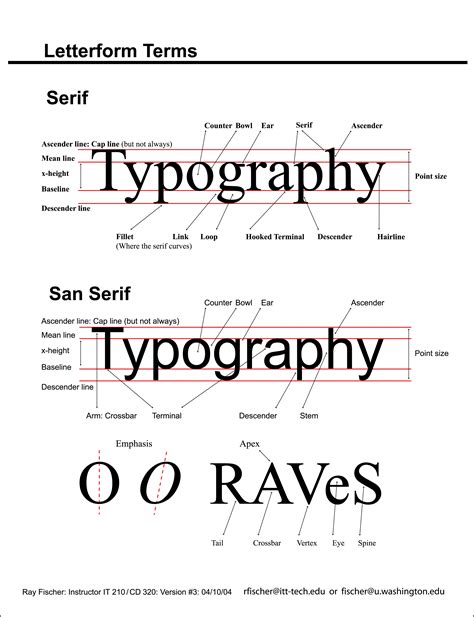
Understanding the basics of typography is the foundational step before diving into complex effects. This involves appreciating the anatomy of letterforms, the principles of hierarchy, and the psychological impact of different font styles. Once these fundamentals are grasped, Photoshop’s tools can be leveraged to enhance and stylize text in countless ways, from subtle enhancements to dramatic transformations.
Exploring Diverse Photoshop Text Effect Categories
The realm of Photoshop text effects is vast, encompassing a wide array of styles and applications. From realistic simulations to abstract artistic expressions, there's an effect for every project and aesthetic. This section explores some of the most popular and impactful categories of text effects, providing a glimpse into what can be achieved.
Realistic and Simulated Effects
Many designers aim to create text that mimics real-world materials or phenomena. These effects often require a keen eye for detail and a deep understanding of how light, shadow, and texture interact.
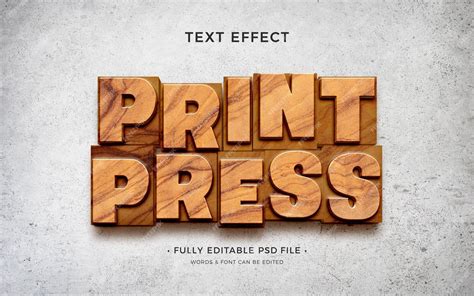
- Letterpress and Ink Styles: Simulating the tactile quality of old-school letterpress printing can add a vintage and authentic feel to designs. This involves creating the impression of ink on paper, often with subtle imperfections and textures. A "Letterpress Photoshop Kit" can offer pre-made actions and textures to achieve this effect with ease.
Neon Light Effects: The vibrant glow of neon signs can be effectively replicated in Photoshop. This effect typically involves using layer styles to create a luminous outline and a soft, diffused glow, often with variations in color to match different neon hues. A good neon effect tutorial will guide you through creating realistic light bleed and subtle imperfections.
Foil Balloon Text: For a playful and celebratory vibe, a foil balloon text effect is ideal. This technique involves creating a shiny, reflective surface that mimics inflated balloons, often with subtle creases and distortions. The use of smart objects in these tutorials makes it easy to customize the text and achieve a polished result.
Glass and Crystal Effects: Creating text that appears to be made of glass or crystal involves careful use of gradients, bevels, and inner/outer glows to simulate transparency, refraction, and highlights. These effects can add a touch of elegance and sophistication to designs.
Food-Inspired Textures: Imagine text that looks good enough to eat! Tutorials can guide you in creating effects that resemble brownies, cookies, donuts, or even ice cream. This often involves using high-resolution textures and clever layer blending to achieve a mouth-watering appearance.
3D Text Effect in Photoshop & Firefly | Tutorial
Water and Liquid Effects: Simulating the splash of water or the flow of liquid can create dynamic and engaging text. This might involve using brushes to create splashes and drips, along with layer styles to achieve a translucent, watery look.
Nature-Inspired Textures: Effects like text made of hay, grass, or even ice bring the elements of nature into your designs. Creating a hay text effect, for instance, might involve using textured brushes and layer masks to build up the appearance of dry straw.
Futuristic and Metallic Styles
For designs that require a modern, industrial, or high-tech feel, futuristic and metallic text effects are highly effective.
Futuristic Metal Text: This effect often involves creating a sleek, metallic surface with sharp highlights and deep shadows, suggesting advanced technology or machinery. Precise use of layer styles and potentially 3D rendering techniques can achieve this.
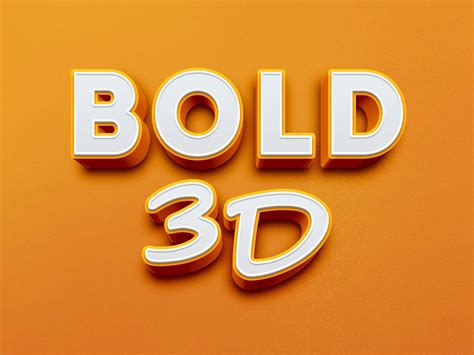
3D Text Effects: Taking text into the third dimension adds depth and presence. This can range from simple extruded text to complex, fully rendered 3D models. Many tutorials focus on creating impressive 3D effects using Photoshop's tools, often combined with smart objects for easy customization. Glorious 3D gold text effects, for example, can be created with easily modifiable smart objects.
- Chrome and Metallic Text: Achieving a polished chrome or brushed metal look involves mastering reflections, highlights, and subtle textures. These effects are excellent for adding a sense of luxury or industrial grit.
Artistic and Stylized Effects
Beyond realism, many text effects lean into artistic interpretation, creating unique visual styles.
Grunge and Distressed Textures: Grunge effects add an edgy, worn, or urban feel. This often involves applying distressed textures, rough edges, and a muted color palette.
Chalk and Sketch Effects: Recreating the look of chalk on a blackboard or a pencil sketch on paper can add a hand-drawn, informal charm. This might involve using textured brushes and adjusting layer blend modes.
Watercolor Effects: This style mimics the translucent and blended nature of watercolor paints. It often involves using watercolor brushes and layer styles to achieve a soft, artistic appearance.
Embroidery and Stitched Text: Creating text that looks like it has been embroidered onto fabric can add a crafty and detailed touch. This can be achieved using stitch brushes and layer styles to simulate the texture and depth of thread.
Double Exposure Text: Applying the popular double exposure effect to text, where an image is blended within the letters, creates a surreal and artistic outcome.
Old Movie Title Styles: Evoking the nostalgia of classic cinema, these effects can range from vintage Hollywood glamour to the distinctive looks of specific eras, like the 80s and 90s sitcom titles.
Confetti Text: A festive and celebratory effect, confetti text involves scattering colorful particles around and within the letters, giving a sense of party and fun.
Pipes and Drains: For an industrial or unconventional look, text effects that mimic pipes and drains can be highly creative and visually striking.
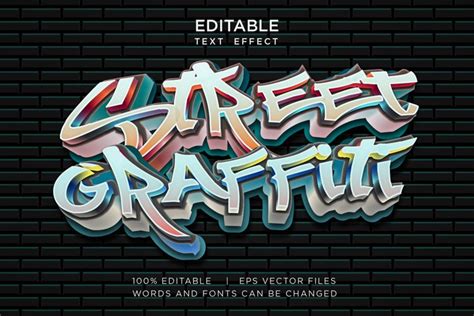
Graffiti Art: Replicating the dynamic and expressive style of graffiti can bring an urban, street-art vibe to your designs. This often involves bold lettering, spray paint textures, and vibrant colors.
Leveraging Photoshop Tools and Techniques
Creating these diverse text effects relies on a mastery of Photoshop's core features. Understanding how to use these tools effectively is key to achieving professional results.
Layer Styles: The Foundation of Text Effects
Layer styles are indispensable for creating most text effects. They allow you to non-destructively add effects like:
- Drop Shadow: Adds depth and separation.
- Inner Shadow: Creates an indented or recessed look.
- Outer Glow: Provides a luminous halo.
- Inner Glow: Creates a glow from within the text.
- Bevel and Emboss: Simulates 3D shapes and textures.
- Satin: Adds a lustrous, fabric-like finish.
- Color Overlay: Fills the text with a solid color.
- Gradient Overlay: Fills the text with a color transition.
- Pattern Overlay: Applies a repeating texture.
- Stroke: Adds an outline around the text.
Many tutorials focus on combining multiple layer styles in specific ways to achieve complex looks, such as the realistic glow of neon lights or the metallic sheen of chrome.
Smart Objects: For Flexibility and Reusability
Smart objects are crucial for creating editable and reusable text effects. When text is converted into a smart object, it can be transformed, warped, or have filters applied without losing its original quality. This is particularly useful for effects like the foil balloon text, where you can easily update the text content within the smart object, and Photoshop automatically reapplies the effect.
Brushes and Textures: Adding Detail and Realism
Custom brushes and textures play a vital role in adding depth, realism, and character to text effects.
Custom Brushes: Specialty brushes, such as stitch brushes for embroidery effects or splatter brushes for grunge looks, can significantly enhance the authenticity of an effect.
Textures: Applying image textures (like paper, metal, fabric, or wood) using layer masks and blend modes can transform flat text into something with a tangible surface. This is fundamental for effects like textured text or letterpress.
Layer Masks and Blend Modes: For Sophisticated Compositions
Layer masks allow for precise control over the visibility of layers, enabling you to selectively reveal or hide parts of a text effect. This is essential for blending text with background images or creating complex layered looks. Blend modes, on the other hand, dictate how layers interact with each other, allowing for the creation of effects like glowing lights, translucent materials, or subtle overlays.
3D Text Effect in Photoshop & Firefly | Tutorial
Beyond Tutorials: Premium Resources and Actions
While step-by-step tutorials are invaluable for learning, there are also premium resources that can accelerate your workflow and provide professional-grade results.
Photoshop Actions: These are pre-recorded sequences of commands that can automate complex processes. Many actions are available for creating specific text effects, such as ink press, retro themes, or even 3D styles, allowing you to achieve stunning results with a single click.
Premium Text Effect Packs: Designers can purchase packs of pre-designed text effects, often featuring organized smart objects, multiple layer styles, and accompanying graphic styles or brushes. These can be a significant time-saver for projects with tight deadlines. Examples include packs for fantasy, 80s, space themes, or even specific holiday-themed effects.
Staying Current with Photoshop Text Effect Trends
The world of graphic design is constantly evolving, and so are the trends in Photoshop text effects. Keeping up-to-date is essential for creating contemporary and relevant designs.
Embracing 3D Integration: The seamless integration of 3D typography with 2D images is a growing trend, adding a sophisticated and dynamic dimension to designs.
Minimalist and Clean Aesthetics: While elaborate effects remain popular, there's also a strong movement towards clean, minimalist typography that emphasizes readability and elegance.
Retro and Nostalgic Revival: As seen with 80s and 90s inspired effects, retro aesthetics continue to be a significant influence, tapping into a sense of nostalgia.
Text as a Visual Element: Moving beyond mere communication, text is increasingly treated as a primary visual element, designed to be as engaging and artistic as any illustration or photograph.
By exploring a wide range of tutorials, experimenting with different tools, and staying informed about current trends, designers can harness the full potential of Photoshop to create truly remarkable text effects that capture attention and convey messages with style and impact.