The world of digital photography and image manipulation offers a playground for creativity, and one of the most engaging aspects is the ability to virtually transform an athlete's attire. The "jersey swap" in Photoshop is a technique that allows for the seamless replacement of one sports jersey with another in a photograph. This process, while seemingly straightforward, demands a keen eye for detail, an understanding of lighting and shadow, and a mastery of Photoshop's powerful tools. Every swap you see here is done by hand in Photoshop - no apps or automated tools. That’s how we ensure a pro-level result athletes can proudly share. This meticulous approach is what elevates a simple edit into a professional-grade visual.
The Foundation: Understanding the Jersey Swap Process
At its core, a jersey swap in Photoshop is about replacing the pixels of one garment with the pixels of another, while ensuring the new garment integrates flawlessly with the existing image. This isn't merely about changing colors; it's about recreating the illusion of reality. It’s part art, part technology, and requires years of experience to get the lighting, shadows, textures, and proportions perfect. Sure, you could try using software on your phone, but without Photoshop and the skill to use it, you won’t get a realistic result. Jersey swapping in Photoshop can transform your photos into something truly unique and fun.
The complexity of a jersey swap can vary significantly. Some swaps are faster, others can take hours. This duration is directly proportional to the intricacy of the original and replacement jerseys, the complexity of the background, and the quality of the lighting present in the original photograph. A skilled artist can achieve remarkable results by meticulously attending to each of these factors.
Initiating the Swap: Selecting and Isolating the Jersey
The journey begins with opening your desired image in Photoshop. Once the image is loaded, the first critical step is to isolate the existing jersey. This is where the precision of Photoshop's selection tools comes into play.
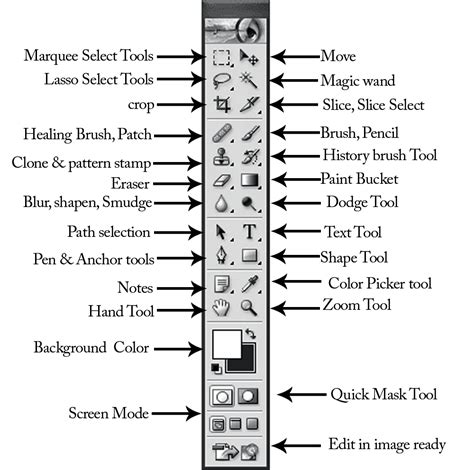
Start by opening your desired image in Photoshop. Next, select the Object Selection tool from the toolbar. This handy feature allows you to quickly isolate areas within your image. Carefully outline the jersey that you'd like to swap out; make sure you're capturing all edges for a clean selection. The Object Selection tool is particularly adept at identifying distinct objects within an image, often requiring minimal user input. However, for more complex shapes or areas where the jersey blends into the background, the Lasso Tool or the Quick Selection Tool might be employed. The goal is to create a mask or selection that perfectly delineates the jersey, ensuring no extraneous background elements are included.
The accuracy of this initial selection is paramount. Any inaccuracies here will be amplified in the subsequent steps, leading to an unconvincing final image. It’s often beneficial to zoom in closely and refine the selection using tools like the Refine Edge brush to capture subtle details, such as the edges of fabric or seams.
Sourcing the Replacement: Finding and Preparing the New Jersey
Now comes one of my favorite parts: finding a new jersey! The selection of the replacement jersey is as crucial as the initial isolation. The new jersey should ideally be photographed under similar lighting conditions and from a comparable angle to the original. This alignment significantly simplifies the blending process later on.
Open another image featuring the replacement jersey and repeat similar steps using either Object Selection or any other selection tool you're comfortable with (like Lasso or Quick Selection). Just as with the original jersey, the replacement must be meticulously selected. The same principles of precision apply, ensuring that only the jersey itself is isolated, free from any background elements or the athlete wearing it.
Once the replacement jersey is isolated, it needs to be prepared for integration. This might involve resizing, rotating, or even a slight perspective warp to match the pose and angle of the athlete in the original photograph. This step requires a good understanding of visual perspective and how garments drape on a human form.
The Art of Integration: Layering and Blending
With both jerseys now present in one frame, it's time for blending magic! The isolated replacement jersey is then placed as a new layer on top of the original image. This is where the true artistry of the jersey swap begins.
Position this new jersey layer over where it needs to go on your original photo. Careful placement is key. The new jersey needs to align not only with the body shape but also with the flow of the fabric.
Select both layers-the original shirt and swapped shirt-and use Auto-Blend Layers found under Edit > Auto-Blend Layers. The Auto-Blend Layers feature in Photoshop is a powerful tool that attempts to automatically blend the edges of two layers, creating a more seamless transition. It analyzes the pixel data of both layers and attempts to create a smooth gradient or mask where they meet. This can be a great starting point, but it rarely provides a perfect result on its own.
Refining the Illusion: Color Correction and Detail Work
To finalize things, take advantage of color correction tools such as Match Color found under Image > Adjustments > Match Color. The Auto-Blend feature often requires further refinement. This is where the "Certified Photoshop Master" aspect truly shines. Attention must be paid to:
- Lighting and Shadows: The direction and intensity of light in the original photo must be replicated on the new jersey. This involves painting in subtle highlights and deepening shadows to match the existing light source. If the original photo has a strong light coming from the left, the new jersey must also appear to be lit from the left. This might involve using dodge and burn tools, or creating new shadow layers.
- Textures and Fabric: Different jerseys have different fabric textures. The new jersey should ideally match the texture of the original, or at least appear to be made of a similar material. This might involve applying texture overlays or using filters to subtly alter the surface appearance.
- Color Matching: The colors of the new jersey must harmonize with the overall color palette of the photograph. The Match Color command can be invaluable here, as it analyzes the color statistics of a source image and applies them to the target image. However, manual adjustments using Hue/Saturation, Color Balance, or Curves are often necessary to achieve a perfect match.
- Distortion and Warping: Athletes are rarely perfectly still. The jersey needs to conform to the body's posture, including any folds, wrinkles, or stretching. Tools like the Liquify filter or the Free Transform tool with its warp options can be used to subtly adjust the shape of the new jersey to match the athlete's pose.
- Edge Blending: Even after Auto-Blend, subtle halos or hard edges might remain. These need to be carefully softened using soft brushes, erasers with low opacity, or by refining the layer mask.
How Blend Images and match colors in Photoshop Tutorial for beginners
The "Jersey Swap Generator" Approach: Efficiency and Expertise
They call me the Jersey Swap Generator for a reason. Every swap is done by hand in Photoshop, with attention to lighting, shadows, and textures to make it look 100% real. This moniker reflects a commitment to both speed and quality. While the process is manual, a seasoned professional can develop efficient workflows and techniques that significantly reduce the time required.
As a Certified Photoshop Master, I can put you in any jersey you want - from high school to the pros - and have it ready faster than you’d think. This level of expertise means not only understanding the technical steps but also developing an intuitive sense for what makes a swap look believable. It's about anticipating potential problems and having a repertoire of solutions ready.
Beyond the Basics: Advanced Techniques and Considerations
For those looking to push the boundaries of jersey swapping, several advanced techniques can be employed:
- Displacement Maps: For highly realistic fabric wrinkles and folds, displacement maps can be used. These grayscale images tell Photoshop how to distort a layer based on its brightness values, allowing for incredibly accurate replication of fabric behavior.
- Frequency Separation: This technique separates an image into its high-frequency (texture) and low-frequency (color and tone) components. This allows for independent editing of texture and color, making it easier to match the fabric details of the new jersey without affecting its color, or vice versa.
- 3D Modeling Integration: For the ultimate in realism, especially for product mockups or complex visualizations, 3D models of jerseys can be created and then rendered with lighting that matches the original photograph. The rendered jersey can then be composited into the image.
The Importance of Skill Over Automation
Searching for a jersey swap app? While automated tools might seem appealing for their speed, they often lack the nuance required for a truly convincing result. The subtle interplay of light, shadow, and fabric texture is difficult for algorithms to replicate perfectly. This is why manual editing in Photoshop remains the gold standard for professional-level jersey swaps. The ability to meticulously adjust every element ensures that the final image is not just a composite, but a believable piece of digital art.
And there you have it-a fresh look at how easy it is to swap jerseys right inside Photoshop! While the steps can be broken down, the true mastery lies in the execution, the attention to detail, and the artistic vision to make the impossible look real.