DaVinci Resolve, a powerful suite for video editing, color grading, compositing, and audio mastering, can sometimes present users with a frustrating error: "DaVinci Resolve is unable to render to the selected path 'xx' as it does not have write permission." This message, often encountered on macOS, can halt crucial rendering processes, leaving users perplexed, especially when they've successfully rendered to the same location previously or when the drive itself appears to have no permission issues at the operating system level.
This article delves into the intricacies of enabling write permissions for DaVinci Resolve on macOS, exploring the common causes of this error and providing actionable solutions. We will navigate from specific scenarios to broader implications, ensuring a comprehensive understanding for users of all levels.
Understanding the "No Write Permission" Error in DaVinci Resolve
The core of the "no write permission" error lies in DaVinci Resolve's inability to save rendered files to a specified directory. This can manifest even when the drive is not formatted as FAT32, and the file names are simple, lacking any special characters that might cause conflicts. A common observation is that the error can appear mid-render, after numerous projects have been successfully rendered to the same drive, suggesting a dynamic or project-specific issue rather than a static drive configuration problem.
One user reported rendering "9 other DPX projects to this same drive" before encountering the error on the final project. This particular project was even "rendering and got to about 90% before this error showed up." This pattern suggests that the issue might not be a simple case of a universally locked drive, but rather something that triggers under specific conditions within Resolve or related to the project's data.
Cross-Platform Drive Complications
A significant source of this error often arises when working with drives formatted for one operating system but accessed by another. Specifically, Windows users encountering this issue when writing to a Mac-formatted drive (HFS+ or APFS) are a frequent occurrence. While DaVinci Resolve on Windows can typically render to a Windows NTFS drive without problems, the interaction with Mac-formatted drives can be problematic.
The workaround for this often involves a two-step process: rendering to a regular NTFS drive on the Windows machine and then copying the rendered files from the NTFS drive to the client's Mac-formatted drive. This approach, while functional, introduces extra steps and time, particularly concerning large files. "Make it two steps: render to a regular NTFS drive, then copy from the NTFS drive to the Mac drive after the process," is a common suggestion. This workaround becomes a major issue if the drive needs to be shipped directly to someone without the ability to perform this intermediate copy.
Drive Docking Station Quirks
Another peculiar scenario involves external drive docking stations. One user experienced the same error when attempting to render to a disk connected to a rear eSATA dock on a Windows PC. The drive itself was perfectly functional at the operating system level, allowing normal read and write operations in Windows Explorer. However, within DaVinci Resolve, rendering failed. Interestingly, when the same drive was connected to a front SATA dock on the same machine, it worked fine with Resolve. This points to a potential conflict or miscommunication between DaVinci Resolve and specific hardware configurations, even when the OS registers the drive as writable. "I tried two different drives, both of which work just fine when the drive is in the front SATA dock. Neither works correctly in the rear Dock - but again, only from Resolve," highlights this perplexing behavior.
DaVinci Resolve's macOS Security Vulnerability and File Permissions
Beyond drive-specific issues, a more fundamental problem has been identified concerning DaVinci Resolve's installation on macOS. Blackmagic Design's software, including DaVinci Resolve (Studio), has been found to install with incorrect file permissions on macOS in versions prior to 19.1.3. This deviates from macOS's standard security practices, which mandate more restrictive permissions for applications.
The incorrect permission set (rwxrwxrwx) granted by DaVinci Resolve means that every user and every program on the system has full read, write, and execute access to the installed Resolve files. In contrast, secure standard permissions (drwxr-xr-x) limit full access to the file owner, with others only having read and execute rights.
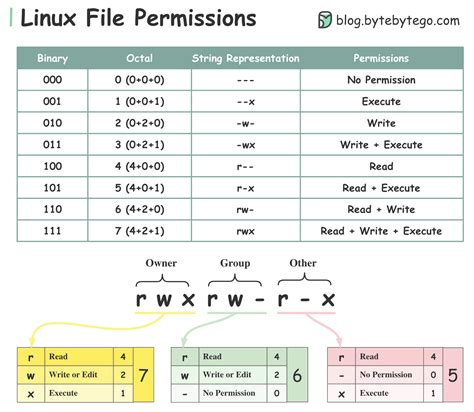
This overly permissive setting creates a significant security risk known as "Dylib Hijacking." In this scenario, an attacker could inject a malicious dynamic library (Dylib) into an unsecured application. This could potentially allow them to gain control of the system, escalate privileges, and access sensitive data. The Polish CERT has also issued warnings about this vulnerability, classifying it as "critical" (CVE-2025-1413, CVSS 9.2).
Addressing the macOS Security Flaw
The solution to this macOS-specific security vulnerability is to update DaVinci Resolve to version 19.1.3 or later. This update rectifies the file permission issues, ensuring that Resolve adheres to macOS's security standards and closes the Dylib Hijacking vulnerability. Users are strongly advised to verify their DaVinci Resolve version and update if they are running an earlier iteration. The update also brings other benefits, including support for new ARRI Alexa 265 cameras, improvements in stability and performance, and various bug fixes, such as those related to cache memory deletion and AAF clip synchronization.
How To Update Davinci Resolve in Less Than 3 MINUTES
Broader Implications of File Permissions and DaVinci Resolve
Even when the macOS security vulnerability is addressed, other factors can contribute to write permission issues within DaVinci Resolve. Sometimes, despite all user accounts and parent folders having read and write permissions, DaVinci Resolve might still report a read-only location. This can be baffling, as the drive "has written to it last week no problem."
Potential Blockers and Troubleshooting
When encountering such persistent issues, several avenues can be explored:
- External Drive Formatting: While the user explicitly stated the drive is not FAT32, other formatting inconsistencies can occur. For Mac users encountering issues writing to external drives, ensuring the drive is formatted as APFS or HFS+ (Journaled) is crucial. For Windows users, NTFS is the standard. If dealing with cross-platform workflows, consider exFAT as a compromise, though it may not offer the same performance or journaling benefits as native file systems.
- Antivirus Software: Overzealous antivirus or security software on either Windows or macOS can sometimes interfere with applications' ability to write to certain locations, mistaking legitimate file operations for malicious activity. Temporarily disabling such software (with caution) can help diagnose if it's the culprit.
- Drive Health and Corruption: While a drive might appear functional at the OS level, underlying file system corruption can lead to specific application failures. Running disk utility tools (Disk Utility on macOS, CHKDSK on Windows) can help identify and repair such issues.
- Resolve Project Corruption: In rare cases, the DaVinci Resolve project file itself might become corrupted, leading to peculiar errors. Trying to import the project into a new, blank Resolve project can sometimes resolve such issues.
- Cache and Temporary Files: DaVinci Resolve heavily utilizes cache and temporary files. Issues with these directories, such as them being full or having incorrect permissions, can indirectly affect rendering. Clearing Resolve's cache or directing it to a different, known-writable location can be beneficial.
- User Account Control (UAC) on Windows: On Windows, User Account Control can sometimes restrict an application's access to certain directories, even if the user has permissions. Running DaVinci Resolve as an administrator can sometimes bypass these restrictions, though it's generally advisable to manage permissions directly rather than relying on elevated privileges.
The Importance of Direct Access
The ideal scenario is for DaVinci Resolve to have direct, unimpeded write access to the desired rendering location. The need to resort to multi-step copying processes highlights a friction point in workflows, especially when dealing with large datasets typical in video production. The ability to render directly to a client's drive, for instance, streamlines the handover process significantly. The frustration expressed by users, such as "This would create a major issue if I was needing to ship the drive to someone…. This kind of stuff better not happen in Resolve 12," underscores the critical need for robust and reliable file handling within professional software.
Ensuring correct file permissions and understanding the nuances of cross-platform drive access are paramount for a smooth and efficient DaVinci Resolve experience on macOS and beyond. By addressing both software-level security configurations and drive-specific access protocols, users can overcome these common hurdles and focus on their creative work.