The XP-Pen Artist 12 is a popular choice for digital artists and designers, offering a direct drawing experience on a screen. However, like any piece of technology, it can sometimes encounter issues. A common problem users face is the XP-Pen Artist 12 screen not working, which can manifest in various ways, from a completely blank display to a stylus that isn't registering input correctly. This comprehensive guide aims to systematically address these issues, drawing on user experiences and technical insights to help you get your creative workflow back on track.
Understanding the Initial Setup and Common Pitfalls
Before diving into troubleshooting, it's crucial to ensure the initial setup of your XP-Pen Artist 12 was performed correctly. The process generally involves connecting the provided USB and HDMI cables to both your tablet and computer. Once the physical connection is established, the tablet driver should begin installing automatically. After a PC reboot, proper configuration in the display settings is essential.
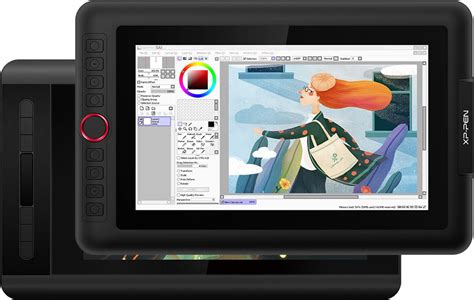
A common misstep that can lead to the tablet not working is an incorrect display configuration. When using the Artist 12 in "Duplicate mode" on Windows 10 or 11, it's vital to set the monitor resolution to 1920x1080, which is the native resolution of the tablet. If you opt for "Extend mode," your computer monitor should retain its own resolution, while the Artist 12 should be set to 1920x1080. Furthermore, ensure that the scaling for text, apps, and other items (or "Scale & layout" in Windows 11) is set to 100%. Misaligned screens can also contribute to cursor inaccuracies.
Basic Troubleshooting Steps: The Power of a Restart
Often, the simplest solutions are the most effective. If your XP-Pen Artist 12 screen is not working, the first and most straightforward step is to restart your computer. This process, also known as power cycling, can resolve temporary software glitches or conflicts that might be preventing the tablet from functioning correctly.
Method 1: Restart Your Computer
- Disconnect the XP-Pen tablet: Before restarting, ensure you disconnect all cables from your XP-Pen Artist 12.
- Restart your PC: Proceed with a standard restart of your computer.
- Reconnect the tablet: Once your computer has fully booted up to the desktop, reconnect the XP-Pen tablet.
- Test functionality: Check if the screen is now working and the stylus is responsive.
If a simple restart doesn't resolve the issue, it's time to move on to more specific troubleshooting.
Investigating Connection Issues: The Backbone of Functionality
A faulty or improper connection is a frequent culprit when an XP-Pen device fails to work. This can stem from loose cables, faulty ports, or incorrect cable usage.
Method 3: Check the Connection
- Secure all cables: Ensure that both the USB and HDMI cables are firmly plugged into both the XP-Pen Artist 12 and your computer. Loose connections can easily interrupt the signal.
- Try different USB ports: If you suspect a USB port issue, try connecting the tablet's USB cable to a different USB port on your computer. It's advisable to use ports directly on the motherboard (usually at the back of a desktop PC) rather than those on a hub or front panel, as they often provide more stable power and data transfer.
- Verify HDMI connection: Confirm that the HDMI cable is securely connected to both the tablet and your computer's graphics card.
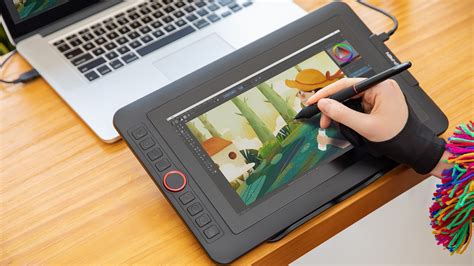
- Confirm both cables are plugged in: For most XP-Pen devices, including the Artist 12, it is crucial to connect both the USB and HDMI cables for the device to function properly. The USB cable handles data and power, while the HDMI cable transmits the display signal.
Addressing Driver-Related Problems: The Software's Role
Drivers are essential software components that allow your operating system to communicate with your hardware. Outdated, corrupted, or incorrect drivers are a prime reason for an XP-Pen tablet not working.
How to Fix XP-Pen Drivers Not Working
Method 1: Update the Tablet Driver Manually
- Identify your device and OS: Ensure you know the exact model of your XP-Pen tablet (Artist 12) and your operating system version (e.g., Windows 10, Windows 11).
- Download the latest driver: Visit the official XP-Pen website and navigate to the support or download section. Download the latest driver specifically designed for your XP-Pen Artist 12 and your operating system architecture (32-bit or 64-bit). It's generally recommended to use the newest available driver, as they often include bug fixes and performance improvements.
- Uninstall existing drivers: Before installing the new driver, it's good practice to uninstall any previous XP-Pen drivers. You can do this through "Apps & features" in Windows Settings or by using a driver uninstaller tool for a more thorough removal.
- Install the new driver: Run the downloaded driver installer and follow the on-screen instructions.
- Reboot your computer: After the installation is complete, restart your computer.
- Reconnect the tablet: Once your PC has rebooted, reconnect your XP-Pen Artist 12.
Method 2: Utilize a Driver Updater (with caution)
While manual driver updates are often preferred for specialized hardware like drawing tablets, automated driver updater tools can also be used. These programs scan your system for outdated drivers and offer to download and install the correct ones. However, exercise caution and choose reputable software, as some can install incorrect or even malicious drivers.
Exploring System Settings and Potential Conflicts
Certain Windows features or system configurations can sometimes interfere with the proper functioning of graphics tablets.
Method 4: Disable Sleep Mode
Some users have reported issues with their XP-Pen devices after waking their computer from Sleep Mode. The tablet might not be recognized or may stop responding.
- Disable Sleep Mode: You can prevent this by disabling the Sleep Mode feature on your computer. This is typically found in the Power Options settings within the Control Panel or Windows Settings.
- Consider Hibernation: Alternatively, instead of putting your PC to sleep, you could try hibernating it. Hibernation saves your current session to the hard drive and powers down the computer completely, which can sometimes reset hardware connections more effectively than sleep mode.
Method 5: Turn Off the Windows Ink Workspace
Microsoft's Windows Ink Workspace is designed to enhance pen input on Windows devices. However, for some users, it can cause lag or interfere with the functionality of graphics tablets. Disabling it might resolve such issues.
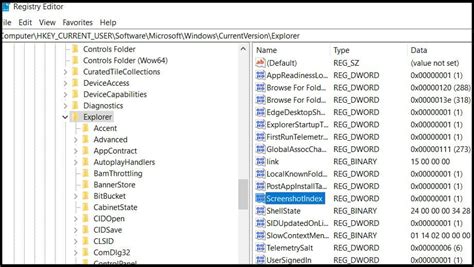
- Caution: Disabling Windows Ink Workspace often requires editing the Windows Registry. It is highly recommended to back up your registry before making any changes.
- Registry Editing Steps:
- Press
Win + R, typeregedit, and press Enter to open the Registry Editor. - Navigate to
HKEY_CURRENT_USER\Software\Microsoft\Windows\CurrentVersion\Pen. - Look for a DWORD value named
WindowsInkWorkspace. If it exists, double-click it and change its Value data to0. - If
WindowsInkWorkspacedoes not exist, right-click on thePenkey, selectNew>DWORD (32-bit) Value, name itWindowsInkWorkspace, and set its Value data to0. - In some cases, you might need to navigate to
HKEY_LOCAL_MACHINE\SOFTWARE\Policies\Microsoft\Windows\TabletPCand create or modify a DWORD value namedDisableInkingto1. If theTabletPCkey doesn't exist underWindows, you may need to create it. - Reboot your computer after making these changes.
- Press
Method 6: Check Windows Pen and Touch Settings
It's essential to ensure your tablet is recognized and configured correctly by Windows.
- Access Pen and Touch Settings: In Windows Search, type "Pen and Touch" and select the relevant option from the search results.
- Check for recognition: Observe if your XP-Pen Artist 12 is listed or recognized within these settings. If it is, you can explore options for pen configuration and calibration here.
Advanced Troubleshooting: Deeper System Checks
If the above steps haven't resolved the issue, more in-depth investigation might be necessary.
Troubleshoot the Device
This is a general category that encompasses various checks.
- Check Device Status: Ensure the device's power status is correct. While most XP-Pen devices draw power via USB, some might have additional power requirements or indicators.
- Inspect the Pen: Verify that the stylus pen itself is functional and not physically damaged. Some pens have replaceable nibs, so ensure the nib is securely in place and not worn out.
- Compare with Another Computer: If possible, try connecting your XP-Pen Artist 12 to a different computer. This is a crucial step to determine if the problem lies with the tablet itself or with your primary computer's hardware or software environment. Pay close attention to any differences in application installations, system versions, or driver conflicts between the two computers.
Connection&Driver Settings for XP-Pen Artist 12 on Windows
Calibration for Accuracy
If your XP-Pen Artist 12 screen is working, but the stylus pen isn't accurately tracking inputâmeaning your brush strokes don't appear where the nib touches the screenâyou'll need to calibrate the pen.
How to Calibrate Your Pen on Artist 12
For Windows 10:
- Right-click on your desktop and select "Display Settings."
- If using "Duplicate mode," set both displays to 1920x1080. If using "Extend mode," set your computer monitor to its native resolution and the Artist 12 to 1920x1080.
- Under "Change the size of text, apps, and other items," set the scaling to 100%.
- Ensure your displays are physically aligned and parallel.
- Open the XP-Pen Tablet Driver software.
- Navigate to the "Work Area" tab.
- Select the "Screen" option.
- Click the "Calibration" button.
- Follow the on-screen prompts, using your stylus to click on the crosshair targets that appear.
For Windows 11:
- Right-click on your desktop and select "Display settings."
- If using "Duplicate mode," set both displays to 1920x1080. If using "Extend mode," set your computer monitor to its native resolution and the Artist 12 to 1920x1080.
- Under "Scale & layout," choose "Scale" as 100%.
- Ensure your displays are physically aligned and parallel.
- Open the XP-Pen Tablet Driver software.
- Navigate to the "Work Area" tab.
- Select the "Screen" option.
- Click the "Calibration" button.
- Follow the on-screen prompts, using your stylus to click on the crosshair targets that appear.
After calibration, restart your computer and test the pen functionality again. If a very small offset persists, repeating the calibration process might help.
Understanding Device Behavior: The RGBWB Flashing Issue
A specific issue reported by some users involves the XP-Pen graphics tablet (potentially including the Artist 12) flashing an RGBWB pattern. This behavior is often indicative of a pixel burn-in test mode. Unfortunately, if your device is out of warranty, the manufacturer may refuse to provide support, suggesting a replacement. This situation highlights the importance of understanding warranty terms and the potential for hardware failure over time.
When All Else Fails: Seeking Further Assistance
If you have diligently followed all the troubleshooting steps and your XP-Pen Artist 12 screen is still not working, it's time to seek more direct support.
- Contact XP-Pen Support: Reach out to XP-Pen's customer support. While they might have refused help due to warranty status in one instance, it's always worth contacting them again, explaining the steps you've already taken. They may have further diagnostic steps or be able to offer repair or replacement options outside of the standard warranty.
- Community Forums: Online forums dedicated to digital art or XP-Pen products can be a valuable resource. Other users may have encountered and solved similar issues.
XP-Pen devices are becoming increasingly integrated into the digital creative landscape, and resolving such technical hiccups is crucial for maintaining productivity and artistic flow. By systematically working through these troubleshooting steps, you increase the likelihood of diagnosing and fixing the problem, allowing you to return to creating with your Artist 12.