In today's visually saturated digital landscape, photographers face the ever-present challenge of making their work stand out. With numerous platforms and constant updates, navigating social media can feel overwhelming. The key to success lies in establishing a robust online foundation that not only showcases your photographic prowess but also allows ample time for your true passion: creating stunning images. This guide delves into the specifics of posting on VSCO, a platform designed with photographers in mind, offering actionable strategies to build your brand and connect with a like-minded community.
The Indispensable Role of Social Media for Photographers
Social media transcends its function as a mere photo-sharing repository; it is a potent instrument for cultivating a photography business and solidifying your brand identity. Investing your time and effort into these platforms yields significant returns.
Gaining Exposure: Social media amplifies the visibility of your work, extending your reach to potential clients and collaborators far beyond your immediate geographical vicinity. This broad exposure is crucial for photographers aiming to expand their client base and artistic influence.
Building Trust and Credibility: A meticulously curated profile, featuring your finest work, client testimonials, or tagged posts from satisfied clients, alongside links to your professional website or online portfolio, acts as a powerful testament to your credibility. It establishes you as a reliable and skilled professional in the eyes of potential clients and industry peers.
Effective Networking: Social platforms serve as vibrant hubs for connection, forging pathways to industry collaborations, uncovering new professional opportunities, and connecting with fellow creatives who can significantly contribute to the advancement of your photography career.
Inspiration and Continuous Learning: By actively following other photographers and creative accounts, you immerse yourself in a constant stream of inspiration, enabling you to discover new techniques, emerging trends, and innovative ideas. The pursuit of great photography is rarely an isolated endeavor; seeking inspiration and engaging with other creators is essential for propelling your work in novel directions.
Defining Your Photography Goals
Before embarking on your social media journey, it's imperative to clarify your objectives. Are you seeking to attract new clients, promote and sell prints, establish connections with industry professionals, or simply share your profound passion for photography? Your defined goals will invariably shape your platform choices, the nature of the content you share, and your approach to audience interaction.
Understanding VSCO: A Photographer's Haven
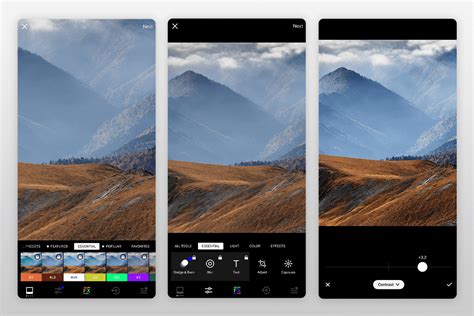
VSCO stands out as a unique platform that seamlessly blends sophisticated photo editing capabilities with a community-driven sharing environment. It places a strong emphasis on creative expression, offering high-quality tools, film-like presets, and innovative methods for connection and network expansion. For photographers seeking to showcase their work without the pervasive distractions often found on mainstream social media, VSCO presents an exceptional space. The platform cultivates a robust sense of community, making it an ideal environment for connecting with photographers who share your artistic sensibilities, discovering fresh inspiration, and collaborating on exciting projects. It serves as an excellent venue for photographers to build their portfolios and attract discerning clients who resonate with their distinctive artistic vision.
Optimizing Your VSCO Profile for Impact
Your VSCO profile is often the initial point of contact for new viewers, making its optimization crucial. It should be a clear and concise representation of your skills, your photographic niche, and your professional availability.
Profile Name and Keywords: Incorporate relevant keywords into your profile name to enhance discoverability. While the temptation to share every photograph you capture might be strong, prioritize quality over quantity.
Curating Your Feed: If your aim is to share a broader spectrum of your work without the pressure of presenting only your absolute best, the VSCO feed offers a relaxed environment. You can later curate specific images into galleries or feature them on your personal website.
Strategies for Effective VSCO Posting
Sharing your photography on VSCO requires a thoughtful approach to ensure your content resonates with the community and achieves your personal or professional goals.
Consistent Editing for a Unified Aesthetic: Maintain a cohesive editing style across your posts to cultivate a recognizable and unified visual identity. VSCO's "Recipes" feature is invaluable for creating unique, yet consistent looks that can be easily applied to your images, ensuring a professional and polished presentation.
Embracing Variety in Content: Don't shy away from experimenting with different photographic genres and shot types, such as portraits, landscapes, and detailed close-ups. This variety keeps your feed engaging and can help you identify specific styles or genres that particularly resonate with your audience over time.
Strategic Posting Frequency: Aim for regular posting, but never at the expense of quality. A balanced approach for photographers often involves posting 3-5 times per week. Avoid imposing overly rigid schedules, especially when managing other aspects of your photography business, as burnout is a genuine concern, and occasional missed posts are perfectly acceptable.
Engaging with the VSCO Community
Social media, and VSCO is no exception, is fundamentally about building relationships, not just broadcasting your work. Active engagement is key to fostering a loyal community.
Liking, Commenting, and Following: Interact with other photographers and potential clients by liking and commenting thoughtfully on their posts. Staying abreast of their recent activity demonstrates genuine interest and helps build reciprocal connections.
Responding to Interactions: Acknowledge and reply to comments and discussions on your posts. This not only shows appreciation for your audience but also encourages further interaction.
Direct Messages: Respond promptly to genuine inquiries and messages. Furthermore, if you perceive a strong potential for collaboration or connection, don't hesitate to initiate a direct message yourself. A simple conversation can unexpectedly blossom into a new collaboration or lead to a valuable client.
Utilizing Interactive Tools: While VSCO's core functionality is focused on sharing, engaging with features like polls or question stickers (if available or through connected platforms like Instagram Stories linked to VSCO) can boost audience participation and provide valuable insights.
The Power of Engagement: Consistent engagement signals to social media platforms that your content is valuable, often leading to increased visibility for your posts. If you find your content isn't gaining traction, consider prioritizing engagement as a more balanced strategy.
The Cornerstone of Authenticity
While aesthetics and strategic planning are undeniably important, authenticity is the true catalyst for connecting with people and cultivating a dedicated audience. Be genuine in your captions and written communications, share the narrative of your photographic journey, and embrace vulnerability. For instance, consider sharing the story behind a particularly meaningful photograph, discussing the challenges you've encountered as a photographer, or celebrating your achievements and milestones with your followers.
Leveraging SEO and Hashtags for Discoverability
To enhance the discoverability of your VSCO content, optimize your captions, descriptions, and any available alt text with relevant Search Engine Optimization (SEO) keywords. For example, if you are posting a portrait session, including terms like "portrait photography" or "[Your City] portraits" can significantly improve search results.
Strategic Hashtag Use: Incorporate relevant hashtags to broaden the reach of your posts. Opt for specific tags that accurately describe your work, such as #WeddingPhotography, rather than overly generic ones like #PhotoOfTheDay. On platforms like Threads, where a single hashtag is permitted per post, community-focused tags like #PhotographersOfThreads can be particularly effective.
How To Effectively Use Hashtags As Social Media Manager - 2022 Guide
Batching and Scheduling for Efficiency
Save valuable time by batching your content creation and scheduling posts in advance. This practice ensures a consistent presence on your profile without the demand of daily posting efforts, allowing you to focus more on your photography.
Exploring VSCO's Advanced Features for Photographers
VSCO offers a comprehensive suite of tools and community features specifically tailored for photographers, extending far beyond its well-known editing capabilities.
Showcasing Your Style and Connecting: Your VSCO profile is the ideal digital canvas for exhibiting your unique photographic style and initiating network growth. Post images that authentically reflect your personal vision and observe how they stand out by visiting your Feed. From there, you can discover and follow inspiring photographers, and favorite or repost images that fuel your creative spirit.
Beyond Photos: Embracing Video: VSCO supports video content, enabling you to edit with its full range of presets, share behind-the-scenes glimpses of your creative process, or capture and share cinematic scenes that capture your attention. Effortlessly curate your best work and maintain an updated portfolio, all within the VSCO ecosystem.
Storytelling with VSCO Blogs: Social media thrives on connection, and compelling narratives are a powerful means to achieve this. Utilize VSCO Blogs to share insights into your creative process, offer behind-the-scenes perspectives, and express your unique artistic vision. VSCO Blogs allow you to combine and customize text, photos, and videos into a single, cohesive post that can be published directly to your feed, profile, and website.
Connecting with Clients via VSCO Hub: Pro Members have the option to be listed on VSCO Hub, a dedicated space where clients actively search for and hire top photographers. To be discoverable, simply post your best work and ensure your profile is optimized. Keep your availability updated on your profile to indicate your openness to "Professional Work." Further explore VSCO Hub to understand how to enhance your visibility to clients seeking photography and creative professionals.
Advanced Posting Strategies on Other Platforms (Instagram Example)
While this guide focuses on VSCO, understanding complementary platform strategies can enhance your overall social media presence. For instance, on Instagram:
Collab Posts: Collaborate with fellow creators and photographers by co-authoring posts. Tagging collaborators ensures their followers also see your work, significantly expanding your reach. Consider developing a series of posts with a unifying theme to accommodate diverse collaborators.
Carousel Posts: Posts featuring multiple images or videos (carousels) often outperform single-image posts on Instagram. Utilize the ability to include up to 20 images or videos and pair them with music to boost visibility.
Reels for Dynamic Content: Reels offer a dynamic format for showcasing your photography. Even if video isn't your primary medium, you can create engaging Reels by compiling photos into slideshows. Leverage Instagram's built-in text tools and trending audio to increase discoverability. You can also utilize VSCO's video editing capabilities to produce unique Reels.
Story Highlights for Behind-the-Scenes: Save your Instagram Stories as highlights on your profile to provide glimpses into your work process. VSCO's editing app can help you create professional-looking highlights with customizable tools and effects. For example, if a celestial event like a solar eclipse is trending, you could share your night photography or moon-related work.
Pinning to Your Profile: On platforms like Threads, pinning a significant post to the top of your profileâwhether it's a high-performing image or one that highlights a crucial aspect of your workâensures it remains prominently visible. This can include educational content, your personal journey as a photographer, or behind-the-scenes footage from shoots. By concentrating your efforts on a few key platforms, optimizing your profiles, and employing strategies like SEO keywords, hashtags, and trending audio, you can effectively distinguish yourself in a competitive digital environment.
The Core VSCO Posting Workflow
The process of publishing your work on VSCO is designed to be intuitive and user-friendly, ensuring your creative output reaches the community efficiently.
Quick Publishing: If a photo requires further editing before sharing, you can import and edit images directly through the "+" button.
From Your VSCO Studio: The VSCO Studio serves as your private workspace where all your imported and edited images are stored before public publication.
From Your VSCO Studio on Web: VSCO also offers a web-based Studio, allowing for seamless editing and management of your work across devices.
Editing Photos Within VSCO: A Deep Dive
The VSCO app provides a comprehensive suite of photo editing tools designed to help you achieve your desired aesthetic.
Importing Images into VSCO Studio: To begin editing, navigate to the Studio tab and tap the "Import" button. Select the images (and even videos) you wish to edit from your camera roll. Once selected, tap "Add," and these items will be added to your VSCO Studio as drafts. It's crucial to remember that these drafts are linked to your camera roll; deleting them from your phone will result in their disappearance from VSCO as well.
Accessing the Photo Editor: Within your Studio, select an image draft and choose the "Edit Image" option to enter the photo editor.
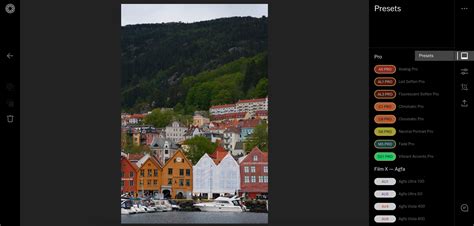
Leveraging VSCO Presets: The "Presets" tab is your gateway to a vast library of pre-made looks. These presets offer a quick and effective way to apply a wide range of styles to your images, delivering impressive results with minimal effort. You can view presets in a grid format, and the categorized list helps in navigating the extensive collection. The "For This Photo" feature utilizes AI to recommend presets tailored to your specific image, often serving as an excellent starting point for editing. You can adjust the strength of any applied preset to perfectly match your taste.
A Spectrum of Preset Photo Filters: VSCO boasts over 200 presets, categorized to suit various aesthetic goals. This includes:
- Free Presets: Available to all users upon signup (e.g., B1, B5, F2, G3).
- Standard Presets: Offer a strength slider for fine-tuning, encompassing categories like Legacy, Analog, Artificial Lighting, Black & White Classic, Chromatic, Portrait, Infrared, Mood, Instant, Bright, and Low Contrast.
- Film Presets: Emulate the distinct characteristics of various analog film stocks from brands like Fujifilm, Kodak, Agfa, and Ilford.
- We the Creators Presets: Developed in collaboration with photographers to share their signature styles.
- VSCO Pro Presets: Provide enhanced contrast, color, and tone controls for many popular looks.
Tapping on a preset name provides a detailed description and examples of its community usage, encouraging exploration.
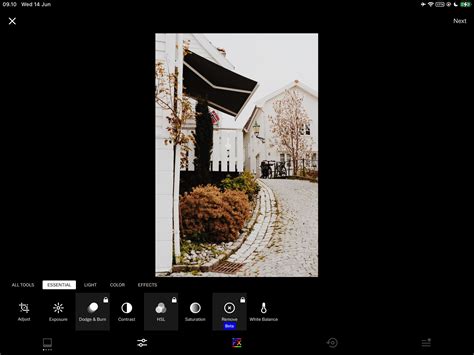
Advanced Tools in the VSCO Photo Editor: Once a preset is applied, the "Tools" tab offers granular control for further adjustments. These tools are designed for both correcting imperfections and making artistic enhancements.
- Adjust: Fine-tune composition with free-hand or set aspect ratio cropping, rotation, skewing, and straightening.
- Exposure: Brighten or darken photos to recover detail and correct over or underexposed moments with a natural, editorial finish.
- Contrast: Precisely adjust contrast to shape light, depth, and mood, whether for subtle scenes or bold, high-contrast looks.
- Tone: Balance highlights and shadows to manage harsh contrast while preserving crucial details within the frame.
- Dodge and Burn: Selectively brighten and darken specific areas using exposure brush tools to guide the viewer's eye.
- Saturation: Modify color intensity for high or low saturation aesthetics.
- White Balance: Correct color casts and set the mood by adjusting temperature and tint for accurate or stylized color representation.
- HSL (Hue, Saturation, Lightness): Fine-tune individual colors, shifting hue, saturation, and lightness to make specific tones stand out while maintaining overall image balance.
- Sharpen: Enhance texture and clarity, subtly refining detail without compromising the natural feel of the image.
- Clarity: Improve texture and depth by cutting through softness, keeping the image clean and natural.
- Bloom: Softly blur highlights to create a hazy, dreamlike glow, adding an atmospheric, cinematic quality.
- Halation: Achieve a warm, cinematic glow with a subtle halo reminiscent of vintage film.
- Grain: Introduce film-like texture and imperfections for a classic analog aesthetic.
- Vignette: Apply a vignette to subtly draw the eye towards the center of the frame, enhancing focus.
- Fade: Reduce contrast for a softer, time-worn feel, creating a muted, vintage print aesthetic.
- Skin Tone: Subtly adjust reds and greens to refine facial and body tones without affecting other image elements.
- Split Tone: Introduce color into highlights and shadows for nuanced mood creation.
- Borders: Add structure with customizable borders, adjusting size and color for a finished look.
- Text: Overlay text to add narrative elements, adjusting scale, color, and orientation for seamless integration.
- Blur: Control focus intentionally by softening backgrounds or selective areas to guide attention and add depth.
FX (Effects) Tab: This section offers a variety of overlays for film and light effects, applicable to both photos and videos.
- Distressed Photo Effects: Film-inspired textures like burn marks, light leaks, and imperfections of expired film add a lived-in, analog edge.
- Film Frame Overlays: Mimic the charm of analog formats like 35mm, 16mm, or 8mm for a nostalgic or cinematic feel.
- Light Effects: Introduce realistic lens flares and light leaks with customizable overlays for added depth and atmosphere.
- Texture: Layer grain, dust, and scratches from real film scans to impart vintage character.
Editing Videos with VSCO
VSCO extends its powerful editing capabilities to video, allowing you to shape mood and motion with familiar tools.
Video Editing Workflow: Upload a video from your camera roll and select "Edit Video." You can apply presets and adjust light and color using standard tools. Additional video-specific tools include:
- Trim: Precisely cut video clips to tighten their start and end points.
- Speed: Adjust playback speed for slow-motion effects or faster pacing (0.1x to 16x).
- Reverse: Reverse and mirror playback for seamless loops or intentional effects.
- Volume: Lower or remove video audio for a purely visual experience.
- Video Effects: Apply retro and creative looks like VHS filters, digital glitches, kaleidoscope mirroring, and chroma split effects.
Creating Collages and Montages
VSCO provides tools for creative composition beyond single images.
Photo Collages: In the VSCO Studio, select "Create Photo Collage." You can start with designer templates or a blank canvas, then scale, rotate, flip, and overlay images. Add backgrounds, shapes, and text. Opacity controls allow for double-exposure effects, and filters can be applied to individual elements before exporting.
Montages: Select a photo or video in your VSCO Studio, click "More," and choose "Create Montage." This allows you to layer photos, videos, shapes, and colors onto a canvas to create visual stories.
VSCO's Camera Apps: VSCO Capture
For those seeking more control during the shooting process, VSCO offers integrated camera functionalities.
VSCO Capture (Standalone App): This dedicated camera app provides manual controls for shutter speed, ISO, white balance, and more, offering precision for iPhone photography. You can shoot with VSCO presets applied or use effects like Bloom and Halation.
Built-in VSCO Camera: The core VSCO app includes a legacy camera with effects like a prism lens and double exposure.
Regardless of which camera app you use, you can bring your photos into VSCO for editing and sharing.
Saving Your Custom Edits: Recipes
The "Recipes" tab allows you to save a specific set of edits for quick recall, significantly speeding up your workflow. The "Organize" tab further enhances your editing space by letting you favorite and arrange tools as you prefer.
Sharing Your Content from VSCO
When you're ready to share your edited work, tap the top-right share icon.
- Share to…: Share directly to other installed apps on your phone.
- Post to VSCO: Publishes the image to the VSCO community, making it visible to others.
- Save to Camera Roll: Saves the edited image to your device's photo library.
- Share Your Recipe: Allows you to share your favorite edit settings with the community.
- Sync to Cloud (Pro Members): Enables sending the image to the web editor for further editing on a desktop.
Posting Images to VSCO: A Step-by-Step Guide
To publish an image to VSCO:
- Select the Image: In your VSCO Studio, select the image you wish to post.
- Tap the Share Icon: Tap the top-right share icon.
- Choose "Post to VSCO": This action will also save the image to your camera roll simultaneously.
- Add a Description: Enter a brief description for your post.
- Enable Discussions (Optional): You can allow discussions on your post, which are visible to all but interactive only for Plus or Pro Members. You have full control to enable or disable this feature at any time.
- Publish: Tap to publish. Your image will now appear at the top of your VSCO Feed.
Navigating the VSCO Feed and Actions
The VSCO Feed displays images from users you follow in chronological order. Under each image, you'll find several icons for community interaction:
- Favorites (Star Icon): Favourites are private notifications to the creator, indicating you liked their work.
- Reposts (Chasing Arrows Icon): Reposting an image shares it with your followers and adds it to the "Reposts" tab on your profile. The original creator will be notified.
- Discussions (Chat Bubble Icon): If enabled, this allows Plus or Pro Members to start or join discussions on the post.
The "Suggested" carousel on the Feed provides recommendations for new creators to follow, expanding your network.
Your VSCO Profile: A Digital Portfolio
Your VSCO Profile is where all your published images, reposts, and personal "About" information are displayed. Access it by tapping the "Profile" tab (face icon). Pro members can organize their published work into albums or "Collections" for enhanced curation.
Collections: Curating and Showcasing Inspiration
Collections allow you to curate and publicly showcase groups of images that inspire you.
Saving to Your Library: In the Explore or Search sections, double-tap images that resonate with you to save them to your private Library.
Publishing to Your Collection: Select images from your Library and tap the arrow to publish them to your public Collection. Creators whose work is added to your Collection will receive a notification.
Viewing Collections: You can view your own published Collections and see which of your images have been added to others' Collections via the notification center.
VSCO Blogs: Deepening Your Storytelling
VSCO Blogs, available to Pro Members on web and iOS, are designed for in-depth storytelling. Use them to publish photo essays, detail your creative process, share outtakes from shoots, or offer behind-the-lens perspectives.
Creating and Managing Blogs: Drafts are saved for easy access, while published blogs are sorted chronologically. You can edit or delete any blog.
Migrating from VSCO Journals: Previously published VSCO Journals are now accessible as VSCO Blogs and can be edited or deleted.
Blog Limitations: Currently, bulk image uploading is not supported, with a maximum file size of 5MB per image. There is no limit to the number of blogs a Pro Member can create. Blogs are published immediately upon clicking "Publish," with no option for future scheduling, though drafts can be saved for later publication.
Frequently Asked Questions About VSCO Posting
- Editing Published Images: Currently, VSCO does not offer the functionality to edit an image once it has been published to the platform.
- Image Upload Failures: VSCO is actively working to resolve issues related to photo uploads for VSCO Blogs on iOS.
By understanding and implementing these strategies, photographers can effectively leverage VSCO and other social media platforms to build a strong online presence, connect with a vibrant community, and ultimately, advance their photographic careers.