The Adobe Photoshop Clone Stamp tool, a foundational element in digital image manipulation, offers unparalleled control for retouching, repairing, and creatively altering photographs. This powerful instrument, with its ability to sample pixels from one area of an image and paint them onto another, has been a go-to for photographers and designers for decades. From its early days in Photoshop Elements 2.0, where it was instrumental in creating compelling cover images, to its sophisticated applications today, the Clone Stamp tool remains an indispensable part of any post-processing workflow. This guide delves into the core functionalities, practical applications, and advanced techniques of this remarkable tool, empowering users to achieve seamless and professional results.
The Genesis of Pixel Replication: Understanding the Clone Stamp Tool
At its heart, the Clone Stamp tool is a digital brush that replicates pixels from a designated source area onto a target area. The term 'clone' itself signifies the creation of an identical copy, and this tool embodies that principle by allowing users to meticulously reconstruct or alter image content. Historically, tasks achievable with the Clone Stamp tool would have required extensive and costly manual work, such as sending master prints to an airbrusher. Such traditional methods often led to a degradation of image quality due to the re-photographing process. The advent of the Clone Stamp tool revolutionized this by enabling seamless, undetectable alterations directly within the digital realm, transforming what was once a pipe dream into an achievable reality.

The fundamental principle of using the Clone Stamp tool involves defining a source point and then painting with those sampled pixels. This process is akin to having an infinite supply of a specific texture or pattern that can be applied precisely where needed. While the concept is straightforward, mastering its application requires an understanding of its various settings and a keen eye for detail. The goal is always to achieve retouching that is invisible to the naked eye, a testament to skillful manipulation.
How to Wield the Clone Stamp: A Step-by-Step Approach
Getting started with the Clone Stamp tool is an intuitive process, but establishing good habits early on will significantly enhance your workflow and the quality of your results.
Preparing Your Workspace
A crucial first step, and one that cannot be overemphasized, is to duplicate your background layer. This is typically achieved by pressing Control + J (Windows) or Command + J (Mac). Working on a duplicated layer provides a safety net, allowing you to easily revert to the original image if any mistakes are made or if you decide to alter your approach. While it's possible to work directly on the base layer, doing so can make backing out of complex edits far more challenging.
Defining the Source Point
Once your layer is duplicated, select the Clone Stamp tool from the left-hand toolbar. Its icon is reminiscent of a rubber stamp. Position your cursor, which acts as your brush, over the area of the image you wish to sample from. This is your 'source' area. To define this source, hold down the Alt key (Windows) or the Option key (Mac) and click. Your cursor will transform into a small target with crosshairs, indicating the center of your clone source - essentially, your digital 'stamp pad.'
Painting with Pixels
With the source point defined, shift your cursor to the area where you want to apply the cloned pixels. This is your 'target' area. Begin painting by clicking and dragging. If your tool's opacity is set to 100%, you will immediately see pixels from your source area overwriting the pixels in your target area. As you paint, you'll notice a crosshair at the source location moving in sync with your brush, indicating which pixels are being sampled and transferred.
Adjusting Brush Size and Source
The size of your brush can be varied to suit the task at hand. If your source area is large, you have more freedom in how you move your brush. Conversely, a small source area requires more precise and tighter movements. If you find yourself cloning away from your desired outcome, simply undo the action (Control + Z or Command + Z) and try again. It's vital to keep an eye on the crosshairs at the source location; they are your constant guide. Resampling the source - by Alt/Option-clicking again - as often as needed is key to maintaining natural-looking results.
Aligned vs. Non-Aligned Source
The Clone Stamp tool offers two crucial settings for its source: 'Aligned' and 'Non-Aligned.' Both have their unique advantages.
Aligned: When the 'Aligned' option is checked in the Options bar, the source point remains in a fixed relationship to your cloning brush. This means that if you release the mouse button and then start painting again from a different location, the source point will move relative to your new starting point. This is incredibly useful for cloning across large, uniform areas where you want the sampling to continue seamlessly.
Non-Aligned: If you uncheck 'Aligned,' the source point remains fixed at the exact location where you
Alt/Option-clicked. Each time you release the mouse button and start painting again, you will sample from that identical source point. This is beneficial when you need to repeatedly sample from a very specific texture or detail without it shifting.
Consider an example: removing inconvenient wall outlets from a photograph of a black bear. Using a small, feathered brush (around 30% hardness) and sourcing a spot on the wall directly above an outlet, one would ensure there’s sufficient space to avoid accidentally cloning the outlet itself. When painting over the outlet, using the 'Non-Aligned' setting allows you to brush downwards, perfectly covering the outlet with plain wall. If the wall's color and density vary due to lighting or shadows, as was the case with the bear's graduated shadow, it becomes necessary to resample ( Alt/Option-click) directly above each outlet to ensure the retouching is invisible.
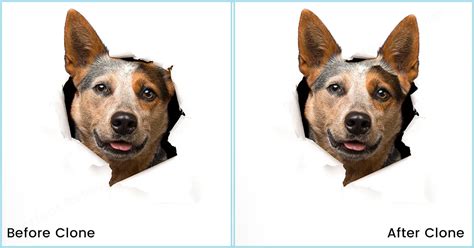
Best Uses and Applications of the Clone Stamp Tool
The Clone Stamp tool is exceptionally versatile, finding its place in a wide array of image editing scenarios. Its primary strength lies in its ability to seamlessly remove distracting elements, repair damage, and even create entirely new visual compositions.
Removing Distracting Elements
This is perhaps the most common and immediate application of the Clone Stamp tool. Whether it's unwanted people in a scenic shot, power lines against a sky, or stray objects that detract from the main subject, the Clone Stamp can make them disappear. The key to success here is careful source selection and continuous resampling. For instance, removing a power line from a blue sky is best achieved by sampling from areas directly above and below the line to ensure a perfect color match.
Repairing Imperfections and Damage
Photographs can suffer from various forms of damage, including scratches, dust spots, cracks, or faded areas. The Clone Stamp tool is adept at meticulously repairing these imperfections by sampling from surrounding clean or intact areas. This was crucial in the case of a photograph of the Statue of Rebecca on Block Island. The original image contained a car and a sign, along with their shadows, which needed to be removed. This required a combination of content-aware fill and significant cloning, with the Clone Stamp being essential for reconstructing areas where shadows and ripples on a tablecloth needed to be blended believably.
PHOTOSHOP | Clone Stamp Tool - Adobe Photoshop Tutorial for Beginners
Reconstructing Details and Textures
In situations where details are lost due to overexposure or underexposure, the Clone Stamp tool can be used to reconstruct them. For backlit shots with deep shadows, sampling brighter parts of the scene and brushing over the pure black areas can recover lost detail. Similarly, overexposed highlight areas can be restored by sampling from surrounding clouds or sky with discernible detail.
Creative Applications
Beyond straightforward retouching, the Clone Stamp tool can be employed for more creative purposes. It can be used to extend backgrounds, replicate patterns, or even to create surreal imagery by cloning elements from different parts of an image or even from entirely different images. The ability to clone from another image altogether, by opening two images and tiling them, further expands its creative potential.
Ancillary Tools and Workflow Enhancements
While the Clone Stamp tool is powerful on its own, it often works best as part of a larger retouching arsenal. Several other tools and techniques can complement its functionality, leading to more refined and sophisticated results.
The Healing Brush and Spot Healing Brush
These tools work similarly to the Clone Stamp in that they sample pixels from a source area. However, they go a step further by intelligently blending the sampled pixels with the target area, taking into account texture, lighting, and shading. The Spot Healing Brush is particularly useful for quickly removing small blemishes or imperfections without the need to manually define a source point. The Healing Brush requires defining a source like the Clone Stamp, but it blends the texture, color, and luminance of the sampled pixels with the destination pixels.
Content-Aware Fill
For larger areas that need to be removed, Content-Aware Fill can be a powerful first step. It analyzes the surrounding pixels and attempts to intelligently fill the selected area. However, it often leaves behind artifacts or unnatural patterns that can then be refined using the Clone Stamp tool. This combination was instrumental in removing the car and sign from the Statue of Rebecca image.
Layer Masks
Layer masks are fundamental to non-destructive editing in Photoshop. When used in conjunction with the Clone Stamp tool, they allow for precise control over where cloned pixels are applied and blended. By painting with black on a layer mask, you can hide parts of a cloned layer, revealing the underlying image. White reveals, and shades of gray create semi-transparent effects. This is particularly useful for refining transitions, such as the boundary between a mountain and the sky, where a soft-edged brush on a layer mask can create a natural blend.
Working on Separate Layers
As mentioned earlier, working on a separate layer is a cornerstone of good practice. Creating a new, blank layer and setting the Clone Stamp tool's 'Sample' option to 'Current and Below' or 'All Layers' ensures that your cloning work is isolated. This makes it incredibly easy to adjust, refine, or even delete cloned elements without affecting the original image data. If a cloned section is not perfectly positioned, the Move Tool (V) can be used to adjust the entire cloned content on its layer. Once multiple individual edits on separate layers are complete, they can be merged into a single 'Clone Stamp' layer for better organization.
Adjusting Opacity and Blending Modes
The Clone Stamp tool's opacity and blending mode settings offer further control. Reducing the opacity allows for more subtle blending, where cloned pixels are applied semi-transparently. This is ideal for gradually building up texture or color, or for softening harsh transitions. While the 'Normal' blending mode is most common for general cloning, exploring other modes can yield unique effects, though they are less frequently used for standard retouching.
Advanced Techniques and Considerations
Beyond the basic operation, several advanced techniques and considerations can elevate your Clone Stamp work from good to exceptional.
Gradual Reconstruction and Detail Building
When tackling complex repairs, such as reconstructing a weathered surface or a detailed pattern, it's often best to work gradually. Start by cloning larger areas, then zoom in and use smaller brushes to refine details and blend edges. As you build up the cloned areas, the available source areas often increase, providing more options for sampling.
Avoiding Repetitive Patterns
A common giveaway of cloning is the repetition of identical patterns or textures. To avoid this, constantly move your source point (Alt/Option-click) to sample from different nearby areas. This creates a more organic and natural appearance. The crosshairs at the source are your constant reminder of what is being sampled; keep them moving to diverse locations.
Feathering the Brush
For softer transitions and more natural blending, adjust the brush hardness. Reducing the 'Hardness' setting (e.g., to around 25%) allows the edges of the cloned pixels to blend more smoothly with the surrounding image. This is particularly useful when cloning areas with subtle gradients or soft edges.
Using the History Panel
The History panel in Photoshop is an invaluable tool for undoing actions. It keeps a record of your editing steps, allowing you to revert to any previous state. This is especially helpful when experimenting with different cloning approaches or when a series of edits doesn't yield the desired result. You can even duplicate your file using the Image > Duplicate command to have a pristine original for reference while working on your primary image.
The Importance of Observation
Ultimately, the success of Clone Stamp work hinges on keen observation. Constantly compare your cloned areas to the surrounding original image. Look for inconsistencies in texture, tone, and pattern. The goal is to make the cloned areas indistinguishable from the original. If you can see where you've cloned, it's a sign that further refinement is needed. This might involve breaking down the task into smaller sections, blending with other tools, or simply redoing the area with a different source or brush setting.
Cloning Across Images
The Clone Stamp tool can even be used to sample pixels from one open image and paint them onto another. This opens up creative possibilities for compositing and transferring textures or elements between photographs. By tiling multiple images, you can easily access and sample from various sources.
The Clone Stamp in the Age of AI
In an era increasingly dominated by generative AI, the Clone Stamp tool retains its relevance and importance. While AI can generate entirely new imagery or remove objects with remarkable speed, the Clone Stamp tool offers precise, manual control that is often necessary for nuanced retouching and repair tasks. Mastering this classic tool means you can efficiently handle simple clean-up jobs without expending valuable generative AI credits or risking your image being flagged as AI-generated. It provides a reliable and controllable alternative for situations where algorithmic solutions might be too generalized or unpredictable.
Practical Exercise: Bringing Your Skills to Life
To truly master the Clone Stamp tool, hands-on practice is essential.
Assignment: Find a photograph in your personal collection or from an online source that contains a distracting element you wish to remove seamlessly. This could be anything from a photobomber in the background to an unwanted object in a still life.
Steps:
- Duplicate Your Background Layer: As always, press
Control + J(Windows) orCommand + J(Mac). - Select the Clone Stamp Tool: Choose the tool from the toolbar.
- Define Your Source:
Alt-click (Windows) orOption-click (Mac) on an area of the image that you want to use as a replacement for the distracting element. Aim for an area with similar texture, color, and lighting. - Paint and Refine: Carefully paint over the distracting element. Pay close attention to the crosshairs at the source and resample frequently from different nearby locations to avoid repetitive patterns. Adjust your brush size and hardness as needed.
- Utilize Ancillary Tools: If the Clone Stamp alone isn't achieving a perfect blend, consider using the Healing Brush, Spot Healing Brush, or Content-Aware Fill in conjunction with it.
- Work on Layers: If performing complex edits, create new layers for different cloning tasks to maintain flexibility.
- Observe and Blend: Continuously zoom in and compare your work to the surrounding original image. Blend edges and transitions until the retouching is invisible.
Don't be discouraged if your first attempts aren't perfect. Learning to use the Clone Stamp tool effectively takes time, patience, and practice. Every mistake is a learning opportunity that will hone your skills for future edits. The journey of mastering this tool is one of continuous discovery and refinement, leading to a deeper understanding of image manipulation and a greater appreciation for the subtle art of digital retouching.