Fotor, a popular online photo editor and design tool, offers a suite of features designed for both personal and professional use. Its AI-powered capabilities, extensive templates, and user-friendly interface have made it a go-to for many seeking to enhance their images and create social media content. However, as with many subscription-based services, users may eventually find themselves needing to cancel their Fotor subscription. This guide provides a detailed walkthrough of the cancellation process, addressing common concerns and offering insights into what to expect.

Understanding Fotor Subscriptions and Trials
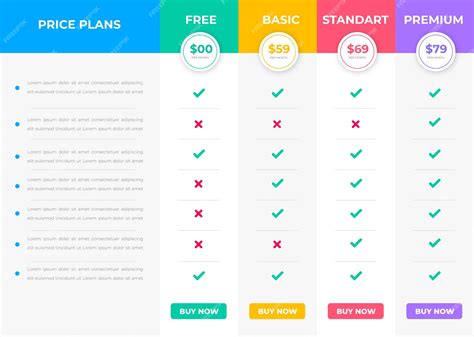
Fotor provides various subscription plans, including Fotor Pro and Fotor Pro+, each offering different levels of access to advanced editing tools, AI features, premium templates, credits, and cloud storage. For new registrants, Fotor often extends a 7-day free trial. It's important to note that a free trial cannot be combined with a discount, and vice versa. If you opt for the free trial, you will be charged after the 7-day period concludes, though regional differences and network delays might cause the charge to appear a few hours earlier than expected. To avoid this, you must cancel the free trial before its expiration.
Key Subscription Details:
- Fotor Pro (Monthly): Offers advanced editing and AI tools, premium templates, 100 credits/month, ad-free experience, HD + transparent PNG downloads, and 2 GB of cloud storage. The approximate cost is C$12.14 per month.
- Fotor Pro (Annual): Provides the same features as the monthly Pro plan but is billed annually. The approximate cost is C$53.99 per year (based on US$39.99/year).
- Fotor Pro+ (Monthly): Includes all Pro features plus AI slides, batch editing, brand kits, 300 credits/month, and 100 GB of cloud storage. The approximate cost is C$26.99 per month.
The Cancellation Process: Step-by-Step
Cancelling a Fotor subscription is designed to be straightforward, though the exact steps depend on the platform through which you initially subscribed. The core principle across all platforms is to locate your subscription management settings and opt for cancellation.
Web Application Cancellation
If you primarily use Fotor through its web application, the cancellation process is typically managed directly within your account settings.
- Log In: Access your Fotor account on the web.
- Navigate to Settings: Look for a "Settings" tab or a similar option, often found within your profile menu.
- Find Subscription Management: Within the settings, locate a section dedicated to your "Subscription" or "Billing."
- Initiate Cancellation: You should see an option to "Cancel Subscription" or "Turn off auto-renewal," usually positioned next to your current subscription status.
- Confirm: Follow the prompts to confirm your decision.
Android (Google Play Store) Cancellation
For users who subscribed via an Android device, the cancellation is handled through the Google Play Store.
- Open Google Play Store: Launch the Google Play Store app on your Android device.
- Access Subscriptions: Tap your profile icon in the top right corner.
- Navigate to Payments & Subscriptions: Select "Payments & subscriptions," then tap on "Subscriptions."
- Locate Fotor: Find your Fotor subscription in the list.
- Cancel: Tap on the Fotor subscription and select the "Cancel subscription" option. Follow any further on-screen instructions.
How to Cancel Fotor Subscription
iOS/macOS (App Store) Cancellation
If you subscribed on an Apple device (iPhone, iPad, or Mac), you will need to cancel through the App Store.
- Open App Store: Launch the App Store application.
- Access Your Account: Tap on your profile avatar (usually in the top right corner).
- Go to Subscriptions: Select "Subscriptions."
- Find Fotor: Locate your Fotor subscription. It might be listed under "Fotor," "Goart Photo Editor," or "Designor," depending on the specific app you used.
- Cancel: Tap on the subscription and choose the "Cancel Subscription" option.
What Happens After Cancellation?
It's crucial to understand that cancelling a Fotor subscription generally stops future automatic renewals. Your access to paid features typically remains active until the end of the current billing period. Once this period concludes, your account will be downgraded to the free plan.
Key implications of cancellation:
- Loss of Premium Features: Paid features such as premium templates, increased credits, advanced AI tools, brand kits, and larger cloud storage limits will no longer be accessible.
- Account Data: Your projects and uploaded files usually remain associated with your account. However, you will lose access to premium-only assets and the ability to download at higher quality.
- Downgrade to Free Plan: Your account reverts to the free version of Fotor, which has more limited capabilities.

Refund Policy and Considerations
Fotor's published policy states that subscription fees are generally non-refundable once paid. Cancellation primarily serves to prevent future renewals. However, the possibility of refunds can vary depending on the purchase channel.
- App Store and Google Play Purchases: Refunds for subscriptions made through the App Store or Google Play are subject to the refund procedures of those respective platforms. Users may need to initiate a refund request directly through Apple or Google.
- Payment Provider/Credit Card Issuer: In some cases, users who believe they were charged improperly after a timely cancellation or due to a billing error might pursue a refund or chargeback through their payment provider or credit card issuer. The success of such actions is not guaranteed and depends on various factors, including the timing of the request, platform rules, and the specific payment method used.
Consumer Rights in Canada:
Canadian consumer protection laws differ by province. While some provincial laws may offer cooling-off periods for digital subscriptions, Fotor's terms of service, including its "no refund" stance and choice of governing law, can impact the remedies available to consumers. If you encounter an improper charge after a timely cancellation or a platform billing error, exploring refunds via the payment platform or a chargeback with your card issuer are potential avenues, though outcomes are not guaranteed.
User Experiences and Common Issues
Customer feedback regarding Fotor's subscription and cancellation process is mixed. While many users praise Fotor for its ease of use, valuable templates, and effective AI tools, particularly for social media design, a number of complaints on review sites highlight difficulties.
Frequently Cited Issues:
- Unexpected Auto-Renewal: Users report being charged after believing they had successfully cancelled their free trial or subscription.
- Difficulty Obtaining Refunds: Some users have experienced challenges in securing refunds, even when they believe they were entitled to one.
- Misleading Trial Terms: Confusion over the exact conditions and deadlines for cancelling free trials has been a recurring theme.
- Challenges Contacting Support: Instances of difficulty reaching customer support for reimbursement or issue resolution have been noted.
Documentation is Key:
To strengthen any dispute or refund request, it is advisable to save receipts and take screenshots of confirmation messages or cancellation confirmations. This documentation can be crucial when communicating with Fotor support or the respective app store.
Alternatives to Fotor
While Fotor offers a robust set of features, particularly its AI enhancements like background removal and portrait retouching, some users seek alternatives for various reasons, including cost, feature sets, or different AI capabilities.
Notable Fotor Alternatives:
- PixPretty AI: Gaining popularity for its advanced AI features that offer one-click enhancements for backgrounds, lighting, and skin tones directly in the browser.
- Pixlr Editor: A browser-based tool that provides more advanced, Photoshop-like control with layers and filters.
- BeFunky: Known for its user-friendly interface and a good balance of editing tools and creative effects.

If you believe you have been charged incorrectly, the recommended first step is to contact Fotor support and the platform through which you paid (Apple or Google). Providing all relevant documentation will be essential. For platform purchases, utilize the official refund processes of the App Store or Google Play. If the charge was made directly to your card, contacting your card issuer to inquire about a dispute or chargeback is another option. For further assistance, refer to Fotor's support articles on cancellation and refunds, as well as their Terms of Service.
tags: #how #to #cancel #fotor #subscription