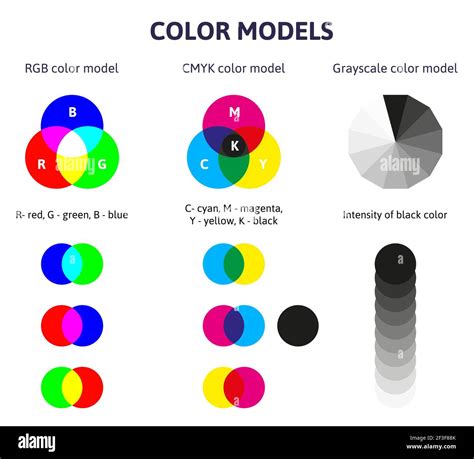
When creating visual content, understanding color modes is crucial for achieving the desired output, whether for print or digital display. CMYK and RGB are two fundamental color systems with distinct purposes. CMYK, a subtractive color model, is primarily used in printing, where colors are produced by combining four ink colors: Cyan, Magenta, Yellow, and Key (black). This process is akin to mixing paints, where each added ink darkens the color. RGB, an additive color model, is used for digital screens like computers and televisions. Here, colors are generated by combining different intensities of red, green, and blue light; adding more light makes the color brighter.
The choice between CMYK and RGB is often dictated by the final medium for your work. For instance, when you make things like posters or magazines, you use CMYK colors because these are the inks that will be physically applied to the paper. RGB, on the other hand, is the standard for digital platforms and software, as it encompasses a broader spectrum of colors and is more compatible with screen-based applications. RGB has a larger color gamut compared to CMYK, covering a broader range of colors. This means that some vibrant colors you see on your screen may not be accurately reproducible in print using CMYK inks. Conversely, CMYK isn't ideal for web use; RGB is much more suitable.
Converting your artwork from CMYK to RGB is a common and often necessary step when transitioning designs from a print-focused workflow to a digital one. This conversion is a quick but key move when taking your designs from print to digital. You already know why you’re here - to convert CMYK to RGB. You have your reasons. One primary reason is software compatibility: some digital platforms or software only accept RGB images. Expanding color range is another consideration; while CMYK is necessary for printing, it has fewer colors than RGB.
Understanding the Differences: CMYK vs. RGB
Before diving into the conversion process, it's beneficial to grasp the fundamental differences between CMYK and RGB.
CMYK: The Print Standard
CMYK is a subtractive color model. This means that colors are created by subtracting light from a white surface. In printing, this is achieved by applying inks. Cyan ink absorbs red light, magenta absorbs green light, yellow absorbs blue light, and black ink absorbs all light. By combining these inks in varying percentages, a wide spectrum of colors can be produced. The "K" in CMYK stands for "Key," which is used for black. Including black in the color model helps create richer blacks and reduces the amount of color inks needed. The primary disadvantage of CMYK is its limited color range compared to RGB, meaning some colors displayed on screens can't be perfectly replicated in print. You would use CMYK over RGB when creating designs intended for physical printing, like brochures, business cards, or packaging.
RGB: The Digital Canvas
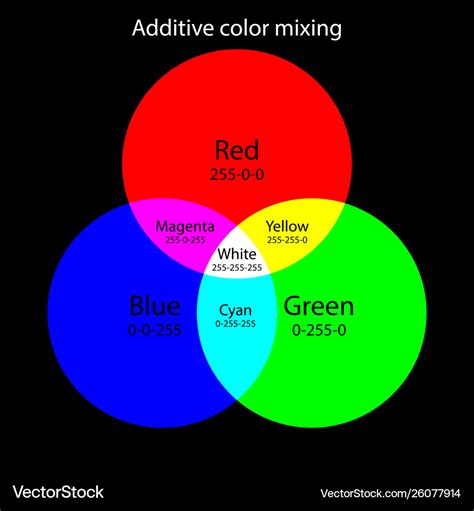
RGB is an additive color model. Colors are created by adding light. On a screen, pixels emit red, green, and blue light. When these lights are combined at full intensity, they produce white. When there is no light, the result is black. RGB has a larger color space than CMYK, covering a broader range of colors. This is why images often appear more vibrant on screen than they do when printed. The main disadvantage of RGB is that it’s not ideal for print. Since RGB is a screen-based color model, colors may look vibrant on digital displays but can appear dull or inaccurate when printed. RGB files tend to be smaller than CMYK files.
Why Convert CMYK to RGB?
The need to convert CMYK to RGB typically arises when preparing artwork for digital platforms. Here are the common scenarios:
- Software Compatibility: As mentioned, many digital applications and online platforms are designed to work with RGB images. Converting ensures your artwork displays correctly and can be uploaded without issues.
- Web and Digital Media: For websites, social media graphics, digital advertisements, and presentations, RGB is the native color mode. Using CMYK for these purposes can lead to color shifts and a loss of vibrancy.
- Expanding Color Possibilities: While CMYK is essential for print, its color gamut is more restricted. Converting to RGB opens up a wider range of colors, which can be beneficial for editing or if the artwork might later be repurposed for digital use.
- File Size: RGB files often have a smaller file size than their CMYK counterparts, which can be advantageous for faster loading times on websites and easier storage.
Methods for Converting CMYK to RGB in Photoshop
Adobe Photoshop is a powerful tool that offers several ways to convert CMYK images to RGB. The "Edit > Convert to Profile" command is generally considered the most robust method for managing color profiles and minimizing color shifts.
Method 1: Using "Edit > Convert to Profile"
This is the recommended method for accurate color conversion in Photoshop, as it allows for precise control over color profiles.
Step 1: Open Your CMYK Image in Photoshop.Ensure your image is open and in CMYK color mode.
Step 2: Navigate to "Edit > Convert to Profile."This will open the "Convert to Profile" dialog box.
Step 3: Select the Destination Space.
- Destination Space: Under this section, you'll choose the target color profile. For most digital applications, "sRGB IEC61966-2.1" (often listed as "Working RGB - sRGB" or simply "sRGB") is the standard and recommended profile. This profile is widely used by web browsers and digital devices.
- Color Management Policies: You can leave these settings as default unless you have specific workflow requirements.
Step 4: Choose a Dithering Method (Optional but Recommended).Dithering helps to smooth out color gradations and reduce banding in areas with subtle color transitions. "Diffusion dither" is a common and effective choice.
Step 5: Click "OK."Photoshop will convert your image to the selected RGB profile.
Important Considerations:
- Flattening Layers: If your image has multiple layers, Photoshop may prompt you to flatten the layers or discard adjustment layers. For a more predictable conversion, it's often best to flatten the image before converting, especially if you want to maintain the appearance of all effects. However, if you need to retain editability, you might flatten only specific groups of layers or consider converting each layer individually if absolutely necessary, though this can be complex.
- Color Profiles: Understanding color profiles is key. Different RGB profiles (like Adobe RGB or ProPhoto RGB) have larger gamuts than sRGB, but sRGB is the most universally compatible for web use. Choosing the correct destination profile ensures the best results for your intended output.
Method 2: Using "Image > Mode > RGB Color"
This is a simpler method, but it offers less control over the conversion process and can sometimes lead to more noticeable color shifts if not managed carefully.
Step 1: Open Your CMYK Image in Photoshop.
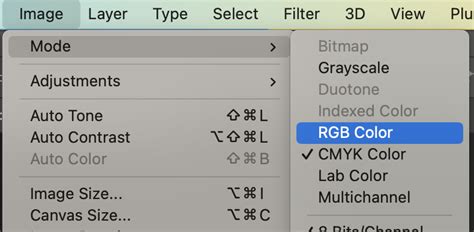
Step 2: Go to "Image > Mode > RGB Color."This command directly converts the image to the Photoshop's default RGB working space, which is usually sRGB.
Step 3: Handle Layering (If Applicable).Similar to the "Convert to Profile" method, if your image contains multiple layers, Photoshop might ask if you want to flatten the layers. You will typically need to flatten the image to perform this conversion. This means you'll lose the ability to edit individual layers separately after the conversion. If you need to preserve transparency from merged PNGs on a template, flattening might not be ideal if you want to save the merged PNG with transparency later.
When to Use This Method: This method is quicker but best suited for less critical conversions or when you are less concerned about precise color accuracy and more focused on a straightforward change to RGB mode.
Method 3: Using Online Converters
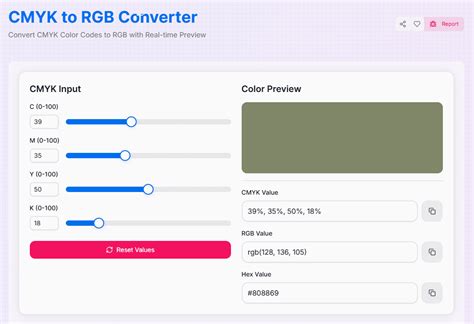
For quick, one-off conversions, online tools can be a convenient option. ShortPixel's online tool is one such example.
Step 1: Visit the Online Converter Website.Navigate to the CMYK to RGB converter tool (e.g., ShortPixel's).
Step 2: Upload Your CMYK File.You can usually drag and drop your file or click a designated area to select it from your computer.
Step 3: Choose Compression Level (If Offered).Some tools offer compression options.
- Lossy: Significantly reduces file size, potentially with a slight loss in quality.
- Lossless: Preserves original quality but with less file size reduction.
Step 4: Initiate the Conversion.Once uploaded, the tool will automatically convert the file.
Step 5: Download the RGB File.A download button will appear once the conversion is complete, often with a percentage indicating the compression.
Pros of Online Converters:
- Easy to use, no software installation required.
- Quick for single files.
Cons of Online Converters:
- Limited control over color profiles and conversion methods.
- Potential privacy concerns with uploading sensitive files.
- Quality can vary significantly between different tools.
Method 4: Using Adobe Illustrator
Adobe Illustrator is another excellent tool for converting CMYK to RGB, especially if your artwork originated or is being managed in a vector format.
Step 1: Open Your CMYK Document in Illustrator.
Step 2: Navigate to the Document Color Mode.Go to the top menu: File > Document Color Mode.
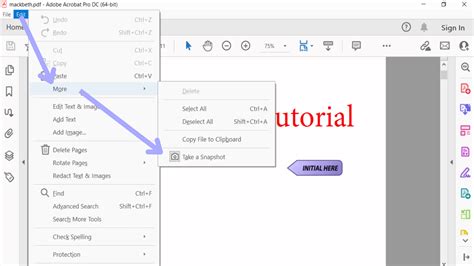
Step 3: Select "RGB Color."Choose "RGB Color" from the dropdown menu. Illustrator will convert the document's color mode.
Considerations for Illustrator:
- Vector vs. Raster: This method is most effective for vector artwork. If your Illustrator file contains raster (Photoshop) elements, their conversion might behave differently.
- Color Preservation: Illustrator's conversion is generally well-managed, but as with any color mode change, some subtle shifts are possible.
Method 5: Using Python (for Programmatic Conversion)
For users with programming knowledge, Python offers a flexible way to automate CMYK to RGB conversions, particularly for batch processing.
Step 1: Install the Pillow Library.Pillow is a fork of the Python Imaging Library (PIL) and is essential for image manipulation in Python. You can install it using pip:pip install Pillow
Step 2: Write and Run a Python Script.Here’s a basic example of a Python script to convert a CMYK image to RGB:
from PIL import Imagedef convert_cmyk_to_rgb(input_path, output_path): try: img = Image.open(input_path) if img.mode == 'CMYK': rgb_img = img.convert('RGB') rgb_img.save(output_path) print(f"Successfully converted {input_path} to {output_path}") else: print(f"{input_path} is not in CMYK mode.") except FileNotFoundError: print(f"Error: File not found at {input_path}") except Exception as e: print(f"An error occurred: {e}")# Example usage:# convert_cmyk_to_rgb('your_cmyk_image.jpg', 'your_rgb_image.jpg')Step 3: Execute the Script.Run the Python script, providing the input CMYK image path and the desired output RGB image path.
Pros of Python Conversion:
- Ideal for batch processing many files.
- Highly customizable.
- Integrates into larger automated workflows.
Cons of Python Conversion:
- Requires programming knowledge.
- Pillow's default conversion might not offer the same level of color profile control as Photoshop.
Navigating Color Shifts and Maintaining Quality
Converting between color spaces is not always a perfect one-to-one translation. Because RGB has a wider gamut than CMYK, converting from CMYK to RGB is generally less problematic than the reverse. However, some subtle color shifts can still occur.
Addressing Color Issues:
"I have created several filters in Photoshop and every one of them uses color balance. I tried converting the CMY values from photoshop to RGB but it always gives wrong color in RGB. Tried and tested various online CMY to RGB conversion tools. here's a screen shot. WHY oh WHY!?"This user is encountering an issue because they are trying to convert individual CMY values rather than the entire color profile. The advice given, "You do not need to convert from CMY to RGB. Simply. If you add more Red (R+) you will get a redish image. If you remove red (R-) you get a cyanish image. You are at the wrong place. Try instead: Edit > Convert to Profile," is accurate. Direct manipulation of CMY values without considering the CMYK profile context will lead to incorrect RGB results. The "Convert to Profile" function handles the complex mapping between the two color spaces.
"Is there seriously no easy way to convert an image to RGB so that it looks how it was originally intended (blacks being pure black and whatnot) or at least a half-ass way to get it close (maybe some levels or curves adjustment) This would make my life so much easier."The user is looking for an "easy" way to maintain the integrity of their CMYK image when converting to RGB, particularly ensuring pure blacks. The "Edit > Convert to Profile" method, with careful selection of rendering intent (like Relative Colorimetric, which aims to preserve the relationship between colors and maps out-of-gamut colors to the nearest reproducible color in the destination profile), is the best approach. While not as simple as a one-click solution, it offers the most control. Using Levels and Curves adjustments after conversion can help fine-tune the appearance, especially for blacks, but the initial conversion method is paramount.
"You probably already know this, but when you change them are you just going into the image color mode menu or are you doing edit convert to profile? The latter works much better and you can choose perceptual, relative colorimetric etc."This is a key insight. The "Image > Mode > RGB Color" function is a direct conversion, while "Edit > Convert to Profile" allows for selection of rendering intents and source/destination profiles, offering superior control and often better results. Perceptual and Relative Colorimetric are rendering intents that dictate how out-of-gamut colors are handled during conversion.
"You’re dealing with art in a reduced color gamut (CMYK). Make the conversion by going to LAB, then RGB. I really don’t think that tep is needed. CMYK is smaller gamut then RGB. Converting a a wider one will result in no shift."Converting via Lab color space can sometimes be an intermediate step that helps preserve detail, especially for certain types of images. Lab is a device-independent color space. However, for most standard CMYK to RGB conversions, direct conversion using "Edit > Convert to Profile" with appropriate profile selection is sufficient and often preferred for simplicity. The assertion that converting to a wider gamut "will result in no shift" is an oversimplification; while the potential for more colors exists, the actual color values need to be mapped, which can still introduce subtle changes.
"Hello! What's the best way to convert a Photoshop document from CMYK to RBG? (I am aware of Image-->Mode-->RBG Color) I just want to do this process without causing damage or losing image quality! Here is more info about my documents: I am working with 5 by 7 inch PS docs that have clipart PNGs on them. I have arranged the PNGs and merged them into a single layer. Do I have to flatten my images first? This wouldn't be the end of the world, however, I would like to avoid flattening if possible, so that I can save my merged PNG file with a transparent backround (I was only using the 5 by 7 as a size template)."This user correctly identifies the desire to avoid flattening to preserve transparency, which is a valid concern. If the goal is to retain transparency from merged PNGs and have a single RGB layer, flattening is often necessary for the "Image > Mode > RGB Color" conversion. However, using "Edit > Convert to Profile" might offer more flexibility, though it still often requires a single layer for the entire document conversion. If transparency is paramount, consider converting the CMYK image to RGB first, then saving it as a TIFF or PSD. If you need a PNG with transparency, you might need to extract the transparent areas or re-create them after the CMYK to RGB conversion. For preserving transparency and editability of individual PNGs, it might be better to convert each PNG individually to RGB before placing them into your final CMYK document, or to convert the final flattened RGB document and then re-apply transparency if needed.
How to Convert RGB to CMYK in Photoshop (No Color Loss!)
To convert CMYK to RGB without losing much color, use professional software like Adobe Photoshop or Illustrator, which provide options to manage color profiles and minimize color shifts. Converting CMYK to RGB changes the color model from subtractive (CMYK) to additive (RGB). In CMYK, colors are created by combining inks, where each added ink darkens the color. RGB, on the other hand, uses light to create colors, and adding more color lightens the color. Whether you’re using a CMYK to RGB image converter tool, pro software, or even trying out a bit of Python, there’s an option that works for everyone, even if you’re new to this.