Converting photos from one image type to another is a useful trick. Because a picture is worth a thousand words, learning to work with images will help you express your ideas clearly and efficiently. There are many different types of image files, and some only work with certain software. JPG is the most common image format. You can batch convert various image types to JPG on Mac.
Understanding the HEIC Format: Apple's High-Efficiency Choice
HEIC stands for High Efficiency Image Compression. It's an image format Apple introduced with iOS 11. HEIC can store images at half the size of JPGs without compromising quality. This allows you to store more high-quality images while using less storage space. Features such as Live Photos are possible with HEIC. To open HEIC files, you must use an iOS device, such as iPhone, iPad, or Mac. If you need to open a HEIC image from a non-Apple device, you must first change your photos from HEIC to JPG.
Apple started adapting the HEIC format starting with iOS 11. With the latest iOS updates, the iPhone camera will now take pictures in a new HEIC format rather than JPEG. This camera formatting change to HEIC came in iOS 11, but some iPhone users may prefer to have their camera continue to snap photos in JPEG format.
HEIF is short for High Efficiency Image Format. HEIF uses video compression technology called HEVC (High Efficiency Video Coding). It is a standard developed by MPEG, the committee who developed all of the standard video compression technologies - MPEG-1, MPEG-2, MPEG-4, H.264/AVC, and the newest codec HEVC also known as H.265. Images are compressed as HEIF, which is saved with extension .heic.
HEIC file is a raster image saved in the High Efficiency Image Format (HEIF). HEIC is a format that contains one or multiple HEIF image sequences. Released on September 19, 2017, mobile operating system iOS 11 introduced it as the new alternative to the default image format for iPhone. Apple announced that it was replacing JPEG files with this new image format. It has a more advanced and modern compression algorithm which allows digital photographs to be taken in smaller file sizes, and retain much higher image quality than JPEGs.
The Universality of JPG: Why Conversion Matters
JPG, or Joint Photographic Experts Group, is an open file format standard and still the most popular image format on the web. JPEG compression is used in a number of image file formats. This format is used in many digital cameras. It is a popular method of lossy compression for digital images. The degree of image compression can be altered, allowing to have control over file size and image quality. A JPG can’t have a transparent background so they always have a solid background.
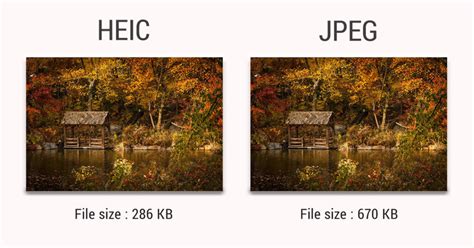
JPEG (.jpg or .jpeg. file extension) stands for Joint Photographic Experts Group, named after a committee of developers who created it. It has become the standard image format nowadays due to its compression capability.
Batch conversion from HEIC to JPG is requested by users, since JPEG allows more compatibility with sharing, copying to a computer, etc. Need your iPhone pictures to be captured and stored as JPEG? You can switch back to JPEG directly in your device camera settings. Go to Settings > Camera > Formats and select Most Compatible.
While HEIC has its clear advantages, it still has a lot of catching up to do when compared to older image formats. Because of the lack of widespread adoption of HEIC files, converting them to JPG is fairly common.
The Challenge of Bulk Conversion: When One by One Isn't an Option
Many users encounter the need to convert HEIC to JPG when transferring photos from their iPhones or iPads to their Macs. As one user described, "I recently transferred a bunch of photos from my iPhone to my Mac, and found that they were all in HEIC format, a total of more than 2,000 photos! 😭 Now I want to convert heic to JPG on Mac, but here comes the problem: converting them one by one manually is completely unrealistic and too painful…I tried using Preview to batch convert, but it was very slow, the Mac fan was spinning wildly, and it occasionally crashed. Then I tried several online conversion tools, but either they had file number limits or were too troublesome to upload and download. Is there any efficient and hassle-free way to quickly convert so many HEIC to JPG on Mac at once? It would be best if the original image quality could be retained, and I don’t want it to be compressed and blurred. Is there any big guy who can share his practical experience! 🙏"
This highlights a common pain point: the sheer volume of photos and the inefficiency of manual conversion. The desire for a solution that is both fast and preserves image quality is paramount.
Methods for Batch Converting HEIC to JPG on Mac
Fortunately, there are several effective methods to tackle the bulk conversion of HEIC to JPG on a Mac, ranging from built-in tools to third-party applications and online services.
1. Utilizing macOS Built-in Preview App (with caveats)
While the user experience with Preview can be slow and resource-intensive for large batches, it's worth understanding its basic functionality.
- Select Multiple Images: In a Finder window, hold down the Command key and select the images you want to convert. If they’re all grouped, hold down Shift and click the first and then the last file.
- Open in Preview: Double-click on the selected images to open them in Preview.
- Export as JPG: In Preview, click on ‘File’ in the menu bar, then select ‘Export.’ Choose the desired format (JPG) and click ‘Save.’
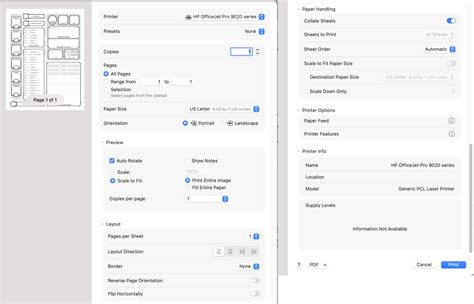
However, as noted, this method can be very slow and may not be ideal for hundreds or thousands of photos.
2. Third-Party Applications for Efficient Batch Conversion
For a more robust and efficient solution, third-party applications are often the best choice. These tools are specifically designed for batch processing and offer more control over conversion settings.
a) TunessBro HEIC Converter for Mac
TunessBro HEIC Converter for Mac is frequently recommended as an excellent app for this purpose. It is designed to handle batch conversions efficiently.
b) DocuFreezer
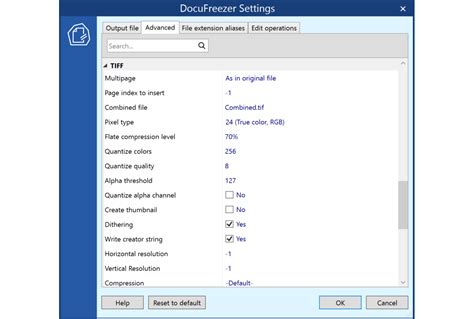
DocuFreezer is another suggested offline solution for users who prioritize privacy or require more advanced settings. This program offers more settings to adjust the parameters of output JPEGs, for example, changing color mode (CMYK, RGB, RGB/A, Grayscale, etc.), watermarking, compression, and more. If you have multiple pictures to process, simply select and drop HEIC files or folders containing HEIC images onto the browser window. Batch process multiple iPhone or iPad pictures at a time - no need to manually add each file one by one.
c) ImageMagick
For users comfortable with command-line interfaces, ImageMagick is a free, open-source tool ideal for commercial use. It offers extensive control over image manipulation and conversion.
3. Online Converters: Convenience with Considerations
Numerous online converters can transform HEIC to JPG. These are convenient as they require no software installation but may have limitations regarding file size, number of conversions, or privacy concerns.
a) Canva
Canva offers a simple drag-and-drop interface for converting HEIC to JPG. Simply drag and drop your HEIC image onto the page, and Canva will automatically turn it into an editable file ready for download as a JPG. It’s the same photo with the same high image quality - only in a format recognized by all apps and image software. To change HEIC to JPG, select your image from your device or drag and drop it onto the converter. Once you're in the editor, your HEIC image should be uploaded and ready for download as a JPG.
How To Use Canva To Convert HEIC To JPG (Quick & Easy)
b) CloudConvert
A versatile online conversion platform, CloudConvert supports multiple formats including PNG, JPG, GIF, WEBP, and, of course, HEIC. You can select one or multiple files on your computer or drag’n’drop them to start file conversion.
c) Convertio
Convertio is another popular online tool that supports a wide range of file conversions, including HEIC to JPG.
d) Other Online Services
Many other online services exist, such as those offered by fCoder Solutions Sp. z o.o., which also emphasize security and automatic deletion of files after a set period. These services allow you to upload your HEIC files, convert them to JPG, and then download the converted files. They often maintain good quality of converted files, while preserving their full resolution and quality - your photos will keep original DPI and dimensions after being converted to JPEG or PNG.
When using online converters, it's important to note their privacy policies. Many state that "output files will be automatically deleted from our server in one hour" or "files are deleted from our server within 24 hours." They often collect only file names and associated types of file conversions for each uploaded file.
4. Cloud Storage Services: Leveraging Existing Tools
If you use cloud storage services like Dropbox on your Mac, you might find a built-in feature for HEIC to JPG conversion.
- Dropbox: You can upload those HEIC images into the app and it has a built-in feature to save HEIC images into JPG or PNG. It is much faster and doesn't require uploading the images to anywhere else. It could save a lot of time if you have a large chunk of HEIC images.
5. Changing iPhone Camera Settings (Proactive Approach)
For those who frequently need JPGs, changing your iPhone's camera settings to capture photos directly in JPG format can save significant conversion time later.
- Settings: Go to Settings > Camera > Formats and select ‘Most Compatible.’ This ensures your photos are saved as JPEGs by default.
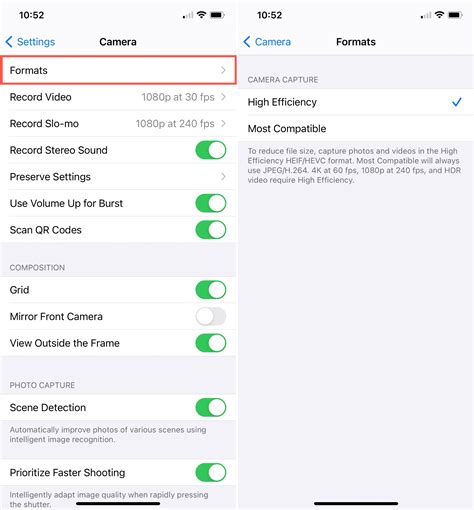
Image Quality After Conversion: Preserving Your Memories
A common concern is whether image quality is reduced after conversion. Fortunately, most reputable methods aim to preserve the original image quality.
- HEIC vs. JPG Quality: HEIC is designed for higher efficiency, meaning it can achieve similar or better quality than JPG at a smaller file size. However, when converting HEIC to JPG, the goal is to retain as much of that original quality as possible.
- Converter Settings: Many converters, especially offline tools like DocuFreezer, allow you to adjust compression levels and other parameters to ensure high-quality output. Online converters often state that they maintain "original image quality."
- Personal Experience: As one user noted, "the image quality is almost the same as the original one from my own experience."
Beyond Conversion: Image Management and Sharing
Converting HEIC to JPG is often a step towards easier image sharing and integration into various projects.
- Simplify Image Sharing: Your beautiful photo deserves a wide audience. Make your iOS photo easily shareable by converting HEIC to JPG.
- Creative Projects: Use your converted photos in all your creative projects, whether it's for a poster for your business, a web portfolio, or pitch-ready product mockups for a slide deck. Convert HEIC files to JPG and easily use your high-quality image on any digital or printed material.
Technical Details: HEIC and JPG Formats
To better understand the conversion process, here's a brief look at the technical distinctions:
| Feature | HEIC (High Efficiency Image File Format) | JPG (Joint Photographic Experts Group) | PNG (Portable Network Graphics) |
|---|---|---|---|
| Full Name | High Efficiency Image File Format | Joint Photographic Experts Group | Portable Network Graphics |
| Filename Extension | .heif, .heic | .jpg, .jpeg, .jpe | .png |
| Format Type | Image Container Format | Lossy image format | Lossless bitmap image format |
| Developed By | Moving Picture Experts Group (MPEG) | Joint Photographic Experts Group | PNG Development Group |
| Introduction Year | 2017 (with iOS 11) | Mid-1990s | Mid-1990s |
| Transparency | Supports transparency | Does not support transparency | Supports transparency |
| Compression | Advanced, efficient | Lossy, adjustable | Lossless |
| Metadata | Supports EXIF metadata | Supports EXIF metadata | Supports metadata |
The Exchangeable image file format (EXIF) is a standard that defines the formats of image, audio, and metadata tags used by cameras, phones, and other digital recording devices. With some converters, you can remove EXIF metadata from your iPhone pictures to save more storage space on your device.
Conclusion
While HEIC offers significant advantages in terms of file size and quality, the need for universal compatibility often necessitates conversion to JPG. Fortunately, Mac users have a variety of efficient methods at their disposal, from leveraging built-in tools with caution to utilizing powerful third-party applications and convenient online converters. By understanding these options and considering factors like batch processing needs and privacy concerns, you can effortlessly manage and share your photo collection.