The quality of digital artwork, especially when intended for print or detailed viewing, hinges on several interconnected factors, with DPI being a frequently discussed, though sometimes misunderstood, element. In Procreate, understanding DPI, or more accurately, PPI (pixels per inch), is crucial for ensuring your creations translate effectively from the digital canvas to the physical world or for achieving desired visual fidelity on screen.
The Foundation: Pixels and Digital Images
At its core, a digital image is a mosaic of tiny squares known as pixels. These pixels, each possessing a specific shade and color, are so small that when viewed collectively, they create the illusion of smooth transitions and continuous forms. The finer the pixel density, the more convincing this illusion becomes, leading to a sharper and more detailed visual output.
Each digital image possesses three fundamental properties: pixel dimensions, physical dimensions, and DPI. Pixel dimensions refer to the image's size as measured in pixels (e.g., 2000 x 2000 px). Physical dimensions, on the other hand, are the image's size when represented in real-world units like inches, centimeters, or millimeters. DPI, or "dots per inch," traditionally describes the density of ink dots applied to a printed page per linear inch. However, within digital art applications like Procreate, this value is more accurately represented as PPI, "pixels per inch," indicating how many pixels are packed into a single inch of the digital image. To fit more pixels within a given inch, each individual pixel must be smaller.
The Role of DPI in Procreate: Print vs. Digital Display
The question of what DPI to choose for Procreate artwork is paramount for many artists. While it might be tempting to opt for extremely high DPI settings (e.g., 1000 DPI) to maximize perceived quality, this approach often proves impractical. Large files with a high pixel count demand significant Random Access Memory (RAM) for smooth processing. As more layers are added to an artwork, the pixel count increases further, impacting performance. Consequently, Procreate imposes limitations on the number of layers available based on the canvas's size and resolution.
For Print: Achieving Smooth and Detailed Results
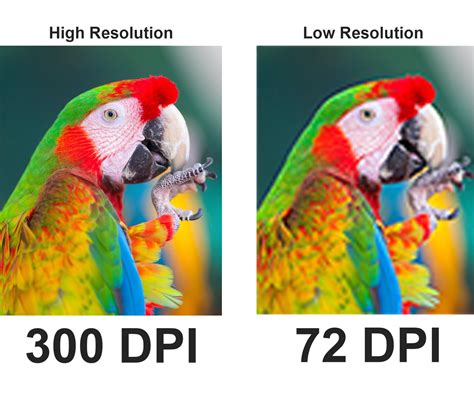
If the intention is to print your artwork, or even if you wish to keep that option open for future use, setting your canvas at 300 DPI is widely considered the industry standard. This resolution ensures that the printed image appears smooth and detailed when viewed at a typical reading distance, preventing the individual pixels from becoming noticeable and creating a "pixelated" appearance.
However, the optimal DPI for printing is not a one-size-fits-all metric. It is intrinsically linked to several factors:
- Size of the Final Print: For larger prints, such as posters that are viewed from a distance, a lower DPI (e.g., 150 DPI) can be perfectly acceptable. From afar, the human eye will not discern the finer details that a higher DPI would provide, and the image will still appear cohesive.
- Viewing Distance: As mentioned, the further away a viewer is from the artwork, the less critical a high DPI becomes. Conversely, for smaller artworks like postcards or greeting cards, which are typically examined up close, a higher DPI is essential to maintain sharpness and detail.
- Printing Material: The texture and absorbency of the printing material can also influence the effectiveness of DPI. For instance, printing on fabric, which often has a more pronounced texture than smooth paper, may support a lower effective DPI while still yielding a pleasing result. It is always advisable to consult with your professional printer about their specific recommendations regarding DPI and file preparation.
For Online Display: DPI is Largely Irrelevant
When an image is intended solely for digital display online, the DPI setting becomes largely irrelevant. Whether you set your DPI to 1 or 1000, it will not affect the appearance of the image on a screen. Screen resolutions are measured in pixels, and the image will be displayed at its defined pixel dimensions. Therefore, for online-only artwork, the primary consideration should be the desired physical dimensions of the artwork when displayed on screen. To provide ample room for zooming in and inspecting details without losing clarity, it is recommended to set your pixel dimensions at least twice as large as your intended on-screen display size. You can increase these pixel dimensions even further to accommodate intricate details, but always remain mindful of Procreate's layer limits, which are influenced by canvas size.
Misconceptions About DPI and Pixel Dimensions
A common piece of advice encountered online suggests using specific pixel dimensions combined with a high DPI, such as "2000 x 2000 px, 300 DPI," to avoid pixelation. This advice is fundamentally misguided. The image quality is determined by the pixel dimensions, not the DPI. A 2000 x 2000 px file at 300 DPI possesses the exact same image quality as a 2000 x 2000 px file at 72 DPI. The difference lies in how these pixels are interpreted when printed. A low DPI will result in a larger, potentially pixelated print because fewer pixels are spread across a given inch. Conversely, a high DPI will produce a smoother, smaller print because more pixels are packed into that same inch.
PPI is Imaginary! PPI vs DPI vs Resolution
Adjusting DPI in Procreate: New Canvases and Existing Artwork
Procreate offers flexibility in managing DPI settings, allowing adjustments both during the creation of new canvases and on existing artwork.
Creating a New Canvas with Specific DPI
When you are ready to begin a new project, you can set the DPI from the outset.
- Initiate a New Canvas: On the Procreate main screen, tap the '+' icon located in the top right corner to create a new canvas.
- Select Custom Size: While Procreate offers various preset canvas sizes, for precise control over DPI, select the 'Custom Size' option.
- Configure Dimensions and DPI: Within the custom size settings, you will find fields for Width, Height, and DPI. Enter your desired physical dimensions (in inches, centimeters, or millimeters) and the chosen DPI value. Higher DPI values will result in finer detail but also larger file sizes, potentially limiting the number of layers available.
- Create Canvas: Once all parameters are set, tap 'Create.'
When creating a canvas from the preset sizes, the DPI typically ranges from 132-400. If you prefer to specify your dimensions and DPI manually, you can tap the 'New Canvas' button and then select 'Custom Size.'
Modifying DPI on Existing Artwork
If you have already created a canvas and later decide to adjust its DPI, Procreate provides a method to do so, though it's important to understand the implications.
- Access Canvas Settings: Navigate to your artwork. Tap the 'Actions' button (the wrench icon) in the upper left corner of the screen.
- Crop & Resize: Within the Actions menu, select 'Canvas,' then choose 'Crop & Resize.'
- Enter Settings: Tap on 'Settings' to reveal the resolution options.
- Adjust DPI: Here, you can input a new DPI value.
- Resample Canvas: Crucially, to apply the DPI change to the entire image and not just alter the canvas dimensions without affecting the pixel data, ensure the 'Resample Canvas' option is checked. When you change the DPI, the pixel dimensions will automatically adjust to reflect the new resolution based on the physical dimensions.
It is important to note that increasing the DPI on an existing artwork will result in a decrease in its physical width and height, as more pixels are packed into each inch. Conversely, decreasing the DPI will lead to an increase in the physical width and height, as fewer pixels are spread across each inch.
The Implications of Resizing Raster Images
When you modify the DPI of an existing artwork, especially by increasing it, you are essentially resizing a raster image. This process always involves a degree of quality loss. If you aim to increase the DPI to achieve a smoother and denser print, but the original pixel data is insufficient, Procreate will attempt to interpolate (create new pixels based on surrounding ones). While this can prevent the print from appearing overtly pixelated, it will also prevent it from appearing truly sharp, as the interpolated pixels may lack the crispness of original data. Therefore, it is always advisable to set the correct DPI and physical dimensions before commencing your artwork if print is a significant consideration.
When working with a professional printer, it is also recommended to use a CMYK color profile for print-bound artwork, as this is the standard color model used in printing processes.
Understanding the "Resample Canvas" Toggle
The 'Resample Canvas' option is critical when adjusting DPI on existing artwork.
- With 'Resample Canvas' checked: When you change the DPI, Procreate will alter the pixel dimensions of your artwork to maintain the current physical dimensions at the new DPI. For example, if you have a 1000x1000px image at 72 DPI (physical size 13.89 x 13.89 inches) and you change it to 300 DPI with resampling, Procreate will add pixels to reach the required density for 300 DPI at the same physical size. This is an interpolation process and can lead to a loss of sharpness.
- With 'Resample Canvas' unchecked: If you uncheck 'Resample Canvas' and change the DPI, Procreate will not alter the pixel dimensions. Instead, it will recalculate the physical dimensions based on the existing pixel count and the new DPI. For instance, if you change from 72 DPI to 300 DPI without resampling, the physical dimensions will shrink considerably, as the same number of pixels will now be packed into a much smaller area.
The choice between these options depends on your goal. If you want to maintain the physical print size and are willing to accept potential interpolation artifacts to avoid pixelation, keep 'Resample Canvas' checked. If you need to ensure the absolute sharpness of your existing pixels and are okay with a smaller print size, uncheck it. For print, it's generally best to start with the correct DPI to avoid these compromises.
The Interplay of Dimensions and DPI
When you set the physical dimensions and the DPI, Procreate calculates the necessary pixel dimensions. Conversely, if you set the pixel dimensions and the DPI, Procreate determines the physical dimensions. Understanding this relationship is key to managing your artwork effectively. For instance, if you set the physical dimensions and then the DPI, you are dictating the print size and resolution. If you instead set the pixel dimensions and the DPI, you are defining the total number of pixels and their density, which then dictates the maximum physical print size.
The process of changing DPI in Procreate is a straightforward operation that can significantly impact the quality and suitability of your artwork for various outputs. By understanding the relationship between pixels, physical dimensions, and DPI, and by utilizing Procreate's tools judiciously, artists can ensure their digital creations meet their intended purpose, whether for vibrant online displays or crisp, detailed prints.