Photoshop, a powerhouse for digital image manipulation, offers a flexible system for managing measurement units. While many users are familiar with changing the primary display of rulers from pixels to inches, a common point of confusion arises when the Ruler Tool readout doesn't align with the ruler's displayed units. This article delves into the intricacies of Photoshop's measurement systems, exploring how to ensure consistency between your rulers and the Ruler Tool, and how to manage default units in various windows. We will also touch upon less common but equally important measurement considerations within Photoshop.
Understanding Photoshop's Ruler System
At its core, Photoshop's on-screen rulers provide a visual guide for precise placement and measurement within your documents. The ability to change these rulers from pixels to inches is a fundamental customization that caters to different workflows and output requirements. However, the user experience can be frustrating when the Ruler Tool, designed to work in conjunction with these rulers, reports measurements in a different unit than what is displayed.
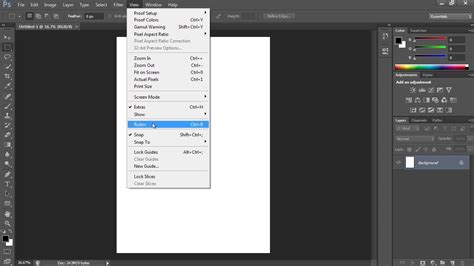
The key to resolving this discrepancy lies in understanding that the Ruler Tool's readout is directly tied to the current measurement setting of the rulers. If your rulers are marked in inches, the Ruler Tool should read out in inches. The issue often stems from a misunderstanding of how certain settings interact or a subtle configuration that has been inadvertently altered.
Resolving Ruler and Ruler Tool Inconsistencies
A common scenario that causes confusion is when users change the ruler units to inches, but the Ruler Tool continues to display measurements in pixels. This often leads to the assumption that these are separate functions, when in fact, they are intrinsically linked. The statement, "Whatever type of measurement your rulers are set to are what the Ruler Tool will read out," holds true, yet the practical application can sometimes be elusive.
One effective troubleshooting step that has proven successful for many users is resetting the tool. Each tool in Photoshop has its own set of preferences, and sometimes these can become corrupted or misconfigured. To reset a tool, you typically right-click on the tool icon in the Photoshop toolbar and select "Reset Tool" or a similar option from the context menu.
If resetting individual tools doesn't resolve the issue, the next logical step is to reset Photoshop's preferences. This is a more drastic measure as it reverts all customizable settings back to their defaults, but it often resolves deeply embedded configuration problems. The process for resetting preferences is as follows:
- Shut down Photoshop.
- On a Mac: Press and hold Command + Option + Shift while restarting Photoshop.
- On a PC: Press and hold Ctrl + Alt + Shift while restarting Photoshop.
- Upon restarting, you will be presented with a dialog box asking if you wish to delete the settings file. Confirm this action to reset your preferences.
This action effectively clears out any corrupted preference files that might be causing the ruler and Ruler Tool to function independently.
The "Set Measurement Scale" Conundrum
Another area that can lead to unexpected measurement behavior is the "Set Measurement Scale" option, found under Image > Analysis. This setting is distinct from the general ruler measurement scale. If this measurement scale has not been explicitly set, it defaults to "1 pixel = 1 pixel."
A common mistake is to overlook the checkbox associated with this setting, assuming it's related to the visual ruler display. However, this checkbox can influence how measurements are interpreted, particularly when using features like the Ruler Tool or other analysis tools. It's easy to assume that if the rulers are set to inches, this setting will automatically align. Yet, the fact that the Ruler Tool might still read in pixels until this specific setting is addressed highlights a subtle but significant aspect of Photoshop's measurement logic. Unchecking this box, which might seem counterintuitive if you're expecting it to match your ruler scale, is often the key to achieving consistent inch measurements.
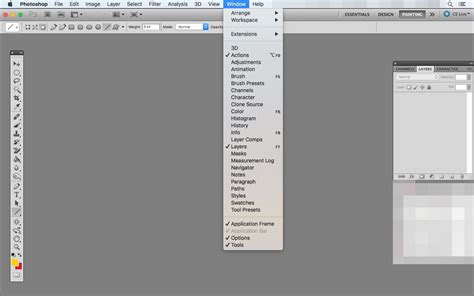
Many users primarily employ the "Image > Analysis" functions for measuring unknown angles, rather than distances. This can lead to less familiarity with the "Set Measurement Scale" option and its impact on linear measurements. Understanding that this checkbox is not simply about matching the ruler scale, but rather about defining a baseline for pixel-based analysis, is crucial for troubleshooting.
Managing Default Document Units
Beyond the immediate ruler and Ruler Tool synchronization, users often encounter situations where the default measurement units in various dialog boxes, such as the Image Size window, change unexpectedly. For instance, a user might have consistently set their images to be edited in inches, with the Image Size window defaulting to inches for years. Then, suddenly, this default shifts to centimeters, causing frustration and an unnecessary extra step to change it back each time.
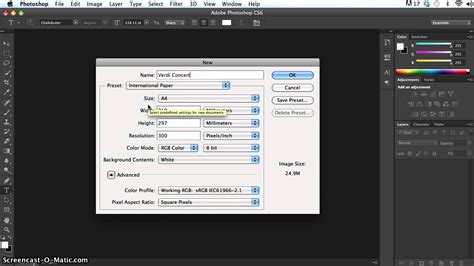
It's important to understand that the Image Size window edits your current document's units and does not apply this change globally across all documents or future settings. While you can manually change the measurement unit within the drop-down menu next to the size input fields in the Image Size window, this is an extra step that many users wish to avoid if it was not previously necessary.
The Interplay Between Rulers and Image Size Defaults
The root cause of these default unit shifts can often be traced back to the on-screen rulers themselves. As mentioned, changing the ruler units by directly interacting with the rulers (e.g., Command+R to show/hide rulers, then Ctrl+clicking on a ruler to access its context menu) can inadvertently influence the default units displayed in the Image Size window.
If you've been using inches as your default ruler units and then, for example, Ctrl+click the ruler and change the measurements to pixels, you might observe that any subsequently opened images in the Image Size window now default to centimeters. This is a peculiar but documented behavior in some versions of Photoshop.
The solution, in this case, is to re-sync the ruler and the Image Size default. By again Ctrl+clicking the ruler in your document and reselecting inches, you can often revert the default measurement in the Image Size window back to inches. This underscores the interconnectedness of these settings, even if it's not immediately apparent.
Preferences: The Central Hub for Units
While direct manipulation of rulers can influence defaults, the most reliable and overarching way to manage measurement units is through Photoshop's Preferences.
- Navigate to Edit > Preferences > Units & Rulers (on Windows) or Photoshop > Preferences > Units & Rulers (on Mac). Keyboard shortcuts are Ctrl+K on Windows and Command+K on Mac.
- Within the "Units & Rulers" section, you will find options to set the default units for Rulers, Type, Pixels, and Document Rulers.
- Ensure that Rulers is set to Inches (or your preferred unit). This setting will influence the on-screen rulers and, consequently, the Ruler Tool.
- Crucially, this is also where you can influence the default units that appear in dialog boxes like Image Size. While the Image Size window itself can be manually changed, setting your preferred units here often helps maintain consistency.
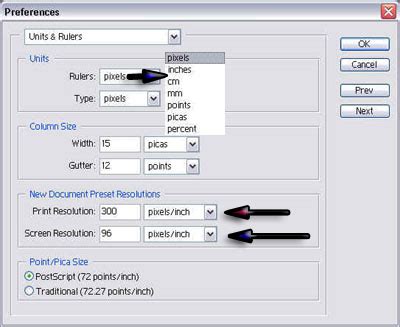
It's important to note that the "Image Size" window specifically edits the current document's unit settings. However, the "Units & Rulers" preferences provide a global default that Photoshop attempts to adhere to.
Advanced Ruler and Measurement Concepts
Photoshop offers more granular control over rulers and measurements than just pixels and inches. Understanding these can further enhance precision.
Ruler Origin and Spreads
The zero point of your rulers (the origin) is the starting point from which all measurements are taken. By default, this is typically at the top-left corner of your document. However, you can change this zero point. You can drag the intersection of the horizontal and vertical rulers from the top-left corner to any point on your canvas. This new point then becomes the zero reference. When you move the zero point, it moves to the same relative location in all spreads, ensuring consistency across related pages or artboards.
Furthermore, you can change the default zero point for rulers and the scope of the horizontal ruler by selecting different options in the "Units & Rulers" preferences:
- Spread: Sets the ruler origin at the top-left corner of each spread. This is particularly useful for multi-page documents or when working with layouts that span across pages.
- Page: Sets the ruler origin at the top-left corner of each individual page. This provides a consistent reference point for each page within a larger document.
- Spine: Sets the ruler origin at the center of the spine. This is a specialized option often used in book design or for layouts where the center of the document is the primary reference point.
Understanding Japanese Measurement Units (Q and Ha)
While less common for most Western users, Photoshop also includes units like Q and Ha. These are units used in Japanese manuals or automatic photo composers to indicate font size, tracking, or leading length. Understanding these units is generally only necessary if you are working with specific Japanese typesetting or legacy systems.
The "Measurement Scale" for Analysis
As previously discussed, the Image > Analysis > Set Measurement Scale option plays a critical role in how Photoshop interprets measurements for analytical purposes. The checkbox here, often overlooked, is not about the visual display of rulers but about establishing a pixel-to-real-world unit conversion. If you're using Photoshop for scientific imaging or precise physical measurements, correctly setting this scale is paramount. For example, if you know that 10 pixels in your image represent 1 millimeter in reality, you would input this information here. This setting then influences any subsequent measurements taken with tools like the Ruler Tool or the Measure Tool when used in conjunction with the analysis features.
Measure angles and Lengths in Photoshop
By thoroughly understanding and configuring Photoshop's ruler and measurement settings, users can ensure a consistent and accurate workflow, eliminating the common frustrations associated with mismatched units and achieving greater precision in their design and editing tasks. Whether you're a graphic designer, a photographer, or a digital artist, mastering these fundamental aspects of Photoshop will undoubtedly enhance your productivity and the quality of your work.