The advent of the High Efficiency Image File Format (HEIF), commonly encountered as .HEIC files, has introduced a new dimension to digital photography, particularly for users of modern Apple devices. While these files offer significant advantages in terms of compression and quality, their compatibility with a broader range of software and operating systems, especially Windows 10, can present a challenge. This article delves into the intricacies of converting HEIC files to the universally recognized JPG format, providing a comprehensive guide for Windows 10 users seeking a simple, fast, and reliable solution for managing their growing photo libraries.
Understanding the HEIC Format: Efficiency Meets Quality
HEIC, an acronym for High Efficiency Image Compression, is an image container format developed by the Moving Picture Experts Group (MPEG). Introduced by Apple with iOS 11, it utilizes advanced compression algorithms, notably HEVC (High Efficiency Video Coding), also known as H.265. This technology allows HEIC files to store images at approximately half the size of traditional JPGs without any discernible compromise in visual quality. This efficiency is a significant benefit, enabling users to store a greater number of high-resolution photographs on their devices, thus conserving valuable storage space.
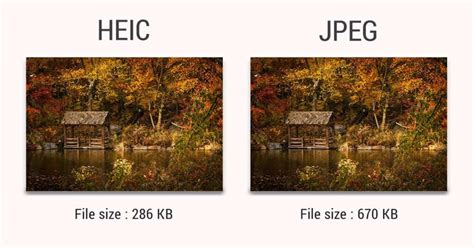
Beyond simple image storage, the HEIC format is capable of supporting more complex features, such as Live Photos, which capture a short video clip along with a still image. This multifaceted nature contributes to its appeal for device manufacturers prioritizing storage efficiency and image fidelity.
However, the primary drawback of HEIC lies in its proprietary nature and limited native support outside the Apple ecosystem. While iOS devices, iPads, and Macs can open and manage HEIC files seamlessly, users of non-Apple devices, particularly Windows 10 PCs, often encounter difficulties. Attempting to open these files without the necessary decoding software can result in an unreadable format, necessitating a conversion to a more widely compatible format like JPG.
The Universal Appeal of JPG: Bridging the Compatibility Gap
JPG, or Joint Photographic Experts Group, is a ubiquitous image file format that has been a cornerstone of digital imaging for decades. Its widespread adoption is largely attributed to its robust compression capabilities, which allow for significant reductions in file size, making it ideal for web use, email attachments, and general image sharing. While JPG is a "lossy" format, meaning some image quality may be sacrificed during compression, the degree of compression can be adjusted, providing a balance between file size and visual fidelity.
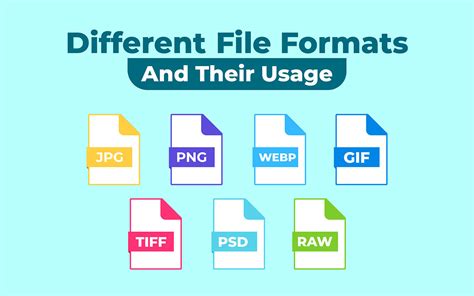
The fundamental advantage of JPG is its universal compatibility. Virtually every operating system, software application, and web browser can open and display JPG files without requiring additional plug-ins or specialized software. This inherent accessibility makes it the go-to format for sharing photos and integrating them into various digital projects, from web portfolios and social media to print materials and presentations.
For Windows 10 users, the transition from HEIC to JPG is often driven by the need to ensure that their iPhone photographs can be easily shared, edited, and stored across their entire digital workflow. While HEIC offers superior compression and quality, its lack of native support on Windows can create a barrier to seamless integration. Converting HEIC to JPG effectively bridges this gap, ensuring that these high-quality images can be enjoyed and utilized across all platforms.
Navigating the Conversion Landscape: Methods for Windows 10
For Windows 10 users, particularly those like the initial inquirer with a substantial library of HEIC files (around 1000 photos), the need for a fast, reliable, and user-friendly conversion method is paramount. Fortunately, several effective strategies exist, ranging from built-in Windows features to third-party applications and online converters.
Leveraging Windows 10's Native Capabilities
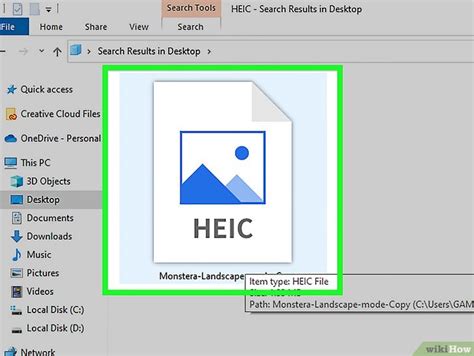
Windows 10 has made strides in improving HEIC support. While not as seamless as on macOS, users can often leverage built-in tools or readily available extensions. One of the most recommended approaches for Windows 10 is to utilize the HEIF Image Extensions from the Microsoft Store. This free extension enables native support for HEIF and HEVC media formats, allowing you to view HEIC files directly in File Explorer and the Photos app.
Once these extensions are installed, the process of converting HEIC to JPG can be simplified. For individual files, you can often open the HEIC image in the Windows Photos app, then use the "Save as" or "Export" function to save it as a JPG. This method is straightforward but can be time-consuming when dealing with a large number of files.
Dedicated Desktop Converters: Offline Solutions
For users who prefer offline solutions due to security concerns or the need for more advanced conversion options, dedicated desktop applications offer a robust alternative. Programs like DocuFreezer are frequently recommended. DocuFreezer provides a more granular control over the conversion process, allowing users to adjust parameters such as color mode (CMYK, RGB, etc.), apply watermarks, and fine-tune compression levels. This level of control is particularly beneficial for professional users or those with specific output requirements.
The advantage of using desktop converters often lies in their ability to handle batch conversions efficiently. Users can select multiple HEIC files or entire folders containing HEIC images and initiate a conversion process that runs in the background, freeing them to perform other tasks. This batch processing capability is crucial for managing large photo collections, significantly reducing the time and effort required compared to converting files one by one.
Furthermore, many desktop converters offer features like metadata management. The Exchangeable Image File Format (EXIF) embeds hidden information, such as camera settings, date, and location, into photographs. While this metadata can be valuable, some users may wish to remove it to save storage space or for privacy reasons. Dedicated converters often provide options to strip EXIF data during the HEIC to JPG conversion.
Online Converters: Convenience at Your Fingertips
Online HEIC to JPG converters have gained significant popularity due to their accessibility and ease of use. These web-based tools eliminate the need for software installation, allowing users to convert files directly from their web browser. Services like Canva's free converter, and various other online platforms, offer a simple drag-and-drop interface. Users upload their HEIC files, and the service converts them to JPG, ready for download.
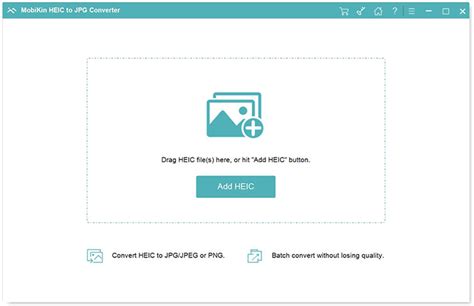
The convenience of online converters is undeniable. They provide a quick solution for single or small batches of files, and many are free to use. However, Nobel_Baynes's caution against online converters due to potential security risks is a valid concern. When using online services, it is crucial to select reputable providers that clearly outline their privacy policies and data handling practices. Many reputable online converters state that uploaded files are automatically deleted from their servers within a short period (e.g., one hour), and they do not store personal data or use uploaded files for any purpose other than the requested conversion.
For those considering online options, look for services that:
- Clearly state their privacy policy.
- Promise to delete uploaded files after conversion.
- Do not require account registration for basic conversions.
- Emphasize secure connections (HTTPS).
Canva, for instance, is highlighted as a platform that not only converts HEIC to JPG but also offers a suite of editing tools, allowing users to enhance their images before downloading them in the desired JPG format. This integrated approach can streamline creative workflows.
Streamlining Your Workflow: From iPhone to Windows PC
The process of converting HEIC files to JPG can be integrated into your existing workflow to ensure a seamless experience. For users of iPhones, Apple provides a setting to change the default camera format from HEIC to JPG. This can be done by navigating to Settings > Photos on your iPhone and selecting "Most Compatible" under the "Transfer to Mac or PC" or "Keep Originals" options (the exact wording may vary slightly depending on your iOS version). This setting ensures that future photos are captured directly in JPG format, eliminating the need for post-capture conversion.
How to Convert HEIC to JPG on iPhone
However, if you have a backlog of HEIC photos already on your iPhone or have transferred them in their original format, you will still need to convert them. When importing photos from an iPhone to a Windows 10 PC, you might encounter situations where the import process, even with the "Automatic" transfer setting, still brings over HEIC files. In such cases, the methods outlined above for Windows 10 become essential.
For those who have already imported a large number of HEIC files to their Windows 10 PC, batch conversion is the most efficient solution. Many desktop applications and some advanced online converters support batch processing, allowing you to convert hundreds or even thousands of files simultaneously. The output files can then be downloaded as a ZIP archive, simplifying the management of large quantities of converted images.
Maintaining Image Quality and Metadata
A common concern during file conversion is the potential loss of image quality. As mentioned, JPG is a lossy format. However, reputable converters, both online and offline, strive to minimize this loss. They often preserve the original resolution, DPI, and dimensions of the HEIC files, ensuring that the converted JPGs retain a high level of visual fidelity. It is advisable to check the settings of any converter you use, as many offer options to control the compression level and output quality.
Regarding metadata, the handling can vary between conversion tools. Some converters will preserve EXIF metadata, while others offer the option to remove it. If maintaining metadata is important for your archival or organizational needs, ensure that the tool you choose supports this feature. Conversely, if you aim to reduce file size further or enhance privacy, selecting a converter that can strip metadata can be beneficial.
Conclusion: Embracing Compatibility for Wider Reach
The HEIC format represents a significant advancement in image compression technology, offering substantial benefits in terms of file size and quality. However, its limited native compatibility, especially on Windows operating systems, necessitates conversion to more universally accepted formats like JPG. For Windows 10 users, a variety of straightforward and efficient methods are available, from leveraging built-in Windows features and dedicated desktop applications to utilizing secure online converters. By understanding the nuances of these formats and the available conversion tools, users can effortlessly transform their HEIC files into JPGs, ensuring their cherished memories and creative works are easily shareable, editable, and accessible across all their devices and platforms. This transition not only resolves compatibility issues but also empowers users to maximize the reach and utility of their digital photography.