Have you ever opened your photo folder only to find a file ending in a .heic extension and wondered what to do with it? You’re not alone. The HEIC (High Efficiency Image File Format) is a modern image format that offers significant advantages in terms of compression and quality, allowing for compact, high-quality images with minimal storage space. However, its primary drawback lies in its limited compatibility. While HEIC files are the default for storing images on iPhones and Macs, they are not natively supported by many non-Apple devices, older software, or even some web browsers. This is precisely why many users find themselves searching for how to convert HEIC to JPG, a universally supported and widely accessible format.
Converting your HEIC files to JPG not only improves compatibility but also ensures you can open and share your images across a wide range of devices and applications without needing special software. Fortunately, you don’t need complicated or expensive software to make this switch. The JPG (Joint Photographic Experts Group) format has long been the standard for digital images due to its excellent compression capabilities and broad support. While JPGs can sometimes experience a slight reduction in image quality when compressed or heavily edited, they remain an excellent alternative to the Apple-exclusive HEIC files, offering a balance of quality and accessibility.
Understanding the HEIC and JPG File Formats
Before diving into conversion methods, it's beneficial to understand the fundamental differences between HEIC and JPG.
HEIC: The Efficient Apple Standard
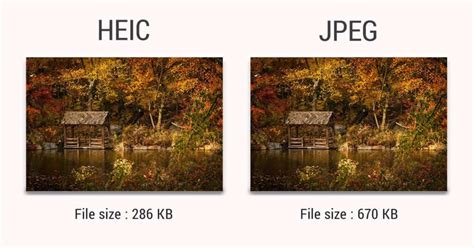
HEIC is a filename extension for the High Efficiency Image File Format. This format is a more advanced and modern compression algorithm that allows digital photographs to be taken in smaller file sizes while retaining much higher image quality than JPEGs. It is essentially a container for HEIF (High Efficiency Image Format) images, which leverages video compression technology called HEVC (High Efficiency Video Coding). HEIC files can store one or multiple HEIF image sequences. In June 2017, Apple announced its support for HEIF in macOS High Sierra and iOS 11, making it the default image format for iPhones and iPads. The primary advantage of HEIC is its efficiency: it offers superior compression, resulting in smaller file sizes without a significant compromise in image quality. This is particularly beneficial for devices with limited storage space.
JPG: The Universally Accessible Standard
JPEG, standing for Joint Photographic Experts Group, is a widely used method of lossy compression for digital images. It has become the standard image format nowadays due to its compression capability, allowing users to control the trade-off between file size and image quality. JPGs are universally supported, meaning you can open them on virtually any phone, computer, or web browser without requiring special software. This widespread compatibility makes them ideal for sharing images online, sending them via email, or simply viewing them on any device. However, it's important to note that JPG is a lossy format, meaning some image data is discarded during compression, which can lead to a slight reduction in quality, especially when files are repeatedly compressed or heavily edited. A notable limitation of JPG is that it cannot support transparent backgrounds; such images will always have a solid background.
Key Differences at a Glance
| Feature | HEIC (High Efficiency Image File Format) | JPG (Joint Photographic Experts Group) | PNG (Portable Network Graphics) |
|---|---|---|---|
| Full Name | High Efficiency Image File Format | Joint Photographic Experts Group | Portable Network Graphics |
| Filename Extension | .heif, .heic, .heif-sequence, .heic-sequence | .jpg, .jpeg, .jpe | .png |
| Type of Format | Image Container Format | Lossy image format | Lossless bitmap image format |
| Compression | High efficiency, often lossless or near-lossless | Lossy compression | Lossless compression |
| File Size | Generally smaller than JPG for same quality | Varies based on compression | Generally larger than JPG |
| Image Quality | High, often maintains more detail | Can lose quality with compression | High, preserves all detail |
| Transparency | Supports transparency | Does not support transparency | Supports transparency |
| Compatibility | Primarily Apple devices and newer software | Universal | Widely supported |
| Developed By | Moving Picture Experts Group (MPEG) | Joint Photographic Experts Group | PNG Development Group |
Why Convert HEIC to JPG?
The primary driver for converting HEIC files to JPG is compatibility. As HEIC is an Apple-centric format, users often encounter issues when trying to share or use these photos on non-Apple devices, such as Windows PCs, Android phones, or older digital cameras. Without native support, these devices may display HEIC files as unreadable or blank images, necessitating a conversion.
Enhancing Shareability
Converting to JPG ensures that your images can be easily shared with anyone, regardless of their operating system or device. This eliminates the frustration of recipients being unable to open your photos.
Broad Software and Device Support
Virtually all image editing software, operating systems, and web platforms support the JPG format. This means your converted images will open seamlessly across a vast array of applications and devices, from basic photo viewers to professional editing suites.
Streamlining Workflow
For users who frequently transfer photos from their iPhones to Windows computers or other non-Apple ecosystems, converting to JPG can streamline the entire workflow. It removes the need for special viewers or complex workarounds.
Avoiding Inconvenience and Expense
While special software exists to view HEIC files on non-Apple systems, it can be an added expense and complication. Converting to JPG is a straightforward and often free process, making it a more practical solution for most users.
Methods for Batch Converting HEIC to JPG
Fortunately, converting HEIC files to JPG, even in batches, is achievable through various methods, catering to different operating systems and user preferences.
On macOS: The Built-in Preview App
For Mac users, the simplest and fastest way to convert a HEIC file to a JPG file is by using the built-in Preview app.
- Open the HEIC file in Preview.
- Go to File > Export….
- In the export dialog box, choose JPG from the Format dropdown menu.
- Adjust the quality slider as needed.
- Click Save.
To batch convert multiple HEIC files:
- Select all the HEIC files you want to convert in Finder.
- Right-click on the selected files and choose Open With > Preview.
- Once all files are open in Preview (they will appear in a sidebar if grouped), you can go to File > Export All.
- Choose JPG as the format and select a destination folder.
- Click Save.
How to Convert HEIC to JPG on Mac
Changing Default Camera Format on iOS/macOS
If you consistently prefer your photos to be in JPG format, you can change the default setting on your iPhone, iPad, or Mac.
On iPhone/iPad:
- Go to Settings > Camera.
- Tap Formats.
- Under "Photo Capture," select Most Compatible. This setting ensures your iPhone saves future photos as JPGs automatically. Note that this may result in slightly larger file sizes compared to the HEIC format.
On macOS:
While macOS doesn't have a direct setting to change the default camera format to JPG for photos taken on a Mac, if you sync photos from an iPhone set to "Most Compatible," they will be imported as JPGs. For existing HEIC files on your Mac, the Preview app method described above is the most efficient for conversion.
On Windows: Native Support and Apps
Windows users might be surprised that their computers don't recognize HEIC files by default. However, Microsoft provides a solution through the Microsoft Store.
Installing HEIF Image Extensions
Windows 10 and 11 support HEIC/HEIF images if the HEIF Image Extensions are installed from the Windows Store.
- Open the Microsoft Store.
- Search for "HEIF Image Extensions."
- Install the extension. It's usually free.
- Once installed, you should be able to open HEIC files directly in the Photos app.
- To convert, open the HEIC file in the Photos app, click the "…" (More options) menu, and select "Save as…". Choose JPG as the file type.
For batch conversion on Windows, the Photos app's "Save as…" functionality is per-file. Therefore, for efficient batch conversion, third-party tools or online converters are often more suitable.
Using Built-in Microsoft Converter App (Implied)
The user mentions a "native Microsoft converter app" that allows drag-and-drop functionality. While specific details about a dedicated drag-and-drop converter app by Microsoft for HEIC to JPG aren't widely advertised, the Photos app, once extensions are installed, serves a similar purpose for individual files. For true batch conversion, other methods are more effective.
Online Converters: Convenience and Accessibility
Online HEIC to JPG converters offer a quick and convenient way to convert files without installing any software. Many services allow you to upload HEIC files and download them as JPGs.
Key considerations for online converters:
- Privacy and Security: Always choose reputable services that clearly state their privacy policies. Look for assurances that your files are deleted after conversion. Some services, like the one mentioned by fCoder Solutions Sp. z o.o., automatically delete output files from their server in one hour.
- Batch Processing: Many online tools support batch conversion, allowing you to upload multiple HEIC files simultaneously.
- Quality Control: Check if the converter allows you to adjust output quality settings, such as compression levels or resolution.
Example Workflow with an Online Converter:
- Navigate to a trusted online HEIC to JPG converter website.
- Drag and drop your HEIC files into the designated upload area, or select them from your computer.
- If available, choose your desired output quality settings.
- Initiate the conversion process.
- Download the converted JPG files.
Note on Online Services: Some online services, like the one from fCoder Solutions, explicitly mention that they do not use your files in any way and do not give access to them to any third parties. They maintain a secure IT environment and have appropriate measures to prevent unauthorized access to your data, keeping only file names and types of file conversion for internal analysis.
Third-Party Software Solutions
For users who prefer an offline solution or require more advanced conversion options, dedicated third-party software is available.
TuneBro HEIC Converter: This tool is highlighted by a forum user as being very effective for batch conversion, delivering results quickly and maintaining image quality.
Coolmuster HEIC Converter: This software is mentioned as being easy to use for batch converting HEIC images to JPG or PNG on Windows computers.
DocuFreezer: This program is suggested as an offline alternative that offers more settings to adjust the parameters of output JPEGs, such as changing color mode, watermarking, and compression. It supports drag-and-drop functionality for multiple files or folders.
Free HEIC to JPG/PNG Converter (Microsoft App Store): A user shared the development of a free converter available on the Microsoft App Store. This app is free to use with no registration or in-app purchases, though it does feature a non-obligatory popup asking for support.
Maintaining Image Quality During Conversion
A common concern when converting HEIC to JPG is the potential loss of image quality. While JPG is a lossy format, several steps can be taken to minimize this degradation:
- Choose High-Quality Output: When using conversion tools (both online and software-based), select the highest quality setting available. This will reduce compression artifacts.
- Avoid Re-compression: If you need to perform multiple conversions or edits, try to keep the original HEIC file and convert to JPG only when necessary. Repeatedly saving a JPG file can degrade its quality over time.
- Use Reputable Converters: Opt for converters that are known for their quality and offer good control over output parameters. Tools that preserve original resolution (DPI) and dimensions are preferable.
- Understand the Trade-off: Recognize that HEIC's superior compression is designed to maintain quality at smaller file sizes. Converting to JPG, especially at high compression settings, will inevitably involve some level of data loss. However, for most practical purposes, the difference is often imperceptible to the average viewer.
Beyond Simple Conversion: Streamlining Image Sharing with PDF
While converting HEIC to JPG enhances compatibility for image files, it's worth noting that for ultimate shareability and integrity across all devices, the PDF (Portable Document Format) remains a highly effective format. Converting almost anything to PDF can maintain its integrity across all devices. Adobe Acrobat, for instance, offers tools to convert various file types, including images, into PDF documents. This can be a valuable strategy for ensuring that your visual content is accessible and looks consistent everywhere.
Conclusion
The need to convert HEIC to JPG arises from the desire for universal compatibility and ease of sharing. While HEIC offers excellent compression and quality, its limited native support necessitates conversion for use on a wider range of devices and platforms. Fortunately, numerous methods exist, from built-in tools on macOS and Windows to a plethora of online converters and dedicated third-party software. By understanding the differences between the formats and employing the right conversion strategy, you can ensure your images are accessible and shareable, no matter where they are viewed. Remember to prioritize reputable tools and high-quality output settings to maintain the integrity of your cherished photographs.