Adobe Illustrator, the industry-standard vector drawing application since its release in 1987, is an indispensable tool for anyone involved in typography, illustration, or logo design. While working with vectors, a common challenge arises when a design, particularly a logo, is embedded within an unwanted background. This article will delve into various methods for removing backgrounds in Illustrator, catering to a range of complexities, from straightforward vector conversions to intricate manual selections.
Understanding the Illustrator Canvas and Transparency
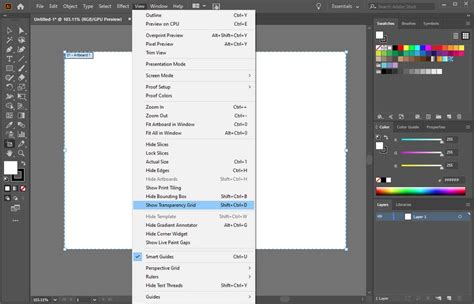
It's a common misconception that the white area seen in Adobe Illustrator is a permanent background. In reality, Illustrator, by default, operates with a transparent background. The white canvas is merely a visual aid, a less jarring view that is preferred by most users. To confirm this, you can toggle the transparency grid by navigating to View > Show Transparency Grid. On Windows, the shortcut is Shift+Ctrl+D, and on Mac, it's Shift+Command+D. This checkerboard pattern visually represents the transparent areas of your artwork, making it clear what will appear as transparent when exported.
Method 1: Image Trace for Simple Backgrounds
For logos or sketches with simple, high-contrast backgrounds, the Image Trace feature is a powerful option. This method converts a pixel-based image into a scalable vector graphic, making it easier to manipulate.
Step-by-Step Image Trace Removal:
- Open and Prepare: Open your image in Adobe Illustrator. To visualize transparency, go to
View > Show Transparency Grid(or use the shortcutShift+Ctrl+D/Shift+Command+D). - Select and Trace: Use the Selection Tool (V) to select the image. Open the Image Trace panel by going to
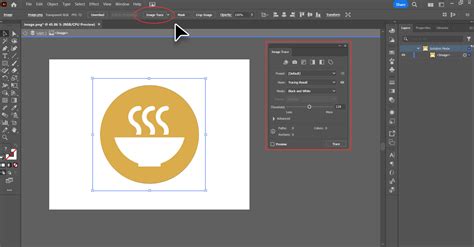
Window > Image Trace. Choose a suitable preset, such as "High Fidelity Photo" for more detailed images or "Black and White Logo" for simpler graphics. - Expand the Trace: Once the tracing is complete, it's crucial to convert the traced image into editable paths. Go to
Object > Expandin the top menu. This action transforms the vector trace into a group of editable shapes. - Delete the Background: Switch to the Direct Selection Tool (A). Click off the expanded object to deselect everything. Then, click on one of the shapes that constitutes the background color you wish to remove. To select all similar background shapes, go to
Select > Same > Fill Color. Once selected, press theDeletekey. If you are specifically targeting a white or black background, you can simply click on a single shape of that color with the Direct Selection tool and delete it.
Caution: Image Trace can sometimes result in a loss of fine details in complex images, potentially making them appear "cartoonish." For such scenarios, the Pen Tool method might yield better results.
Method 2: The Magic Wand Tool for Solid Backgrounds
When dealing with images that have solid, consistent colored backgrounds, such as a plain white backdrop, the Magic Wand tool is an efficient choice. This tool excels at selecting objects or parts of your project that share similar characteristics, like color.
Utilizing the Magic Wand Tool:
- Enable Transparency: Open your file in Illustrator and enable the Transparency Grid (
View > Show Transparency GridorShift+Ctrl+D/Shift+Command+D). - Select the Tool: Choose the Magic Wand Tool (Y) from the toolbar.
- Click and Delete: Click directly on the background color you want to remove (e.g., the white background). The Magic Wand will select all contiguous areas with that same color. Press the
Deletekey to remove the selected background.
Pro Tip: If the Magic Wand tool accidentally selects parts of your subject, you can refine its accuracy. Double-click the Magic Wand tool icon in the toolbar to access its options. Adjusting the "Tolerance" value is key: a lower number makes the selection more strict, while a higher number broadens it.
How To Remove A White Background with Adobe Illustrator 2026
Method 3: The Pen Tool for Precision and Complex Images
For professional-grade results, especially with complex images, products that cast shadows, or backgrounds with intricate details, the Pen Tool offers unparalleled control. This method involves manually drawing an outline around your subject, effectively creating a "cookie cutter" shape.
Crafting a Clipping Mask with the Pen Tool:
- Prepare Your Workspace: Open your image in Illustrator. To make your path visible, set the Fill to "None" and the Stroke to a bright, easily visible color like red.
- Draw the Outline: Select the Pen Tool (P). Zoom in closely to your subject. Carefully click around the edge of your subject to create anchor points and form an outline. You can create straight lines by clicking and dragging to create curves, or subdivide existing lines to refine the shape. The process is intuitive and becomes more natural with practice.
- Close the Path: Once you have created your best-fit outline, click on the very first anchor point you created to close the shape.
- Create the Clipping Mask: Select both your newly created path and the image behind it. You can do this by dragging a marquee with the Selection Tool (V) or by holding
Shiftand clicking on both elements. Once both are selected, right-click on a PC orCtrl-click on a Mac and choose "Make Clipping Mask." Alternatively, use the shortcutCtrl+7(orCommand+7on Mac). Everything outside the path you drew will now be hidden, effectively removing the background.
Crucial Export Step: When saving your work after using a clipping mask, it is vital to export your file as a PNG. JPEGs do not support transparency and will reintroduce a white background. Ensure the transparency option is enabled during the export process.
Alternative Approaches and External Tools
While Illustrator offers robust built-in tools, the process of manual background removal can be time-consuming. For those seeking faster, automated solutions, especially for product photography or when dealing with numerous images, external tools can be highly beneficial.
Icons8 Background Remover: A Quick Solution
Icons8 provides a user-friendly online tool that leverages AI for quick background removal. The process is straightforward: upload your image, and the AI automatically detects and removes the background, leaving you with a transparent image ready for download. This is particularly useful for those who need a hassle-free way to achieve transparent backgrounds without deep dives into Illustrator's intricacies. Icons8 also offers a native plugin for Adobe Illustrator, providing access to a vast library of icons.
Adobe Express: Integrated Background Removal
Adobe Express, a creative app from Adobe, also features a built-in background removal tool. Similar to Icons8, you can upload an image, and the tool will automatically process it to remove the background. Adobe Express goes a step further by offering a comprehensive suite of editing tools, templates, and design assets, allowing you to further enhance your image, create flyers, social posts, and much more. It's a versatile platform for quick edits and design creation.
remove.bg: Instant Background Removal
remove.bg is another popular online service designed for rapid background removal. It allows users to drag and drop or upload their images, and the AI processes them within seconds to create a transparent background. This tool is praised for its speed and efficiency.
SellerPic AI Background Remover: Streamlining Workflows
For professionals, such as e-commerce sellers or designers with tight deadlines, SellerPic AI Background Remover offers an automated workflow. This tool is designed to instantly detect subjects and handle intricate details like hair and fur, producing high-resolution PNGs with transparent backgrounds in a matter of seconds. SellerPic emphasizes a "one-click" process, eliminating the need for manual tracing or complex export settings often associated with Illustrator.
Saving and Exporting with Transparency
Regardless of the method used for background removal in Illustrator, the final step of saving or exporting your artwork correctly is crucial to preserve transparency.
- Exporting as PNG: As mentioned earlier, the PNG format is essential for maintaining transparency. When you go to
File > Export > Export As...(orFile > Save for Web (Legacy)...), ensure you select "PNG" as the file format. In the PNG options dialogue box, make sure the "Transparent" checkbox is ticked. - Saving as EPS: For vector graphics intended for further editing or use in other design applications, saving as an EPS (Encapsulated PostScript) file is a good practice. When saving as an EPS (
File > Save As...), choose "Illustrator EPS" from the format dropdown. In the EPS options window, select "Tiff (8-bit Color)" for the Preview format and ensure the "Transparent" option is checked.
By understanding these various techniques and export settings, you can effectively remove backgrounds in Adobe Illustrator and ensure your designs are presented with the intended transparency, ready for any application.
Frequently Asked Questions
How do I remove the background in Adobe Illustrator?
In Adobe Illustrator, you can remove backgrounds by converting your image to a vector using Image Trace, then expanding and deleting unwanted areas. Alternatively, you can select and erase the background using the Magic Wand tool for solid colors or the Pen tool for precise outlines and clipping masks. For rapid results, AI-powered tools like SellerPic's AI Background Remover are highly recommended.
How do I make the background transparent in Illustrator?
After removing the background in Illustrator, it's essential to export your file correctly. Choose PNG as the file format and ensure the "Transparent" option is enabled during the export process. This preserves your design's crispness and transparency. SellerPic's AI Background Remover also creates transparent backgrounds efficiently.
How do I remove a background from an image?
The approach to removing a background depends on the image type and your chosen software. In Illustrator, use Image Trace, the Magic Wand, or the Pen tool. Online tools like SellerPic's AI Background Remover offer an automated alternative that uses advanced algorithms to remove backgrounds while preserving fine details.
How do I remove an artboard in Illustrator?
To remove an artboard, select the Artboard tool (Shift+O) from the toolbar. Click on the specific artboard you wish to delete, and then press the Delete key. This cleans up your workspace without affecting your artwork.
How do I remove the background in Photoshop?
Photoshop offers several tools for background removal, including the Quick Selection tool, Magic Wand tool, and a dedicated "Remove Background" feature often found in the Properties panel. These tools allow for quick isolation of subjects. For streamlined workflows, SellerPic's AI Background Remover can also be used as an alternative.
How can I remove a white background in Illustrator?
To remove a white background in Illustrator, the Magic Wand tool is very effective. Click on the white space with the Magic Wand tool selected, and press Delete. You can adjust the tool's tolerance in its options to refine the selection. SellerPic's AI Background Remover can also automatically eliminate white backgrounds from images.
How do I use Image Trace in Illustrator to remove a background?
Select your image in Illustrator and open the Image Trace panel (Window > Image Trace). Choose a preset like "High Fidelity Photo" or "Black and White Logo." After tracing, go to Object > Expand to convert the trace into editable paths. Then, use the Direct Selection tool to select and delete the background elements.
How can I remove a background using AI tools?
AI tools provide a fast and reliable method for background removal. For instance, SellerPic's AI Background Remover uses intelligent algorithms to identify and eliminate backgrounds from both raster and vector images, maintaining image quality. This is ideal when speed and accuracy are paramount.
How do I remove the background from a PNG file in Illustrator?
Open your PNG file in Illustrator. You can use either the Image Trace or Magic Wand tool to select and delete the background. When exporting, ensure you save as a PNG with the transparency option enabled. SellerPic's AI Background Remover also works effectively with PNG files.
How can I remove a background in HD quality?
To maintain HD quality, work with vector tools or high-resolution images. Illustrator's Image Trace can be used for precise vector conversion. Alternatively, SellerPic's AI Background Remover is designed to preserve fine details and remove backgrounds at high resolution.
How do I remove the background using Adobe Express?
Adobe Express has a user-friendly, built-in background removal tool. Upload your image, let the tool automatically detect and remove the background, and then make any necessary adjustments. SellerPic's AI Background Remover serves as a strong alternative for quick and high-quality results.
How do I remove the background in Illustrator online for free?
While Adobe Illustrator is a desktop application, free online alternatives exist. For fast and professional results, SellerPic's AI Background Remover is available online and offers a seamless way to remove backgrounds without needing to install software.
How to make a background transparent in Illustrator?
You can achieve transparency in Illustrator through several methods. Use Image Trace to convert your image to a vector and then delete the background. Alternatively, select the background with the Magic Wand tool if it's a solid color, or use the Pen tool to precisely trace your subject and create a clipping mask. For a quick, automated solution, SellerPic's AI Background Remover produces high-quality transparent backgrounds.
How do I remove the background from an image?
A reliable approach is to use an online tool like SellerPic. Simply upload your image, select the "Remove Background" option, and allow the tool to process it. You can make final adjustments with an eraser brush if needed before downloading the final PNG. SellerPic's AI Background Remover offers an efficient process without compromising quality.
How do I get rid of the white background in the Illustrator workspace?
To remove the white background from your Illustrator workspace and see the transparency grid, go to the View menu and select Show Transparency Grid.
tags: #removing #background #in #illustrator