The transition to digital photography has brought about various file formats, each with its own advantages. For users of Apple devices, the High Efficiency Image Container (HEIC) format has become increasingly common, especially for photos taken with iPhones. While HEIC offers superior compression and quality compared to older formats like JPEG, its compatibility with Windows operating systems, particularly Windows 11, can be a significant hurdle. This article delves into the challenges of HEIC on Windows 11 and provides detailed, practical solutions for converting HEIC files to the more universally accepted JPG format, addressing the need for batch conversion, speed, and quality preservation.
The HEIC Conundrum on Windows 11
For many Windows 11 users, encountering HEIC files can be a source of frustration. Unlike macOS and iOS, Windows has historically lacked native, seamless support for this format. This means that simply trying to open an HEIC file might result in an error message or a prompt to download a codec.
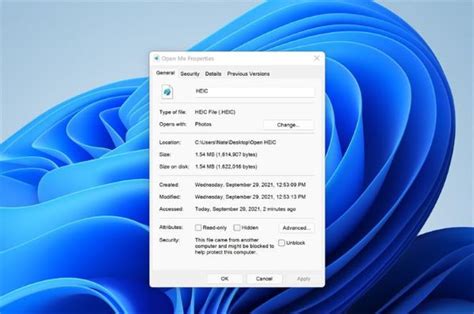
One common experience is when users copy photos from their iPhones to their Windows computers. "All the photos I copied from my iPhone to my computer were in HEIC format," states one user. "I didn't pay attention to it at first, but I found that many software couldn't open them, and even some image editing software didn't support them." This lack of native support can be particularly problematic when dealing with a large number of images. "The key is that I have more than 2,000 HEIC pictures to batch convert to JPG. Manual conversion is too troublesome," highlights another user's predicament.
The inherent limitations of Windows 11's native handling of HEIC extend to its built-in applications. "I tried Microsoft's built-in 'Photos' app before, but found that it doesn't support batch conversion at all," a user reports, underscoring the need for dedicated solutions. Furthermore, concerns about security and reliability arise when considering external options. "When I open the heic file on Windows 11, it asks me to download the extension. I'm worried it's not safe and don't want to download it!" expresses a common apprehension about unknown software or extensions.
The HEIC format itself is designed for efficiency. "I've read that HEIC offers better compression without sacrificing quality, which is great," a user acknowledges. This efficiency means HEIC files are typically smaller than equivalent JPGs while often retaining more detail. However, this advantage is negated if the files cannot be readily used. "Now, I need to use these photos on my Windows computer, but I'm running into issues because Windows doesn't seem to naturally support HEIC files, or at least not in a way that's convenient for me," explains the core problem. The desire is for a format that is "universally accessible," with JPG being the prime candidate.
Leveraging Adobe Photoshop Elements for Batch Conversion
For users who possess Adobe Photoshop Elements, a powerful and accessible solution for converting HEIC files to JPG exists, particularly for batch processing. This method is favored by those who need to convert a substantial number of images efficiently.
"If you have Adobe Photoshop Elements 2025 try this," suggests a user who has successfully navigated this issue. The key is to utilize the "Process Multiple Files" feature, which is readily available within the software's "Advanced" operating mode.
Step-by-Step Conversion using Photoshop Elements:
- Open Photoshop Elements: Launch the application.
- Select "Advanced" Mode: Near the top center of the window, ensure you are in "Advanced" operating mode. If you are not in this mode, the "Process Multiple Files" option will be unavailable (greyed out).
- Access "Process Multiple Files": Navigate to "Files" and select "Process Multiple Files." You do not need to open any HEIC files prior to accessing this dialog box.
- Configure Source and Destination: A dialog box will appear with several options. In the "Source" box, enter the exact path to the folder containing your HEIC files. Subsequently, in the "Destination" box, specify the folder where you want the converted JPG files to be saved. It is often advisable to place HEIC files in a dedicated folder for this process.
- Enable File Conversion: Towards the bottom of the dialog window, locate and check the "Convert Files To" checkbox.
- Select Output Format and Quality: To the right of the "Convert Files To" checkbox, a dropdown menu will allow you to select "JPG" as the desired output format. You can also choose the JPG quality you want for the converted files, balancing file size with image fidelity.
- Initiate Conversion: Click the "OK" button, typically found in the lower right corner of the dialog box.
Photoshop Elements will then systematically process all the HEIC files within the designated source folder. As it works, you can observe thumbnails of the selected HEIC files in the lower left corner of the Photoshop Elements window. For HEIC files originating from an iPhone, the conversion rate can be remarkably fast, with one photo being converted approximately every second. This process runs unattended, making it an efficient solution for large volumes of images.
"I have not done extensive testing, but so far it seems to work quite well," a satisfied user reports. This method is particularly appealing because it offers a robust, reliable, and fast way to achieve batch conversion without resorting to potentially less secure online tools or applications with questionable performance. "I am currently using Photoshop Elements 2025, but I have used previous versions of Photoshop Elements for many years," indicating the long-standing utility of this feature across different versions of the software. While the user specifically mentions Photoshop Elements 2025, it's highly probable that similar batch processing capabilities exist in other versions of Photoshop Elements and potentially in the full Adobe Creative Cloud suite, though direct confirmation for all versions is beyond the scope of this immediate solution.
How to Convert PNG Adobe Photoshop Elements to JPG : Photoshop Elements
Exploring Native Windows 11 Options and Extensions
While third-party software like Photoshop Elements offers a comprehensive solution, users may also explore options that integrate more directly with Windows 11, or those that offer a simpler, dedicated approach. The initial hurdle for many is the lack of native HEIC support, leading to the prompt to download extensions.
The HEIF Image Extensions from the Microsoft Store
Microsoft has made efforts to improve HEIC support on Windows. The most direct way to enable native viewing of HEIC files within Windows 11 is by installing the "HEIF Image Extensions" from the Microsoft Store.
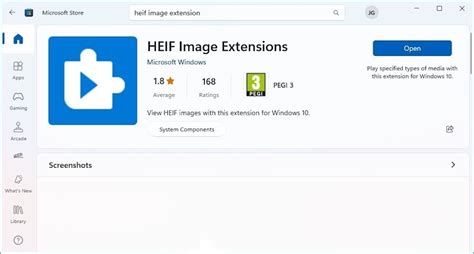
This extension allows the built-in Photos app and other applications that rely on Windows imaging libraries to display HEIC files. However, as previously noted, the built-in Photos app does not offer batch conversion capabilities. The primary benefit of installing these extensions is for viewing and basic editing, not for bulk conversion to JPG.
The apprehension about downloading extensions is understandable. "I'm worried it's not safe and don't want to download it!" is a valid concern. The HEIF Image Extensions are an official Microsoft product, and when downloaded from the Microsoft Store, they are generally considered safe. However, it's crucial to ensure you are downloading from the official Microsoft Store to avoid unofficial or potentially malicious versions.
Even with the HEIF Image Extensions installed, converting HEIC to JPG still requires an additional step or a different tool. The extensions themselves do not provide a conversion utility.
Third-Party Software for Dedicated Conversion
Recognizing the demand for HEIC to JPG conversion, a multitude of third-party software applications have emerged. These tools often focus specifically on this task, promising speed, quality, and ease of use. When searching for such software, users often look for:
- Stability on Windows 11: The software should run without crashes or errors on the target operating system.
- Batch Conversion Support: The ability to convert multiple files simultaneously is paramount for efficiency, especially when dealing with thousands of images.
- Fast Conversion Speed: Users want to minimize the time spent on the conversion process.
- Lossless or High-Quality Conversion: Preserving the original image quality is a key requirement, as users don't want to sacrifice detail or introduce artifacts.
- Ease of Use: An intuitive interface that doesn't require a steep learning curve is desirable.
While the user in the initial prompt sought recommendations for the "best HEIC to JPG converter software in 2025," it's important to note that software is constantly updated, and "best" can be subjective. However, several reputable third-party converters are known for their performance. These often include:
- Dedicated HEIC Converter Applications: Numerous standalone applications are available, some free and some paid. These often feature simple drag-and-drop interfaces and robust batch processing. Examples might include applications like "iMazing HEIC Converter" (often free for limited use) or paid options that offer more advanced features.
- Image Editing Software with Conversion Capabilities: Beyond Photoshop Elements, other image editors might offer HEIC import and JPG export. However, their batch conversion features can vary significantly.
When choosing a third-party converter, it is advisable to read reviews, check for recent updates, and consider the developer's reputation. Many offer free trial versions, allowing users to test their performance and features before committing to a purchase. The criteria of "lossless image quality" and "fast conversion speed" are particularly important, as online converters often fall short in these areas.
Considerations for Quality and Workflow
Regardless of the chosen method, several factors influence the success of HEIC to JPG conversion, particularly concerning image quality and workflow efficiency.
Maintaining Image Quality
The HEIC format, based on the HEVC (High Efficiency Video Coding) standard, offers significant advantages in terms of compression efficiency and image quality. It supports features like 16-bit color depth, wider color gamuts (like Rec. 2020), and can store multiple images (like bursts or depth maps) within a single file. When converting to JPG, a lossy compression format, there's an inherent risk of quality degradation.
"I'm looking for a straightforward method or tool that can help me convert HEIC files into JPGs on Windows 11 machine without losing much in terms of image quality," emphasizes the user's concern. To mitigate quality loss:
- Select High JPG Quality: When using tools that offer quality settings (like Photoshop Elements), choose the highest possible JPG quality setting. This will result in larger file sizes but will minimize compression artifacts.
- Avoid Re-compression: If you plan to edit the JPGs further, consider converting to a lossless format like PNG first, and then to JPG after editing, to avoid cumulative lossy compression. However, for general sharing and storage, a high-quality JPG is usually sufficient.
- Understand HEIC's Capabilities: Be aware that some advanced features of HEIC (like depth maps) cannot be directly translated into a standard JPG. The conversion will typically focus on the primary image data.
Optimizing Workflow
For users with a large library of HEIC files, optimizing the workflow is crucial.
- Dedicated Folders: As suggested, "it's a good idea to place the HEIC files in a folder by themselves." This simplifies the selection process for batch conversion tools and prevents accidental conversion of other file types.
- Automated Solutions: For those with ongoing needs, exploring scripting or more advanced automation tools might be beneficial, though this moves beyond simple user-friendly solutions.
- Cloud Sync Considerations: If photos are synced from an iPhone to a cloud service (like iCloud or Google Photos), check the service's settings. Some services allow you to choose whether to upload HEIC or JPG, or to automatically convert on download. However, this is often dependent on the platform and may not directly address the Windows 11 desktop experience.
Ultimately, the best approach for converting HEIC to JPG on Windows 11 depends on the user's technical proficiency, the number of files to convert, and their budget. For those who already use Adobe Photoshop Elements, its batch processing capabilities offer a powerful and integrated solution. For others, carefully selected third-party converters provide dedicated and efficient alternatives, ensuring that the transition from HEIC to the ubiquitous JPG format is as seamless and high-quality as possible.