Smart Objects are a cornerstone of non-destructive editing in Adobe Photoshop, offering unparalleled flexibility for manipulating images and text. They allow for non-destructive scaling and resizing, preserving image quality even after multiple transformations. Smart Objects make resizing images incredibly easy! Activate the Free Transform tool by pressing Ctrl+T (Windows) or Cmd+T (mac). Easily resize the image by dragging the corner handles. The magic of Smart Objects lies in their non-destructive nature.
However, a common hurdle arises when attempting to convert type layers directly into Smart Objects, particularly if you anticipate needing to edit the text later. The conventional method of converting a layer to a Smart Object often falters with text, leading to potential issues with canvas size and content clipping during subsequent edits. This article explores a more robust and flexible method for converting type to a Smart Object, ensuring that your text remains fully editable and its integrity is maintained, regardless of how many times you need to adjust it. This technique is applicable to Photoshop 2023 and other recent versions of the software.
The Challenge of Direct Type Conversion
Let's consider a scenario where you've added some placeholder text in front of a simple background image. You might then decide to apply a filter, such as a Gaussian Blur, to this text. The natural inclination might be to convert this text layer into a Smart Object to preserve the filter non-destructively.
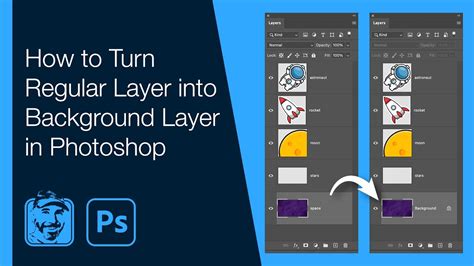
However, a critical issue emerges when you examine the canvas size of the resulting Smart Object document. It is often significantly smaller than the canvas of your main document, typically being sized to the dimensions of the original text. This discrepancy becomes problematic when you need to edit the text within the Smart Object.
Imagine you need to modify the text, perhaps making it slightly larger or changing its content. If the new text exceeds the boundaries of the original, smaller canvas within the Smart Object, parts of your letters will be cut off. For instance, if you change the text color back to white and find that the round parts of letters like 'B' extend beyond the canvas, they will appear truncated. This is precisely why the usual way of converting a single type layer to a Smart Object does not always work effectively for editable text.
A More Flexible Conversion Method
To circumvent this limitation and ensure your text remains fully editable within a Smart Object, a more strategic approach is required. This method involves using a duplicate of the background layer as a temporary intermediary.
Here's how to achieve a more flexible conversion:
Duplicate the Background Layer: In your Layers panel, select the "Background" layer. Then, press Ctrl+J on a Windows PC, or Command+J on a Mac. This action creates a duplicate of the Background layer, which will appear above the original, typically named "Background copy."
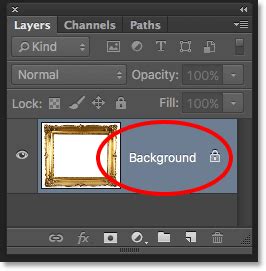
Group Layers and Convert to Smart Object: With the newly created "Background copy" layer selected, hold down the Shift key on your keyboard. While holding Shift, click on your type layer. This action selects both the "Background copy" layer and the type layer.Now, right-click on either of the selected layers and choose "Convert to Smart Object."
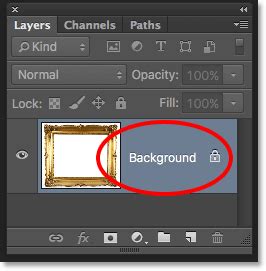
Remove the Temporary Layer: Once the Smart Object has been created, you will notice that the "Background copy" layer is no longer needed. Its purpose was to ensure that the Smart Object encompassed enough canvas space to accommodate potential text expansions. You can now safely delete the "Background copy" layer from your Layers panel.
The Benefits of This Approach
By employing this method, you've effectively created a Smart Object that is sized to your main document's canvas, rather than being constrained by the original text's dimensions. This solves the canvas size problem encountered with direct conversion.
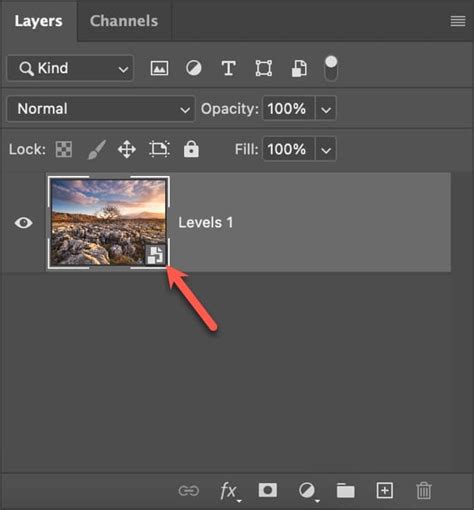
Now, let's test the flexibility. You can confidently edit the text within this Smart Object. Double-click the Smart Object layer thumbnail in the Layers panel to open it in a new document. This gives you the freedom to replace the image, add text, or make any other desired changes.
For example, you can change the type color back to white. When you return to the main document, the Smart Object will update with your new text, and any applied filters, like the Gaussian Blur, will still be intact. Crucially, because the Smart Object's canvas is appropriately sized, you won't be missing any parts of the letters, even if your new text is larger than the original.
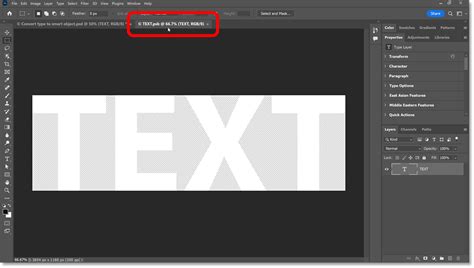
This method ensures that the Smart Object is not only a container for your text and its effects but also a flexible element that can accommodate changes in text size and content without compromising the overall composition.
Understanding Smart Objects Further
Smart Objects are one of the most powerful features in Photoshop. They are essentially containers that preserve the original image data of a layer, allowing for non-destructive edits. This means you can scale, rotate, skew, distort, apply filters, and adjust the color of a Smart Object without permanently altering the underlying pixels.
Key Advantages of Smart Objects:
- Non-Destructive Editing: Unlike rasterized layers, Smart Objects retain their original image information. Any transformations or filter applications are recorded as editable properties, not pixel alterations.
- Scalability and Resizing: You can scale a Smart Object up or down multiple times without the loss of quality that would occur with a regular pixel layer. This is particularly useful for logos, icons, or any graphic element that might need to be resized for different applications.
- Filter Preservation: Filters applied to Smart Objects are "Smart Filters," meaning they can be re-edited, masked, or even deleted at any time. This provides immense control over visual effects.
- Embedded and Linked Files: Smart Objects can also be created from raster or vector images, Adobe Illustrator files, or even other Photoshop documents. You can choose to embed these files within your Photoshop document or link to them. Linked Smart Objects update automatically when the source file is changed, streamlining workflows for projects involving multiple assets.
Edit Non-Destructively with Smart Objects in Photoshop | Day 13
Creating and Editing Smart Objects
To create a Smart Object from an existing layer (or multiple layers):
- Select the layer(s) you want to convert in the Layers panel.
- Right-click on the selected layer(s) and choose "Convert to Smart Object."
To edit the content of a Smart Object:
- Double-click the Smart Object layer's thumbnail in the Layers panel. This will open the contents of the Smart Object in a new Photoshop document.
- Make your desired edits to the content within this new document.
- Save the Smart Object document (File > Save or Ctrl+S/Cmd+S).
- Close the Smart Object document. The changes will automatically update in your original main document.
Practical Applications and Considerations
The ability to flexibly convert type to a Smart Object has numerous practical applications:
- Logo Design: Ensuring logos can be scaled for various uses without degradation.
- Web Design: Placing and resizing graphical elements and text for different screen resolutions.
- Print Design: Preparing elements that might need to be adjusted in size or content before final output.
- Complex Compositions: Managing multiple text elements and their effects within a layered document.
While the method described for converting type to a Smart Object is highly effective, it's worth noting that for very simple text that requires no future editing, a direct conversion might suffice. However, for any text that has the potential for modification, the outlined approach offers a significant advantage in terms of workflow efficiency and creative control.
Remember that Smart Objects do increase file size, as they embed a copy of the original data. For very large or complex documents with numerous Smart Objects, performance might be affected. In such cases, judicious use and understanding of when to rasterize layers that no longer require non-destructive editing can be beneficial.
By adopting this more flexible method for handling type as Smart Objects, you unlock a more powerful and less frustrating way to manage text in your Photoshop projects, ensuring that your creative vision can evolve without technical limitations.