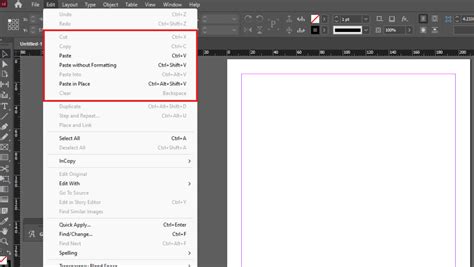
Repetition is a fundamental visual element that graphic designers frequently incorporate into their work. Adobe InDesign offers powerful built-in features to streamline this process, saving valuable time and enhancing efficiency, especially in larger projects. Two such essential tools are the Duplicate feature and the Step and Repeat command, both readily accessible within the Edit dropdown menu. Understanding and leveraging these functionalities can significantly improve your workflow when dealing with recurring elements, whether it’s branding applications, posters, flyers, or intricate booklet covers.
The Power of Duplication: Quick and Precise Copying
The Duplicate feature is an intuitive tool for creating exact copies of selected objects, maintaining precise spacing and alignment. This is particularly useful when you need to replicate an element multiple times without the manual tedium of copying and pasting.
To utilize the Duplicate feature:
- Select your object: With your shape or text frame selected using the Selection Tool, hold down the Option key on a Mac or the Alt key on a Windows PC.
- Drag to create a copy: While holding down the Option/Alt key, drag your cursor away from the original object. This action creates a duplicate.
- Align and distribute: Position the duplicated object as desired.
- Execute Duplicate: Instead of manually creating another copy, navigate to Edit > Duplicate. This command repeats your last action-the creation of a copy and its placement-resulting in an identical duplicate placed at the same distance and in the same direction from the original as the first duplicate was from its source. This ensures consistent spacing between repeated elements.
This method is highly effective for tasks like repeating a word or a small graphic element across a layout. For instance, in a recent print design project for a booklet cover that required the word "Detroit" to be repeated numerous times, using the Duplicate feature eliminated the need for repetitive copy-pasting and manual placement, ensuring uniformity and saving considerable time.
Step and Repeat: Streamlining Multiple Duplicates
The Step and Repeat command offers an even more advanced method for creating multiple versions of an element in a single operation. It allows you to define the number of duplicates and the spacing between them, preserving the original spacing with one simple step.
Here's how to use Step and Repeat:
- Select objects for repetition: Use the Selection Tool to drag and collect all the objects you intend to repeat.
- Group the objects: To ensure that multiple elements are treated as a single unit for repetition, group them. You can do this by going to Object > Group, right-clicking and selecting Group, or by using the shortcut Command + G on Mac or Control + G on Windows. Grouping also allows you to move and scale multiple elements as one, which is crucial for maintaining logo integrity or complex graphic arrangements. Objects can also be grouped into subgroups within larger groups, allowing for a more organized hierarchy.
- Create an initial duplicate and define spacing: While holding down the Option or Alt key, drag a copy of the grouped object. This initial drag action helps define the spacing and direction for subsequent repetitions.
- Access Step and Repeat: After creating this initial duplicate and before releasing the mouse button or performing any other action, navigate to Edit > Step and Repeat.
- Configure repetitions: A dialog box will appear. In the Count field, enter the desired number of times you want the grouped object to appear. InDesign will automatically calculate and create the specified number of duplicates, maintaining the spacing established by your initial drag.
This tool is invaluable when you need to create grids of elements, patterns, or evenly spaced text blocks. The ability to precisely control the number of repetitions and their spacing makes it a powerful asset for complex layouts.
Advanced Grouping and Object Management in InDesign
Beyond the core duplication tools, InDesign provides robust options for managing and manipulating objects, which are closely related to efficient repetition workflows.
Grouping Objects: A Foundation for Repetition and Organization
Grouping objects is fundamental for treating multiple items as a single entity. This is essential for the Step and Repeat function, but it also offers broader benefits:
- Unified Movement and Scaling: Grouped objects can be moved, scaled, rotated, and transformed as a single unit. This is particularly useful for logos or complex graphic elements that need to maintain their internal relationships.
- Hierarchical Organization: You can create nested groups, organizing elements into subgroups within larger groups. This helps manage complex layouts and maintain a clear hierarchy of design components.
- Layer Management: While objects on different layers can be grouped, InDesign assigns the group to the topmost layer containing at least one object in the group. However, it remembers the original layer of each object, offering flexibility in organization. An application-level setting allows you to choose whether ungrouped objects remain on the topmost layer.
Locking and Hiding Objects: Preventing Accidental Edits
When working with complex designs involving repeated elements, it's crucial to prevent accidental modifications.
- Locking Objects: To prevent an object from being moved or edited, you can lock it. Select the object and go to Object > Lock. A locked object cannot be selected or moved. To unlock, you can select Object > Unlock All On Spread or click the lock icon in the Layers panel. Locking applies to both objects and layers, providing comprehensive control.
- Hiding Objects: Similar to locking, hiding an object removes it from view and prevents selection, but it can be easily revealed later. Select the object and choose Object > Hide. To show all hidden objects, use Object > Show All On Spread.
Precise Transformations: Beyond Manual Dragging
InDesign offers precise control over transformations, which can be combined with duplication for highly accurate results.
- Constrained Movement: Holding Shift while dragging an object constrains its movement to a horizontal, vertical, or 45-degree diagonal line. This is useful for ensuring perfect alignment.
- Numeric Transformations: For absolute precision, you can enter specific values for movement, scaling, or rotation. This is often done after initiating a drag action or through dedicated transformation panels.
- Duplicating with Specific Offsets: When duplicating, you can achieve precise offsets by using modifier keys. For example, holding Alt or Option while dragging and then pressing arrow keys can create duplicates with exact spacing. Releasing the Alt/Option key while still dragging can also influence the duplication behavior.
Importing and Linking Graphics: Expanding Your Design Palette
InDesign's ability to import and link various graphic formats from other Adobe applications and external sources further enhances its versatility.
- Copying from Other Adobe Applications: You can seamlessly copy and paste artwork, text, or objects from applications like Illustrator, Photoshop, or Acrobat directly into InDesign. This preserves live elements, allowing for further editing. For instance, copying text from Illustrator and pasting it into InDesign can maintain its live formatting, with options to toggle paste formatting behaviors.
- Dragging Graphics: Dragging graphics from Illustrator, Adobe Bridge, or your file system into InDesign works similarly to the Place command. These imported graphics appear in the Links panel, allowing for centralized management.
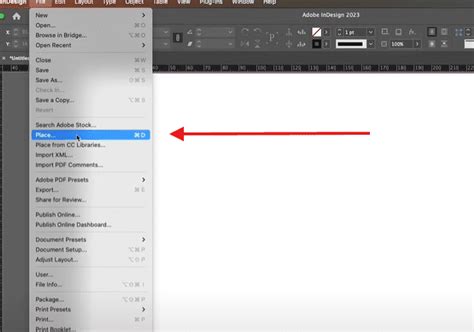
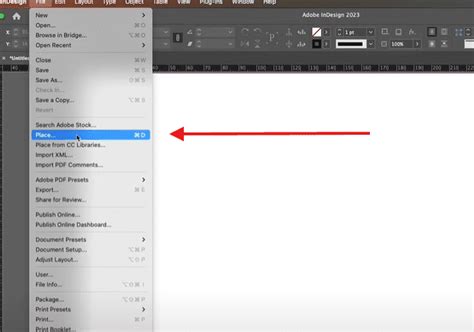
- The Place Command: This is InDesign's primary method for importing graphics. It supports a wide range of formats including EPS, BMP, PNG, PSD, layered PDF, AI, and INDD files. The Place dialog box offers advanced options:
- Preview: You can preview pages before placing them, which is beneficial for understanding content placement, especially with bleed areas.
- Import Options: Depending on the file type, specific import options are available. For PDFs, you can choose to reveal text or graphics beneath the PDF page. For layered files like PSD or AI, you can select specific layers or alpha channels to import.
- Image Metadata: You can create static captions based on image metadata.
- Multiple Images: You can import multiple images at once, with a thumbnail preview and the ability to cycle through them. You can import into existing frames or drag to create a grid, using arrow keys to define rows and columns.
- Color Management: Apply color-management options to individual graphics, ensuring consistent color representation across different devices and print outputs.
- Gamma Correction (for PNGs): For PNG images, you can adjust gamma values to match screen or print output, ensuring accurate mid-tone representation.
Text Dragging: An Alternative Interaction Method
While not enabled by default in the layout view, InDesign also allows for direct text dragging, offering an alternative method for manipulating text content.
- Enable Text Dragging: To enable this functionality, go to Type > Preferences and check the relevant option to enable text dragging in the layout view.
- Select and Drag Text: Once enabled, select the text you wish to move. Your cursor will change to indicate that text dragging is active (often showing a small "T" below the black arrow). Drag the selected text to its desired location, which can be within the same or a different text frame.
- Formatting Control: By default, dragged text retains its original formatting. However, holding down the Shift key while dragging will cause the text to adopt the properties of the new location, allowing for seamless integration into existing text styles.
3 EASY InDesign Clipping Techniques You Should Know
By mastering the Duplicate and Step and Repeat tools, alongside InDesign's comprehensive object management and import capabilities, designers can significantly enhance their productivity and creative output when incorporating repetition into their projects. These features transform what could be a tedious process into an efficient and precise workflow.