Photoshop, a cornerstone of digital design, offers various methods for managing and applying font styles, a crucial aspect for maintaining consistency and efficiency in projects. Whether you are a seasoned professional or a beginner, understanding how to copy and apply font formatting can significantly streamline your workflow, especially when dealing with multilingual projects or designs that require intricate effects. This article delves into the techniques for replicating text styles, managing font properties, and exploring workarounds for complex design scenarios within Photoshop.
The Fundamentals of Copying Text Formatting
At its core, replicating font formatting in Photoshop often involves leveraging features similar to how layer styles are managed. The process typically begins with formatting a text layer exactly as desired. Once this is achieved, you can create a reusable style. This is done by clicking a dedicated "new" icon, usually found at the bottom of style panels. This action generates a new style that encapsulates the chosen font properties.
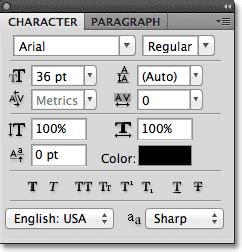
Character styles are particularly useful as they specifically target and alter only the text attributes. This includes defining the font family, typeface, size, and other stylistic elements. This targeted approach ensures that only the typographic aspects are modified, leaving other layer properties untouched.
Duplicating Text Layers for Style Replication
A straightforward method for copying text formatting is by duplicating the text layer itself. This is often considered the easiest option when you want to apply the exact same formatting to new text. By creating a duplicate of an existing text layer, you inherit all its properties, including the font, size, color, and any applied layer effects. You can then modify the content of the duplicated layer while retaining the original styling.
Utilizing the Text Tool for Style Selection
When the text tool is active and you select text on a layer, Photoshop captures the associated text style. This means that if you then create a new text layer, you can often apply this captured style. However, it's important to note a nuance: while the font family and other character-level settings are generally copied, the text size might not always transfer accurately if you subsequently use the transform tool. For precise size replication, it is advisable to use the font size selector within the character settings.
Advanced Font Management and Workarounds
Dealing with large-scale projects, such as those involving translations into numerous languages, presents unique challenges. When faced with 15 files requiring translation into up to 50 languages, with translations provided in Word documents, the process can become exceptionally time-consuming if the original design files are not optimized for such a workflow.
The Photoshop to InDesign Workflow for Multilingual Projects
For projects where original designs were created in Photoshop with extensive special effects (inner and outer glows, faux bold, drop shadows, strokes) and non-standard fonts, and these files need to be typeset into many other languages, a common workflow involves transitioning to InDesign. While it might seem counterintuitive to move away from the original design software, InDesign offers superior typographic control and is better equipped for handling complex multi-language layouts.
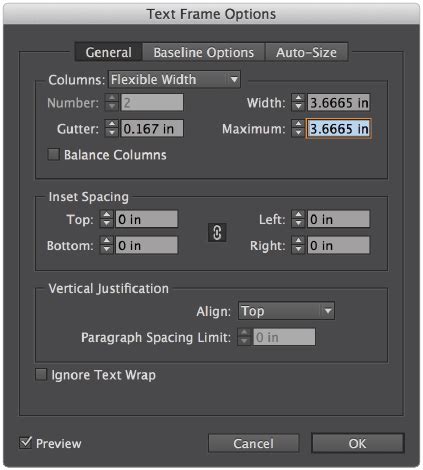
The process could involve placing the Photoshop (.psd) file into InDesign. Subsequently, the translated text from Word documents can be pasted into InDesign. The key to efficiency here is assigning style sheets to the pasted text. This allows for consistent application of formatting across all translated versions. Repeating this process for each language and file can be laborious, but it is often more manageable than attempting to replicate complex Photoshop effects across numerous text variations.
The Rationale Behind the InDesign Approach
The argument for using InDesign in such scenarios is compelling, especially when considering the time investment. If complex Photoshop files, laden with special effects and custom fonts, need to be adapted for 50 languages, the manual effort required to replicate these effects in each translated version can be astronomical. InDesign's ability to handle text styles, master pages, and robust layer effects (inner and outer glows, and many other "effects") can significantly reduce the time and potential for error. While fixing the initial files to be InDesign-native might seem like an upfront cost, the long-term savings in time and resources, particularly when dealing with repeated updates and corrections, can be substantial. This approach aligns with the principle of "doing it right" from the outset, even if it requires rework.
Alternative Text Entry Methods
Beyond direct copy-pasting from Word, another method suggested for entering text into Photoshop, particularly for simpler content, is to copy and paste from a plain text editor such as Notepad or TextEdit. This can sometimes strip away unwanted formatting that might interfere with Photoshop's text engine.
Addressing Design Foresight and Variable Data
A significant factor influencing the ease of handling text and its styling, especially in multilingual or data-driven projects, is the initial design foresight. If a project is "designed" with variables in mind from the beginning, it can be significantly easier to manage.
Preparing Photoshop Files for Variables
The original Photoshop files may require editing to properly accommodate variables. This could involve structuring the design so that multiple lines of text, each potentially with different effects, can be treated as individual lines for each variable. The complexity often lies in the details of how these variables are implemented and how Photoshop's layer system interacts with them.
The Power of InDesign Data Merge and Illustrator Variables
InDesign's Data Merge feature is a powerful tool for variable data production. It offers substantial flexibility in applying typographic effects, including layer-like effects, to text that is being merged from a data source. This is an ideal solution for creating personalized documents or, in this context, managing large sets of translated text with consistent styling.
Another, often overlooked, alternative is Illustrator's variable capabilities. While Illustrator might have certain limitations in typographic control compared to InDesign, it provides designers with extensive options to implement creative effects that might not be achievable directly in InDesign. For instance, certain graphic elements or intricate path-based effects can be more readily integrated with text in Illustrator.
A point of contention for some users is Adobe's implementation of variable data input. Historically, there has been a preference among some designers for using standard comma or tab-delimited text files as data sources. However, Adobe has, at times, required users to work with more complex XML structures for data input, which can add a layer of complexity to the setup process.
Text Variables in InDesign
Layer Styles vs. Character Styles: A Crucial Distinction
It is vital to differentiate between layer styles and character styles when discussing text formatting in Photoshop. Layer styles, such as glows, shadows, and strokes, are applied to the entire layer. Character styles, conversely, are specific to the text content within a layer and control attributes like font, size, weight, and leading.
Applying and Copying Layer Styles
To copy a layer style from one layer to another, a common method is to right-click on the source layer in the Layers panel and select a "copy layer style" option. This style can then be pasted onto the target layer. This is distinct from copying the text formatting itself.
The Nuances of Text Formatting Replication
While duplicating a text layer is the easiest way to copy its formatting, selecting a text layer with the text tool captures the text style. This means that if you then apply this captured style to new text, it will adopt the font, size, and other character attributes. However, as previously mentioned, the text size can sometimes be problematic if transform tools are used subsequently. Using the font size selector directly ensures accurate replication of the intended size.
Considerations for Designers and Typesetters
The scenario involving extensive multilingual typesetting highlights a common point of friction in design workflows: the responsibility for file preparation. The question "Why isn't it the designers' responsibility to provide everything ready to go?" is a valid one. Ideally, designers should create files with the end-use in mind. If a project is destined for translation or variable data merging, the design should be structured accordingly, utilizing features like paragraph and character styles in InDesign or preparing Photoshop files with layers that can be easily manipulated for different text inputs.
The "devil is in the details" adage rings true here. A job that is "designed" with foresight for variable data production, or with a clear understanding of how text will be managed across multiple languages, will invariably be more efficient to execute. This proactive approach saves considerable time and resources in the long run, preventing the costly and time-consuming rework that often arises from a lack of initial planning. The investment in setting up a project correctly from the start, even if it involves learning new tools or workflows, pays dividends when faced with the demands of complex, multi-faceted projects.