Adobe Illustrator's artboards are the foundational elements upon which all your creative visions are built. Think of them as your digital sheets of paper, offering a flexible and expansive workspace for every design project. Whether you're crafting a single iconic logo or a comprehensive suite of branding materials, understanding and effectively utilizing artboards is paramount to a streamlined and efficient workflow. This guide will delve into the intricacies of creating and managing artboards, empowering you to maximize their potential within the Adobe Illustrator environment.
The Essence of Artboards: More Than Just a Canvas
In essence, an artboard in Adobe Illustrator functions as a sheet of white paper, providing the base for all your artistic endeavors. However, the true power of artboards lies in their ability to go beyond a single canvas. You can conceptualize them as multiple sheets of paper, of any desired size, stacked one atop another. This capability allows you to create and manage numerous distinct artworks within a single, unified document, catering to diverse purposes and requirements.
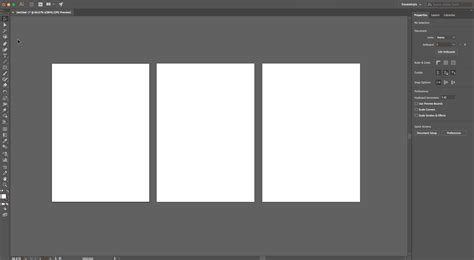
The advantage of this multi-artboard functionality is particularly evident when compared to other design software. For instance, in Adobe Photoshop, if you need to edit a new logo, photograph, or any other distinct design element, you are typically required to create an entirely new file. In contrast, Illustrator's artboards allow you to consolidate multiple design iterations or entirely separate projects within one document. This not only simplifies organization but also facilitates easy comparison and reference between different design concepts.
Why Embrace Multiple Artboards?
The utility of multiple artboards extends across various design scenarios. A prime example is logo design. When developing a logo, a designer might create an artboard for each distinct variation or concept they are exploring. This allows for an at-a-glance view of all proposed designs on the screen, serving as a constant reference point for evolution and refinement.
Another compelling use case involves graphic duplication for comparison. Imagine you have a core graphic element, and you wish to experiment with different color palettes or font selections. With multiple artboards, you can simply duplicate an existing artboard, complete with its design, and then implement changes on the new artboard. This enables direct, side-by-side comparison of variations, such as contrasting color choices or font pairings, all within the same visual field. This comparative approach is invaluable for making informed design decisions and presenting options to clients.
Creating Your Design Space: From New Documents to Existing Projects
There are two primary approaches to incorporating artboards into your Illustrator workflow: creating them from the outset when initiating a new document, or adding them to an existing project.
Option 1: Initiating a Document with Multiple Artboards
When embarking on a new design project, Illustrator offers the flexibility to define your artboard structure right from the start.
- Launch Adobe Illustrator and Create a New File: Begin by navigating to
File > Newwithin the application. - Define the Number of Artboards: In the dialog box that appears, you will find a dedicated text box labeled "Number of Artboards." Here, you can specify the exact quantity of artboards you wish to include in your new document. This allows for immediate setup for projects requiring multiple variations or distinct sections.
- Configure Artboard Arrangement: Illustrator provides options for how these artboards will be spatially organized. You can choose to arrange them in a grid layout, a series of rows, or columns. Further customization is available to dictate how these rows and columns are arranged, ensuring an optimal visual flow.
- Set Artboard Spacing: The "Spacing" parameter allows you to determine the distance between adjacent artboards. This is crucial for maintaining visual clarity and preventing elements from appearing too crowded. A common practice is to set a spacing of around 20 points, offering adequate separation without excessive wasted space.
- Select Artboard Dimensions: When creating a new document, you can also select preset artboard sizes tailored for popular devices like smartphones and tablets, or opt to create custom-sized artboards. Given that Adobe Illustrator operates with vector shapes, the precise pixel dimensions of your artboard often do not need to perfectly match the final output size. The vector nature ensures scalability without loss of quality.
- Finalize Document Creation: Once these settings are configured to your satisfaction, click "OK" to generate your new document, complete with the specified number and arrangement of artboards.
Option 2a: Adding New Artboards to an Existing Project
If you find yourself working with a design that was initially created with only a single artboard, or if you inherit a project with limited artboards, Illustrator provides a straightforward method for expansion.
- Activate the Artboard Tool: The key to managing artboards is the Artboard Tool. You can access it by selecting it from the Tools panel or by using the keyboard shortcut
Shift + O. - Initiate the Artboard Options Dialog: With the Artboard Tool selected, double-clicking on an existing artboard will open the "Artboard Options" dialog box. Alternatively, you can select an artboard and then click the "Edit Artboards" button in the Control panel.
- Add New Artboards: Within the Artboard Options dialog, you can add new artboards. This can be done by clicking the "New Artboard" button. You can also choose from a variety of presets for common device sizes, ensuring consistency if you're designing for specific platforms.
- Customize and Arrange: Similar to creating a new document, you can adjust the dimensions, orientation (portrait or landscape), and name of the newly created artboard. You can also reposition artboards on the canvas by dragging them.
- Apply Changes: Once you have added and configured your new artboards, click "OK" to apply the changes to your document.
Editing and Refining Your Artboards
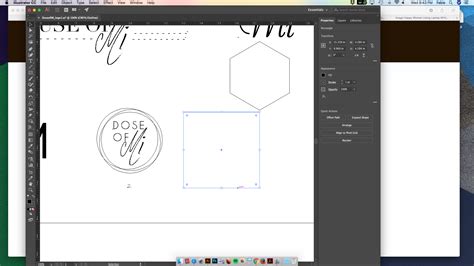
Beyond creation, the Artboard Tool (Shift + O) is your primary interface for modifying existing artboards. Selecting this tool reveals a bounding box around the active artboard, allowing for direct manipulation.
Resizing Artboards
With the Artboard Tool active, you can simply click and drag the corner or side handles of an artboard's bounding box to resize it. This is a quick and intuitive way to adjust dimensions on the fly. For more precise control, you can access the "Artboard Options" dialog by double-clicking the artboard or by clicking the "Edit Artboards" button in the Control panel. This dialog presents fields for Width, Height, and various other properties, offering granular control over artboard dimensions and positioning.
Rearranging and Reordering Artboards
The visual arrangement of your artboards can be crucial for workflow efficiency and presentation. The Artboard Tool allows you to click and drag individual artboards to new positions on your canvas. This is particularly useful for grouping related designs or creating a logical flow for a presentation.
The "Artboard Options" dialog also provides a "Rearrange All Artboards" feature. This powerful tool allows you to automatically organize all artboards within your document according to predefined layouts such as grids or rows. You can specify the number of columns or rows, the spacing between them, and the order in which the artboards are laid out. This is an invaluable time-saver when dealing with a large number of artboards.
Naming and Numbering Artboards
For better organization, especially in complex projects, it's highly recommended to name your artboards. In the "Artboard Options" dialog, you can assign a custom name to each artboard. This name will appear in the Artboards panel, making it easier to identify and navigate between different sections of your design. Artboards are also automatically numbered, but custom names provide a more descriptive label.
Deleting Artboards
Should an artboard no longer be needed, it can be easily deleted. Select the artboard you wish to remove while the Artboard Tool is active, and then press the Delete or Backspace key. Alternatively, you can select the artboard in the Artboards panel and click the trash can icon. Be mindful that deleting an artboard will also delete any content exclusively placed on that artboard.
Advanced Artboard Management and Workflow Integration
The effective use of artboards extends beyond basic creation and editing; it involves integrating them seamlessly into your overall design process.
Artboards and the Properties Panel
The Properties panel in Adobe Illustrator offers a dynamic and context-sensitive interface for managing your document and its elements. When the Artboard Tool is selected, the Properties panel will display relevant artboard controls. This includes options to add new artboards, access the Artboard Options dialog, and adjust artboard dimensions and arrangement directly within the panel. This provides a convenient alternative to navigating through menus.
Artboards and the Control Panel
Similarly, the Control panel, typically located at the top of the Illustrator workspace, also adapts when the Artboard Tool is active. It provides quick access to common artboard functions, such as selecting the Artboard Tool, editing artboards, and adjusting artboard properties. This contextual display of tools and options enhances efficiency by keeping frequently used controls readily accessible.
Artboards and the Artboards Panel
The Artboards panel (Window > Artboards) is a dedicated window that lists all artboards within your document. This panel is indispensable for managing a large number of artboards. From here, you can:
- View and Select Artboards: See a clear list of all your artboards, identified by their names and numbers. Clicking on an artboard in the panel will select it in the workspace.
- Reorder Artboards: Drag and drop artboards within the panel to change their order. This order can influence how artboards are exported or printed in sequence.
- Add and Delete Artboards: Directly add new artboards or delete existing ones using buttons at the bottom of the panel.
- Edit Artboard Options: Double-click an artboard's name in the panel to open its "Artboard Options" dialog for detailed customization.
Artboards for Output and Export
The organization of your artboards directly impacts how your designs are exported or printed. When exporting multiple artboards, Illustrator typically allows you to specify the order and format of the output files. This is particularly useful for generating assets for web design, app development, or print production where different versions or sizes of artwork are required. For instance, you might have artboards for a website banner, social media post, and business card, all within the same Illustrator file.
Infinite Canvas and Design Flexibility
While artboards provide defined design areas, it's important to remember that Illustrator's overall canvas is virtually infinite. This means you can place guides, reference images, or even design elements outside of your active artboards without them being included in the final output unless specifically exported. This provides immense flexibility for temporary elements or for maintaining a broader creative context.
The ability to work with multiple artboards in Adobe Illustrator fundamentally transforms the design process, offering unparalleled flexibility, organization, and efficiency. By mastering the creation, editing, and management of artboards, designers can unlock a more powerful and intuitive way to bring their creative visions to life. FMC Training, a leading provider of Adobe certification exams, emphasizes these core functionalities as vital skills for professionals seeking to excel in the digital design landscape. They have assisted thousands of individuals in passing their certification exams and securing their dream jobs by honing such essential skills. Practicing these techniques will undoubtedly lead to greater comfort and proficiency when working within Illustrator.