Every photographer should know at least one of these techniques. Arguably some of the most valuable tools in Photoshop are burning and dodging, which refer to darkening or lightening areas of an image. This technique can be used to enhance your imagery by creating three-dimensionality and guiding the viewer’s eye. This technique, which derives from the days of film and darkroom printing, is useful for any genre of photography. As with many Photoshop tools, there are multiple methods to burn and dodge. Here, we will explore the different ways to burn and dodge in Photoshop and when to use each.
The Genesis of Burning and Dodging: From Darkroom to Digital
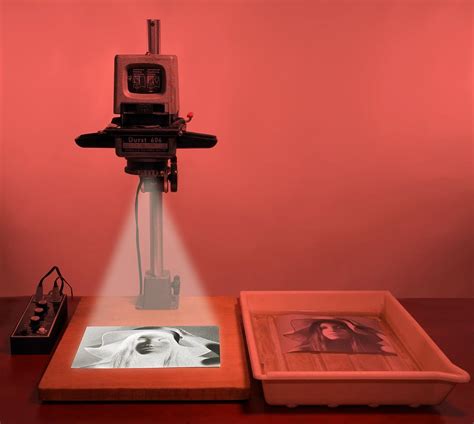
The terms "burning" and "dodging" originate from traditional darkroom techniques used in the film printing process. In essence, these were methods for controlling the exposure of specific areas of a photographic print. "Burning" referred to the process of darkening certain areas of an image. This was achieved by allowing more light to reach a particular section of the print. A common method involved holding a sheet of cardboard with a hole in it, positioned over the area that needed to be darker, effectively increasing its exposure. Conversely, "dodging" was the technique used to lighten areas of an image. This involved using a tool, often a piece of card or paper attached to a thin handle, to block light from reaching a specific area of the photographic paper, thereby reducing its exposure and making it appear brighter in the final print.
- Burning: Decreasing exposure in parts of an image.
- Dodging: Increasing exposure in parts of an image.
The Purpose of Burning and Dodging in Image Enhancement
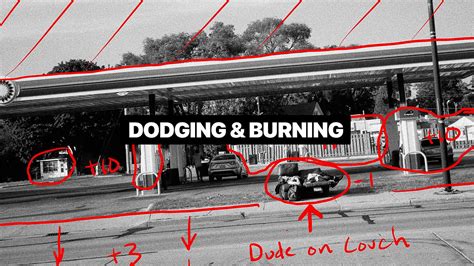
When a photograph is captured, it is essentially a two-dimensional representation of a three-dimensional world. To make an image aesthetically pleasing and impactful, it's crucial to imbue it with a sense of depth and dimension. While adjustments to brightness and contrast can achieve this, using Photoshop's standard Brightness/Contrast adjustments can sometimes result in an artificial appearance. This is where the techniques of burning and dodging become invaluable. They allow for subtle yet effective modifications that can dramatically alter the perceived shape and form of an image, adding a much-needed sense of three-dimensionality.
Consider an image of two simple circles. Initially, it might appear flat and two-dimensional. However, after applying burning and dodging techniques, these same circles can be made to appear three-dimensional, with highlights and shadows that suggest form and volume. These techniques are not limited to abstract shapes; they can be applied to any image, and are particularly useful when aiming to increase the sense of depth. Furthermore, by selectively lightening and darkening parts of an image, it's possible to skillfully guide the viewer's eye through the composition, emphasizing key elements and creating a more engaging visual narrative.
Practical Applications: Beyond Blemishes
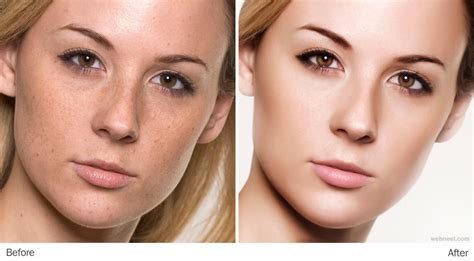
While often associated with artistic enhancements, burning and dodging can also be surprisingly effective for retouching. For instance, imperfections such as minor blemishes like pimples on skin don't always necessitate the use of the Clone or Healing Brush tools. In many cases, these kinds of imperfections can be effectively addressed using the principles of burning and dodging.
A product shot of headphones, for example, might initially show uneven texture on the plastic components or a slightly lumpy appearance on the leather earpiece. Through the judicious application of burning and dodging, these surface imperfections can be smoothed out, making the plastic appear more even and the leather earpiece significantly smoother, resulting in a more polished and professional final image.
Methods for Burning and Dodging in Photoshop
Photoshop offers several approaches to implementing burning and dodging, each with its own advantages and disadvantages. Experimenting with these methods is key to discovering which works best for your individual workflow and skill level.
1. The Burn and Dodge Tools
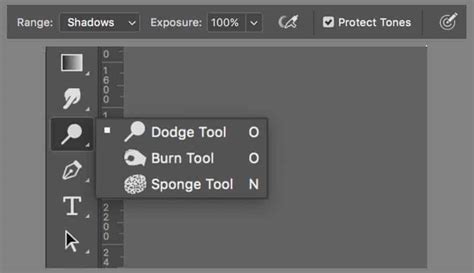
The most straightforward method involves using Photoshop's dedicated Burn and Dodge tools, found in the Tools panel. To utilize these tools, simply select the desired tool, choose a brush tip and size from the options bar, and then set the tonal range (Midtones, Shadows, or Highlights) you wish to affect. You can also adjust the exposure, which dictates the strength of the effect with each stroke. Once these settings are configured, you can brush directly over the areas you want to darken (Burn tool) or lighten (Dodge tool).
This method is particularly useful for beginners due to its simplicity and intuitive nature. However, it's important to be aware that these tools, when used directly on the image layer, are a destructive form of editing. This means they directly alter the original pixel data. To mitigate this and work non-destructively, it's highly recommended to work on a duplicate layer or a new layer. This allows you to revisit and modify your changes later without permanently damaging the original image. Nondestructive editing is a cornerstone of professional image manipulation, ensuring that you always have the original file to fall back on.
- Destructive Editing: Directly alters the original file, making changes permanent beyond the History panel's limit.
- Nondestructive Editing: Makes changes without altering the original file, allowing for future modifications. Examples include using adjustment layers, smart objects, and masks.
2. Burn and Dodge Using Curves Adjustment Layers
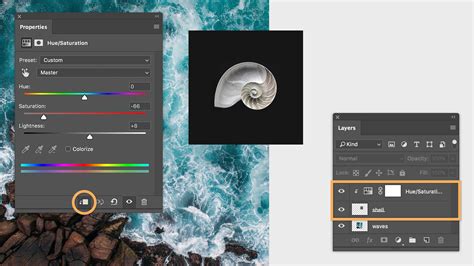
A more precise and highly recommended method for burning and dodging is by utilizing Curves adjustment layers. This approach is entirely nondestructive and offers a greater degree of control compared to the dedicated Burn and Dodge tools. It does, however, require a foundational understanding of working with layers and masks.
This technique involves creating two new Curves adjustment layers: one designed to lighten the image and another to darken it. Each of these adjustment layers is then given a mask. By inverting these masks (typically filling them with black), the effect of the Curves adjustment is hidden. Subsequently, using a white brush on the mask, you can selectively reveal the lightening or darkening effect only in the areas where you paint. This allows for incredibly precise control over where and how much the image is lightened or darkened.
An advantage of this method is the ability to create actions that automate the setup of these Burn and Dodge layers, saving significant time. Furthermore, the precision allows for fine-tuning brush settings, layer opacity, and even adjusting the Curves themselves after the initial application.
3. Burn and Dodge Using Selections
For achieving highly localized adjustments, employing selection tools in conjunction with adjustment layers is an excellent strategy. This method allows you to meticulously isolate very specific areas of an image before applying any brightening or darkening.
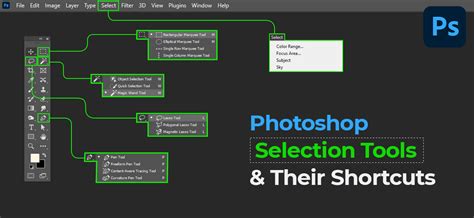
The process involves using Photoshop's powerful selection tools (such as the Marquee, Lasso, or Quick Selection tools) to define the precise area you wish to edit. Once the selection is made, you create a new adjustment layer (like Curves or Exposure). Any adjustments made to this layer will then only affect the selected area. Similar to the Curves adjustment layer method, you can control the opacity of the adjustment layer and refine the effect afterwards, ensuring a seamless integration into the rest of the image.
4. Soft Light and Overlay Blend Modes
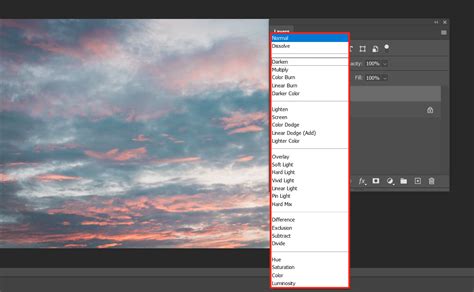
Another technique for burning and dodging involves creating a new layer and setting its blend mode to either Soft Light or Overlay. To implement this, navigate to Layer > New > Layer. In the New Layer dialog box, select either "Soft Light" or "Overlay" from the blend mode dropdown menu. Once the new layer is created, you can use the Brush tool with white to lighten (dodge) or black to darken (burn) specific areas of the image.
The Soft Light blend mode darkens or lightens colors based on the color being applied with the brush, while the Overlay blend mode multiplies or screens colors, effectively boosting contrast. While this method is effective, some users find it slower than the Curves adjustment layer approach for precise burning and dodging tasks.
- Soft Light Blend Mode: Part of the contrast blend group, it darkens or lightens colors depending on the blend color.
- Overlay Blend Mode: Also part of the contrast blend group, it multiplies or screens colors, enhancing overall contrast.
Burning and Dodging in Lightroom
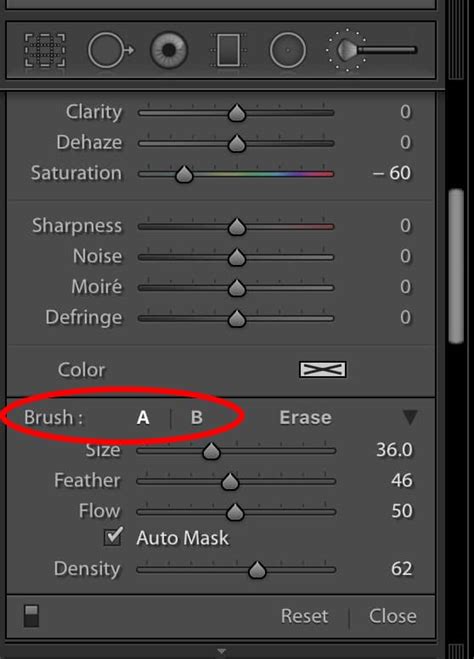
While Photoshop is often the go-to software for advanced image manipulation, similar burning and dodging effects can be achieved within Adobe Lightroom using its Adjustment Brush tool. By painting over specific areas of an image, you can modify various exposure-related sliders, including exposure, contrast, highlights, shadows, whites, and blacks. Depending on the adjustments made, this effectively simulates the burning or dodging process.
Although Lightroom's Adjustment Brush may not offer the same granular level of control as Photoshop's dedicated tools or layer-based methods, it provides a convenient and accessible way to make localized tonal adjustments directly within the Lightroom workflow.
What is The BURN TOOL Actually Good For? 🔥
Conclusion: An Indispensable Skill for Photographers
Regardless of whether you are working in Photoshop or Lightroom, employing burning and dodging techniques, whether through selections, curves, or dedicated brushes, is a fundamental skill for any photographer aiming to elevate their imagery. These methods, rooted in the historical practices of darkroom printing, continue to be powerful tools for adding depth, dimension, and guiding the viewer's attention in the digital age. Mastering these techniques allows photographers to move beyond simply capturing an image to truly shaping and refining it into a compelling visual statement.