The digital art landscape offers a vast array of tools for creators, each designed to refine and enhance the artistic process. Among these, the Lasso tool in Ibis Paint stands out as a remarkably versatile instrument, empowering artists to make precise selections and intricate edits. Whether you're a seasoned digital painter or just beginning your journey, understanding how to effectively wield the Lasso tool can significantly elevate the quality and efficiency of your artwork. This guide will delve into the various functionalities of the Lasso tool, from basic selection to advanced manipulation, ensuring you can confidently adjust and perfect any part of your drawing.
Understanding the Lasso Tool and Its Modes
The Lasso tool, accessible from the Tool Selection window, allows you to select specific portions of your image by drawing a boundary around them. This selection acts as a digital stencil, ensuring that any subsequent edits - such as moving, resizing, or deleting - are confined solely to the area you've defined. This precision is invaluable when working on detailed projects or when you need to make minute adjustments to existing elements, like repositioning a character's mouth or altering the size of an object.

When you select the Lasso tool, you'll notice a set of modes at the bottom of the screen: Set, Add, and Subtract. Each mode serves a distinct purpose in defining your selection.
Set Mode: This is the most straightforward mode. When you use Set Mode, each new stroke you make creates a completely new selection, discarding any previous selections. This is useful when you want to isolate a single element without any overlap with prior selections.
Add Mode: This mode is particularly helpful for beginners and for building complex selections incrementally. In Add Mode, your new stroke will expand the existing selection, incorporating the newly drawn area. You can continue to add to your selection with multiple strokes, gradually encompassing the entire area you wish to edit. As the user's provided information suggests, "While you are still a beginner, using just the Add Mode is a good idea." This allows for a less daunting approach to selection, focusing on building up the desired area.
Subtract Mode: Conversely, Subtract Mode allows you to refine your selections by removing unwanted areas. If your stroke encloses a portion of an existing selection, that portion will be cut out from the overall selection. This is essential for fine-tuning boundaries and ensuring only the intended pixels are affected.
The visual feedback for a selection is a dashed line that encircles the selected area. The region inside this dashed line is what you have currently chosen to work with.
Navigating Selections: The Layer Window and Invert Selection
A common point of confusion for new users can be discerning whether the interior or exterior of the dashed line is actually selected. Ibis Paint provides a clear visual cue for this through its Layer window. When a selection is active, a small blue dot appears on the "Selection Layer" at the top of the Layer window. The portion of the image that is selected will be highlighted in blue on this layer. This visual confirmation is crucial for understanding the scope of your current selection.
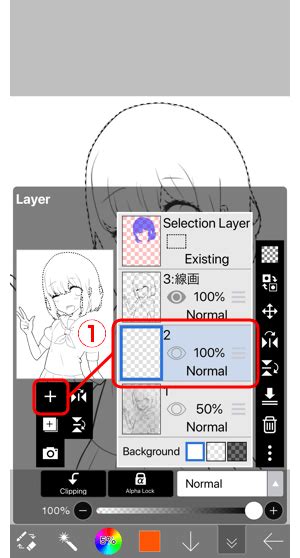
The "Invert Selection" function is another powerful feature that dramatically expands the utility of the Lasso tool. Located near the selection modes, tapping the "Invert Selection" button (often represented by an icon that looks like a selection with the inside and outside swapped) flips your current selection. If you had selected the mouth, inverting the selection would mean everything except the mouth is now selected.
The user's notes highlight the practical application of this: "Tap the ① Invert Selection button (just tap it once). Tapping it does not change anything that you can see on the screen, but now re-open the Layer window. Can you see that the selection layer at the top has been inverted? This shows that the area outside of the dashed line is now selected." This demonstrates how to confirm the inversion and understand its implications. Repeatedly tapping "Invert Selection" will toggle the selection back and forth between the original area and its inverse.
Editing and Manipulating Selected Areas
Once an area is selected, it becomes ripe for manipulation. The Lasso tool's true power is unlocked when combined with other editing functions.
Clearing Selections
A critical step that is often overlooked, especially by beginners, is clearing the selection once the desired edits are complete. If you forget to clear the selection, it can feel as though you are unable to apply color or make changes to other parts of your drawing. The user's advice is direct and important: "Forgetting to clear the selection can make it feel like you can't apply color anywhere. This is a common mistake, so always remember to clear the selection after you have finished working on it." To clear a selection, you typically tap a "Clear" button, which is usually found alongside the selection mode options. After clearing, the dashed line disappears, and your canvas returns to normal editing mode.
Transforming Selections
After making a selection, you can modify its size, position, and rotation using the Transform tool. This is where you can actively adjust elements like the mouth in the example.
- Select the Area: Using the Lasso tool in Add Mode, carefully draw around the element you wish to adjust. For instance, to reposition a mouth, you would draw a selection around it.
- Zoom Out: It's often beneficial to zoom out so the entire drawing, or at least the relevant portion of the character, fits on your screen. This provides better context for transformations.
- Activate Transform Tool: Switch to the Transform tool. This is usually found in the main toolbar.
- Manipulate the Selection:
- Move: Use one finger to drag the selected area to a new position.
- Scale: Use two fingers (pinch or spread gesture) to resize the selection.
- Rotate: Activate the rotation function (often a toggle labeled "Rotate ON"). Then, use a two-fingered drag to rotate the selection.
- Confirm Changes: Once you are satisfied with the new position, size, or rotation of the selected element, tap the "Done" button to exit the Transform tool and apply the changes.
- Clear Selection: As a final step after transforming, remember to clear the selection to return to normal editing.
This process of selecting, transforming, and clearing is fundamental for refining details and making significant compositional changes within your artwork.
LAYERS FOR TOTAL BEGINNERS (Alpha lock, Clipping, Selection Layer, etc) 〚ibisPaint X tutorial〗
Refining Your Artwork Post-Selection
After you've utilized the Lasso tool for selections and transformations, the subsequent steps involve continuing to refine your line drawing. This might include using the brush tool to add details, the eraser to correct mistakes, or the undo function to backtrack. The Lasso tool can be re-engaged at any point for further precise edits.
Once your line drawing is finalized and you're ready to move on to coloring or adding other layers, it's often a good practice to hide the underlying sketch draft. This is achieved by tapping the "Eye Icon" next to the sketch layer in the Layer window. This provides a clean view of your line work and helps in assessing the clarity of your drawing.
For an unobstructed view of your canvas, especially when working on detailed areas, you can utilize the "Full Screen" button. This hides the Quick Slider bar and makes the Main toolbar transparent, maximizing the visible drawing area. This minimalist interface can be particularly helpful when focusing on intricate linework or precise selections.
Beyond Basic Adjustments: Advanced Lasso Tool Applications
The Lasso tool's utility extends far beyond simple repositioning. Its ability to isolate specific areas opens up a world of advanced editing possibilities:
Feathering Selections: While not explicitly detailed in the provided text, many digital art programs, including Ibis Paint, offer a "feather" option for selections. Feathering softens the edges of a selection, creating a gradual blend between the selected area and the surrounding pixels. This is invaluable for seamless compositing, creating soft shadows, or making gradual color transitions. Applying feathering before transforming can result in more organic-looking adjustments.
Creating Complex Masks: The Lasso tool, when used in conjunction with layer masks, can be a powerful tool for creating intricate visual effects. By selecting an area and then applying a mask, you can control the visibility of a layer with high precision. This is fundamental for non-destructive editing, allowing you to experiment with different looks without permanently altering your base artwork.
Isolating Textures and Patterns: If you're working with imported textures or complex patterns, the Lasso tool allows you to precisely cut out or apply these elements to specific parts of your drawing. This is useful for adding realistic textures to clothing, fur, or backgrounds.
Color Adjustments on Specific Areas: You can use the Lasso tool to select a particular region of your artwork and then apply color adjustments (like brightness, contrast, or hue) only to that selected area. This is perfect for subtly altering the lighting on a character's face or changing the color of a specific object without affecting the rest of the image.
Generating Stencils for Brushes: For artists who create custom brushes, the Lasso tool can be used to define the shape of a brush tip. By creating a precise selection and then saving it as a brush texture, you can develop unique artistic tools tailored to your style.
Common Pitfalls and How to Avoid Them
As with any powerful tool, there are common mistakes that can hinder your workflow when using the Lasso tool. Being aware of these can save you time and frustration.
Forgetting to Clear Selections: This is arguably the most frequent error. As emphasized earlier, always remember to clear your selection after you have finished editing the selected area. This ensures that subsequent actions affect the entire canvas as intended.
Inconsistent Selection Modes: In the heat of creation, it's easy to accidentally switch between Set, Add, and Subtract modes. Pay attention to the active mode indicator to ensure you are building your selection as intended. For beginners, sticking primarily to Add Mode until a solid understanding is achieved is highly recommended.
Over-Selection or Under-Selection: Drawing too broadly or too narrowly around the area you want to edit can lead to unwanted artifacts or incomplete adjustments. Take your time to carefully trace the desired area. Zooming in and out, and using the Add and Subtract modes, can help you refine the selection boundaries.
Not Utilizing Invert Selection: Many users might not fully grasp the power of "Invert Selection." Remember that selecting an area and then inverting it allows you to edit everything except that area. This is incredibly useful for background work or for making edits to large portions of an image efficiently.
Ignoring the Layer Window for Confirmation: Relying solely on the dashed line can lead to errors. Always use the Layer window to visually confirm what is actually selected, especially after using "Invert Selection" or complex Add/Subtract operations.
Transforming Without Context: While zooming out helps, it's also important to consider the overall composition. Transforming a selected element in isolation without considering how it fits with the rest of the artwork can lead to awkward proportions or placements. Regularly zoom out to assess the impact of your transformations on the entire piece.
By understanding these common pitfalls and employing the strategies discussed, you can harness the full potential of the Lasso tool to enhance your digital art creation process in Ibis Paint. Its ability to provide precise control over image manipulation makes it an indispensable asset for any artist looking to achieve professional-quality results.