The landscape of digital design is constantly evolving, with many artists and illustrators seeking more portable and intuitive tools. The iPad, with its powerful processing capabilities and touch-based interface, has become a compelling platform for creative work. Affinity Designer, in particular, has emerged as a strong contender, offering a robust set of vector editing tools that rival desktop applications. However, a common hurdle for designers transitioning to or incorporating Affinity Designer into their workflow, especially when working on an iPad, is the need to export files in a format compatible with Adobe Illustrator, the long-standing industry standard. This article delves into the intricacies of exporting Affinity Designer files for use in Adobe Illustrator, exploring the challenges, workarounds, and the underlying reasons why a direct .ai export isn't possible.
The Illustrator Dominance and the Need for Compatibility
Adobe Illustrator has long been the benchmark for vector graphics, making its native .ai file format the most frequently requested by clients and stock photo platforms. This ubiquity presents a challenge for users of alternative software like Affinity Designer, who need to bridge the gap between their chosen application and the prevailing industry standard. While the ultimate aim for some may be to move away from Adobe's ecosystem entirely, the practical reality of client demands and established workflows often necessitates a degree of compatibility. The desire to work exclusively on a tablet, experiencing the freedom and immediacy it offers, is a growing trend. Illustrators and typographers who can operate almost exclusively on a tablet are often envied for their streamlined workflow. This shift towards specialized, software-agnostic, or tablet-centric work is a testament to the evolving nature of creative professions.

Understanding File Formats: Beyond the .ai Extension
Documents created in applications such as Adobe Illustrator and Affinity Designer typically require saving in editable formats to allow for future revisions and alterations. In Adobe Illustrator, the native editable format is a file ending with the .ai extension. Designs saved as an .ai file can be opened and edited directly within Illustrator. Considering that Adobe Illustrator is the most commonly used vector graphics application, the ability to save as .ai with Affinity Designer is highly desirable. However, it's crucial to understand that the absence of a direct .ai export from Affinity Designer is not an insurmountable obstacle. There are numerous other editable vector formats that are universally compatible and can be opened and edited with Illustrator.
EPS: A Versatile, Though Not Purely Vector, Option
EPS, short for "Encapsulated PostScript," is another editable format that has been a long-standing staple in the design world. While it can contain vector information, it's important to note that EPS is not a "true" vector format in the same way as native Illustrator or PDF vector data. Despite this, EPS files are widely supported and can be opened and edited in Adobe Illustrator, making them a viable option for transferring designs from Affinity Designer. When producing vectors for a print document, exporting as EPS is a common and effective practice.
PDF: The Underestimated Powerhouse
The Portable Document Format (PDF) often gets a bad rap, sometimes perceived as a final, uneditable output. However, when it comes to vector graphics, PDFs can be remarkably versatile. The AI format, in fact, uses a similar underlying architecture to PDF. In essence, the Illustrator format can be considered a highly specialized, glorified PDF document. This underlying similarity is the key to one of the most effective workarounds for achieving compatibility between Affinity Designer and Illustrator.
The Workaround: PDF as a Trojan Horse
The primary method for exporting Affinity Designer files for use in Adobe Illustrator involves generating a PDF file and then manipulating the file extension to trick the operating system into recognizing it as an Illustrator file. This approach is not unique to Affinity Designer and is also employed by users of other alternative software like Inkscape.
Step-by-Step Guide to the PDF Export Method
To implement this workaround, a few crucial steps are necessary:
- Export as PDF: Within Affinity Designer, navigate to the export menu. It is essential to ensure that the Raster DPI is set to 72. This is because 72 DPI is the native resolution at which Illustrator typically operates. For other settings, it is generally advisable to leave them unchecked unless specific requirements dictate otherwise.
- Enable File Extension Visibility: Before renaming the file, you must ensure that file extensions are visible in your operating system.
- On Windows: Open any folder, go to the "View" tab at the top of the window, and expand the view options. Locate and enable the option to "display file extensions" in the file name.
- On macOS: Go to Finder, select "Preferences" from the menu bar, and under the "Advanced" tab, check the box for "Show all filename extensions."
- Rename the File Extension: Once file extensions are visible, locate the exported PDF file. Rename the file by changing its extension from
.pdfto.ai. For example, if your file is namedmy_design.pdf, you would rename it tomy_design.ai.
It's worth noting that when you change the file name extension, the file's icon will typically change to the Adobe Illustrator icon if you have Illustrator installed on your system. If Illustrator is not present, the icon may default to a generic blank icon, which is perfectly fine.
The Reverse Trick: Opening AI Files in Affinity Designer
This renaming trick also works in reverse. If you encounter an .ai file that you need to open in Affinity Designer or other compatible software, and it's not recognized, try changing its extension to .pdf. This can often allow you to import and work with the file.
Considerations and Potential Pitfalls
While the PDF-to-AI renaming method is effective, it's not without its nuances. The success of transferring complex designs relies on understanding how different applications interpret and render vector data.
Cross-Platform Compatibility and Feature Transfer
Whenever you're working across different software platforms, it's entirely possible to encounter issues. For the most part, the fundamental properties and attributes of your design - such as colors, gradients, and text - should transfer over from Affinity Designer to Illustrator without significant problems. However, more advanced features that are specific to Affinity Designer may not translate as seamlessly.
Minimizing Application-Specific Features
Whenever you design something in a given application, there's no guarantee that it will remain entirely unchanged when opened with another application. This is why it's important to ensure that the file you're exporting utilizes as few application-specific features as possible. Sticking to core vector functionalities and universal design elements will increase the likelihood of a smooth transition.
The iPad Experience: Affinity Designer's Strengths
The iPad has become a powerful tool for creative professionals, and Affinity Designer for iPad stands out for its comprehensive feature set. Unlike what might be expected from a tablet version of software, Affinity Designer manages to provide users with nearly the same extensive options available in its desktop counterpart. This is a significant advantage compared to some other applications that offer slimmed-down versions for mobile devices. Affinity Designer on the iPad includes a robust "Vector persona" for vector-based work and a "Pixel persona" for raster editing, offering a versatile environment for various stages of the design process. This dual persona capability is excellent for mapping out ideas, a task often previously relegated to applications like Procreate or Photoshop.
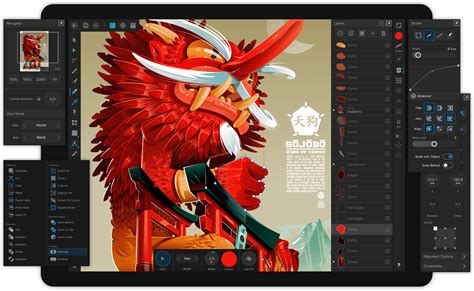
The user interface of Affinity Designer on iPad is also remarkably intuitive. Features like toolbars that automatically hide when drawing over them, and a tooltip button that reveals the name of every tool and menu, contribute to a user-friendly experience. For those transitioning from Adobe Illustrator, the learning curve is surprisingly gentle. Drawing directly on the screen is often found to be far easier than drawing on a separate tablet that translates to a desktop monitor.
The Export Challenge: A Minor Niggle
Despite its many strengths, the current export limitations for .ai files from Affinity Designer on iPad can be a significant inconvenience for some users. While Affinity Designer boasts a vast array of import and export options, its inability to flawlessly export files directly as .ai (unlike Procreate's .psd export) can be a stumbling block. In scenarios where a design created on an iPad needs to be shared with a team or integrated into existing workflows that strictly require .ai files, this limitation becomes apparent. Even after exporting as a PDF and renaming, adjustments might be necessary in Illustrator to fix elements like gradients and groupings, which can be time-consuming, especially for more complex designs. This inconvenience can be enough to deter some users from employing Affinity Designer for shared projects that demand strict .ai compatibility.
The Future of Cross-Application Compatibility
While the direct .ai export from Affinity Designer remains an aspiration for many, the current workaround offers a practical solution. The existence of universal editable vector formats means that understanding how to save specifically as .ai with Affinity Designer is, in many cases, less critical than understanding how to leverage these universally compatible formats effectively. As software continues to evolve and the demand for flexible workflows increases, we may see more seamless integration between applications like Affinity Designer and Adobe Illustrator in the future. For now, mastering the PDF export and renaming trick, alongside an understanding of core vector principles, empowers designers to bridge the gap and utilize the power of Affinity Designer on their iPad within broader professional contexts. The journey to ditching Adobe completely is a gradual one, and mastering these interoperability techniques is a key step for many creative professionals. The storage capacity of iPads, while a consideration for some, is increasingly being addressed with larger storage options, making them more viable for extensive creative projects. The initial cost of high-spec iPads like the 12.9" iPad Pro 512GB can be substantial, but for professionals, the investment in a tool that streamlines their workflow and offers unparalleled portability can be well worth it. The Surface Studio also remains a compelling alternative for those seeking a powerful, integrated creative workstation.