Krita, a powerful and free open-source digital painting application, offers a robust suite of tools for artists of all levels. Among these essential tools are layer transformation functions, which allow for precise manipulation of artwork. One of the most fundamental yet frequently used transformations is flipping a layer. Whether you need to create symmetrical designs, correct perspective, or simply explore different compositional possibilities, understanding how to flip layers in Krita is a crucial skill. This guide will delve into the various methods of flipping layers, providing clear instructions and insightful tips to enhance your workflow.
Understanding the Fundamentals of Layer Flipping
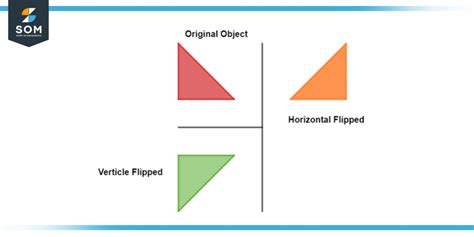
Flipping a layer in Krita, much like in other image editing software, refers to mirroring the content of a layer either horizontally or vertically.
- Horizontal Flip: This operation mirrors the layer content from left to right. Imagine holding a mirror up to the right side of your artwork; the flipped layer would be what you see in the reflection.
- Vertical Flip: This operation mirrors the layer content from top to bottom. This is akin to looking at your artwork in a mirror placed below it.
These transformations are non-destructive when applied to a layer in Krita, meaning the original pixel data remains intact, and you can always revert the flip if needed. This flexibility is a cornerstone of Krita's design, encouraging experimentation without fear of permanent alteration.
Method 1: Using the Transform Tool
The Transform Tool is Krita's versatile powerhouse for manipulating layers and selections. It offers an intuitive way to flip layers, along with scaling, rotating, and skewing.
- Select the Layer: In the Layers Docker (usually found on the right side of your Krita workspace), click on the layer you wish to flip. Ensure it is highlighted, indicating it's the active layer.
- Activate the Transform Tool: You can activate the Transform Tool by:
- Pressing the
Tkey on your keyboard. - Selecting the Transform Tool icon from the main Toolbar. It typically looks like a bounding box with handles.
- Pressing the
- Initiate the Flip: With the Transform Tool active and your layer selected, you will see a bounding box around your layer's content.
- For a Horizontal Flip: Hold down the
Ctrlkey (orCmdon macOS) and drag one of the horizontal handles (the squares on the left or right side of the bounding box) across the center of the layer. As you drag, you should see a preview of the flipped layer. Release the mouse button when the preview shows the desired horizontal flip. - For a Vertical Flip: Hold down the
Ctrlkey (orCmdon macOS) and drag one of the vertical handles (the squares on the top or bottom of the bounding box) across the center of the layer. Release the mouse button when the preview shows the desired vertical flip.
- For a Horizontal Flip: Hold down the
- Confirm the Transformation: Once you have performed the flip, press
Enteron your keyboard or click the "Transform" button in the Tool Options Docker to apply the changes.
Tip: The Ctrl key modifier is crucial here. Without it, dragging the handles would result in scaling. Holding Ctrl tells Krita to interpret the drag as a flip.
Method 2: Using the Layer Menu
Krita also provides direct menu options for flipping layers, offering a slightly more direct approach for those who prefer menu-driven commands.
- Select the Layer: As before, ensure the desired layer is selected in the Layers Docker.
- Access the Layer Menu: Navigate to the menu bar at the top of the Krita window. Click on "Layer."
- Choose the Flip Option: Within the "Layer" menu, you will find options for transformations:
- To flip horizontally, select "Flip Layer Horizontal."
- To flip vertically, select "Flip Layer Vertical."
Upon selecting either option, the currently active layer will be immediately flipped without any further confirmation steps. This method is exceptionally quick for straightforward flips.
Method 3: Using the Transform Docker (Advanced Control)
For more precise control over transformations, including flips, Krita's Transform Docker is an invaluable tool. This method allows you to input specific values or use visual sliders for transformations.
- Select the Layer: Ensure the layer you want to transform is active.
- Open the Transform Docker: If the Transform Docker is not already visible, you can open it by going to "Settings" > "Dockers" > "Transform."
- Activate Transform Mode: With the layer selected, click the "Transform" button in the Transform Docker. This is similar to activating the Transform Tool.
- Utilize the Flip Buttons: Within the Transform Docker, you will find dedicated buttons for flipping:
- Click the "Flip Horizontal" icon (often depicted as two opposing arrows pointing left and right).
- Click the "Flip Vertical" icon (often depicted as two opposing arrows pointing up and down).
- Apply the Transformation: After clicking the desired flip button, the transformation is applied directly to the layer. You can then click "Transform" again in the Docker to exit transform mode, or press
Enter.
The Transform Docker is particularly useful when you need to combine flipping with other transformations or want to ensure a consistent flip across multiple layers by using precise controls.
Practical Applications of Flipping Layers in Krita
The ability to flip layers is not merely a technical function; it's a creative tool with numerous practical applications in digital art and design.
Creating Symmetry
One of the most common uses of layer flipping is to achieve perfect symmetry. If you've drawn one half of a symmetrical object, character, or design, you can duplicate the layer, flip it, and then align it with the original to create a mirrored counterpart. This is incredibly efficient for tasks like:
- Character Design: Drawing a character's face or body, then flipping one side to ensure facial features or limb placements are mirrored correctly.
- Logo Design: Creating symmetrical logos where precise mirroring is essential.
- Pattern Creation: Developing intricate symmetrical patterns for backgrounds or textures.
To achieve perfect alignment, consider using Krita's guides and snapping features. You can set up vertical guides at the center of your artwork and then align the flipped layer precisely to this guide.
Correcting Perspective and Composition
Flipping a layer can also help you re-evaluate and correct the composition of your artwork. Sometimes, an element might feel "off" or unbalanced in its current orientation. Flipping it can reveal a more dynamic or harmonious arrangement.
- Character Poses: If a character's pose feels awkward, flipping the layer might present a more natural or impactful stance.
- Scene Elements: Flipping a building, a tree, or any environmental element can change the perceived direction of movement or the overall flow of the scene.
- Testing Alternatives: You can quickly create variations of a composition by flipping key elements. This is a form of lateral thinking in art, where you explore unexpected arrangements to find the best solution.
Achieving Specific Visual Effects
Flipping can be employed for more artistic and experimental purposes:
- Distortion and Surrealism: Combining flipped layers with other transformations like distortion or warp can lead to surreal and abstract imagery.
- Creating Illusions: Flipping elements can sometimes create optical illusions or suggest movement and reflection in unexpected ways.
- Text and Lettering: While Krita has dedicated text tools, flipping a text layer can be a creative way to incorporate mirrored text into a design, though careful consideration of readability is advised.
Advanced Tips and Considerations
When working with layer flips in Krita, a few advanced tips can further refine your process and prevent potential issues.
Flipping Groups of Layers
You can flip entire layer groups at once. Select the group in the Layers Docker, and then use the Transform Tool or the Layer menu options. The entire group will be flipped as a single unit. This is incredibly useful for rearranging complex scenes or elements.
Flipping Selections
Instead of flipping an entire layer, you can also flip just a selected portion of it.
- Make a selection on your layer using any of Krita's selection tools (Marquee, Lasso, etc.).
- Activate the Transform Tool (
T). - With the selection active, you can perform a horizontal or vertical flip using the
Ctrlkey modifier as described in Method 1. The transformation will only affect the pixels within your selection. - Press
Enterto commit the transformation.
This allows for localized mirroring and correction without altering the entire layer.
Understanding the Impact on Transparency
When you flip a layer, any transparent areas within that layer remain transparent. The flip operation only affects the visible pixels. This is important to remember when layering elements, as the transparency will dictate how the flipped content interacts with layers below it.
Non-Destructive Workflow
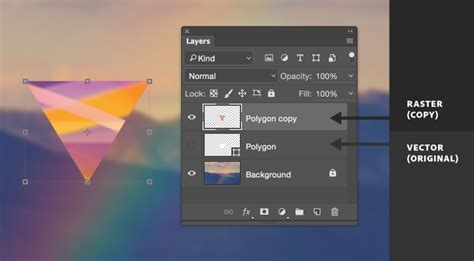
Krita's transformations, including flips, are generally non-destructive when applied to layers. However, if you use the Transform Tool and press Enter without entering the Transform Docker, Krita will "rasterize" the transformation in some contexts, making it permanent. To maintain maximum flexibility, it's often best to:
- Duplicate the layer before flipping: This ensures you always have the original layer intact.
- Use the Transform Docker: Transformations applied through the Transform Docker often retain more editability.
- Consider using Transform Masks: For highly complex or frequently adjusted transformations, Transform Masks offer the ultimate in non-destructive editing, allowing you to apply and modify transformations at any time.
Flipping Text Layers
Flipping a text layer directly can sometimes lead to unexpected results with character orientation, especially with certain fonts or languages. If you need to flip text for stylistic purposes, it's often recommended to:
- Right-click on the text layer and select "Rasterize" or "Split Text into Layer(s)."
- Then, use the Transform Tool or Layer menu to flip the resulting pixel layer. This gives you more predictable control over the visual outcome.
Common Pitfalls and How to Avoid Them
While flipping layers is straightforward, a few common issues can arise:
- Accidental Scaling: Forgetting to hold
Ctrl(orCmd) while dragging Transform Tool handles will result in scaling instead of flipping. Always double-check this modifier. - Flipping the Wrong Layer: Ensure you have the correct layer selected in the Layers Docker before initiating a flip. A quick glance at the Layers Docker is usually sufficient.
- Losing Original Data: If you perform a flip and then realize you needed the original orientation, you might be in trouble if you didn't duplicate the layer first. The best practice is to always duplicate important layers before applying irreversible transformations.
- Misunderstanding Vertical vs. Horizontal: While seemingly simple, in the heat of creation, it's possible to choose the wrong flip direction. Always confirm the orientation before committing.
Conclusion
Mastering the art of flipping layers in Krita is an essential skill for any digital artist. Whether you're leveraging it for perfect symmetry, compositional refinement, or creative experimentation, the methods outlined aboveâusing the Transform Tool, the Layer Menu, and the Transform Dockerâprovide a comprehensive toolkit. By understanding these techniques and employing best practices, you can seamlessly integrate layer flipping into your workflow, enhancing both the efficiency and creativity of your digital art journey. Remember to consult Krita's comprehensive manual and community forums for further tips and tricks, as the platform is continually evolving with features to support artists.