Krita, a powerful open-source painting program, offers users the ability to immerse themselves in their creative work through its full-screen functionalities. These modes are designed to eliminate distractions, allowing artists to focus solely on their canvas. However, exiting these immersive states can sometimes present a challenge, particularly for users accustomed to traditional window management. This article will explore the nuances of Krita's full-screen modes and provide clear, elegant methods for exiting them, addressing potential complexities encountered through remote access or specific software interactions.
Understanding Krita's Full-Screen Options
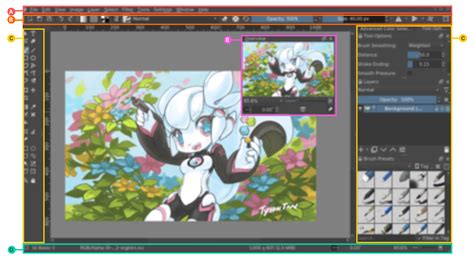
Krita presents two primary full-screen experiences, each serving a distinct purpose in the artistic workflow. The first is the Full Screen Mode, which essentially locks the Krita window to the display. In this state, the standard window controls such as minimize, maximize, and close buttons become inaccessible. The goal here is to provide an uninterrupted view of the entire application window, ensuring that no part of the interface obstructs the creative process. This mode is particularly useful when a user wants to see how their artwork will appear without any surrounding desktop elements or application chrome.
The second, and often more relevant for pure canvas focus, is the Canvas Only Mode. This mode goes a step further than the general Full Screen Mode by removing not only the window borders but also all of Krita's dockers, toolbars, and the settings bar. The result is a pristine view of the digital canvas, offering the absolute maximum screen real estate for drawing or painting. It is a mode designed for deep concentration, where the artist's attention should be solely on the strokes, colors, and forms taking shape on the screen.
Exiting Full Screen Mode in Krita: The Standard Approach
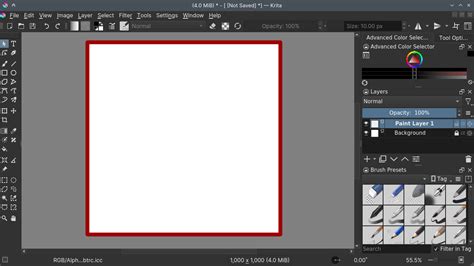
For the standard Full Screen Mode in Krita, exiting is typically straightforward. The most common and intuitive method involves using a keyboard shortcut. While specific shortcuts can sometimes vary slightly depending on the operating system or Krita's configuration, the widely recognized and implemented shortcut to exit this mode is Ctrl+Shift+F. Pressing this key combination should toggle the application out of full-screen and return it to a resizable windowed state, making the menu bar and window controls reappear.
If the keyboard shortcut does not immediately respond, it's worth ensuring that Krita has focus. Sometimes, if another application or window has taken precedence, the key presses might be directed elsewhere. Clicking back into the Krita window to ensure it is active before attempting the shortcut again is a good troubleshooting step.
Navigating the Canvas Only Mode Exit Challenge
The Canvas Only Mode presents a unique exit challenge precisely because it strips away the very elements that usually facilitate exiting full-screen applications - the menu bar and window controls. As the user information states, "Since there is no menu bar in this mode, you can’t follow the same method to exit the mode." This is a critical distinction. The standard Ctrl+Shift+F shortcut, while effective for the broader Full Screen Mode, may not always function as the primary exit for Canvas Only Mode.
The intended method to exit Canvas Only Mode is to re-access the view menu. However, since the menu bar is hidden, this requires a specific action. The most reliable way to re-enable the menu bar and thus access the option to disable Canvas Only Mode is often by pressing the Esc key. Pressing Esc typically brings back the Krita interface, including the menu bar, from which you can then navigate to View > Show Canvas Only again to deselect it, or look for an explicit "Exit Canvas Only Mode" option that might appear.
If Esc doesn't immediately reveal the menu bar, a secondary approach is to try pressing the Alt key. On many operating systems and applications, pressing Alt alone will temporarily reveal the menu bar, allowing you to select the appropriate menu item to exit Canvas Only Mode. Once the menu bar is visible, you can navigate to View and then uncheck Show Canvas Only.
Addressing Remote Access Complexities: MobaXterm and VNC
The user's experience with MobaXterm and a VNC session highlights a common scenario where standard exit procedures can be complicated by the remote access layer. When using a VNC session through an SSH jump host with MobaXterm, the "Fullscreen" button encountered is likely part of the VNC client's interface, not Krita's itself. This button toggles the VNC viewer window into a full-screen mode that encompasses the entire display, effectively hiding the host operating system's taskbar and other elements.
The user's attempt to use Ctrl-Shift-Alt F suggests they might have been trying a shortcut intended for a different VNC client or a specific remote desktop protocol, as this combination is not a universal VNC exit command. The fact that Windows Task Manager could not be opened further indicates the extent to which the VNC client had taken over the display, preventing interaction with the host OS.
The solution found - using vncserver -kill :5 from within the VNC session's terminal - is indeed an "awkward abnormal way of exit" because it forcefully terminates the VNC server process on the remote machine. While effective, it bypasses a graceful shutdown of the graphical session.
For an "elegant way to exit full-screen of VNC in MobaXterm," the primary approach should involve interacting with the MobaXterm VNC client's own interface or its host session controls. MobaXterm typically provides a way to manage its sessions, including full-screen modes, through its own tabbed interface or a dedicated toolbar.
Often, when a VNC session is in full-screen mode managed by MobaXterm, a small, unobtrusive toolbar or menu appears at the top or edge of the screen when the mouse cursor is moved to a specific area. This toolbar usually contains options to restore the window, close the session, or toggle full-screen mode. Hovering the mouse cursor at the very top of the screen is a common trigger for such a control bar.
Alternatively, MobaXterm itself might have a shortcut to exit full-screen mode for its embedded clients. This could be something like Alt+Enter (a common shortcut for toggling full-screen in many applications, including some VNC clients) or a specific combination defined within MobaXterm's preferences. Investigating MobaXterm's documentation or its "Session" or "View" menus while the VNC session is active might reveal the correct shortcut or control mechanism.
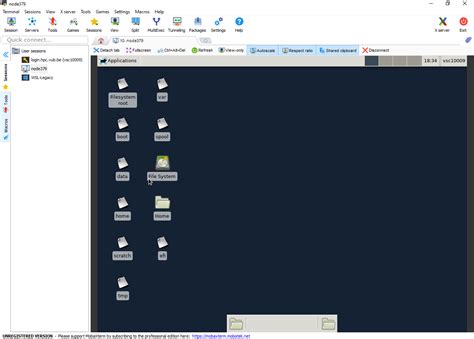
If the VNC session is truly unresponsive and the MobaXterm control bar is hidden or inaccessible, the next step after trying Esc or Alt for the VNC client itself would be to use MobaXterm's own session management features. For instance, right-clicking on the VNC session's tab in MobaXterm might offer an option to "Close Session" or "Disconnect," which would gracefully exit the VNC viewer without needing to kill the server process.
The core principle is to distinguish between the full-screen mode of the application running within the VNC session (like Krita) and the full-screen mode of the VNC client itself (managed by MobaXterm). Exiting Krita's full-screen mode would involve the methods described earlier (Ctrl+Shift+F or Esc/Alt for Canvas Only), while exiting MobaXterm's full-screen VNC session requires interacting with MobaXterm's own controls.
MobaXterm Tutorial For Beginners
General Principles for Exiting Immersive Modes
The challenges encountered when trying to exit full-screen modes, especially in remote or specialized environments, underscore the importance of understanding application-specific controls versus host-level or client-level controls.
Firstly, always attempt the application's native exit shortcut. For Krita, this is generally Ctrl+Shift+F for its standard Full Screen Mode, and Esc or Alt followed by menu interaction for Canvas Only Mode.
Secondly, if the application is embedded within another client (like Krita within a VNC session via MobaXterm), investigate the client's own methods for exiting full-screen or managing the embedded application's display. This often involves looking for a persistent toolbar, attempting common full-screen toggle shortcuts like Alt+Enter, or utilizing the client's tab or window management features.
Thirdly, understand that some full-screen implementations, particularly those that lock down the entire display, can interfere with the operating system's ability to register global shortcuts or open system utilities like Task Manager. This is why resorting to client-specific disconnect options or, as a last resort, forcefully terminating the remote process, becomes necessary in extreme cases.
The goal of elegant exiting is to maintain the integrity of both the application session and the underlying operating system. By understanding the layered nature of remote access and application interfaces, users can navigate these immersive modes with confidence and efficiency, ensuring that their creative flow is never unnecessarily interrupted by the mechanics of window management.