In the realm of architectural and engineering design using Revit, the concept of "halftone" plays a crucial role in visual clarity and information hierarchy. While often associated with a simple 50% gray appearance, the application and control of halftone elements in Revit extend to various functionalities, enabling designers to effectively manage complex drawing sets. This guide delves into the intricacies of halftone, from its fundamental definition and settings to advanced techniques for achieving specific visual outcomes, particularly in elevation views.
Understanding the Halftone Concept in Revit
The term "halftone" in graphic design and printing refers to the reproduction of images through a process of converting continuous tones into dots of varying size and spacing. In Revit, this concept is translated into a visual styling option that reduces the prominence of certain elements, pushing them into the background to highlight primary design features. While the term "half" might intuitively suggest a literal 50% reduction in opacity or intensity, the actual visual outcome in Revit can be more nuanced and is user-definable. The default setting in many of Revit's shipped templates often defaults to this 50% representation, but this is not a rigid rule and can be adjusted to suit project-specific needs.
Adjusting Global Halftone and Underlay Settings
For users seeking to modify the overall appearance of halftone elements within their Revit projects, a centralized control panel is available. This allows for consistent application of visual styles across the entire project.
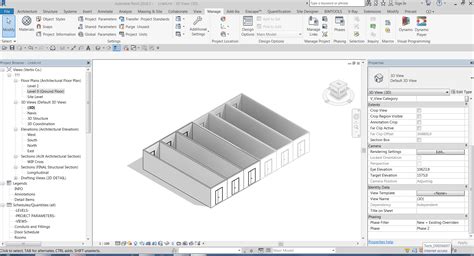
To access these settings, navigate to the Manage tab on the Revit ribbon. Within the Settings panel, click on Additional Settings. From the dropdown menu, select Halftone/Underlay. This window presents a range of options, including a slider that directly controls the intensity and visibility of halftone elements. This slider is the primary tool for defining how prominently halftone elements will be displayed.
In addition to halftone, this same dialogue box offers control over Underlay appearance. Underlays are typically used to display views from other disciplines or different phases of a project in the background of the current view. The "Apply Halftone" checkbox within this section is directly linked to the halftone settings, allowing for a unified approach to managing background elements. Many professionals find their preferred halftone setting within this dialogue and then save these configurations within their project templates for future use. This ensures that all new projects initiated from that template will inherit the desired visual standards for halftone and underlay elements.
Producing Elevation Views with Halftone Elements Beyond the Far Clip
A common challenge in Revit arises when creating elevation views where elements situated beyond the "Far Clip" plane of the associated plan view need to be visually distinguished. The default behavior is that elements beyond the far clip simply do not appear. Achieving a halftone effect for these distant elements requires a more deliberate strategy, often involving the intelligent use of Revit's phasing and phase filter capabilities, or alternative graphic override techniques.
Method 1: Utilizing Phases and Phase Filters
Phases in Revit allow for the management of project evolution over time, enabling the representation of existing, new, demolished, and temporary conditions. Phase filters then dictate how elements within these phases are displayed in different views.
- Establish Phases: Ensure your project is set up with appropriate phases. For instance, you might have an "Existing" phase and a "New Construction" phase.
- Control Element Phases: Assign elements to their correct phases. Elements that should appear as halftone in your elevation view, typically those that are "behind" the primary construction or beyond the immediate focus, should be assigned to an earlier phase (e.g., "Existing").
- Configure Phase Filters: Navigate to the Manage tab, then Phases > Phase Filters. Create a new phase filter or modify an existing one. The key is to set the "Halftone" category for the phase containing your distant elements. For example, if your distant elements are "Existing," set the Phase Filter to display "Existing" elements as Halftone when the view's phase is set to "New Construction."
- Apply Phase Filter to View: Open the desired elevation view. In the Properties palette, under Graphics, locate the Phase Filter parameter and apply the filter you configured in the previous step.
- Adjust Far Clip: Ensure your Far Clip plane in the associated Plan view is set appropriately to capture the elements you wish to halftone in the elevation. The Phase Filter will then control their visibility and appearance in the elevation.
This method offers a robust and systematic way to manage visual hierarchy based on the project's timeline and construction sequence.
Method 2: Graphic Overrides by Element (Workaround)
An alternative, though often more manual, approach involves directly overriding the graphics of specific elements. This method bypasses the complexities of phasing but can be more time-consuming, especially in large projects.
- Duplicate the Elevation View: Create a duplicate of your primary elevation view. This duplicate will serve as the "halftone" layer.
- Apply Graphic Overrides: In the duplicated view, select all elements that you wish to appear as halftone. This can be done by using the "Tab" key to select linked elements or by using filters.
- Override Appearance: Right-click on the selected elements and choose Override Graphics in View > By Element. Within the dialogue box, change the Projection/Surface Lines color to a mid-gray shade. You can also adjust lineweights or patterns to further reduce their prominence.
- Place Views on Sheet: On your project sheet, place the "halftone" duplicated elevation view first. Ensure its viewport is set to have no title, scale, or borders, making it a background element.
- Overlay the Full-Tone View: Place the original, full-tone elevation view directly on top of the halftone view. Crucially, ensure the two viewports are perfectly aligned using Revit's snap and alignment tools (the green temporary alignment lines are helpful here). The full-tone view, placed second, will obscure the halftone elements where they overlap, creating the desired effect of distant elements being faded.
While this method was initially described using a direct "halftone" setting, the user's subsequent refinement clarifies that selecting elements and setting their color to a mid-gray achieves a similar visual outcome. This approach can be particularly useful for isolated elements or specific scenarios where phasing might be overly complex to implement.
The Importance of Project Templates and Worksets
For offices aiming for efficiency and consistency, establishing a well-defined project template is paramount. This template can pre-configure line weights, line styles, halftone settings, and phase filters, ensuring that all new projects adhere to established office standards.
When working with models received from other disciplines, such as an architectural model provided by architects, it is often advisable to link the model into your own project rather than working directly within it. This approach offers several advantages:
- Model Integrity: It prevents unintentional modifications to the architect's work.
- Update Management: When updates to the architectural model are received, you simply reload the linked file, rather than needing to re-coordinate or copy-paste your work.
- Performance: Linking can sometimes improve project performance, especially in large and complex models.
Within your own model, you can then set the Revit link to Underlay or Halftone to screen it appropriately before placing your own design elements, such as lighting fixtures. This allows you to effectively "see through" the architectural context while maintaining your own design control and visual clarity for your specific discipline.
Revit Phase Filters Explained
Addressing Printing and Export Issues
A common point of confusion arises when the visual appearance of halftones, which looks perfect on screen, does not translate accurately to printed documents or exported JPG files. Specifically, halftone lines that should be hidden behind foreground elements may still appear, leading to a cluttered and confusing output.
The primary cause of this issue is often the printing or export driver's interpretation of graphic layers and transparency. When overlaying views on a sheet, as described in Method 2, the order in which the viewports are placed is critical.
To resolve this:
- Ensure Correct Viewport Order: Double-check that the "halftone" or background view is placed on the sheet first, and the "full-tone" or foreground view is placed second.
- Accurate Alignment: Meticulously align the two viewports. Revit's alignment tools are essential here. Ensure there is no offset whatsoever between them. Even a fraction of a millimeter can cause the underlying halftone lines to be rendered.
- Print/Export Settings: Experiment with different print drivers or export settings. Some drivers may have options for handling vector graphics, raster graphics, or transparency that can affect the final output. For JPG exports, ensuring the "current window" or a specific print area is selected with the correct view order on the sheet is crucial.
By carefully managing the layering and alignment of views on a sheet, and by understanding the nuances of print and export processes, the clarity of halftone elements can be successfully maintained across different output mediums.
Advanced Graphic Control: Overriding by Element
Revit also provides a granular level of control through its "Override Graphics in View" functionality, which can be applied on an element-by-element basis. This offers an alternative to broad halftone settings or phase-based controls for specific visual treatments.
To utilize this:
- Select Elements: In your view, select the individual element(s) you wish to modify.
- Access Override Options: Right-click on the selected elements and navigate to Override Graphics in View > By Element.
- Customize Appearance: A dialogue box will appear, allowing you to adjust various graphic properties. You can change the element's color, line weight, line pattern, and transparency for both projection and surface appearances. This gives you precise control over how a specific element is rendered in that particular view, enabling you to achieve a custom halftone effect or any other desired visual distinction.
This method is invaluable for highlighting or de-emphasizing particular components without altering the broader project settings or phase configurations. Itâs a powerful tool for fine-tuning the visual communication of your design.
Conclusion: A Versatile Tool for Design Communication
The halftone feature in Revit, while seemingly straightforward, offers a powerful and versatile set of tools for managing visual hierarchy and improving the clarity of design documentation. From global settings adjusted via Additional Settings to sophisticated control through phases, phase filters, and direct element overrides, designers have multiple pathways to achieve their desired visual outcomes. Understanding these methods, especially the nuances of view layering on sheets for printing and export, is key to producing professional and easily interpretable drawings. By leveraging project templates and linking workflows, offices can standardize these practices for consistent and efficient project delivery.