Procreate offers a powerful and intuitive platform for digital artists, and at its heart lies a robust brush engine that allows for unparalleled customization. Want to learn the dark, hidden secrets of bending Procreate brushes to your will? There’s something to suit every style. The theme of a Procreate brush pack can even influence your work and push your creativity to new places. You may think you have the best default Procreate brush for you- and you might be right. This Procreate brush tutorial will look at the most useful properties that control brush behavior. Being able to edit brush settings opens up even more opportunities. The following tips can apply to both custom and default Procreate brushes.
💡Top Tip: Before you start making changes, it’s a good habit to create a backup of the brush first. If you'd like to know how to duplicate a brush in Procreate, open the brush panel, swipe left on the brush thumbnail and choose ‘Duplicate’.
Understanding Brush Fundamentals: Shape and Grain
At the core of every Procreate brush are two fundamental components: Shape and Grain. These elements dictate the visual characteristics of your brush strokes and how they are applied to the canvas.
The Shape of a brush acts as a stencil or a container for the Grain. Whatever texture you set for the Grain will be stamped within the Procreate brush shape source. You can think of it as a brush tip - some brush tips are blunt and rectangular, while others are soft and round. The Procreate Handbook describes the Grain source like this - ‘"Think of the Grain as a paint roller. You can access these shape images under the Shape tab of the Brush Studio. These same steps apply for editing your Grain image. 100% black will be transparent and 100% white will be solid. If you have forgotten to make a duplicate of the original brush and have decided you don't like the new shape or grain image you have chosen, you can always reset the brush.
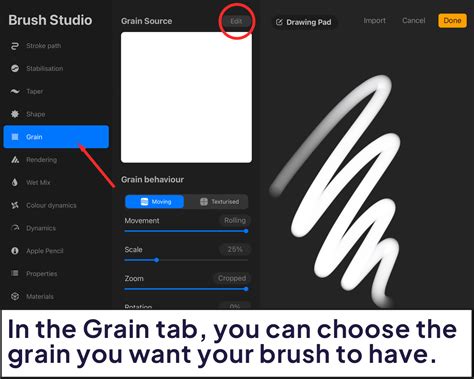
Grain is essentially the texture that sits inside your brush shape. While the shape acts as a container for the grain, the grain acts like a paint roller. Tap the Edit button in Grain Source to open the Grain Editor and access the Source Library. This lets you import and edit images to turn them into tiling textures for your brushes.
Importing and Editing Shapes and Grains
You can import new shapes and grains from photos or files. Tap Import to import a new shape from a photo or file. The Source Library offers you many unique shapes and textures to use as the basis of your brushes. Scroll through the collection to browse a shape or texture you want to use. Or, use the Search box to search for a particular type. Procreate's library of pre-made textures opens by default when you enter the Source Library. You can access this from the Grain Source interface. Even though they aren't custom made for the purpose, you can use the Shape Source for creating grain textures. Search the grain names for particular types of texture.
For a brush to work effectively as a stamp or texture, its source image needs to be prepared correctly. Always use a square canvas or your brushes will be distorted. Always use pure black and white if you want to create an opaque stamp or texture. Using gray or another color will result in a semi-transparent brush.
Procreate 5 brought some updates to the brush making panel, so the brush making section that used to be called Source is now broken into 2 sections: Shape and Grain. So when you want to input a stamp shape, go to the Shape section. When you want to input a texture brush grain, go to the Grain section.
When creating a texture brush, there is literally no one in the world with textures like yours in their artwork. So using your own brushes is a great way to define your style and set yourself apart from the crowd! The brushes you’ll make in this class aren’t seamless (meaning they are better to tap on the canvas, rather than to do an overall swish across the canvas), but you can easily make them seamless in Procreate.
Understanding Texture Brush Dynamics
The Grain Editor provides extensive control over how your textures behave. You can adjust whether the grain stays still behind your stroke or moves along with it.
- Movement: Set your grain to move with the stroke for a more streaky and blurred effect. Using the metaphor of grain being a paint roller, when set to Moving, the roller is locked in place. Moving and its various adjustment options create brush-like applications with grain. Set your grain to stay as a static texture ‘behind’ your brush stroke for a crisp and clear effect. Using the metaphor of grain being a paint roller, when set to Texturized, the roller is unlocked. Texturized and its various adjustment options create consistent textures with grain.
- Scale: Setting the slider all the way to the right, to Cropped, keeps the texture size fixed, no matter how large or small you make your brush while painting. Setting the slider all the way to the left, to Follow Size, means the grain will scale along with your brush size.
- Follow Stroke: This will smear the grain image based on directional stroke changes. This creates a similar effect to Moving. 100% inverse makes the grain rotate the opposite way to the stroke direction. At 0% it locks the grain rotation in place. And Follow Stroke makes the grain rotate to follow your stroke direction.
- Contrast: Adjust the strength of the texture established over the base color of the brush. Set at minimum, the texture won’t show at all. Set at maximum, the texture will be dark and vivid.
- Minimum Contrast: Sets the minimum level of contrast in a texture, beyond which the brush can no longer go. This is regardless of how much or little pressure is applied to an Apple Pencil.
- Jitter: Swing between the texture and the underlying color of your stroke at random.
- Offset Jitter: Offset where your texture places down each time you make a new brushstroke to create a more organic effect. With brushes designed to lay down a pattern, like the Grid brush, turn off Offset Jitter to keep the pattern consistent.
- Blend Mode: Control how the grain texture blends with the underlying color of the brush using Blend Mode. This makes the grain lighter or darker.
- Grain Filtering: Grain filtering adjusts ‘antialiasing’. Does not soften the edges at all.
- Grain Rotation: With the toggle on, the pattern of your grain will shift to reflect which way your camera is angled.
Pyramid blending is ideal for irregular natural textures like wood and stone. Two-finger tap on your texture to invert the grayscale tones in your image. Dark areas become light, and light areas become dark.
Stroke Path and Stabilization: Refining Your Lines
The Stroke Path settings determine how the brush shape is stamped along the path of your stroke. This is crucial for creating smooth lines, textured effects, and even patterns.
- Spacing: Sets how many times your brush shape ‘stamps’ itself along the path. When you add a lot of space, you will begin to see the brush as a series of shapes along the path with gaps between them. To see these settings in action, it can be useful to go into Stroke Path and push the Spacing slider up. This lets you see the shapes as individual stamps rather than blurred together into a stroke. For pixel brushes, you will need to adjust the Spacing slider to 0% or None. For scatter brushes, you will want to adjust the Spacing slider to 100% or Max.
- Jitter: Adds variability to your Spacing value, making the space between stamps larger and more ‘random’ with higher values.
- Jitter Lateral: Controls how much the brush stamps will shift perpendicular to your stroke. Both Jitter Lateral and Jitter Linear can be controlled by the pressure and tilt values of Apple Pencil, and additionally barrel roll with Apple Pencil Pro.
- Jitter Linear: Controls the jitter of the stamp, but in the same direction as the stroke itself.
- Fall Off: The amount of Fall Off applied to your brush will affect how long your brush strokes are.
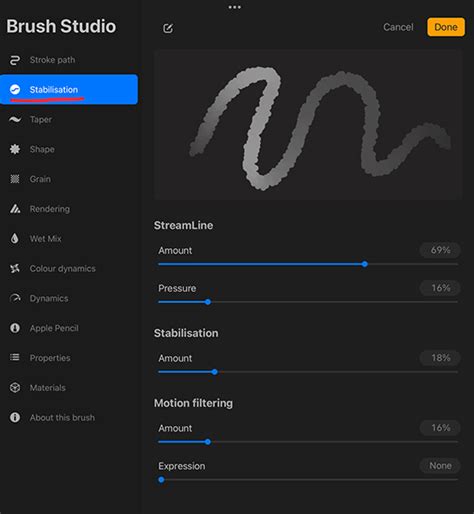
Stabilization settings correct your curves by reducing any wobble in your strokes. It is particularly useful for precision drawing, inking, and calligraphy. To access the StreamLine settings, open the Stabilization menu in the Brush Studio. The more StreamLine you add, the more smooth your stroke will be. You can reduce the Streamline or remove it altogether if you prefer.
- Stabilization: Assists in smoothing out wobbles or shakes in your line. Stabilization in Procreate can be applied globally, or to individual brushes. Stabilization takes a moving average of a stroke and draws that on the canvas. The higher the Stabilization, the more it averages out the wobbles in a stroke. Stabilization is also dependent on the speed of your stroke.
- Motion Filtering: Procreate’s version of Stabilization and uses more advanced algorithms. This allows for smoother and straighter strokes no matter what speed they are drawn. Motion Filtering Expression only works when Motion Filtering is on.
- StreamLine: This setting refers to your brush’s line stabilization. Use the slider to turn Amount up for a smooth and even result. StreamLine is particularly important for inking and calligraphy.
Brush Size, Taper, and Pressure Sensitivity
Brush Size is a fundamental aspect of any brush. Changing your brush size is a simple matter of adjusting the slider on the left side of your screen. For example, you might wish to paint a background texture but the grain starts behaving differently at scale. Or you may need to edit a liner brush to produce finer detailed lines. As mentioned earlier, it’s a good idea to keep a backup of your original brush before making any changes. The Brush Studio contains all Procreate brush settings and it is where we will be spending the majority of our time throughout this tutorial. You’ll see the different category icons on the left side of the brush panel. Tap on Properties to access the Size Limits settings. Increase or decrease your Maximum and Minimum size ranges.
Brush Taper refers to the brush size reduction at the start or end of a stroke. You’ll find the Taper settings under the Taper tab in the Brush Studio. There are two sets of controls: Pressure Taper (for using the Apple Pencil), and Touch Taper (using your finger). A retro enthusiast's best friend! You’ll see two sliders on either side of a line underneath Pressure Taper. The first one affects the amount of taper on the start of the stroke and the second affects the stroke end. You will need some percentage given to the Size slider to see these changes. The Size controls the amount of taper applied to your stroke. The Opacity slider controls changes to the opacity of the stroke where there is a taper. The Tip slider controls the shape of the tapered endings. A Sharp setting (all the way to the left) will produce a very pointed end tip. When Tip Animation is set to Off, the taper is applied when you lift your pencil from the canvas. Taper settings don’t suit every brush. In the right situation however, it can add more realism to your strokes.
Procreate: Pressure Curve Explained! (2019)
For Touch Taper Settings, since you cannot use regular pen pressure settings while using your finger to draw on your iPad, these settings allow you to add some natural-looking taper effects to your brush, regardless of your drawing tool! In the Pressure taper section for Pencil, set the size and opacity sliders to 100% (Max) to prevent your brush from tapering at the beginning and ending on your brushstroke.
Pressure Curve is another preference worth experimenting with. You can edit settings within an individual brush, as well as the global Apple Pencil behavior. I find it easiest to use a sketching brush when tweaking these values. The RSCO Standard Pencil #4 from the Standard Pencil Pack for Procreate is a perfect example - it has an obvious opacity change with pressure. Or the standard 'Technical Pencil' that comes with Procreate would work well too. To edit the settings, open the Actions Panel (wrench icon) and the Preferences tab. Tap Pressure & Smoothing to open the pressure graph. Try making a few very light strokes on the canvas, and work up to darker markings. If it feels like you need to press very hard to see your strokes, increase the start of the curve to a sharper upwards angle. Use the slider to turn Pressure up for a longer, smoother application of pressure to a brush's stroke.
Fine adjustments to the interplay of Dilution, Attack, and Charge can layer on top of other settings. Size, Opacity, Flow and Bleed can have their percentage amounts adjusted using sliders. Each individual Pressure setting comes with its own adjustment settings. Access these by tapping the Value field followed by the Pressure Button. This gives you access to the Pressure curve and Response speed adjustments for your Apple Pencil.
Tilt and Barrel Roll: Advanced Apple Pencil Dynamics
For artists using an Apple Pencil, Tilt and Barrel Roll offer advanced control over brush behavior, mimicking the nuances of traditional art tools.
You’ll find settings for Tilt under the Apple Pencil tab within the Brush Studio. The Angle slider is when the Pencil Tilt starts to affect the stroke. You can also change the Opacity settings for Pencil Tilt. If the value is set to None, the change in tilt will not impact the brush’s opacity. Gradation makes a gradient from the tip of where your pencil touches the screen to fade off at the base. Bleed affects the detail of the stroke. Size, as you can imagine, controls the brush size for the tilted stroke. You can also try the toggle for Size Compression.
You can tilt your Apple Pencil through a range from 0 to 90 degrees. 0 degrees means the Pencil is flat against the canvas. The Tilt graph registers the Apple Pencil tilting from 0 to 90 degrees. But the tip of the Apple Pencil does not physically touch the canvas between 0 to 15 degrees. Settings tied to a number within this range will have no effect. Between 16 to 30 degrees, the response from the Apple Pencil may be inaccurate. Tilt settings are best triggered between 30 to 90 degrees. Use the Tilt Graph to set a tilt ‘trigger point’. A trigger point is the degree of tilt at which an attribute of your brush suddenly changes to something else. Using the Tilt Graph, you could create a brush that behaves like a graphite pencil.
With Azimuth to your input style options, Azimuth detects the radius of the Apple Pencil’s tilt as it travels through the stroke. It does this to determine which way the shape stamps should tilt. This creates an effect like a calligraphy pen. This option adds barrel roll and azimuth control to your input style options. Barrel roll will rotate the orientation of your shape as you rotate your Apple Pencil Pro, giving you precise and intuitive control of your stroke's direction.
- Relative to Stroke: With Relative to stroke switched on, the shape will always start in the same position at the start of your stroke. Adjust the rotation of your shape in relation to the direction of your stroke. When set in the middle to 0%, shape direction remains static no matter which way your stroke travels. Set to the far right of the slider at 100%, your shape will rotate to follow the rotation of your stroke.
- Scatter: Use Scatter to randomize the rotation of your shape each time it stamps. Set the shape to stamp more than once at each point, creating up to 16 stamps each time. You can see the effect of this best when used in combination with Scatter.
- Count: Vary the number of times the stamp your shape applies at a point, based on your Count setting. With a Count jitter of 0%, the Count will remain the same for each stamp. For instance, if you have a Count of 10 and a Count jitter of 100%, it will randomly stamp your shape between 1-10 times. Alternatively, if you set Count jitter to 0%, it will stamp a count of 10 shapes every time.
- Randomize Rotation: Randomize the rotation of your shape when your stroke begins. Drag the green node around the edge of the circle to change the base rotation of your shape.
Blend Brushes and Wet Mix: Mimicking Traditional Media
A Blend brush is different to a normal brush in that it mixes and drags existing colors around. The Smudge Tool offers a similar effect, but it doesn’t give nearly as much variety or control. Tap the Wet Mix tab in the Brush Studio. As mentioned earlier, a blender brush interacts with the paint on the canvas rather than adding more.
- Dilution: This is the main setting that affects the paint amount. So if you are creating your own blending brush, you would want Dilution set to Max. Set how much water mixes in with the paint on your brush. Like a real paintbrush, the longer you drag your stroke out, the more paint it will leave behind on the canvas. Recharge the brush by ending a stroke and lifting it from the canvas. When you put it down again, it will be as though you dipped it back into the color on your paint palette.
- Charge: The Charge value will impact the amount of paint applied to a brush. Set how much paint that sticks to the canvas. Tap the amount above the Attack slider to access advance settings to apply Attack to azimuth, tilt and barrel roll.
- Attack: Attack is designed for the Apple Pencil. Adjust the amount of paint that sticks to the canvas.
- Pull: The Pull slider works in partnership with the Dilution slider. Set the strength of how your brush pulls paint around the canvas. This includes paint that is already laid down. Try playing around to see what effect you like best.
Intense Blending is great for wet brushes that squash and mix colors together. Combine the Adobe® Photoshop® rendering style with a caustic approach to rendering color. Select from a variety of options to adjust the way your strokes interact. Control how pigment dilutes and how colors mix into each other. This creates a ‘color burn’ effect around the edges of the stroke when you layer brushstrokes. Set the Blend Mode for the above effect. Blend modes usually affect the color values of a brushstroke. Adjusting the slider sets the threshold. At lower values, less opaque pixels will be treated as 100% opaque, and at higher values, the lower-opacity pixels will be canceled out completely. Adjust the amount of blur your brush applies to the paint on your canvas. Randomize how much water mixes in with the paint at any point during the brushstroke.
Color Dynamics: Adding Life to Your Strokes
Color Dynamics lets your brush shift through different types of color values. These values are hue, saturation, lightness and darkness. You can also choose a secondary color, and shift between primary and secondary colors with each stroke.
- Color Jitter: Each stamp will deviate from your chosen brush color at random. Set the slider low to make these deviations minor. Set the slider high to allow the brush to jitter through a larger spectrum of color. The best way to preview what this setting does is to set the Stroke Path > Spacing slider so you can see individual stamps in your stroke.
- Saturation Jitter: Each stamp will deviate from your chosen brush saturation at random. Set the slider low to make these deviations minor.
- Hue Jitter: Each individual brushstroke will deviate at random from your chosen color. Set the slider low for minor deviations.
- Lightness Jitter: Each individual brushstroke will deviate at random from your chosen color’s lightness by getting lighter to some degree. Set it low to allow only minor jumps in lightness.
- Darkness Jitter: Each individual brushstroke will deviate at random from your chosen color’s darkness by getting darker to some degree. Set it low to allow only minor jumps in darkness.
You can also set your brush to change color, saturation, brightness and more based on the pressure, tilt, or color you apply to your Apple Pencil.
- Pressure: Pressure changes the color within a stroke. If set at 100% your stroke transitions through the entire color spectrum. Pressure changes the saturation within a stroke. If set at 100% your stroke transitions from white to a completely saturated color. Pressure changes the brightness within a stroke. If set to 100% your stroke transitions from white to black.
Speed Dynamics: Responsive Brushwork
Set your brush to make dynamic changes based on how fast you make strokes. These settings are not dependent on the pressure and tilt of the Apple Pencil.
- Speed Size: Use the speed of your stroke to vary its size. When the Size slider is set to -100%, drawing slowly will produce a thinner stroke. Shifting the slider to +100% will reverse this, making thinner strokes the faster you draw.
- Speed Opacity: Use the speed of your stroke to vary its opacity. When the Opacity slider is set to -100%, drawing slowly will reduce the Opacity of the stroke. Shifting the slider to +100% will reverse this, reducing the Opacity of a stroke the faster you draw.
- Speed Spacing: Adjust the spacing of your brush stamps based on the speed of the stroke.
Rendering Modes: The Final Polish
Procreate provides its users with six unique rendering modes: Light Glaze, Uniformed Glaze, Intense Glaze, Heavy Glaze, Uniform Blending, and Intense Blending. However, each of the blending modes is worth experimenting with as they all have their own look. On the light-rendering end of the spectrum, Light Glaze is like laying down diluted paints. On the heavy-rendering end, Intense Blending is more like laying thick paint onto the canvas.
Creating Specific Brush Types
Stamp brushes are perfect for repeating the same shape over and over at different sizes, or the same size each time. You can see how I like to use my stamp brushes in the video below. Go to the 3:26 mark of lesson 12 on this class to see the easy process for making stamp brushes. Stamp brushes are essentially what they sound like: brushes that you can use to “stamp” different shapes into your work. This can be awesome for recurring shapes, pattern brushes, texture brushes, templates, logos, and decorations. Open the Procreate app and create a square canvas. Navigate to the Actions Menu, you will find this by tapping the wrench icon in the top-left corner of the screen. Open the brush Shape settings and tap on Shape Source. This should open up the Shape Editor. Open the Stroke Path menu and adjust the Spacing slider to 100% or Max.
Texture brushes are one of the easiest ways to start adding 100% unique grit to your work. Why would you even need texture brushes? Take this illustration for example. See how much more depth and visual interest this illustration has with texture on it? Learn this illustration style in my class on Insects in Procreate.
Scatter brushes place repeated elements around the canvas, so you don’t have to re-draw the same shape over and over. In this illustration I used my scatter brushes to have the same tree shapes repeat at different sizes around the canvas. Go to lesson 11 at the 4:00 mark of this class to learn how to make your own scatter brush. These look great with plant forms like leaves, trees, and branches, but you could really use any shape at all!
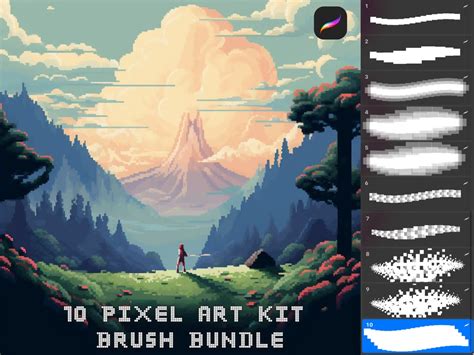
Pixel brushes are awesome for creating artwork that can be resized to any scale and used for a wide range of purposes. Open up a square canvas in Procreate and navigate to the Brush Menu. It is time to start customizing! Procreate’s default settings will be currently in place in the Brush Settings menu. The first thing we want to do is to change the brush’s shape. Navigate out of your Brush Setting menu and go to Procreate’s Actions Menu which can be found under the wrench icon in the top right-hand corner. Open up the settings for your new brush again and navigate to the Shape menu. Tap on Shape Source. Enter the Stroke Path menu and adjust the Spacing slider to 0% or None. Next, you will need to open up the Taper settings. In the Pressure taper section, set the size and opacity sliders to 100% (Max). This should prevent your brush from tapering at the beginning and ending on your brushstroke. Open up the Wet Mix settings. Move onto the Apple Pencil menu, so that you can make changes to how your pencil will affect your brush. The last settings that we are going to customize are found in the Properties menu. Set your Smudge slider to 50%. Your brush may appear very small in your drawing pad after this step, but don’t worry! Test out your new brush on your canvas! Since the pixel brush is so small (this allows it to create a realistic pixel look) you may have to zoom in while you are drawing your pixel art. Make sure your Selection tool is set to Uniform on the menu bar when you are resizing.
Organizing and Managing Your Brushes
Procreate offers a flexible system for organizing and managing your brushes. Brush libraries are now stored in the Files app, either in On My iPad → Procreate → Brushes or iCloud Drive → Procreate Brushes. You can import individual .brush files by bringing them into a brush set folder in the Files app. Because brushes, brush sets and brush libraries are now files and folders, certain characters cannot be used in names due to operating system restrictions. Because Procreate's Brushes system is now integrated with the iPad's Files app, when you make changes to brushes in Procreate the changes will also be reflected in Files, and vice versa.
- Importing and Exporting: Tap here to import a brush, brush set or brush library from the Files app. Share an individual brush by swiping left on the brush thumbnail and tapping Share. Share a custom brush set by tapping it twice and selecting Share.
- Duplicating: To duplicate a brush, swipe left on it and tap Duplicate. To duplicate a brush set, tap twice on any set then tap Duplicate. An exact copy of the set will appear below the original.
- Renaming: You can rename brushes from the Files app. Open up Files and head to iCloud Drive → Procreate Brushes or On My iPad → Procreate → Brushes (depending on what brush storage you have selected in Procreate) and rename a brush library, brush set, or brush from in here. To rename a brush set, tap it twice (or tap and hold) and select Rename.
- Deleting: To delete a brush, swipe left on it and tap Delete. If you delete a brush or Brush Set, it will be permanently removed from both Procreate and Files. Always ensure you have backed up any important brushes and Sets before deleting. If you do accidentally delete a brush, set, or library, head to 'Recently Deleted' in your Locations in the Files app.
- Moving: Tap and hold the brush or brush set you want to move. After a moment, it will ‘lift up’ and fade slightly. If you specifically hover the brushes over the title of brush set and drop them on the title itself, this action will copy the brushes and place those copies in the set. This is the only instance where a brush is copied across instead of moving completely. To move multiple brushes or brush sets, pick up the first item as above and drag it. A green icon will appear on it. With another finger, tap any other items you want to add to the stack. A number will appear next to the icon counting how many items your stack holds. When you move brushes and brush sets in Procreate 5.4 and above, this completely moves the files across to their new positions, it does not copy them and place the copy in the new spot.
Procreate's Default Brush Sets
Procreate offers a wide range of handcrafted brush sets designed to cover various artistic needs. Experiment with the different brushes to explore what's possible.
- General: The set for clean and simple, mostly rounded brushes.
- Inking: Your go-to for comic or manga-style brushes with inks, halftones, and more.
- Artist: Clean and purpose-built to allow for projects with a more technical lean.
- Pencils: Designed for practical drawing, planning, sketching and quick studies.
- Painting: This set of brushes offers a range of rendering brushes for artistic drawing.
- Calligraphy: Ideal for cleaning up artwork and drawing in ink-centric styles like sumi-e.
- Gouache: These brushes encompass a range of realistic and digital painting effects.
- Oils: This selection of brushes covers mediums from acrylic to stucco to oil.
- Textures: Texture is the focus of this fascinating brush set.
- Watercolors: These brushes offer a range of effects from watery to clumpy.
- Dry Media: These brushes all have Streamline enabled. This allows letterers to create smooth and even calligraphic forms.
- Pastels: A staple of classic digital art. These brushes lay down large areas of texture fast.
- Specialty: This playful set demonstrates the unique capabilities of Procreate’s versatile Brush Studio. Included are brushes that change color, create smoky effects and generate chaotic shapes.
- Materials: A variety of Material brushes featuring metallics and roughness created for 3D Painting.
- Liquify: This mind-blowing brush takes full advantage of the power of digital art.
- Grunge: Designed to add realistic grunge textures to your art.
- Organic: The Organic brush set offers all things natural. It includes a range of scatter brushes to add grass, leaves, and bark textures to concept pieces. It also offers brushes that mimic the strokes created by handmade mediums.
- Watercolor: This set offers several realistic watercolour brushes.
With hundreds of settings on offer, you can create limitless combinations. Procreate always remembers your settings. The Brush Studio offers you total control over each aspect of your brush. Here you can alter shape, grain, behavior, color, responsiveness, opacity, taper, and so much more. Now that you understand all of Procreate’s awesome brush customization options, you will be ready to start creating any brush you want!