In the dynamic world of digital communication and graphic design, stickers have emerged as a powerful and engaging way to express oneself. Whether you're looking to add a personal touch to your messages, enhance social media posts, or even promote your brand, understanding how to create custom stickers is an invaluable skill. Picsart, a leading creative platform, offers a comprehensive suite of tools that make this process accessible to everyone, from casual users to seasoned designers. This guide delves into the multifaceted capabilities of Picsart for sticker creation, exploring various methods, creative applications, and the platform's extensive resources.
Understanding Picsart Stickers: Free vs. Premium
Picsart categorizes its vast sticker library into two main types: free and premium. Free Stickers are a testament to the platform's thriving community, with many users generously sharing their creations for others to use in their edits. The Picsart design team also regularly releases curated free Sticker packs, ensuring a consistently fresh and extensive selection. Premium Stickers, on the other hand, are part of Picsart's subscription service, offering exclusive designs and advanced features. This dual approach ensures that users of all levels can find and utilize stickers that fit their needs and budget, fostering a collaborative and creative environment.
The Power of Custom Stickers: Beyond Basic Edits
The ability to create custom stickers unlocks a new dimension of creative expression. Beyond simply embellishing photos, stickers can transform presentations, elevate event flyers, and serve as potent branding tools. Imagine replacing bullet points in a presentation with engaging, eye-catching sticker visuals that instantly capture your audience's attention. Event organizers can infuse flyers with action-packed stickers that convey excitement and dynamism. For businesses, custom stickers offer a tangible way to build brand awareness. They can be handed out at stores, attached to product packaging, sent to loyal followers as a token of appreciation, or even sold as branded merchandise. The versatility is immense, allowing for a personalized touch in almost every aspect of communication and marketing.
Crafting Your First Sticker: A Step-by-Step Guide
For those new to sticker creation, Picsart provides intuitive tools to get started. The process often begins with an existing image that you wish to transform.
Method 1: Using the Picsart Mobile App
- Initiate a New Project: Open the Picsart app on your mobile device. Tap the purple plus sign at the bottom of the screen to start a new project. You can then choose a canvas size under the "Drawings" heading. While the canvas size itself is not critical as stickers are often exported with transparent backgrounds, consider the general shape of your intended sticker for initial layout.
- Add Your Image: Select "Add Photo" from the bottom toolbar. This will allow you to import an image from your phone's gallery. If you don't see your photos, ensure Picsart has permission to access them in your phone's settings. Alternatively, you can choose "Free Images" from the top of the screen to access Picsart's stock library.
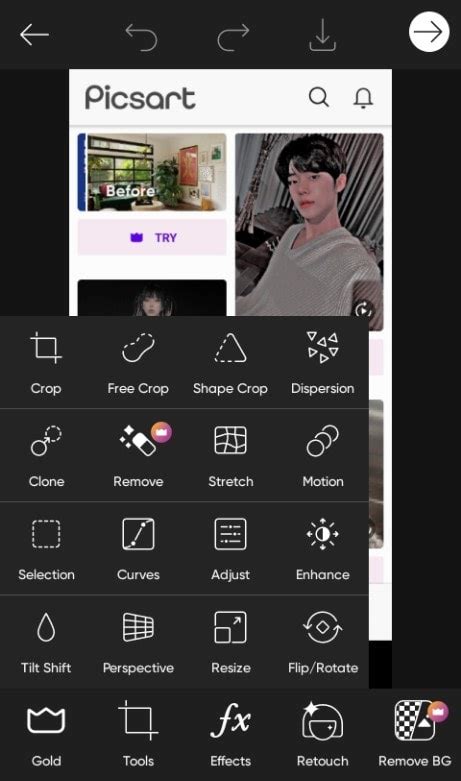
- Utilize the Cutout Tool: Once your image is on the canvas, tap the "Cut Out" icon from the bottom toolbar. This is where the magic of isolating your subject begins.
- Manual Tracing: Use your finger to carefully trace the outline of the object you want to turn into a sticker. Zooming in on the image makes this process significantly easier, especially for intricate details.
- AI-Assisted Cutout: For a quicker approach, Picsart offers AI-powered selection options like "Person" or "Face." The app will attempt to automatically detect and select the subject.
- Refinement: After the initial selection, you can refine the cutout by "brushing in" any missed areas or using the "Restore" function to bring back parts that were accidentally erased.
- Fine-Tuning and Adjustments: After cutting out your subject, tap the arrow in the top right corner to proceed. Here, you can access the "Adjust" tool. This allows you to fine-tune the sticker's appearance by modifying saturation, brightness, hue, and other effects to achieve the perfect look.
- Saving Your Sticker: When you are satisfied with your sticker design, tap "Next." You will then have the option to save your sticker to your personal Sticker library for future use by toggling the "Sticker" option on. If you wish to share your creation with the Picsart community and make it available for others to use, you can adjust the "Free-to-Edit" toggle.
How To Make A Sticker In Picsart
Method 2: Using the Picsart Web Editor
For those who prefer a desktop experience, Picsart's web editor provides a powerful and accessible sticker-making environment.
- Start a New Project: Launch the Picsart Web Editor and begin a new project.
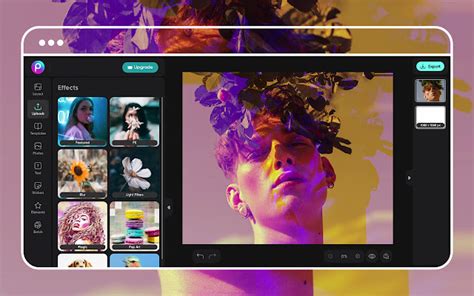
- Find or Create Your Sticker Base: You can either start with a blank canvas or import an image. If you're looking for inspiration or a pre-made element, navigate to the "Stickers" section in the left-hand toolbar. Here, you can browse categories or use keywords to search for the perfect sticker.
- Remove Backgrounds (if applicable): If you're working with a photo that has an unwanted background, Picsart offers an easy way to remove it. Under the "Photos" tab, select "All Photos" and then tap "Remove BG" on the bottom toolbar.
- Customize and Refine: Once you have your base image or chosen sticker, the "Adjust" tool, accessible on the upper toolbar, allows for detailed fine-tuning. You can experiment with colors, saturation, brightness, and other effects. Furthermore, Picsart's extensive editing tools enable you to add text, unique shapes, photo filters, and various other creative effects to truly customize your sticker.
- Exporting Your Sticker: When your design is complete, click the "Export" button in the top right corner. You can save your sticker as an image file, ensuring it's ready for use across various platforms. For sharing with the Picsart community, you can click "Share" and change the "File Type" to "Sticker."
Leveraging Picsart's Existing Sticker Library
Even if you don't intend to create a sticker from scratch, Picsart's extensive library of existing stickers can significantly enhance your designs.
- Search for Stickers: Open the Picsart app and tap the search tool in the top right corner. Enter keywords related to the theme or emotion you want to convey.
- Edit Existing Stickers: You can also find inspiration and customize existing stickers. Many stickers are marked as #FreeToEdit, meaning you can modify them to fit your creative vision. Simply hover your mouse over a #FreeToEdit sticker on the desktop version or select it in the app to start editing.
- Applying Stickers: Once you find the perfect sticker, you can apply it to a photo from your camera roll or a background available within Picsart. The app provides options to customize the applied sticker as needed, adjusting its size, rotation, and blend mode.
Advanced Techniques and Creative Applications
The creative possibilities with Picsart stickers extend far beyond basic usage.
Creating Illuminated Stickers:
One particularly captivating technique involves creating an "illuminated" effect for your stickers, making them appear to glow. This can add a magical quality to your designs.
- Open Your Image: Begin by opening the picture you want to edit in the Picsart photo editor.
- Add a "Smoke" Sticker: Tap on the "Sticker" icon and search for "smoke." Choose a sticker, ideally one with warm colors, as this will enhance the glow effect.
- Adjust and Blend: Adjust the size of the smoke sticker and position it on your photo. Then, tap "Blend" at the bottom of the screen and select the "Lighten" blending mode.
- Refine Opacity and Erase: Lower the opacity of the smoke sticker slightly so you can see the background photo as you work. Tap the eraser tool at the top of the screen and carefully erase any unnecessary parts of the smoke sticker, making it appear as a natural part of the photo's illumination.
- Final Touches: Confirm your edits by tapping the checkmark. Bring the opacity of the smoke sticker back up to 100%. Once you are satisfied with the overall effect, tap "Apply," then tap the arrow icon to finish.
Emoji Background PNG Stickers:
Emojis have become an integral part of pop culture and digital communication. Creating emoji background PNG stickers allows you to celebrate your favorite emojis and spread joy. These can be used as reactions in group chats, adding an extra layer of expressiveness to your conversations.
Stickers for Messaging:
Picsart stickers can be seamlessly integrated into messaging platforms. Any sticker you create in Picsart can often be made available as an option within your iMessage Sticker Keyboard, allowing you to drag and drop them directly onto message bubbles, much like reactions but with a personalized flair. Note that for some messaging apps, you might need to use a third-party app to ensure your custom stickers display correctly. Always exercise caution and research thoroughly when downloading external applications.
Picsart: A Global Creative Ecosystem
Picsart is more than just a sticker maker; it's a comprehensive creative platform that empowers millions worldwide. With over a billion downloads and more than 150 million monthly active creators, it stands as the world's largest creative platform. Its AI-powered tools cater to creators of all skill levels, enabling them to design, edit, draw, and share content seamlessly. The platform boasts one of the largest open-source content collections globally, including an immense array of photos, stickers, backgrounds, and templates. This rich ecosystem has fostered collaborations with major artists and brands, including BLACKPINK, Taylor Swift, the Jonas Brothers, Lizzo, Ariana Grande, Jennifer Lopez, One Direction, Sanrio: Hello Kitty, Warner Bros. Entertainment, iHeartMedia, and Condé Nast, underscoring its significant cultural impact.
The Evolution of Communication and the Role of Stickers
The advent of instant messaging has revolutionized how we communicate. In contrast to the concise texting of the early 2000s, where messages were stripped down to essentials, modern communication is rich with voice notes, videos, memes, GIFs, reactions, and, of course, stickers. These tools keep our digital conversations vibrant, unique, and emotionally resonant. Personalization is a key driver of this evolution. The ability to create custom stickers means we can now inject precise graphics into chats, replacing generic images with visuals that perfectly capture an inside joke, a sentiment, or a personal message.
Technical Considerations for Sticker Creation
When creating stickers, especially those intended for digital use, understanding image borders and file formats is crucial. Most images that are ideal for stickers have irregular borders, meaning the edges follow the natural silhouette of the subject rather than being confined to a neat geometric shape. Accurately cutting around these intricate edges can be time-consuming if done manually. Picsart's tools, both automated and manual, significantly simplify this process.
When exporting your finished sticker, selecting the PNG file extension is generally recommended. PNG files support transparency, which is essential for stickers that need to blend seamlessly with different backgrounds without a solid, obtrusive border. This ensures your custom creations look professional and integrated, regardless of where they are used.
Conclusion: Unleash Your Creativity with Picsart Stickers
Picsart empowers users to transform everyday images into engaging and expressive stickers. Whether you're a casual user looking to add personality to your chats or a professional designer seeking to enhance branding materials, the platform offers accessible tools and a wealth of resources. From intuitive mobile editing to a robust web editor, Picsart makes the process of creating custom stickers straightforward and enjoyable. By mastering the techniques outlined, you can join a global community of creators and elevate your digital communication and design projects with the unique power of personalized stickers.