VSCO has established itself as a premier platform for photographers and visual artists to hone their craft, share their creations, and connect with a vibrant community. However, for many users, the desire to maintain a degree of privacy while still engaging with the platform presents a common challenge. This guide delves into the intricacies of managing your VSCO account's visibility, exploring various strategies from making your profile less accessible to specific users to understanding the nuances of VSCO's built-in privacy features.
Understanding VSCO's Privacy Landscape
At its core, VSCO operates as a public platform. As stated by VSCO's official support, "any images or videos you post on your VSCO account are viewable by anyone." This fundamental aspect means that without proactive measures, your entire VSCO gallery is accessible to the general public. This can be a concern for individuals who wish to share their work selectively, maintain a professional portfolio separate from personal snapshots, or simply feel more secure online.

It’s easy to understand why users inquire about "how to make VSCO private." The platform's appeal lies in its elegant interface and powerful editing tools, but the inherent public nature of shared content can lead to privacy missteps. A common pitfall is "Sharing Profiles Widely," which involves posting your VSCO username or profile link publicly, thereby inviting strangers to browse your photos. This lack of a straightforward "private profile" toggle, as found on some other social media platforms, contributes to this confusion.
Leveraging VSCO Spaces for Controlled Sharing
VSCO offers a powerful tool to mitigate public exposure: VSCO Spaces. These are designed as "private, invite-only groups where you can share your photos without making them public to all VSCO users." This feature is crucial for users who want to maintain a public presence for certain aspects of their work while keeping other content intimate.
Creating Private Spaces:
The primary method for controlling who sees your content is by utilizing Private Spaces. These "Spaces won’t appear in search results and are only accessible via a shared link." This offers a significant layer of control.
- Scenario 1: Sharing With Close Friends and Family Only: If your goal is to "keep most of your VSCO posts for an intimate group," creating a Private Space is the ideal solution. This "invite-only group restricts access to those you trust."
- Scenario 2: Posting Public Content While Preserving Personal Photos: Many users aim to "keep a public VSCO gallery for their portfolio or wider sharing but want to keep other snaps under wraps." Private Spaces allow for this dual approach. You can curate a public-facing profile for professional purposes while using private Spaces for more personal or experimental work.
- Scenario 3: Browsing and Editing Without Public Sharing: For those who "like browsing and editing but don’t want any photos linked to your profile," the strategy is simple: "avoid posting publicly or keep posts limited to Private Spaces." This allows full use of VSCO’s editing capabilities without any content becoming discoverable.
Introducing VSCO Spaces
When using Private Spaces, it's important to remember that "Not all Spaces on VSCO start off private." Therefore, always ensure you are creating a Private Space and diligently manage your invitations. Think of Private Spaces as your "controlled gallery," providing a "low-key approach" that still allows for creation and sharing, but exclusively "with select friends or collaborators."
Client Spaces: A Professional's Private Domain
For photographers who work with clients, VSCO Pro offers an even more specialized tool: Client Spaces. This feature allows professionals to "create private spaces for their client work." It enables seamless sharing of images, receiving feedback, initiating discussions, and even adding "a layer of security with a password." This functionality is "only available to VSCO Pro Members."
Creating and Managing Client Spaces:
Client Spaces can only be created from the desktop version of VSCO at vsco.co. The process involves navigating to the spaces tab on your profile and selecting the option to create a new Client Space.
- Uploading Images: Images can be uploaded directly from your computer or from the VSCO Studio on desktop. When exporting from VSCO Studio, you can simply select the name of the desired Client Space.
- Editing Details: The details of a Client Space, including its name, description, and password, can be edited via the options menu. It's important to note that "changing the name of your Client Space will not change the link."
- Sharing: To share a Client Space, you select the share button and copy the unique link. If the Space is password-protected, you must also share the password.
- Access: Client Spaces are not discoverable on VSCO without the shared link. They are uniquely identified by a link viewable only by those to whom it is shared.
When navigating to a Client Space within the VSCO app, it will open in a mobile web view, allowing you to see precisely "what your client sees when they open the link." As a VSCO Pro Member, you can create "as many Client Spaces as you want," and "Anyone you share your Client Space link with will be able to view it on desktop or mobile web," with the added option of password protection for enhanced security.
Avoiding Common Privacy Mistakes
Beyond utilizing features like Spaces, being aware of common privacy pitfalls is essential for safeguarding your VSCO presence.
- Assuming Spaces Are Automatically Private: As mentioned, not all Spaces are private by default. Always verify the privacy settings when creating any new Space.
- Sharing Usernames and Links Carelessly: "Posting your VSCO username or profile link publicly invites strangers to browse your photos." It's crucial to "Only share your VSCO username or direct photo links with trustworthy people."
- Ignoring App Permissions: "Be cautious with what parts of your VSCO account you link to other social media or third-party apps." Regularly review and manage these integrations.
- Neglecting Settings Updates: "Privacy settings aren’t static." It's vital to make privacy a habit. "Regular check-ins are still vital." VSCO recommends revisiting your Private Spaces invitations "Every Three Months" and after "App Updates," as new features may introduce fresh privacy options.
- Using Weak Passwords: Creating a "strong password for your VSCO account" that is "unique to VSCO, and not the same password used for other services" is a fundamental security measure.
Enhancing Account Safety Beyond Visibility Settings
VSCO prioritizes user safety and privacy through various tools and guidelines. While a full private profile option isn't available, other measures contribute to a secure experience.
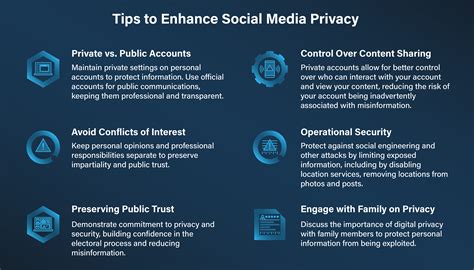
- Profile Access for Non-VSCO Users: VSCO offers a feature, available with Plus or Pro membership on iOS, that allows members to control whether users without a VSCO account can view their profile. This is managed within the "Viewer Access" section on your profile's edit page. By default, this toggle is off, meaning users without an account cannot see your profile.
- Device Security: Beyond VSCO settings, securing your device is paramount. "Enable a passcode / phrase or FaceID (iOS) on your mobile device. This will prevent unwanted access to your device." If you share your device, "Sign out of VSCO."
- Location Data: If you "don’t want your followers or anyone using VSCO to know where the images you post were taken," you can deactivate the location-sharing feature within VSCO. If you choose to use it, exercise caution and respect others' privacy.
- Username Choice: You "do not have to use your real name when creating a VSCO Account." You can change your username and profile information, but be mindful that "our policies prohibit impersonation."
- Private Information: VSCO strongly advises against posting "any private information about yourself on your VSCO account." If you find your private information posted by someone else, report it immediately. Exposing or encouraging the exposure of private information is a violation of community guidelines.
- Reporting and Blocking: VSCO provides tools to report content or conduct that violates their Terms of Use. Additionally, you have the option to "block" users you do not wish to interact with.
- Community Guidelines: Familiarize yourself with VSCO's Community Guidelines and report any violations. This helps maintain a safe environment for all users.
Finding the Balance: Privacy and Community Engagement
Navigating the VSCO platform involves finding "the sweet spot between keeping things private and still being part of the VSCO community." This balance is achieved through "thoughtful choices" and consistent attention to your privacy settings. While VSCO's privacy options may be more limited than some other platforms, understanding and utilizing the available tools, such as Private and Client Spaces, alongside good digital hygiene practices, empowers you to control your online presence and enjoy your creative journey on VSCO with greater peace of mind. Regular review of your settings, awareness of potential privacy missteps, and leveraging VSCO's safety features are key to maintaining a secure and fulfilling experience on the platform.