Photoshop, the industry-standard image editing software, is a powerful tool for both professionals and hobbyists. However, when faced with the AVIF (AV1 Image File Format), users might find that Photoshop doesn't natively support this modern image format. AVIF, introduced in 2019, is a next-generation format designed to replace WebP and compete with HEIC, offering significantly smaller file sizes at comparable or even superior image quality. This article will guide you through the process of enabling Photoshop to open and work with AVIF files, exploring the benefits of this format and how to integrate it into your workflow.
Understanding the AVIF Image Format
AVIF is a relatively new image format that has gained traction due to its impressive compression capabilities. It is based on the AV1 video codec, which is known for its efficiency. Unlike older formats like JPEG, AVIF supports a wider range of features, making it a promising successor for web and general image use.
Key advantages of AVIF include:
- Superior Compression: AVIF files are often significantly smaller than JPEGs, PNGs, and even WebP files while maintaining the same or better image quality. Users have reported file size reductions of 20-25%, and in some cases, up to 85%. Compared to WebP, AVIF files are typically around 10% smaller.
- High Dynamic Range (HDR) Support: AVIF supports HDR images, which offer vastly improved image quality with brighter highlights, deeper shadows, and a wider range of colors. This is crucial for modern displays that support HDR standards.
- Higher Bit-Depth Encoding: AVIF supports up to 12-bit color depth, compared to the 8-bit limit of JPEG. This allows for smoother gradients and reduces the risk of banding, especially in images with subtle tonal transitions.
- Transparency: Like PNG, AVIF supports transparency, allowing for images with non-rectangular shapes and backgrounds.
- Lossless Encoding: While often used with lossy compression for smaller file sizes, AVIF also offers lossless encoding, providing an alternative to TIFF for situations where absolute quality is paramount, albeit with larger file sizes.
- Animation Support: Built on a video format, AVIF can support animated sequences, similar to GIFs but with much greater efficiency and quality.
While AVIF offers many advantages, its adoption is ongoing. Web browsers like Chrome, Firefox, and increasingly Safari (with iOS 16 and macOS Ventura) have started supporting AVIF. However, for professional editing software like Photoshop, native support has been slower to arrive.

Enabling Photoshop to Open AVIF Files: The Plugin Solution
For a long time, Photoshop users seeking to open or save AVIF files encountered a roadblock. Thankfully, the open-source community has provided a solution: the AVIF Format plugin. This plugin acts as an intermediary, allowing Photoshop to interpret and work with AVIF files.
Downloading the AVIF Format Plugin
The first step to integrating AVIF support into your Photoshop workflow is to download the necessary plugin. This is typically a straightforward process involving a visit to the plugin's repository, often hosted on platforms like GitHub.
- Navigate to the Plugin Repository: Open your preferred web browser and search for "AVIF Format plugin GitHub" or a similar query. You will likely be directed to the official repository for the plugin.
- Locate the Latest Release: On the repository page, look for a section listing "Releases." Click on the most recent release to expand its details.
- Download the Appropriate File: Within the release details, you'll find an "Assets" section. Here, you'll see various files available for download. For Windows users, you'll typically download either "AvifFormat_x86.zip" (for 32-bit systems) or "AvifFormat_x64.zip" (for 64-bit systems). If you are on a system with an ARM64 CPU, you can download "AvifFormat_ARM64.zip." Choose the file that matches your operating system architecture.

Installing the AVIF Format Plugin
Once you have downloaded the plugin archive, the next step is to place the plugin file into Photoshop's "Plug-ins" folder. This allows Photoshop to recognize and load the plugin upon startup.
- Extract the Plugin File: Unzip the downloaded archive. Inside, you should find a file named "Av1Image.8bi." This is the core plugin file.
- Locate Your Photoshop Plug-ins Folder:
- Open Windows File Explorer.
- Navigate to your Photoshop installation directory. The default path on Windows is usually:
C:\Program Files\Adobe\Photoshop [version](replace[version]with your specific Photoshop version, e.g.,Photoshop 2023). - Within the Photoshop installation directory, look for a folder named "Plug-ins." This folder might be located directly within the main Photoshop folder, or it could be nested within subfolders like "Adobe\Photoshop [version]" or "App\Photoshop [version]".
- Copy the Plugin File: Open the "Plug-ins" folder and paste the extracted "Av1Image.8bi" file into it.
It's important to ensure you are placing the plugin file in the correct directory that your host application (Photoshop) searches for file format plugins.
Restarting Photoshop and Opening AVIF Files
After copying the plugin file, you need to restart Photoshop for the changes to take effect.
- Launch Photoshop: Open Photoshop on your computer.
- Access the "Open" Dialog: Go to the "File" menu at the top of the screen and select "Open."
- Navigate to Your AVIF File: In the file browser window that appears, navigate to the location where your AVIF file is stored.
- Open the File: Select the AVIF file you wish to open and click the "Open" button.
If the plugin has been installed correctly, Photoshop will now be able to open AVIF files, allowing you to edit and work with them just like any other supported image format.
How to Install Photoshop CCX Plugin Manually on Any Windows PC or Laptop (2026)
Alternative Methods for Opening AVIF Files on Windows
While the plugin method is the primary way to integrate AVIF support directly into Photoshop, there are other ways to view and manage AVIF files on Windows, which can be useful for previewing or converting before editing.
Using the AV1 Video Extension
Microsoft has introduced the AV1 Video Extension, which not only aids in playing AV1 video but also enables Windows File Explorer to display AVIF thumbnails, preview AVIF images, and show EXIF data.
- Install the AV1 Video Extension: Search for "AV1 Video Extension" in the Microsoft Store and install it.
- Error Prompt: If you encounter an error message when trying to open an AVIF file, it might prompt you to download this extension.
- File Explorer Support: Once installed, Windows File Explorer should gain native support for AVIF files, allowing for basic previewing.
Dedicated AVIF Image Viewers and Editors
Several third-party applications offer robust support for AVIF files, allowing you to open, view, and sometimes even edit them.
- Image Viewers: Applications like XnView, gThumb, ImageMagick, Gwenview, and digiKam can be used to open and manage AVIF images. For instance, with digiKam, you can import AVIF files and view them within the application's library.
- Image Editors: For more advanced editing outside of Photoshop, consider programs like Paint.NET, GIMP, or Krita, which may offer AVIF support either natively or through plugins.
Online Converters
If you only need to convert an AVIF file to a more universally supported format like JPEG or PNG, numerous online conversion tools are available. Websites like CloudConvert, Convertio, Ezgif, and FreeConvert allow you to upload your AVIF file and download it in your desired format. This can be a quick solution if you don't need to perform complex edits in Photoshop.
Advanced Workflows and Considerations
Integrating AVIF into your Photoshop workflow opens up possibilities for more efficient image handling and editing, especially for web use.
Exporting AVIF Files from Photoshop
While opening AVIF files is the primary concern for many, the ability to export to AVIF is equally valuable for creating optimized web assets.
- Web Sharp Pro v4 (Windows): For Windows users, the Web Sharp Pro plugin offers direct AVIF export capabilities from Photoshop. This plugin supports exporting images with HDR content, layers, or transparency. You can select AVIF as the output format within the plugin's settings. It's important to note that this plugin is Windows-only, and macOS users will need to rely on other methods.
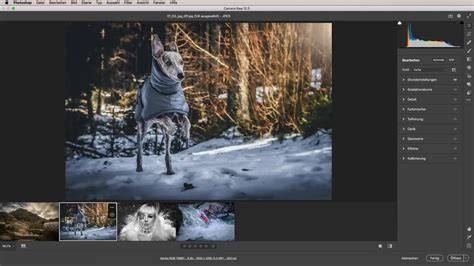
- Adobe Camera RAW (ACR v15.1 and later): Adobe has introduced AVIF support within Adobe Camera RAW (ACR), starting with version 15.1. To leverage this:
- Enable AVIF Support: Navigate to
PS Prefs > File Handling > Camera RAW Preferences > File Handlingand set the TIFF dropdown to "automatically open all supported TIFFs." You may also need to enable AVIF support as part of an "HDRO tech preview" if available in your ACR version. - Open Images in ACR: Ensure you are opening your image directly into ACR. This is crucial because the export options in ACR are only available when opening an image directly. For layered files or Smart Objects, you'll need to flatten them into a single-layer TIFF file first, as ACR cannot open layered files directly for export.
- Export as AVIF: Once the image is open in ACR, you can use the "Convert and Save" button. In the dialog, select AVIF as the file format. You can then set the quality (often between 7 and 11 is recommended) and check "enable HDR display" if exporting an HDR image.
- Enable AVIF Support: Navigate to
Leveraging AVIF for Web Development
For web developers and designers, AVIF offers a significant advantage in reducing page load times. By using the HTML <picture> tag, you can specify an AVIF file as the preferred image source and provide fallbacks (e.g., JPEG) for browsers that do not yet support AVIF. This ensures that users with compatible browsers benefit from smaller file sizes and faster loading, while others still see the image.
<picture> <source srcset="image.avif" type="image/avif"> <img src="image.jpg" alt="Description of image"></picture>Understanding HDR and AVIF
The support for High Dynamic Range (HDR) is one of AVIF's most compelling features. HDR images capture a wider range of luminance and color information, resulting in more realistic and vibrant visuals on compatible displays. When exporting HDR content to AVIF, ensure that your export process and the chosen software explicitly support HDR. This is where ACR's HDR capabilities become particularly valuable.
It's important to note that while AVIF supports HDR, not all browsers or platforms will render HDR AVIF images correctly. Some browsers, like Chrome, Brave, and Opera, currently offer better HDR support. For broader compatibility, you might consider serving both SDR (Standard Dynamic Range) and HDR versions of your AVIF images, allowing the browser or device to choose the most appropriate one.
Addressing Common Issues and Misconceptions
- "Photoshop can't open AVIF": This was true natively, but the plugin or recent ACR updates resolve this.
- Finding the "Av1Image.8bi" file: This file is part of the plugin download. If you can't find it, ensure you have downloaded the correct plugin package and extracted its contents.
- Plugin not loading: If the plugin doesn't appear to work, double-check that you've placed the
.8bifile in the correct Photoshop "Plug-ins" folder. Also, ensure your system has the necessary Visual C++ runtime libraries installed, as some plugins depend on them. - AVIF vs. WebP vs. JPEG: AVIF generally offers better compression and features (like HDR) than both WebP and JPEG. While WebP is a strong contender, AVIF often edges it out in terms of quality-to-size ratio. JPEG, being an older format, is limited in its capabilities and compression efficiency compared to AVIF.
By understanding the benefits of AVIF and following these steps, you can successfully integrate this advanced image format into your Photoshop workflow, enhancing your creative possibilities and optimizing your digital assets. The future of image formats is here, and with the right tools, you can harness its power.