For many years, designers have faced a significant hurdle when working with CorelDRAW files on macOS. CorelDRAW, a powerful vector graphics editor, has historically been a Windows-centric application, leading to difficulties in accessing and manipulating its native .cdr file format on Apple's operating system. This proprietary format, while robust for its intended purpose, is not natively recognized by most other image editing programs. Traditionally, opening and converting .cdr files required access to a Windows environment and the CorelDRAW software itself, necessitating a workflow of opening, exporting, and then importing into other applications. This process has been a persistent inconvenience for designers operating within the macOS ecosystem.
The Challenge of the Proprietary CDR Format
The CorelDRAW file format, denoted by the .cdr extension, is intrinsically linked to the CorelDRAW software. This means that without CorelDRAW, opening these files directly is a challenge. Other popular graphic design applications, such as Adobe Illustrator and Adobe Photoshop, cannot open .cdr files directly. To bridge this gap, users would typically need to export the .cdr file from CorelDRAW into a more universally compatible format like AI (Adobe Illustrator), EPS (Encapsulated PostScript), PDF (Portable Document Format), or PSD (Photoshop Document). This export process, however, could only be performed within the CorelDRAW application on Windows.
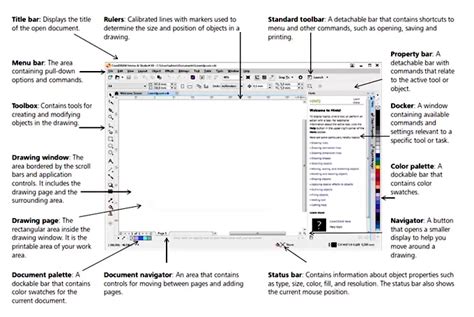
Furthermore, a critical aspect of working with .cdr files is version compatibility. CorelDRAW files are not backwards compatible. This means that if you attempt to open a file created in a newer version of CorelDRAW with an older version of the software, you will encounter an error. The workaround for this is to open the file in the same version it was created in, or a newer version, and then use the "Save As" command to save it as an older version. This ensures that the file can be accessed by older software.
Navigating File Conversions: Export vs. Save As
When the need arises to convert a .cdr file to another format, CorelDRAW offers two primary methods: exporting or using the "Save As" command. The "Save As" command allows users to select a different file format directly from a dropdown menu. It's important to note that this dropdown typically lists only vector formats. For converting to raster formats (like JPG, PNG, or GIF), the "Export" command is the correct choice. The Export command provides a comprehensive list of supported file formats, encompassing both raster and vector options. Within the export dialogs, such as the "Export to PNG" dialog, users can meticulously set the parameters for the output file, ensuring the desired resolution, transparency, and other settings are applied.
Bridging the macOS Divide: New Solutions Emerge
Recognizing the persistent need for a streamlined solution for macOS users, a new application has been developed to directly address the challenge of opening CorelDRAW files. This application aims to simplify the process, making it accessible without the need for a Windows machine or the full CorelDRAW suite.
The core functionality revolves around providing a simple and intuitive interface for users to open .cdr files directly on their iMacs and other macOS devices. This eliminates the traditional multi-step process of exporting and importing. The application is designed to be lightweight, utilizing only the necessary libraries for processing .cdr files. Its ease of use is a primary focus, allowing users to open a .cdr file, zoom in to inspect its contents, and, if desired, save it in other commonly used formats.
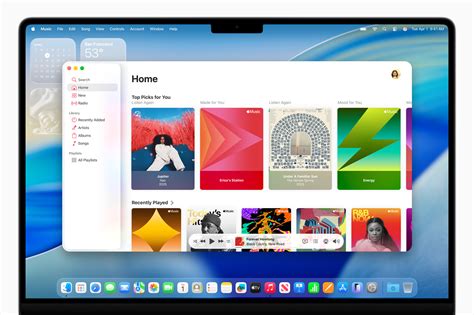
One such application, CDRViewer, is a free software designed for this purpose. It offers a straightforward way to access the content of .cdr files. For users requiring more advanced capabilities, such as exporting to specific vector formats, a professional version named PrintLab Studio is available. PrintLab Studio builds upon CDRViewer's foundation, offering enhanced features like the ability to export opened .cdr files to Vector PDF and SVG (Scalable Vector Graphics) file formats. This provides greater flexibility for integrating CorelDRAW designs into broader design workflows on macOS.
Understanding the Technical Specifications
For users considering these macOS-based solutions, understanding their technical requirements is essential. For instance, CDRViewer and its pro version, PrintLab Studio, require macOS 11.0 or later. The size of these applications is relatively small, with CDRViewer being around 10.5 MB, making them easy to download and install. Crucially, the developers of these applications state that they do not collect any user data, which is a significant consideration for privacy-conscious users.
The process of opening a .cdr file with these applications is designed to be as simple as possible. Typically, the user needs to locate the .cdr file, and the application will handle the rest. The interface is intentionally kept minimal, focusing on the essential actions of opening, viewing, and potentially converting the file.
Convert CDR to SVG
Importing Other Formats into CorelDRAW
While the primary focus has been on opening .cdr files on macOS, it's also worth considering the inverse scenario: importing files from other formats into CorelDRAW (on a Windows system, or potentially through future advancements in cross-platform compatibility). CorelDRAW Graphics Suite is designed to accommodate a wide range of file formats, allowing designers to import various types of artwork and integrate them into their .cdr projects. This broad import capability is a testament to CorelDRAW's aim to be a comprehensive design solution.
Advanced Usage and Workflow Considerations
The ability to open multiple .cdr files simultaneously can be a significant time-saver for designers working on complex projects or managing multiple assets. This is typically achieved by browsing to the file location, selecting the desired files using standard operating system conventions (like holding down the SHIFT or Ctrl keys), and then initiating an import or open command.
It's important to reiterate the distinction between opening and importing. While opening a file typically involves launching the associated application and loading the document, importing refers to bringing the content of one file into an already open document of another application. For example, while you cannot open a .cdr file directly in Adobe Illustrator, you can import an EPS or PDF file that was previously exported from CorelDRAW into Illustrator.
The Future of Cross-Platform Design
The development of applications like CDRViewer and PrintLab Studio signifies a positive trend towards greater cross-platform compatibility in the design world. As software developers continue to recognize the diverse operating system preferences of designers, solutions that break down format barriers become increasingly valuable. While CorelDRAW itself remains a powerful tool, the ability to access and manipulate its native files on macOS without extensive workarounds enhances workflow efficiency and accessibility for a broader range of creative professionals. The evolution of these tools suggests a future where designers can seamlessly work with various file formats across different operating systems, fostering greater collaboration and creative freedom.