The advent of the High Efficiency Image Container (HEIC) format has brought about significant advancements in image storage, offering enhanced quality and reduced file sizes compared to traditional JPEG. However, this innovation has also presented challenges for users accustomed to established workflows, particularly when integrating with powerful editing software like Adobe Photoshop. This article aims to demystify the HEIC format and provide practical solutions for manipulating HEIC images within Photoshop, ensuring a seamless editing experience.
Understanding the HEIC Format: Efficiency Meets Quality
HEIC, an acronym for High Efficiency Image Container, is essentially a modern file format developed to store images and sequences of images. It is built upon the High Efficiency Image File Format (HEIF) and leverages advanced compression technologies, most notably High Efficiency Video Coding (HEVC), also known as H.265. This technological foundation allows HEIC files to achieve remarkable space-saving capabilities while simultaneously preserving or even improving image quality over older formats like JPEG.
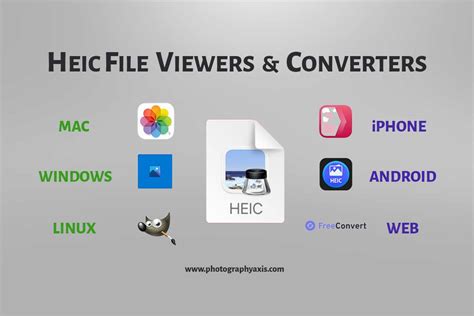
One of the key advantages of HEIC is its ability to store multiple images within a single file. This functionality is particularly useful for features like Live Photos on Apple devices or burst mode photography, where a series of shots are captured in rapid succession. Furthermore, HEIC files are adept at retaining rich metadata, including capture time, location, dimensions, and other crucial details, which are essential for photographers and image archivists.
Apple's widespread adoption of HEIC across its ecosystem, starting with iOS 11 and macOS High Sierra, has made it the default format for images captured on iPhones and iPads. This transition was driven by the desire to complement the high-quality 4K cameras on these devices and to efficiently manage the growing volume of digital media. The result is a format that offers a compelling balance between file size and visual fidelity, making it an attractive option for modern digital photography.
The HEIC Challenge in Photoshop: Compatibility Hurdles
Despite its numerous benefits, the HEIC format's relative newness has led to compatibility issues with older software and platforms. While HEIC files are natively supported by recent versions of macOS and iOS, their integration with certain applications, including older versions of Adobe Photoshop, has not always been straightforward. This can manifest in various ways, such as the inability to open HEIC files directly, or the import of low-resolution previews instead of the original, high-quality images.
A common scenario users encounter is the attempt to open HEIC images from the Photos app in Photoshop via drag-and-drop. This method, unfortunately, often results in only a thumbnail or a low-resolution preview being transferred to Photoshop, severely limiting the editing capabilities. This is because drag-and-drop operations from within the Photos app may not be designed to extract the original, full-resolution HEIC data.
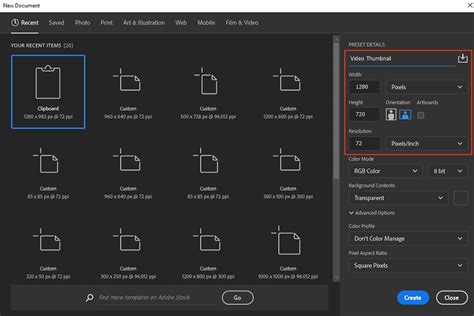
Furthermore, some users have reported that even when Photoshop appears to open an HEIC file, subsequent save operations might default to a different format, like JPEG, or create a duplicate file, which can disrupt established editing workflows. This has led to confusion and frustration, with some users being told by technical support that the issue lies with their camera settings, a claim that often overlooks the software's role in the compatibility equation. The core problem, for many, is the desire for seamless communication between their Apple devices' native image format and their preferred editing software.
Bridging the Gap: Opening and Editing HEIC in Photoshop
Fortunately, Adobe has been progressively improving Photoshop's support for the HEIC format, and with the right approach, users can effectively work with these files. The key lies in understanding how Photoshop interacts with the Photos library and utilizing the appropriate methods for image import.
Utilizing the "Edit With…" Menu
For users running macOS 10.14 Mojave or later, and Photos version 4.0 or higher, the "Edit With…" menu within the Photos app provides a direct pathway to Photoshop. This method bypasses the limitations of drag-and-drop and ensures that Photoshop receives the original image data.
The process is as follows:
- Open the Photos app on your Mac.
- Select the HEIC image you wish to edit.
- Navigate to the menu bar and choose "Image" > "Edit With…".
- If Photoshop is not immediately listed, select "Other…".
- Browse your Applications folder and select Adobe Photoshop.
This action will launch Photoshop and open the selected HEIC file, allowing you to perform your edits on the full-resolution original. It is crucial to remember that this method is designed to work with images stored within the Photos library.
Direct Opening with Updated Photoshop Versions
For users with the latest versions of Adobe Photoshop, direct opening of HEIC files should be supported. If Photoshop is installed correctly and updated, it should recognize the HEIC format natively. In such cases, you can attempt to open HEIC files directly through Photoshop's "File > Open" menu.
However, if you encounter issues, it's worth verifying your Photoshop version and ensuring that any necessary HEIC/HEIF support plugins or updates from Adobe are installed. For instance, newer versions of Photoshop are designed to recognize HEIC format of the images. If they do, then you can edit them from inside the Photos library with this menu.
Open HEIC File in Adobe Photoshop | How to Open and Edit HEIC Files in Adobe Photoshop
Changing iPhone Settings for JPEG Output
For users who consistently prefer working with JPEGs and wish to avoid HEIC altogether, iPhones offer a setting to change the default image format. This is a straightforward way to ensure that images are captured in a universally compatible format from the outset.
To change your iPhone's camera settings:
- Go to "Settings" on your iPhone.
- Scroll down and tap on "Camera".
- Select "Formats".
- Under the "Photo Capture" section, choose "Most Compatible". This will set your iPhone to capture photos in JPEG format.
Alternatively, if you opt to keep your iPhone set to HEIC (for its space-saving benefits), you can adjust the "Transfer to Mac or PC" setting. By selecting "Automatic" in your iPhone's camera settings under "Transfer to Mac or PC," your device will automatically convert HEIC images to JPEG and HEVC videos to H.264 MOV when transferring them to a computer. This ensures that the files you receive are in a widely compatible format without requiring manual conversion.
Working with HEIC on Windows
While this article primarily focuses on Photoshop, it's worth noting how HEIC files can be managed on Windows. For Windows 10 users, support for HEIC files can be enabled by installing the HEIF Image Extensions from the Microsoft Store. For full functionality, including the preservation of video aspects within HEIC files (like Live Photos), the HEVC Video Extensions tool may also need to be purchased and installed. Once these extensions are in place, HEIC files can be opened and edited using compatible software, including recent versions of Adobe Photoshop on Windows.
Conclusion: Embracing the Future of Image Formats
The HEIC format represents a significant step forward in image compression and quality. While initial adoption challenges have caused some friction, particularly with software compatibility, the tools and workflows are rapidly evolving. By understanding the nature of HEIC and utilizing the appropriate methods for importing and editing within Adobe Photoshop, users can harness the benefits of this efficient format without compromising their creative workflow. Whether through macOS's integrated features, updated Photoshop versions, or by adjusting device settings, the ability to seamlessly manipulate HEIC images is now more accessible than ever.