While traditional computing tasks are increasingly being handled on smartphones, the realm of advanced photo editing, long associated with powerful desktop software like Adobe Photoshop, has seen a significant evolution. For Android users, accessing Photoshop's robust capabilities on their mobile devices has become a tangible reality, albeit with nuances and different approaches depending on the desired level of functionality. This article delves into the various methods available, from simplified mobile applications to the surprisingly capable web-based version, to help you understand how to use Photoshop on your Android phone or tablet.
Understanding the Photoshop Ecosystem on Mobile
Adobe offers a suite of applications designed to bring its powerful creative tools to mobile platforms. It's crucial to understand that "Photoshop on phones" doesn't mean the exact desktop experience ported directly to a smaller screen. Instead, Adobe provides several distinct options, each catering to different needs and user levels.
Photoshop Express: The Accessible Entry Point
For many Android users, the primary way to interact with Photoshop's features on their phone is through Photoshop Express Photo Editor. This application is available for free download on both iOS and Android platforms, offering a streamlined and user-friendly interface for common photo editing tasks.
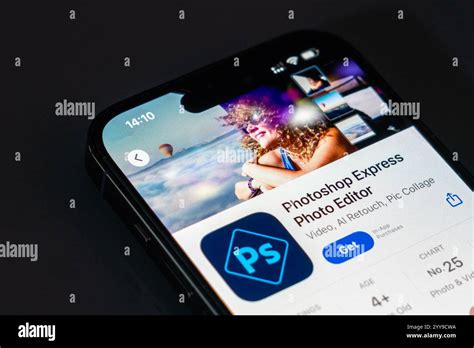
Upon launching Photoshop Express, you'll typically be prompted to select "Photo Editor & Retouch." From there, you can pick an image directly from your phone's gallery. The app provides an extensive set of editing options, though it's important to manage expectations: it's a cut-down, simplified version of the desktop Photoshop, optimized for smaller screens and less powerful mobile hardware.
Within Photoshop Express, you can:
- Correct Blemishes and Inconsistencies: The Heal brush is a powerful tool for retouching, allowing you to seamlessly remove imperfections or unwanted elements from your photos. It functions similarly to cloning or erasing specific areas to achieve a polished look.
- Enhance Backgrounds: The Background tool lets you apply various creative effects specifically to the background of a picture, helping to isolate your subject or create artistic depth.
- Leverage AI Generation: Photoshop Express is equipped with built-in AI generation capabilities. For instance, by tapping the Insert Objects button, you can enter a text prompt and have the app generate and insert an object or animal into your image, offering a novel way to enhance or alter your photos.
- Apply Filters and Effects: A wide array of filters can be applied to entire images, such as warm filters for a cozy feel or pop color filters to make specific hues stand out.
- Combine and Layer Images: The ability to combine images allows for creative compositions and photo manipulations.
- Add Overlays: You can easily add stickers, scribbles, and text directly onto your pictures, personalizing them further.
- Utilize Borders: A selection of borders can be applied to frame your images, with options to swipe left and right to explore the full range of available tools and enhancements.
While Photoshop Express is potent for everyday photo editing, users seeking more advanced features might find it somewhat limited.
Adobe Lightroom Mobile: For Photographers on the Go
Another significant offering from Adobe for both iOS and Android is Adobe Lightroom. While often seen as a companion to Photoshop, Lightroom Mobile provides a robust set of tools specifically geared towards photographers. It offers powerful RAW editing capabilities, sophisticated color correction, and organizational features, all within a mobile-friendly interface.
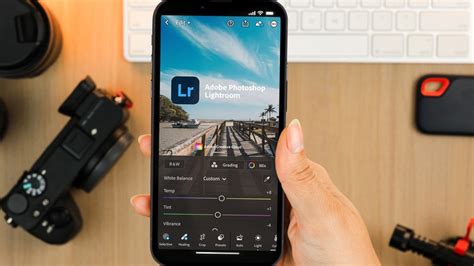
Similar to Photoshop Express, Lightroom Mobile allows for a great deal of functionality to be used for free. However, a subscription service, typically priced around $4.99 per month or $49.99 per year, unlocks more advanced features. These premium features often include the sophisticated healing brush for more intricate retouching and batch editing capabilities, which are invaluable for photographers working with large volumes of images.
Adobe Express: Focusing on Graphic Design and AI Art
Beyond direct photo editing, Adobe Express is another application available for iOS and Android that warrants mention. While its primary focus leans towards graphic design and AI-powered art creation, it can be a valuable tool for users who want to create visually appealing content using Adobe software on their phones.
Adobe Express is particularly well-suited for quickly generating social media posts, flyers, and other marketing materials. It offers a user-friendly experience, allowing you to start with your own images or choose from a vast library of templates. Its AI features can assist in generating unique artwork and designs, making it a versatile option for those looking to create engaging visual content without needing the full complexity of Photoshop.
The "Proper" Photoshop Experience on Android: Photoshop for the Web
For a long time, Creative Cloud subscribers have expressed a desire to use the full, "proper" version of Photoshop on more mobile devices. While Photoshop is undeniably powerful on Windows and Mac laptops, other mobile devices, including Chromebooks and many Android tablets, have historically been excluded from this full experience. This has changed with the advent of Photoshop for the Web.
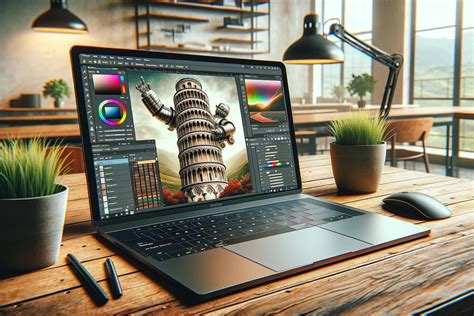
Thanks to the power of Creative Cloud and the browser-based iteration of Photoshop, users can now access a more familiar Photoshop interface on a wider range of devices, including Android phones, tablets, and Chromebooks, provided they have a web browser.
Setting Up and Accessing Photoshop for the Web on Android
To begin using Photoshop for the Web on your Android device or Chromebook, you'll need a few things:
- A Mobile Device: This can be an Android phone, tablet, or a Chromebook.
- A Chromium-Based Browser: Popular choices like Google Chrome and Microsoft Edge, along with most other Chromium-based browsers, will suffice.
- An Active Adobe Creative Cloud Subscription: Crucially, your subscription must include Adobe Photoshop.
Once these prerequisites are met, the process is straightforward:
- Navigate to the Photoshop for the Web URL: Open your chosen browser and go to the designated Photoshop for the Web address.
- Sign In: Log in using your Adobe Creative Cloud credentials.
- Select "Desktop Site" (for Smartphones): If you are accessing from a smartphone, you will likely need to go into your browser's menu and select the "Desktop site" option. This is essential because the web interface is designed for larger screens.
What's Different About Photoshop for the Web?
Photoshop for the Web represents a middle ground, bridging the gap between the simplified mobile apps like Photoshop Express and the full-featured desktop application.
Familiar Interface: One of the most significant advantages is the user interface. It's far more familiar to users accustomed to the desktop version of Photoshop. You'll find many of the iconic tools and panels, such as layers, layer options, selection tools, and filters, are present and organized in a recognizable manner.
Accessibility: The ability to use Photoshop on virtually any device with a web browser, without needing to install any software, is a major convenience. This means you can pick up where you left off on different devices or collaborate more seamlessly.
Simplified Tools: While the interface may look familiar, it's important to note that many of these tools are often simpler versions of their desktop counterparts. This is a necessary compromise to ensure performance and usability on less powerful hardware and smaller screens.
Limitations of Photoshop for the Web
Despite its accessibility, Photoshop for the Web does come with several important limitations that potential users must be aware of:
- Not for Advanced RAW Editing: You cannot shoot RAW images and upload them directly to Photoshop for the Web for advanced editing. This version is not designed for the intricate, high-resolution manipulation that professional photographers often require.
- Missing Advanced Functionality: Many of the filters, plugins, and other advanced functionalities that professional Photoshop users rely on in their daily work are absent from the web version. It lacks the depth and breadth of features found in the desktop application.
- Screen Size and Navigation Challenges: Photoshop for the Web is unequivocally a desktop interface. It is not intended to be run on standard phone-sized screens. While it might be technically possible to access it, navigating the menus and utilizing the tools effectively on a small display can be a rough experience.
Adobe Photoshop for iPad 2022 (Beginner Tutorial)
Optimizing the Experience on Android Devices
Using Photoshop for the Web on a standard Android phone can be challenging due to the screen size and the desktop-oriented interface. Adobe itself acknowledges this, suggesting that the experience is likely to be most usable on larger-screen devices like the Samsung Galaxy Z Fold 4 or the Galaxy S23 Ultra, especially when paired with an S Pen.
The S Pen, or a stylus like the S Pen Pro (which is larger and easier to use, compatible with models like the Galaxy Z Fold 3 and 4), significantly enhances navigation and precision when interacting with the web interface. The larger display of foldable phones or high-end phablets provides more room to maneuver, making it less cramped and more efficient to select tools and adjust settings.
Even with these devices, it's important to reiterate that Photoshop for the Web isn't a genuine replacement for the full desktop Photoshop experience. It's best considered a highly capable tool for quick edits, minor adjustments, or for users who need to access Photoshop's core functionalities while on the go and don't have access to a traditional computer. It can be very helpful in a pinch, but relying on it for complex, professional-grade work might lead to frustration.
In essence, while the dream of using the full Photoshop on any Android device is now closer than ever through the web version, the practical reality involves understanding its limitations and leveraging the right hardware to make the experience as smooth as possible. For simpler edits, Photoshop Express remains the most straightforward and accessible option, while Lightroom Mobile caters to photographers needing robust editing and organization tools on the go.