In the realm of desktop publishing and typesetting, accurately tracking word count is a fundamental, yet often overlooked, aspect of content management. While many users are familiar with counting words in PDF files using tools like Adobe Acrobat Reader, the process within InDesign, a leading application for creating visually rich documents, presents its own set of nuances and functionalities. Understanding these can significantly streamline workflows, especially for text-heavy projects like books, reports, or extensive marketing materials. This article delves into the various methods and considerations for determining word count within Adobe InDesign, moving from the immediate frame-level statistics to more comprehensive document-wide solutions.
The InDesign Info Panel: A Frame-by-Frame Perspective
Adobe InDesign offers a built-in feature for assessing text statistics, accessible through the Info Panel. This panel provides real-time data on characters, words, lines, and paragraphs within a selected text frame or a portion thereof. To access this essential tool, users can navigate to Window > Info or utilize the keyboard shortcut F8.
However, the way the Info Panel functions depends on the active tool. If the Selection Tool is used to select a text frame, the Info Panel will display geometric information about the frame itself, such as its position and dimensions. To reveal text-related statistics, it is crucial to switch to the Type Tool. A simple double-click within a text frame, or pressing T on the keyboard, activates the Type Tool. Once this is done, the Info Panel dynamically updates to show detailed content information. For instance, a user might see a character count of 605, a word count of 96, 16 lines, and a single paragraph.
It's important to clarify what constitutes a "word" in this context. InDesign's word count is generally based on sequences of characters separated by spaces or punctuation. Adding a word like "the" increments the count, as does adding "fantastic." This granular understanding is key when interpreting the data presented in the Info Panel.
A significant limitation of the Info Panel is that it displays statistics for the currently selected text frame only. This means that if a document comprises multiple text frames, the Info Panel will not automatically aggregate the word count across all of them or the entire document. This can be a considerable drawback when working with long documents where maintaining a specific word count is critical, such as for a book manuscript.
Understanding Overset Text: When Content Exceeds the Frame
One of the InDesign word count features that is particularly valuable, yet sometimes misunderstood, is its inclusion of overset text in its statistics. Overset text occurs when the content of a text frame exceeds the visible boundaries of that frame. The text that does not fit within the frame is not displayed, effectively becoming "overset." This can lead to missing words, paragraphs, or even entire pages if not managed properly.
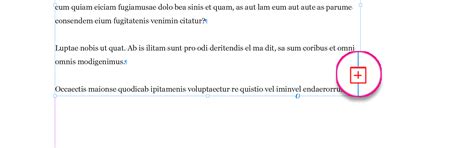
The Info Panel, when displaying statistics for a text frame, will include the count of this overset text. This is a crucial detail because it ensures that the reported word count reflects the total amount of text that has been placed, even if parts of it are not immediately visible. For designers and editors, this highlights the necessity of checking for overset text indicators (often a small red plus sign at the bottom of a text frame) to ensure all content is accounted for and properly laid out. If overset text is detected, the frame needs to be resized, or the text needs to be flowed into subsequent linked frames to accommodate the full content.
Leveraging Linked Text Frames for Comprehensive Counts
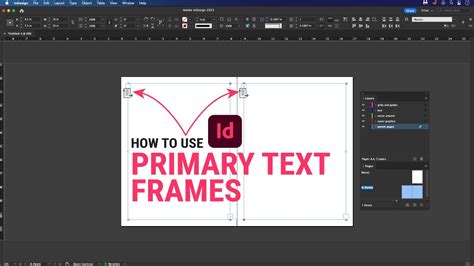
To mitigate the limitation of the Info Panel reporting on a single frame, InDesign encourages the practice of linking text frames. When text frames are linked, content flows sequentially from one frame to the next, potentially across multiple pages. If you place the cursor anywhere within a chain of linked text frames, or within any of the frames connected in that chain, the Info Panel will provide a cumulative text count for all the text that resides within that linked story. This includes text that flows over onto subsequent pages.
This feature is particularly useful when you are working with long passages of text that need to span across multiple frames. By linking frames, you create a single "story" in InDesign's terminology. The Info Panel then accurately reports the total word count for that entire story, regardless of how many frames it occupies. This makes it a more reliable tool for assessing word count in documents with continuous body copy.
Beyond the Info Panel: Scripts and External Tools
While the Info Panel and linked text frames offer valuable insights, they still don't provide a direct, one-click solution for obtaining the word count of an entire InDesign document, especially one composed of numerous independent stories. For such comprehensive needs, users often turn to alternative methods:
InDesign Scripts for Global Word Counts
One popular and effective solution is to utilize InDesign scripts. Scripts are small programs that can automate tasks within InDesign. For word counting, specific scripts can be found and installed to generate a document-wide word count. The installation process typically involves placing the script file into the InDesign Folder, specifically within the Scripts > Scripts Panel subfolder. Once installed, these scripts can be run from the Scripts panel within InDesign, providing a consolidated word count for the entire project.
A well-known script for this purpose is often referred to as "count-text." By running such a script, users can bypass the manual process of checking each individual frame or story and obtain a total word count efficiently. The availability of such scripts significantly enhances the utility of InDesign for projects where global word count is a primary concern.
External Word Count Tools
For users who require robust word count functionality that extends beyond what InDesign natively offers, external word count tools are a viable option. One such tool mentioned is "AnyCount." These applications are specifically designed for counting words, characters, and other metrics across various file types, including those generated by desktop publishing software.
Downloading and installing a dedicated word counter like AnyCount provides a more specialized and often more feature-rich experience. These tools can typically handle complex documents, aggregate counts from multiple files, and offer detailed reports. For professionals who frequently work with word count requirements, investing in or utilizing such external tools can save significant time and effort. The ability to download and try these tools, as suggested by some resources, allows users to evaluate their suitability for their specific workflow.
The GREP Method: A Powerful, Though Advanced, Approach
For users comfortable with advanced InDesign features, the GREP (Globally Regular Expression Print) find/change functionality can be employed to achieve a document-wide word count. This method, while more complex, offers a powerful way to manipulate and analyze text within InDesign.
The process involves using GREP to find all instances of what constitutes a "word" across the entire document and then performing a "change" operation that, in effect, counts them. This typically involves defining a GREP expression that accurately captures word boundaries. While the specifics of the GREP expression can vary, the general idea is to search for patterns that represent words and then leverage the find/change mechanism to tally them. This advanced technique underscores the flexibility of InDesign and its capacity to be adapted for specialized tasks beyond its primary design functions.
Conclusion: Choosing the Right Tool for the Job
In conclusion, while Adobe InDesign offers the convenient Info Panel for immediate word count feedback on individual text frames and linked stories, its native capabilities for a comprehensive document-wide count are somewhat limited. This is where the power of InDesign scripts and dedicated external word count tools comes into play. By understanding the nuances of the Info Panel, the importance of managing overset text, the utility of linked frames, and the advanced options like GREP or external software, users can effectively manage and report on word counts for any project, ensuring accuracy and efficiency in their desktop publishing endeavors. Whether you're a beginner or an advanced user, there's a method tailored to your needs for mastering word count in InDesign.