A black background on a Windows operating system, particularly within specific applications like Windows Security or across the entire desktop, can be a perplexing issue for users. This phenomenon can arise from various factors, ranging from simple theme misconfigurations to more complex system file corruptions or even issues stemming from operating system upgrades. Understanding the potential causes and systematically applying troubleshooting steps is crucial for restoring your visual display to its intended state. This article aims to provide a comprehensive guide, addressing different scenarios and offering practical solutions, drawing upon user experiences and system functionalities.
Initial Checks: Themes and Basic Settings
Often, a black background can be a symptom of an incorrect theme selection or a temporary display glitch. A user named Christine, a fellow Windows user, encountered a black background specifically within Windows Security and suggested a straightforward initial step: changing the system's theme. This is a logical starting point because themes dictate the overall visual appearance of Windows, including backgrounds, accent colors, and sounds.
To implement this solution, one should access the Windows Start Menu, type "Themes," and press Enter. This action opens the Personalization settings, specifically the Themes section. From there, selecting a different, pre-installed theme can often resolve the issue. After applying a new theme, it is advisable to restart the device. This restart allows the system to fully implement the changes and clear any temporary display caches that might be holding onto the erroneous black background. This simple reset of visual parameters can frequently rectify the problem without delving into more complex diagnostics.
Addressing System File Integrity: The SFC Scannow Utility
If changing themes does not resolve the black background, the next logical step is to investigate the integrity of Windows system files. Corrupted system files can lead to a wide array of unpredictable behaviors, including display anomalies. Christine also recommended running the "sfc /scannow" command, a powerful built-in utility designed to scan for and repair corrupted Windows system files.
To execute this command, users need to open the Command Prompt with administrative privileges. This can be done by searching for "cmd" in the Start Menu, right-clicking on "Command Prompt," and selecting "Run as administrator." Once the Command Prompt window is open, typing "sfc /scannow" and pressing Enter will initiate the scan. The System File Checker will then examine protected system files and replace incorrect versions with correct Microsoft versions. The outcome of this scan, whether it finds and repairs errors or reports no issues, provides valuable information for further troubleshooting. If errors are found and repaired, a subsequent restart and check for the black background issue are necessary.
Post-Upgrade Black Screen Issues: Resetting Backgrounds
A specific scenario that has been noted involves a black background appearing after upgrading to Windows 10 version 2004 (OS build 18362.657) or higher, including Windows 11. In these instances, the black background might affect the main screen, an extended display, or even specialized screens like the ScreenPad on certain devices. The provided information indicates that in such cases, the problem is often resolved by simply resetting the background image.
This suggests that the upgrade process might have inadvertently corrupted the settings related to background images or their association with specific displays.
Resetting the Desktop Background in Windows 11 and Windows 10
The process for resetting the desktop background is consistent across both Windows 11 and Windows 10, with minor variations in the search interface.
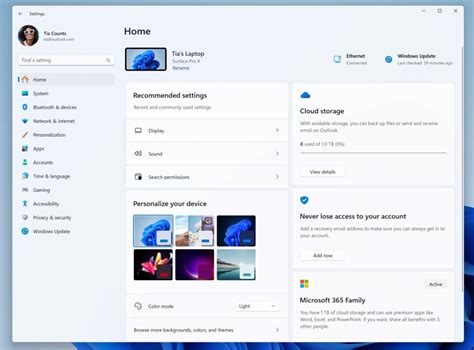
- Accessing Background Settings: Users should type and search for "Background image settings" in the Windows search bar.
- Selecting a New Background: Upon opening the settings, users can choose a new picture from the available options or click "Browse photos" to select an image from a different location on their computer. This action effectively re-establishes the background image setting, often clearing the black screen. Further details on changing background images and themes can be found in dedicated guides for Windows 11/10.
Resetting the ScreenPad Background (for compatible devices)
For users with devices featuring a ScreenPad or ScreenPad Plus, a separate procedure is required to reset its background. This is particularly relevant if the black background issue extends to this secondary display.
For ScreenPad Plus:
- Access ScreenPad Settings: Within the ScreenPad Plus interface, click on "Settings."
- Navigate to Display Settings: Select "ScreenPad Plus Display."
- Reset Background: Click on the "Background" option.
- Choose New Image: Use the file selector to choose a new picture or select any other image. Click "Open" to set it as the ScreenPad Plus's background.For more in-depth information on ScreenPad functionalities, users can refer to introductions for ASUS ScreenXpert (Screenpad 2.0) and ScreenPad Plus with ScreenXpert 3.
For ScreenPad (example):
The process for a standard ScreenPad is similar, involving accessing its settings and selecting a new background image through its interface.
Laptop Screen is Black (But Still Powered On and Running!) - Quick & Detailed How To Fix
Exploring Deeper System Issues and Potential Workarounds
While theme changes and background resets are effective for common issues, a persistent black background might indicate more deeply rooted problems. These could include graphics driver conflicts, issues with specific applications interfering with display settings, or even hardware-related problems, though the latter is less common for a purely black background issue without other visual artifacts.
Graphics Driver Updates and Reinstallation
Outdated or corrupted graphics drivers are a frequent culprit for display problems. Drivers act as intermediaries between the operating system and the graphics hardware. If these drivers are not functioning correctly, it can lead to various visual anomalies, including a black screen.
- Identify Graphics Card: Users can identify their graphics card by opening Device Manager (search for "Device Manager" in the Start Menu), expanding "Display adapters," and noting the listed hardware.
- Download Latest Drivers: Visit the manufacturer's website (e.g., NVIDIA, AMD, Intel) and download the latest drivers specifically for the identified graphics card model and operating system version.
- Install Drivers: Run the downloaded driver installer. It's often recommended to perform a "clean installation," which removes previous driver files before installing the new ones. This can prevent conflicts.
- Restart: After installation, restart the computer.
If the issue persists, a complete uninstallation of the current drivers followed by a clean installation of the latest ones might be necessary. This can be achieved using tools like Display Driver Uninstaller (DDU) in Safe Mode for a more thorough removal.
Checking for Conflicting Software
Third-party applications, especially those that interact with system-level settings or display elements, can sometimes cause unexpected behavior. For instance, some customization tools, screen recording software, or even certain security suites might interfere with the normal functioning of Windows backgrounds.
- Clean Boot: Performing a "clean boot" can help identify if a background application is causing the conflict. A clean boot starts Windows with a minimal set of drivers and startup programs. If the black background issue is resolved in a clean boot environment, users can then re-enable startup programs and services one by one to pinpoint the problematic software.
Advanced Troubleshooting: Registry Editor and System Restore
In more persistent cases, manual adjustments to the Windows Registry or utilizing System Restore might be considered. However, these methods carry a higher risk and should be approached with caution.
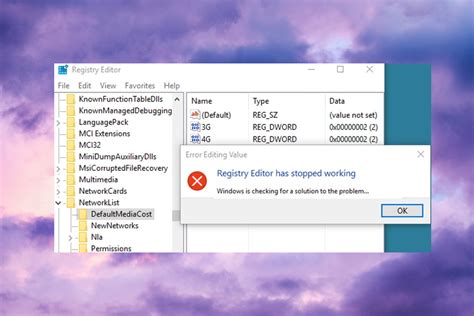
- Registry Editor: Certain registry keys control wallpaper settings. Incorrect modifications here can lead to display issues. If a user suspects registry corruption related to wallpaper, consulting with a professional or carefully backing up the registry before making any changes is highly recommended. There are specific keys that store wallpaper paths, and if these are corrupted or pointing to non-existent files, a black screen can result.
- System Restore: If the black background issue started recently, and particularly after a software installation or system update, System Restore can revert the system's state to a previous point in time when the issue was not present. This is a powerful tool for undoing recent changes that may have caused the problem. To use System Restore, search for "Create a restore point" in the Start Menu, click "System Restore," and follow the on-screen prompts to select a suitable restore point.
It's important to reiterate that while these advanced methods can be effective, they require a certain level of technical proficiency. For users who are not comfortable with such procedures, seeking assistance from IT support or a knowledgeable technician is advisable. The goal is to resolve the black background issue while ensuring the overall stability and security of the Windows operating system. The systematic approach, starting with the simplest solutions and progressing to more complex ones, is key to efficiently diagnosing and rectifying this visual disturbance.