Learning how to rotate items in Photoshop is a fundamental skill that empowers both novice and experienced users to achieve precise control over their visual creations. Whether manipulating photographs, crafting intricate graphics, or designing complex layouts, the ability to rotate elements efficiently is paramount. This guide delves into the various techniques for rotating layers, objects, text, shapes, and even the entire canvas within Photoshop, offering insights from basic principles to advanced applications.
Understanding Layers and Rotation
At its core, Photoshop operates on layers, with each layer containing distinct elements of an image or design. When you rotate a layer in Photoshop, you are specifically transforming that individual component without impacting any other parts of your project. This granular control is crucial for maintaining the integrity of your overall composition.
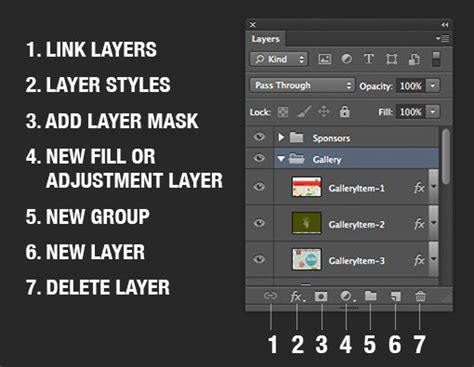
The Layers panel, typically situated on the right side of the Photoshop interface, is your central hub for managing these elements. To begin rotating a specific layer, the first step is to ensure it is selected. You'll see it highlighted in the Layers panel, indicating it's the active element for manipulation.
The Free Transform Tool: A Versatile Approach
One of the most common and versatile methods for rotating an object in Photoshop is by utilizing the Free Transform tool. This powerful feature provides a bounding box around your selected layer, allowing for a range of transformations, including rotation, scaling, skewing, and distortion.
To activate Free Transform, with your desired layer selected, press Ctrl+T on Windows or Command+T on a Mac. This command will immediately bring up the bounding box. To initiate rotation, simply move your cursor slightly outside any of the corner handles of the bounding box. The cursor will transform into a curved double-headed arrow, indicating that you are ready to rotate. Click and drag your mouse to spin the layer to your desired angle.
For users who prefer keyboard shortcuts, taking advantage of these hotkeys can significantly streamline the workflow, making the process of rotating an object much easier and faster, especially for advanced users.
Precise Rotation with Transform Options
While freehand rotation with Free Transform is intuitive, Photoshop also offers pre-defined rotation increments for greater precision. Within the Free Transform mode, you can access additional rotation options through the top menu bar.
Navigate to "Edit" in the menu bar, and then select "Transform." Here, you will find specific rotation options, such as "Rotate 90° Clockwise," "Rotate 90° Counterclockwise," and "Rotate 180°." These options are invaluable when you need to align elements to exact orientations.
When the "Show Transform Controls" option is enabled (found under the "Edit" menu), a bounding box and pivot point will be visible around the selected layer, even when Free Transform isn't actively engaged. This pivot point is crucial as it defines the center around which your layer will rotate. Understanding and potentially repositioning this pivot point can offer more nuanced control over your transformations.
Rotating Individual Objects within a Layer
Sometimes, the need arises to rotate a specific object or element that resides on a larger layer, rather than the entire layer itself. This is particularly useful when working with composite images or designs where elements are grouped together.
To achieve this, you first need to isolate the object you wish to rotate. This can be accomplished using any of Photoshop's selection tools, such as the Lasso Tool, Magic Wand Tool, or Quick Selection Tool. Once the object is precisely selected, right-click on the layer containing the object in the Layers panel. From the context menu, choose "Layer via Copy." This action creates a new layer containing only the selected object. You can then proceed with the rotation techniques described above on this newly created, isolated layer.
Rotating the Entire Canvas
Photoshop also provides straightforward methods for rotating the entire canvas, which can be useful for previewing your work from different perspectives or for specific design intentions.
One method involves using the Crop Tool (shortcut C). After selecting the Crop Tool, you can click and drag a bounding box around your image. Within this bounding box, you'll find a rotation handle. Clicking and dragging this handle will rotate the canvas.
Alternatively, you can access canvas rotation directly through the "Image" menu. Go to "Image" > "Image Rotation" and select your desired orientation (e.g., "180°," "90° Clockwise," "90° Counterclockwise").
It is important to note that rotating the canvas using these methods primarily affects how you view and work with your document within Photoshop. If you export your project after rotating the canvas, the exported file may not retain the rotated orientation unless specific export settings are chosen or the image content itself is transformed.
For a temporary, non-destructive rotation of your view, allowing you to examine your work from different angles without altering the underlying image data, the Rotate View Tool is invaluable. Simply press R to activate it, and then click and drag on your canvas to rotate your perspective.
Rotating Specific Content Types
Photoshop's rotation capabilities extend to various types of content, including text, shapes, and selections.
Rotating Text
Learning how to rotate text in Photoshop is straightforward. Similar to other objects, you can use the Free Transform Tool (Ctrl+T or Command+T) to rotate text layers. Click and drag outside the bounding box to spin the text.
For quick orientation changes, Photoshop offers a "Toggle Text Orientation" option in the upper control bar, allowing you to switch between horizontal and vertical text layouts without needing to rotate individual letters.
If you need to rotate individual letters within a text block, you will first need to rasterize the text layer. Right-click on the text layer in the Layers panel and select "Rasterize Type." Once rasterized, you can then use Free Transform on individual letters or groups of letters. Photoshop also offers advanced capabilities for rotating text in 3D.

Rotating Shapes
Rotating a vector shape in Photoshop is handled identically to rotating any other object. You can employ the Free Transform Tool (Ctrl+T or Command+T) without concern for losing stroke quality or other vector properties. The Free Transform tool is designed to work non-destructively with vector elements.
Rotating Selections
If you need to rotate a selection itself, rather than the content within it, you can do so via the "Select" menu. Navigate to "Select" > "Transform Selection." This will apply a bounding box to your active selection, allowing you to rotate, scale, and skew the selection area itself.
Advanced Rotation Techniques and Considerations
Smart Objects for Non-Destructive Rotation
To preserve the quality of your image data when performing multiple transformations, including rotations, it is highly recommended to convert your layer into a Smart Object. Right-click on the layer in the Layers panel and select "Convert to Smart Object." This conversion ensures that any subsequent transformations (scaling, rotating, etc.) are applied non-destructively, meaning the original pixel data remains intact and can be re-edited at any time without degradation. If you need to adjust the rotation later, you can do so without losing image quality.
Smart Objects in Photoshop: Learn The Basics
Rotating Multiple Layers
While Photoshop's Free Transform tool can be used to rotate multiple selected layers simultaneously, the process for batch rotation of images outside of a layered document can be more efficiently handled by dedicated software. Tools like UniConverter offer a simpler alternative for batch processing, allowing you to rotate multiple images at once without the complexities of layers or intricate menus. This can save significant time when dealing with large quantities of photos that require consistent orientation adjustments.
Layer Masks and Rotation
A noteworthy aspect of rotation in Photoshop is its interaction with Layer Masks. If a layer has a Layer Mask associated with it, and you rotate that layer, the Layer Mask will rotate along with it, maintaining its relative position and effect on the visible content of the layer.
Extending Photoshop's Capabilities
Photoshop's already extensive functionality can be further enhanced with specialized extensions and add-ons. These can streamline workflows and introduce new capabilities, including more efficient layer management and transformation processes. For instance, extensions can aid in quickly selecting layers by type, renaming them in batches, and utilizing different transform modes, making complex projects more manageable.
Conclusion
Mastering the art of rotation in Photoshop is an indispensable skill for any digital artist or designer. From the fundamental application of the Free Transform tool to the strategic use of Smart Objects and the selection of specialized tools for specific content types, Photoshop offers a robust suite of options. By understanding these diverse techniques, you can effectively manipulate your images and designs, achieving precise control and unlocking a wider spectrum of creative possibilities.