Lightroom Mobile empowers photographers to refine their images anywhere, anytime. A key feature that streamlines this process is the use of presets - pre-defined sets of editing adjustments that can be applied with a single tap. Understanding how to locate, import, and manage these presets is crucial for unlocking the full potential of mobile photo editing. This guide delves into the various ways presets are incorporated into Lightroom Mobile, from automatically generated suggestions to custom imports, ensuring a smooth and efficient editing workflow.
Understanding the Power of Presets in Lightroom Mobile
Presets are essentially snapshots of editing settings, encompassing everything from exposure and contrast to color balance and sharpening. They offer a significant advantage by providing a consistent starting point for edits, saving considerable time and effort, especially when working with a large batch of photos. The concept behind presets is to offer a "smooth editing experience on the go," allowing users to achieve professional-looking results without needing to manually adjust numerous sliders for each image.
One of the most innovative aspects of Lightroom Mobile's preset functionality is the integration of Adobe Sensei, the company's artificial intelligence technology. This AI analyzes your photograph and automatically provides recommended presets. These recommendations are dynamic, meaning "the results can change with time, even for the same image." This adaptive nature ensures that the suggestions remain relevant and tailored to the evolving characteristics of your photos, offering a personalized editing assistant.
When a preset is applied, you gain access to further fine-tuning through the "Amount Slider." This slider allows you to control the intensity of the applied preset, giving you granular control over the final look. You can dial back the effect for a more subtle enhancement or push it further for a dramatic transformation. This flexibility ensures that presets are not rigid templates but rather intelligent starting points that can be adapted to your specific creative vision.
Navigating Preset Groups for Efficient Workflow
Lightroom Mobile organizes presets into distinct groups, making it easier to find the specific look you're after. By default, when you create or import your own custom presets, they are typically saved in the "User Presets" group. This dedicated space keeps your personal collection separate from the built-in options, preventing clutter and ensuring quick access to your favorite settings.
Beyond custom creations, Lightroom Mobile also offers various built-in preset groups. "Default" selects the default set of edit settings, providing a neutral baseline. The "Modified" group, on the other hand, "selects only the edit settings applied to the selected photo," offering a way to quickly revert to or review the specific adjustments made to an individual image.
Users have the ability to customize which preset groups are visible within the Presets menu. By navigating to the settings, you can "Select the Preset Groups that you want to see in the Presets menu." This allows you to curate your preset library, hiding groups you rarely use and prioritizing those that are essential to your workflow. This level of customization is key to maintaining an efficient and intuitive editing environment.
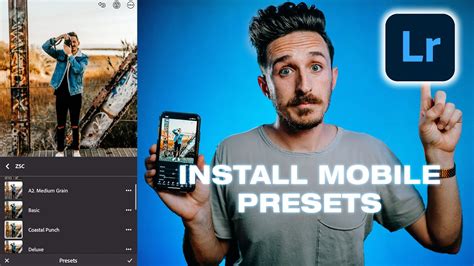
Importing and Managing Custom Presets
For photographers who wish to expand their editing repertoire beyond the default offerings, importing custom presets is a straightforward process. Presets typically come in specific file formats, commonly as ".xmp," ".DNG," or ".lrtemplate" files. These files contain all the necessary editing instructions to replicate a particular look.
To import a preset, you would typically "Select the preset file." Once selected, "Lightroom will import it and add it to the User Presets folder in the Yours preset tab." This action seamlessly integrates the new preset into your personal collection within the app.
There are specific considerations when importing DNG files. If "the downloaded DNG presets are in a .zip" archive, you will need to extract them first. Once extracted, you can then import the individual DNG files into Lightroom Mobile. The application is designed to recognize these DNG files as presets, making them available for use. Even if a preset is only "partially compatible," you can still "view the partially compatible presets in the Presets panel," ensuring you don't miss out on potential creative options.
The Adobe Lightroom community is a valuable resource for photographers looking to deepen their understanding of the application. "If you have a question to ask or an idea to share, come and participate in the Adobe Lightroom community." This forum provides a platform for users to exchange knowledge, troubleshoot issues, and discover new techniques, including advanced preset usage.
Exploring Advanced Preset Techniques and Considerations
The utility of presets extends beyond simple one-click application. Understanding the underlying adjustments within a preset can empower users to modify them further, creating unique variations. For instance, if a preset is too strong, the Amount Slider is the first point of adjustment. However, users can also dive into the individual editing panels to tweak specific parameters like exposure, contrast, or color temperature to better suit a particular image. This hybrid approach, combining preset foundations with manual adjustments, offers unparalleled creative control.
Moreover, the concept of "style" in photography can be effectively captured and replicated through presets. Photographers often develop a signature look over time, characterized by consistent color grading, tonal balance, and sharpening techniques. Creating custom presets that embody this signature style allows for effortless application across new projects, ensuring brand consistency and a recognizable aesthetic. This is particularly beneficial for professionals, social media influencers, and anyone aiming for a cohesive visual identity.
The use of DNG files for preset distribution has become increasingly popular due to its portability and compatibility. When you receive a DNG preset, it's essentially a specially formatted DNG image file that contains the preset data. Importing this DNG file into Lightroom Mobile unpacks this data and makes the preset available in your "User Presets" group. This method simplifies the sharing and acquisition of presets, making it easier for users to access a wider range of creative tools.
It's also important to consider the context in which a preset was created. A preset designed for a specific camera sensor or lighting condition might not yield the exact same results on a different image. While presets are powerful, they are best used as starting points. Critical evaluation of the applied preset and subsequent manual adjustments are almost always necessary to achieve the optimal outcome for each individual photograph. This involves understanding the interplay of light, color, and composition in your specific image and how the preset affects these elements.

The Evolution of Presets and Future Possibilities
The journey of presets in Lightroom Mobile is one of continuous evolution. From basic application to AI-driven recommendations and sophisticated import methods, the feature has become increasingly integral to the mobile editing experience. The ability to save and share custom presets has fostered a vibrant community of creators, each contributing to a growing library of looks and styles.
Looking ahead, we can anticipate further integration of AI in preset generation and refinement. Imagine presets that not only adapt to the image content but also learn from your personal editing habits, offering increasingly personalized and accurate suggestions. The potential for dynamic presets that adjust in real-time based on user interaction or even external data, such as time of day or location, is also an exciting prospect.
Furthermore, the development of more intuitive tools for creating and editing presets directly within the mobile app could democratize preset creation, making it accessible to a wider audience. This would empower more users to craft their unique styles and share them with the community, further enriching the ecosystem. The ongoing advancements in mobile processing power and cloud synchronization will also likely lead to more complex and sophisticated presets that can be applied seamlessly across devices.
Understanding the nuances of finding, importing, and utilizing presets in Lightroom Mobile is a fundamental skill for any mobile photographer. By leveraging the built-in features, exploring custom imports, and engaging with the community, users can transform their mobile editing workflow, achieving stunning results with greater efficiency and creative freedom. The continuous development of this feature promises even more powerful tools and possibilities for photographers on the go.