The advent of the High Efficiency Image File Format (HEIC) has brought about significant advancements in image storage, offering remarkable compression without compromising visual fidelity. Introduced by Apple with iOS 11, HEIC files, often recognized by their .heic extension, allow users to store a greater number of high-quality images by utilizing approximately half the storage space compared to traditional JPEG files. This efficiency is made possible by sophisticated compression algorithms, such as HEVC (High Efficiency Video Coding), which is part of the HEIF (High Efficiency Image Format) standard. HEIC's capabilities extend beyond simple image storage; it can also accommodate features like Live Photos, offering a more dynamic photographic experience.
However, this innovative format, while beneficial for Apple device users, presents a significant compatibility challenge when sharing or viewing images on non-Apple platforms. Devices running Windows, older Android versions, and a myriad of software applications are not natively equipped to interpret HEIC files. This incompatibility often leaves users, particularly those who have recently upgraded their iPhones or Macs, wondering why their photos are saved in this unfamiliar format and, more importantly, how to easily convert them into the universally recognized JPEG (.jpg) format. The need for a fast, reliable, and straightforward HEIC to JPG converter for Windows 10, especially when dealing with large photo libraries, is a common concern for many users.
Understanding the HEIC Format: Efficiency Meets Incompatibility
HEIC stands for High Efficiency Image Compression. It is an image format that Apple introduced with iOS 11, replacing the long-standing JPEG as the default for photos taken on iPhones and iPads. The underlying technology is the High Efficiency Image File Format (HEIF), which leverages advanced compression techniques, notably HEVC (High Efficiency Video Coding), also known as H.265. This advanced compression allows for significantly smaller file sizes compared to JPEG while maintaining or even improving image quality. For instance, HEIC can store images at half the size of JPGs without compromising quality, which is a substantial benefit for users looking to maximize storage space on their devices.
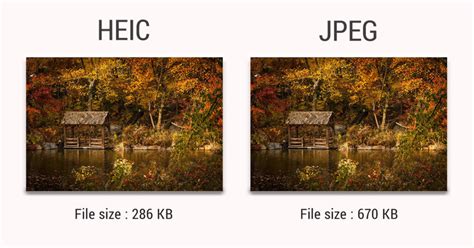
The benefits of HEIC are clear: more photos stored, less storage used, and often better image quality. Features like Live Photos, which capture a short video clip along with a still image, are also made possible by the HEIC container. However, the primary drawback is its limited adoption outside the Apple ecosystem. While iOS devices, iPads, and Macs natively support HEIC files, many other devices, operating systems, and software applications do not. This means that if you import photos from your iPhone to a Windows 10 PC, or try to share them with someone using an Android device or older software, you may encounter issues where the images cannot be opened or displayed correctly. This is why converting HEIC files to JPG is a frequent necessity for seamless image sharing and broader accessibility.
Why Convert HEIC to JPG? The Imperative of Compatibility
The desire to convert HEIC to JPG stems from the fundamental need for compatibility and ease of sharing. JPEG, or Joint Photographic Experts Group, is an open file format standard and remains the most popular image format on the web and across various devices and software. Its widespread adoption means that JPG files can be opened on virtually any phone, computer, or web browser without requiring special software. This universal accessibility is crucial for various use cases, from sharing photos with friends and family to incorporating images into professional presentations, websites, or printed materials.
How to Convert HEIC to JPG in Windows
When users find their photos saved in the HEIC format, they often express a desire to avoid it altogether, preferring the familiar and widely supported JPEG or PNG formats. This is particularly true for users who, as one contributor noted, "never asked for my photo downloads to land as HEIC format. I don't want that. I never want my photos in HEIC format; I want them in JPEG or PNG." This sentiment highlights the friction that HEIC can introduce into a user's workflow, especially if they frequently transfer or share photos with individuals or systems outside of the Apple ecosystem. Converting HEIC to JPG ensures that these beautiful photos can be easily shared and utilized in all creative projects, whether for a business poster, a web portfolio, or pitch-ready product mockups.
Methods for HEIC to JPG Conversion on Windows 10
Fortunately, several methods exist to convert HEIC files to JPG on a Windows 10 PC, catering to different user preferences and needs, from simple online converters to dedicated desktop applications.
Online Converters: Convenience with Caveats
Online HEIC to JPG converters offer a quick and accessible solution, often requiring nothing more than a web browser. These services typically allow users to drag and drop their HEIC files onto a webpage, and after a brief conversion process, provide a download link for the resulting JPG files. Many of these online tools emphasize ease of use, with simple interfaces that make the conversion process straightforward. Some even offer additional features, such as the ability to adjust image quality, resolution, or even perform basic edits before conversion.
However, Nobel_Baynes wisely advises, "Please don't use online HEIC to JPEG converter as it is not safe!" This caution is well-founded. While many online converters are reputable, the nature of uploading personal photos to third-party servers raises privacy concerns. Users should be aware of the privacy policies of these services. Reputable online converters will state that uploaded files are automatically deleted from their servers after a certain period, typically within an hour or 24 hours, and that they do not use or share user files with third parties. For example, one service mentioned that "output files will be automatically deleted from our server in one hour. Download them to your computer or save them to your Google Drive or Dropbox." Another stated, "We care about privacy. All uploaded files will be deleted from our servers forever after one hour. We do not use your files in any way and do not give access to them to any third parties."
Desktop Applications: Security and Advanced Control
For users who prioritize security and require more control over the conversion process, offline desktop applications offer a robust alternative. These applications perform the conversion directly on the user's computer, eliminating the need to upload files to the internet. This approach is often preferred for handling large batches of photos or for users who deal with sensitive images.
One such solution is iMazing Converter, a free application designed for converting HEIC photos to JPEG or PNG. It is noted that "all processing is done strictly on your device, nothing is transferred to the Cloud and no Internet connection is required." The process involves downloading and launching the app, dragging and dropping HEIC files or folders, specifying conversion settings (like quality and resolution), and then initiating the conversion. This method ensures that your photos remain private and secure.
Another offline option mentioned is DocuFreezer. This program is suggested for those who "prefer an offline solution rather than an online service due to security or other reasons." DocuFreezer offers more advanced settings to adjust the parameters of output JPEGs, such as changing the color mode (CMYK, RGB, RGB/A, Grayscale, etc.), watermarking, and compression levels. For batch processing, users can select multiple HEIC files or folders containing them.
A free HEIC to JPG/PNG converter is also available on the Microsoft App Store. This application is highlighted as being "100%-free, no registration, no license fee, no in-app purchases etc." While it does feature a popup asking for a coffee donation for support, users are under no obligation to contribute. This offers a convenient, locally-processed solution directly within the Windows environment.
For users with extensive photo libraries, tools like Coolmuster HEIC Converter are recommended for their ease of use in batch converting HEIC images to JPG or PNG.
Native Windows Support: HEIF Image Extensions
Windows 10 and 11 have introduced native support for HEIC/HEIF images, provided that the HEIF Image Extensions are installed from the Windows Store. Once this extension is installed, users can open HEIC files directly within the Windows Photos app. After opening an HEIC file, the Photos app provides an option to save it as a JPG. By clicking the "…" (more options) menu, users can select "Save as" and choose JPG as the desired output format. This is a simple, built-in method that requires minimal additional software.
Changing iPhone Settings: Preventing HEIC Capture
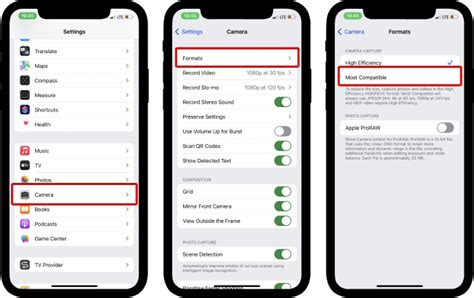
For users who consistently prefer their photos to be saved in JPEG format from the outset, the most effective solution is to adjust the camera settings on their iPhone. This addresses the root cause of encountering HEIC files in the first place.
On iOS 17, users can navigate to Settings > Camera > Formats. Within this menu, there are two primary options: "High Efficiency" (which defaults to HEIC) and "Most Compatible" (which defaults to JPEG). By selecting "Most Compatible," the iPhone will automatically capture and save all new photos in the JPEG format, thus eliminating the need for post-capture conversion for basic compatibility. This setting ensures that future photos are captured in a format that is universally recognized, streamlining the process of sharing and importing images to any device or platform.
Advanced Features and Considerations
Beyond simple conversion, several advanced aspects and considerations are worth noting:
Metadata Preservation and Removal
Most cameras embed hidden information, known as metadata (including EXIF data), into every photograph. This metadata can include details such as the date and time the photo was taken, camera settings, GPS location, and more. When converting HEIC to JPG, users may wish to either preserve this metadata or remove it. Some converters offer options to strip EXIF metadata to save storage space or for privacy reasons. Conversely, maintaining this data can be important for photographers who rely on it for organization and editing. Reputable converters aim to maintain good quality of converted files, while preserving their full resolution and quality â your photos will keep original DPI and dimensions after being converted to JPEG or PNG.
Batch Conversion Capabilities
For users with hundreds or even thousands of HEIC photos, manual conversion of each file is impractical. Therefore, batch conversion capabilities are a crucial feature in any HEIC to JPG converter. Tools like DocuFreezer and Coolmuster HEIC Converter are designed to handle multiple files or entire folders at once, significantly reducing the time and effort required to convert a large library of images. This allows for "batch process[ing] multiple iPhone or iPad pictures at a time â no need to manually add each file one by one."
Image Quality and File Size Trade-offs
It's important to understand that JPEG is a lossy image format. This means that some image quality may be lost during the compression process, especially when converting from a more efficient format like HEIC or when further compressing an existing JPEG. While HEIC is designed to minimize quality loss even at smaller file sizes, converting to JPG can still result in a "slight reduction in image quality during conversion, especially if youâre compressing the file." Most converters offer options to control the output JPG quality, allowing users to strike a balance between file size and visual fidelity. PNG, on the other hand, is a lossless format that offers higher quality and supports transparency but results in significantly larger file sizes compared to JPEG.
Understanding HEIF vs. HEIC
It is worth clarifying the terms HEIF and HEIC. HEIF (High Efficiency Image Format) is the container format, while HEIC (High Efficiency Image Container) is the most common file extension used for HEIF files, particularly on Apple devices. HEIF is a standard developed by the Moving Picture Experts Group (MPEG) and utilizes advanced compression techniques like HEVC. Therefore, when discussing HEIC conversion, we are essentially talking about converting files from the HEIF container format.
The Future of Image Formats
While HEIC offers compelling advantages in terms of efficiency and quality, its path to universal adoption remains a work in progress. The ongoing development of operating systems and software is gradually improving native support for HEIC. However, for the foreseeable future, the need to convert HEIC to JPG will persist, driven by the enduring compatibility and ease of use that the JPEG format provides. Tools and services that facilitate this conversion, whether online or offline, play a vital role in ensuring that users can seamlessly share and utilize their photographic memories across all their devices and platforms. The choice of conversion method ultimately depends on individual priorities, balancing convenience, security, and the level of control desired over the final output.