For digital artists who rely on ibisPaint for their creative endeavors, the prospect of switching devices can bring about a common concern: how to transfer all those cherished artworks and settings. Fortunately, ibisPaint offers several straightforward methods to ensure your creative progress isn't lost in transition. Whether you're moving from an old phone to a new one, a tablet to a smartphone, or even between different operating systems, there are robust solutions available. This guide will delve into the various approaches, emphasizing the most versatile and user-friendly options to get your ibisPaint data onto your new device.
Understanding Your Data: Artworks vs. Settings
Before diving into the transfer methods, it's crucial to distinguish between the two primary types of data you'll want to move: your actual artwork files and your application settings.
- Artwork Files (.IPV): These are the core of your creative work, containing all the layers, brushes, colors, and edits that make up your finished or in-progress pieces. They are typically saved with the
.ipvfile extension. - Backup Files (.ipcfg): These files store your personalized ibisPaint settings, such as custom brushes, color palettes, and other preferences. They are saved with the
.ipcfgfile extension. Transferring these ensures a consistent working environment on your new device.
Ensuring both of these are transferred will provide a complete migration of your ibisPaint experience.
Method 1: Dropbox - The Cross-Platform Champion
For its flexibility and ease of use, Dropbox stands out as a highly recommended method for transferring ibisPaint data, especially when moving between devices with different operating systems (like Android to iOS, or vice versa). It requires an internet connection, and while mobile data can be used, a Wi-Fi connection is strongly advised, particularly when dealing with a large volume of artwork files, to avoid excessive data usage and ensure a smoother transfer.
Transferring Artwork Files (.IPV) via Dropbox
The process of transferring your artwork files using Dropbox is designed to be intuitive.
- Install Dropbox: If you don't already have it, navigate to your device's application store (Google Play Store for Android, App Store for iOS) and download the Dropbox application. You'll need to repeat this step on the new device where you want to transfer your artworks.
- Log In: On both your old and new devices, open the Dropbox app and log in to your account.
- Export Artwork: On your original device, open ibisPaint and navigate to the artwork you wish to transfer.
- Tap on the specific ibisPaint artwork file (the
.ipvfile) you want to save. You'll likely see a message indicating that.ipvfiles cannot be previewed directly. - Look for an option to save or export the file. This might be represented by an ellipsis (…) or a dedicated export icon.
- Select "Save to device" or a similar option.
- From the list of available applications, choose Dropbox. If Dropbox isn't immediately visible, you might need to tap "More" to find it.
- Tap on the specific ibisPaint artwork file (the
- Save to Dropbox: Once you select Dropbox, you'll be prompted to choose a save destination folder within your Dropbox cloud storage. Select your desired folder and confirm the save.
- Repeat for Multiple Files: If you have numerous artwork files to transfer, you will need to repeat this export procedure for each individual
.ipvfile you wish to back up to Dropbox. - Import Artwork on the New Device: On your new device, after ensuring Dropbox is installed and you are logged in:
- Open the Dropbox app and navigate to the folder where you saved your
.ipvfiles. - Tap on a saved
.ipvfile. - You should see an option to "Export" or "Open in…" which will then allow you to select ibisPaint as the destination application.
- The artwork will then be imported into ibisPaint, typically appearing in your "My Gallery."
- Again, if you backed up multiple files, repeat this import process for each one.
- Open the Dropbox app and navigate to the folder where you saved your
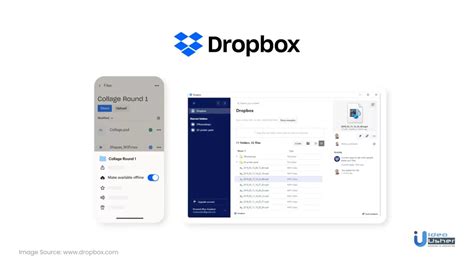
This method is not only excellent for moving to a completely new device but also for transferring artworks between a tablet and a smartphone, allowing you to continue your creative projects seamlessly across different form factors.
Transferring Settings (.IPCFG) via Dropbox
Beyond your artwork, your custom brushes and color palettes are vital to your workflow. ibisPaint allows you to back up these settings as a "backup file" (.ipcfg).
- Backup Settings:
- On your original device, open ibisPaint.
- Navigate to the Title screen and tap the "Settings" button.
- Select "Backup Settings."
- Tap on "Save to Dropbox."
- Choose a specific folder within your Dropbox account where you want to save the backup file and tap the "Save" button.
- Restore Settings on the New Device:
- On your new device, open Dropbox and locate the
.ipcfgbackup file you saved. - Tap the menu button (often represented by three dots or lines) associated with the backup file.
- Select "Export."
- Choose "Copy to ibisPaint" or a similar option. The app should automatically switch from Dropbox to ibisPaint.
- You will then be presented with a confirmation dialog. Ensure the settings you wish to import are selected and tap the "✓" button to complete the restoration.
- On your new device, open Dropbox and locate the
By following these steps, you can effectively transfer both your creative works and your personalized settings, ensuring a smooth transition to your new device.
Method 2: SD Card - The Android-to-Android Solution
For users exclusively within the Android ecosystem, an SD card offers a tangible and often fast way to transfer your ibisPaint artwork files. This method requires both the source and destination devices to be Android-based and to have an SD card slot.
Transferring Artwork Files (.IPV) via SD Card
- Locate Artworks: On your original Android device, you'll need to find where ibisPaint stores its
.ipvfiles. This is typically within the device's internal storage or on an existing SD card, often in a folder related to ibisPaint or its data. - Copy to SD Card: Use your device's file manager to copy the
.ipvfiles you want to transfer. Paste them onto an SD card that you can then physically remove. - Transfer SD Card: Insert the SD card into your new Android device.
- Copy to New Device: Use the file manager on your new device to access the SD card and copy the
.ipvfiles. You can then paste them into a suitable location on the new device's storage, or directly into the relevant ibisPaint folder if you know its location. - Import into ibisPaint: Open ibisPaint on your new device. You may need to navigate to your gallery and use an "Import" function, pointing it to the location where you copied the
.ipvfiles from the SD card.
This method bypasses the need for an internet connection but is limited to Android devices.
How To Move Pictures From Android Phone To SD Card
Method 3: PC via iTunes - The iOS-to-iOS Method
For iOS users, transferring data between Apple devices can be managed through iTunes (or Finder on newer macOS versions). This method is specific to transferring data between iOS devices.
Transferring Artwork Files (.IPV) via PC (iTunes)
- Connect Device to PC: Connect your original iOS device (iPhone or iPad) to your computer using a USB cable.
- Open iTunes/Finder: Launch iTunes on your PC or Finder on your Mac.
- Select Device: In iTunes/Finder, select your connected iOS device.
- File Sharing: Look for the "File Sharing" section within your device's settings in iTunes/Finder.
- Select ibisPaint: Find ibisPaint in the list of applications that support file sharing.
- Copy Files: You will see a list of documents associated with ibisPaint, including your
.ipvartwork files. Select the files you want to transfer and save them to a folder on your computer. - Connect New Device: Disconnect your old device and connect your new iOS device to the computer.
- Transfer to New Device: Repeat steps 2-5. Then, instead of copying files from the device, you will use the "Add File" or "Add Folder" option within the ibisPaint File Sharing section to upload the
.ipvfiles from your computer to the new device. - Import into ibisPaint: Open ibisPaint on your new iOS device. The transferred files should appear in your gallery or be accessible via an import function.
This method relies on a computer as an intermediary and is exclusive to the iOS ecosystem.
Sharing Your Creations
Beyond transferring your work to a new device, ibisPaint also offers a convenient way to share your artwork with others. After exporting your artwork file to Dropbox, you can often select a "Share" option. This allows you to generate a shareable link for your .ipv file. This link can then be posted on social media platforms or sent directly to friends, enabling them to view or even import your artwork if they also use ibisPaint. This feature is a great way to showcase your digital creations and collaborate with fellow artists.
By utilizing these methods, artists can confidently move their ibisPaint creations and settings to new devices, ensuring their digital art journey continues without interruption. Whether opting for the cloud-based convenience of Dropbox, the directness of an SD card for Android users, or the structured approach with iTunes for iOS, a solution exists to keep your artistic workflow intact.