Krita, a powerful and free open-source painting program, offers robust tools for digital animation. Among these, onion skinning stands out as a crucial feature, allowing animators to visualize previous and subsequent frames in relation to the current one. This capability is fundamental for achieving smooth motion and precise timing. While the core functionality of onion skinning in Krita has remained consistent, users may encounter issues with its activation or configuration, especially when transitioning to newer versions or after initial setup. This guide aims to demystify the process of enabling and utilizing onion skinning effectively, drawing upon user experiences and Krita's inherent design.
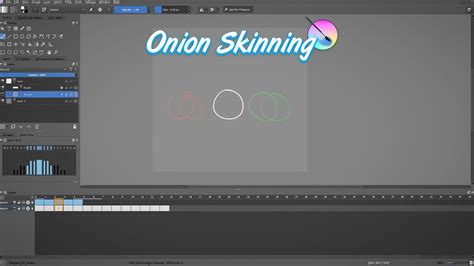
Understanding the Onion Skinning Docker
The primary interface for managing onion skinning in Krita is the "Onion Skins" docker. This docker provides a visual representation of your animation frames and allows for granular control over how previous and subsequent frames are displayed. When you first encounter issues with onion skinning, the state of this docker is often the key to resolving the problem.
The docker features a central column labeled '0'. This column serves as the master control for all onion skinning functions. It acts as an overall enable/disable switch and an opacity regulator for all onion skins across all layers within your animation. When this central '0' column is entirely black, it signifies that onion skinning is completely disabled. Conversely, when it's active, it allows for the visualization of surrounding frames.
Activating Onion Skinning: The '0' Column Control
A common point of confusion arises when the '0' column appears black, even when other onion skinning indicators (often shown as blue for active frames) are visible. This black state, while intended to be the "off" position when slid all the way down, can sometimes be misinterpreted. The critical action to enable onion skinning is to interact with this central '0' column.
To activate onion skinning, you need to adjust the opacity control associated with the '0' column. Instead of leaving it fully black (which disables the feature), you should click within the middle of this black area. This action will typically set the opacity to approximately 50%, effectively turning on the onion skinning functionality. From this point, you can slide the control up or down to achieve your desired overall opacity for the onion skins.
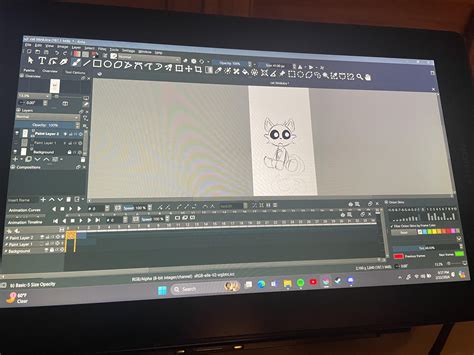
Configuring Onion Skinning Opacity and Range
Once onion skinning is enabled, the next step is to fine-tune its appearance to best suit your workflow. This involves adjusting the opacity of individual onion skin frames and defining the range of frames that will be displayed. The "Onion Skins" docker provides the tools for this precise control.
The general principle for configuring onion skins is to have frames closer to the current frame displayed with higher opacity, while frames further away are shown with progressively lower opacity. This allows you to see the immediate past and future movements clearly, while still having a general sense of the broader animation arc.
Setting Opacity for Surrounding Frames
A common and effective configuration is to set the opacity of the immediate preceding frame (column '-1') and the immediate succeeding frame (column '1') to 100%. This ensures that the frames directly adjacent to your current drawing are clearly visible, providing accurate reference points for movement.
For frames further out, such as '-2' and '2', a lower opacity is typically used, often around 70%. This gradient of opacity continues as you move further from the center. For instance, frames '-3' and '3' might have an even lower opacity, and so on. The specific percentages can be adjusted based on personal preference and the complexity of the animation. The goal is to create a visual hierarchy that aids in drawing, rather than obscuring your current work.
The ability to adjust these values allows animators to create a visual "ghosting" effect that is tailored to their needs. Some might prefer a more pronounced difference between adjacent frames, while others might opt for a subtler transition. Experimentation within the Onion Skins docker is key to finding the ideal balance.
FREE 2D Animation Software / How to use the Onion Skin in Krita
Troubleshooting Common Onion Skinning Issues
While the core mechanism for enabling onion skinning is straightforward, users may encounter persistent problems. Understanding these common pitfalls can save significant frustration.
Version Compatibility and Updates
It's important to acknowledge that software updates can sometimes introduce changes, though in the case of Krita's onion skinning, the fundamental process has remained remarkably stable. If you've experienced issues after updating Krita, it's worth verifying that your animation project file is compatible with the new version. However, the user's experience suggests that the process has not changed significantly between versions. The key questions to ask when troubleshooting are:
- Which version of Krita were you using previously when it worked? Knowing the exact version can help identify if a specific update introduced a bug or a change in behavior.
- Which version of Krita are you currently using? Comparing this to the previous version might highlight a known issue with the current release.
- What is the make and model of your digital drawing tablet? While less likely to directly affect onion skinning functionality, driver issues or tablet integration problems can sometimes manifest in unexpected ways within an application.
Understanding Docker States and Links
As noted in the user's troubleshooting journey, the visual cues within the Onion Skins docker are critical. The blue color indicating active onion skins, and the grey color for inactive ones, provides immediate feedback. The black '0' column, when fully down, signifies deactivation.
The issue with "Google sharing" links highlights a common user error in sharing diagnostic information. These links, intended for collaborative document editing, often require specific permissions or sign-ins, making them inaccessible to others. To effectively share information from cloud storage for troubleshooting, users should generate a "Share with anyone" link. This provides a direct, publicly accessible URL to the file or screenshot, allowing support or community members to view it without needing special access. In this specific case, the user's link provided a direct download, which is a more accessible format for sharing.
The Role of Layer Visibility
While not explicitly detailed in the provided information, it's worth noting that the visibility of layers in Krita can also impact how onion skins are perceived. If the layers containing the previous or subsequent frames are hidden, their onion skin representations might not appear as expected, even if onion skinning is technically enabled. Ensuring that all relevant layers are visible is a basic but important troubleshooting step.
Advanced Onion Skinning Configurations
Beyond the basic setup, Krita's onion skinning system offers flexibility for advanced users. The ability to define custom opacity levels and ranges allows for highly personalized animation workflows.
Customizing Opacity Gradients
The gradient of opacity, from 100% for immediate frames to progressively lower percentages for frames further away, is a powerful tool. Animators can experiment with different gradient curves to find what best suits their drawing style and the specific needs of a scene. For example, in scenes with rapid, energetic movement, a steeper opacity gradient might be preferred, emphasizing the immediate motion. In slower, more deliberate animation, a gentler gradient could provide a smoother visual flow.
Using Onion Skinning for Different Animation Styles
Onion skinning is not just for traditional frame-by-frame animation. It can also be beneficial for:
- Cutout Animation: When manipulating rigged characters, onion skinning can help visualize the poses of the character in previous and subsequent frames, ensuring smooth transitions between movements.
- Motion Graphics: For animating elements in motion graphics, onion skinning can help in timing and easing, ensuring that animated elements follow their intended paths with the correct momentum.
- Rotoscoping: This technique involves drawing over existing footage. Onion skinning is absolutely essential here, allowing the animator to trace movement accurately frame by frame.
By understanding the nuances of the Onion Skins docker and employing a systematic approach to configuration and troubleshooting, Krita users can effectively leverage this vital animation feature. The key lies in recognizing the visual indicators within the docker and understanding how to manipulate the master controls and individual frame settings to achieve a seamless animation workflow.