Adobe InDesign's parent pages, formerly known as master pages, are powerful tools for maintaining consistency and efficiency in document design. They act as templates, allowing designers to apply common elements such as headers, footers, logos, and page numbers across multiple document pages. However, accidental application of a parent page, or the need to remove its elements from specific document pages, can arise. This guide will delve into the intricacies of unapplying parent pages in InDesign, addressing common user scenarios and offering detailed solutions.
Understanding Parent Pages in InDesign
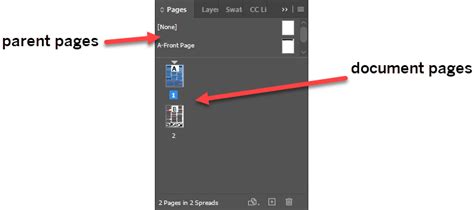
At its core, a parent page in InDesign serves as a blueprint for document pages. When you create a new InDesign document, it typically comes with a default parent page, often designated as "A-Parent" or "A-Master." Document pages, which are the primary pages of your publication, inherit characteristics from these parent pages. This inheritance means that any elements placed on a parent page will automatically appear on all document pages to which that parent page is applied. This is invaluable for elements that need to be consistent throughout a document, such as company logos, page numbering schemes, or consistent footer information.
Think of parent pages like classes in object-oriented programming. Just as a class defines the properties and behaviors of objects, a parent page defines the layout and content that will be inherited by document pages. Parent pages can also inherit from other parent pages, creating a hierarchical structure. This allows for complex design systems where foundational elements are established on a base parent, and then refined and specialized in subsequent parent pages.
The content on parent pages is generally not directly editable on the document pages. This is a deliberate design choice to ensure the integrity of the master layout. However, InDesign provides mechanisms for "overriding" parent items, which creates a local copy of the parent item on the document page, allowing for specific modifications without affecting the original parent page.
Methods of Creating Parent Pages
InDesign offers several ways to create and manage parent pages, each with its own utility:
Creating New Parent Pages: Within the Pages panel, you can create a new parent page from scratch. When doing so, you have options to set a prefix (up to four characters) for the parent page name, and to define the number of pages within that parent spread. You can also choose to base the new parent page on an existing parent page, effectively creating a "child parent" that inherits from another.
Creating Parent Pages from Document Spreads: You can convert an existing document spread into a parent page. This is useful if you've designed a layout directly on a document page and wish to reuse it as a master template. By selecting a document spread and dragging it to the parent page area in the Pages panel, you create a new parent page based on that spread.
Parent-to-Parent Inheritance: As mentioned, you can create a parent page that is based on another parent page. Any changes made to the "parent parent" will automatically propagate to its "child parents," ensuring a consistent design update across multiple levels of your template hierarchy.
Applying Parent Pages to Document Pages
Once parent pages are created, they must be applied to document pages to take effect. This is a straightforward process within the Pages panel:
- Applying to Individual Pages: Drag the desired parent page icon from the top section of the Pages panel onto the icon of a specific document page in the lower section.
- Applying to Spreads: To apply a parent page to an entire spread, drag the parent page icon to a corner of the desired document spread in the Pages panel.
- Applying to Multiple Pages: You can apply a parent to a range of pages. Select the document pages you wish to apply the parent to, then either drag a parent page icon onto one of the selected pages or use the "Apply Parent to Page(s)" option from the Pages panel menu, specifying the page range.
The Core Task: Unapplying Parent Pages
The primary concern for novice users often revolves around removing applied parent pages or their content. Fortunately, InDesign provides a clear and effective method for this:
Unapplying Parent Items by Applying "[None]"
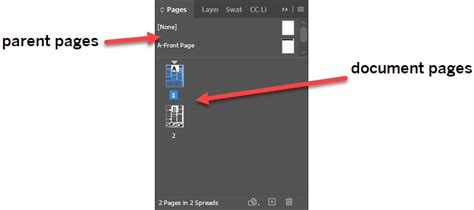
The most direct way to remove all parent page elements from a document page is to apply the "[None]" parent page. In the Pages panel, "[None]" is a special parent page that signifies the absence of any parent page elements.
To unapply a parent page:
- Locate the Pages Panel: If it's not visible, go to
Window > Pages. - Identify the Target Pages: Select the document page(s) from which you want to remove the parent elements.
- Drag and Drop "[None]": Drag the "[None]" parent page icon from the top of the Pages panel onto the selected document page(s) or into the spread area of the selected pages.
This action effectively detaches the document page from its applied parent, removing all inherited elements.
Understanding Parent Item Overrides and Detachment
While applying "[None]" is the primary method for unapplying, understanding overrides and detachment is crucial for more nuanced control.
Overriding Parent Items: Parent items are not directly selectable on document pages by default. However, you can enable "Allow Parent Item Overrides" in the Parent Page Options. When this is active, a parent item on a document page can be "overridden." This creates a local, editable copy of the parent item on the document page. Overridden items are typically indicated by a dotted bounding box. Overriding allows for minor adjustments to parent elements on specific pages without altering the master parent page.
Detaching Parent Items: Detaching a parent item is a more permanent action that breaks the link between the parent item and its overridden copy on the document page. Unlike overriding, detaching prevents any future updates from the parent page from affecting the detached item. Crucially, you can only detach parent items that have first been overridden. The process involves selecting the overridden item on the document page and then using the "Detach All Objects From Parent" option from the Pages panel menu. Once detached, these items are no longer associated with the parent page and cannot be restored to their parent state.
Troubleshooting and Advanced Scenarios
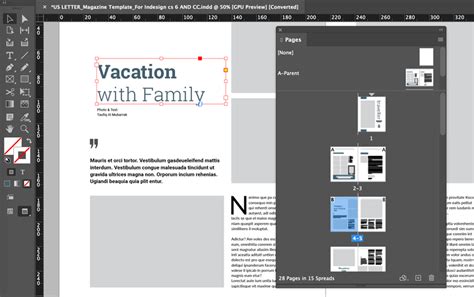
Accidental Application and "Undo" Limitations:As the user in the prompt experienced, if a parent page has been applied a significant time ago and the document has been saved and closed, the "Undo" command may no longer be available. In such cases, the method of applying "[None]" is the most effective solution. The key is to identify which parent page was applied to all the pages by looking at the applied parent indicator in the Pages panel for each document page.
Removing Specific Parent Items Without Unapplying the Entire Parent:If you wish to remove only certain elements from a parent page on a document page, while keeping others, you would typically use the override function. Override the specific items you wish to remove, and then delete those overridden items from the document page. If you need to remove all but a few parent items, you might override all items, delete the ones you don't want, and then potentially reapply the parent page if that simplifies the process, though this can be complex.
Restoring Overridden Items:If you have overridden parent items and wish to revert them back to their original parent state, you can select the document page(s) and choose "Remove All Local Overrides" from the Pages panel menu. This will delete the local copies and restore the link to the parent page, applying the parent's current state. Note that this will not work for items that have been detached rather than merely overridden.
Copying Parent Pages Between Documents:InDesign allows you to copy parent pages from one document to another, which can be a significant time-saver. If you have a well-designed set of parent pages in one document, you can easily transfer them to a new project. This is done by opening both the source and destination documents, arranging their windows side-by-side (e.g., using Window > Arrange > Tile All Vertically), and then dragging the desired parent page spread from the source document's Pages panel to the destination document's Pages panel. Alternatively, you can use the Layout > Pages > Move Parent option.
Managing Parent Page Layers:Parent pages, like document pages, can have multiple layers. The stacking order of objects on a parent page is determined by their layer assignment. An object on a higher layer will appear in front of objects on lower layers, both on the parent page and on the document pages to which it is applied. This is important for ensuring that elements like headers appear above background graphics, for instance.
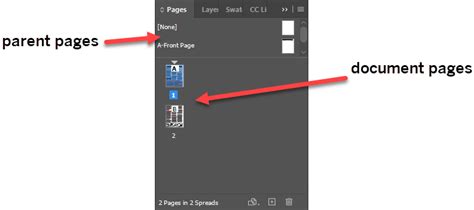
When dealing with complex documents, particularly those with multiple parent pages and overrides, it's essential to maintain a clear naming convention for parent pages and to be mindful of the relationships between parent pages and their child pages. The Pages panel provides visual indicators for applied parents, which are crucial for navigating and managing your document's structure.
The ability to effectively apply and unapply parent pages, along with understanding the nuances of overrides and detachment, is fundamental to mastering InDesign's layout capabilities. While the initial accidental application can be a source of frustration, the tools available within InDesign provide robust solutions for managing these scenarios, ensuring that your final document adheres to your design intentions.