Filmora, a leading video editing software, has significantly enhanced its capabilities with the integration of advanced Artificial Intelligence (AI) tools. These AI features are designed to streamline the video creation process, making it more accessible and efficient for creators of all levels, from beginners to seasoned professionals. Filmora's AI toolkit empowers users to generate video content from text, extend existing footage, remove unwanted elements, create images, and even generate subtitles, all with remarkable ease. This article delves into the various AI functionalities within Filmora, explaining how to leverage them to elevate your video production.
Text-to-Video Generation: Bringing Scripts to Life
Filmora for Windows offers a dedicated Text-to-Video feature, a groundbreaking tool that enables users to convert written scripts and prompts into engaging videos. This innovative function allows you to input your desired text and select the video language according to your preferences. Furthermore, you gain the ability to specify the aspect ratio and duration for the video to be generated, providing precise control over the final output.
The platform offers three distinct modes of video generation powered by advanced AI, each catering to different creative needs and quality expectations.
Mode 1: Normal Mode 2.0
The Normal Mode 2.0 is designed to create videos that closely align with your prompts and other specified settings. This mode offers a balanced approach to AI video generation, ensuring that your creative vision is translated effectively into visual content.
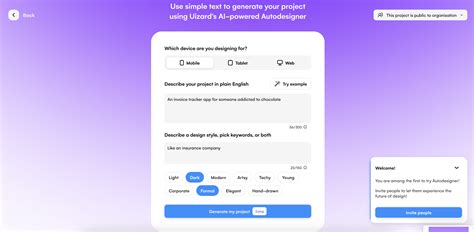
Step 1: After selecting the "AI Text to Video" option from the Filmora homepage, you will be presented with the interface for this mode.
Step 2: Input your text prompt into the designated field. This prompt serves as the core instruction for the AI, detailing the content and style of the video you wish to create.
Step 3: Moving forward, expand the "Drop-down icon" to access advanced settings. Here, you can type a "negative prompt" to explicitly exclude elements or themes you do not want to be included in the generated video. Subsequently, configure the video settings, such as Resolution, Duration, and Aspect Ratio, from the options provided to fine-tune the output.
Step 4: Once the video is generated according to your given prompts, drag it to the timeline for further editing. You can preview the generated video by tapping on the "Play" button to assess its quality and coherence.
Mode 2: Google Veo 3.1 Mode
The Google Veo 3.1 mode is engineered to deliver high-quality video generation, often enhanced with relevant background music to create a more immersive viewing experience. This mode leverages sophisticated AI algorithms to produce visually appealing and audibly engaging content.
Step 1: After choosing "AI Text to Video" from the homepage of the tool, expand the "Google Veo 3.1 mode" using the drop-down menu in the subsequent interface.
Step 2: Input your text prompt and adjust the settings, such as Resolution, Duration, and Aspect Ratio, from the options provided.
Step 3: Once the video is generated, you can review and further edit it within the comprehensive editing interface of Filmora, allowing for detailed refinement and customization.
Mode 3: OpenAI Sora 2
This mode integrates the capabilities of OpenAI's Sora 2 model, offering another powerful avenue for AI-driven video creation.
Step 1: Once you have selected the "Text to Video" function, navigate to the "mode" drop-down menu and select "OpenAI Sora 2."
Step 2: Input your requirements for the video in the text field and configure the desired settings.
Step 3: When the video is successfully generated, click the "Play" button to preview the results.
AI Video Extender: Seamlessly Extending Your Footage
The AI Video Extender is a remarkable feature that intelligently analyzes your existing video clips and employs advanced generative AI to extend video frames forward or backward by several seconds. This process is executed while meticulously maintaining consistent motion, lighting, and color tone, ensuring a natural and seamless continuation of your footage.
Filmora's latest version, V15, introduces this groundbreaking AI Video Extender, allowing creators to effortlessly extend their footage without the need for re-shooting. This tool is particularly beneficial for social media creators and trendsetters, ensuring their videos align with current viral trends and maintain visual flow.
How to Use the AI Video Extender:
- Import your video into Filmora.
- Click the "AI Extend" icon on the toolbar.
- Hover on the clip edge and drag left to extend backward or right to extend forward.
Alternatively, for more precise control:
- Navigate to Stock Media > AI Media > Video Extend.
- Type a short description of how you want the video to continue.
- Click the "Create" button.
The AI Video Extender then combines your original video, the descriptive prompt, and the chosen duration to generate extended footage that fits seamlessly into your timeline. Compared to standalone tools like Kling AI, Filmora's built-in workflow offers unmatched speed, simplicity, and realism, transforming how you refine pacing and storytelling.
Image to Video: Breathing Life into Static Images
Filmora's AI Image-to-Video feature is a game-changer, enabling users to transform still images into dynamic video content with ease. This feature is accessible on both Filmora's desktop and mobile applications, offering unparalleled flexibility and convenience.
On Desktop:
Step 1: Open a new project in Filmora and import your desired images into the media panel.
Step 2: Select the images you wish to animate and drag them onto the timeline.
Step 3: Navigate to the "AI Tools" section within the video settings.
Step 4: Choose "AI Image to Video" from the dropdown list. You can then browse through the AI video effects library and apply your chosen effect. Filmora will automatically animate and enhance your images to create a stunning AI-generated video.
On Mobile (Filmora Mobile App):
Step 1: Open the Filmora Mobile app and select the "Image to Video" feature.
Step 2: Tap on the "image+" icon to choose the images from your gallery that you want to use for your video.
Step 3: After uploading your images, browse through the AI video effects options available in the app and apply your desired effect.
Step 4: Once the video is generated, tap on "Project Edit" to make further adjustments.
Users have reported immense satisfaction with this feature, with many creating professional-looking videos in minutes without prior editing experience. The ability to customize AI effects with text prompts further enhances the creative possibilities, allowing for the generation of unique and visually striking content.
AI Portrait and Smart Cutout: Mastering Background Manipulation
Filmora's AI tools provide powerful solutions for manipulating video backgrounds, making complex tasks like background removal accessible to everyone.
AI Portrait: Effortless Background Removal
The AI Portrait tool allows you to instantly remove the background from your video footage, effectively isolating the subject.
How to Use AI Portrait:
- Open a new project in Filmora and import your video into the media panel.
- Select the video on which you want to apply the AI feature and drag it to the timeline.
- As you navigate into the video settings, locate the "AI Tools" section.
- Choose "AI Portrait" from the dropdown list. Enabling this option will make the background disappear.
- You can then adjust the background of your video by layering a new background video or image behind the subject. Select your desired background from the media panel and drag and drop it onto a lower track of your footage.
Smart Cutout: Precision Object Extraction
The Smart Cutout tool offers a more precise method for separating subjects or objects from their backgrounds, even without the need for a green screen.
How to Use Smart Cutout:
- Select the imported video from the timeline.
- Go to the "AI Tools" as explained earlier.
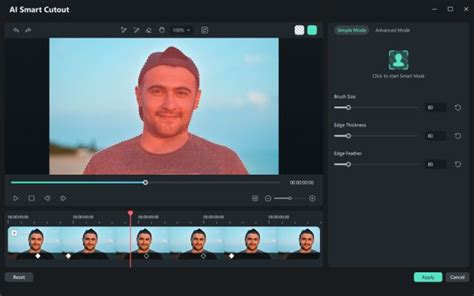
- Look for the "Smart Cutout" option and click "Click to Start Smart Cutout."
- You can draw a mask around the object you wish to extract. To do this, go to the buttons on the top right corner of the preview panel of the newly opened window.
- Select the "Toggle Transparency Grid" from the dropdown list and draw the mask around the object.
- If you are working with a moving object, switch to the "Advanced Mode" section of the Smart Cutout tool.
- Hit the "Play" icon to track the object across all frames. Wait for the tracking to complete.
- Once the process is finished, you will have a video of the object without its original background.
- Click the "Save" button from the bottom right corner.
With Smart Cutout, you can cut anything from a video and paste it onto any other video, opening up a world of creative possibilities for compositing and visual effects.
AI Image Creator and AI Copywriting: Enhancing Visuals and Text
Filmora extends its AI capabilities beyond video editing to include tools for generating images and assisting with text creation.
AI Image Creator
The "AI Image" option, found within the "My Media" menu, allows you to generate custom images based on textual descriptions.
How to Use AI Image Creator:
- Navigate to the "My Media" menu.
- Select the "AI Image" option.
- In the provided space, write a description of the image you want to create. Filmora's AI will then generate the image based on your prompt.
AI Copywriting Tool
Filmora also features an AI copywriting tool accessible from the main interface, located below the "New Project" option. This tool assists content creators by generating various types of text relevant to their videos.
How to Use AI Copywriting Tool:
- Select the "AI Copywriting" option from the main interface.
- A new window will appear, displaying different copywriting options.
- Choose the type of text you need, such as video descriptions, social media captions, or script ideas, and let the AI generate it for you.
These AI-powered text and image generation tools complement the video editing features, offering a more holistic content creation experience.
The Role of AI PCs in Filmora's AI Features
Wondershare Filmora's latest update unlocks a range of AI-powered features that perform optimally when paired with an AI PC. Specifically, laptops running on Intel Core Ultra, AMD Ryzen AI, or similar processors with a dedicated Neural Processing Unit (NPU) can significantly enhance the performance of these AI tools.
While most AI features in Filmora currently operate via cloud-based servers, making them accessible to any modern Windows or macOS machine, utilizing an AI PC with a dedicated NPU offers several advantages. It can future-proof your setup for potential local AI processing in future updates, and in some cases, lead to faster rendering times and reduced battery drain.
It's important to note that a paid Filmora subscription is still required to access AI credits for running various AI tools, regardless of your hardware.
Performance Benefits on AI PCs
Tasks such as background removal, transcription, and audio cleanup run faster and more efficiently on AI PCs, often without overloading the CPU. For creators working on time-sensitive projects or managing extensive timelines, the hardware advantage of an AI PC is not merely a convenience but a practical necessity for smooth and rapid production.
For instance, the AI Smart Cutout tool, one of the most practical updates for creators, benefits greatly from local processing on an AI PC, significantly reducing processing time. Similarly, the AI Speech-to-Text engine, which generates subtitles directly within Filmora, works offline on AI PCs using local hardware, eliminating the need for cloud uploads.
Even generative AI tools for visuals, like AI Image Creator and AI Sticker Generator, while not strictly requiring an AI PC, benefit from the accelerated rendering and smoother interaction that this hardware provides.

Filmora AI Copilot: Your Intelligent Editing Assistant
Filmora's AI Copilot acts as an intelligent assistant integrated directly into the editing software. This tool allows users to describe their desired video output, such as "a vlog with cinematic transitions" or "a fast-cut reel," and the AI helps structure the project accordingly.
Users can interact with the AI Copilot using voice or text commands. Filmora then leverages local AI acceleration to generate timelines, apply effects, and even suggest suitable music, significantly speeding up the initial project setup and creative process.
Conclusion: Embracing the Future of Video Creation with Filmora AI
Filmora's comprehensive suite of AI-powered features represents a significant leap forward in video editing technology. From generating entire videos from text prompts to seamlessly extending footage, removing backgrounds with precision, and creating compelling visuals from static images, Filmora empowers creators to achieve professional results with unprecedented ease. The integration of advanced AI models and the performance enhancements offered by AI PCs further solidify Filmora's position as a leading platform for modern video production. By embracing these AI tools, creators can unlock new levels of creativity, efficiency, and storytelling potential.