Wondershare Filmora has established itself as a powerful yet accessible video editing software, catering to both novice creators and seasoned professionals. This guide is designed to equip beginners with the fundamental knowledge and practical steps needed to navigate Filmora and start creating compelling video content. From importing your raw footage to mastering advanced audio editing techniques, we will explore the essential features that make Filmora a go-to choice for video editing.
Getting Started: Installation and Project Setup
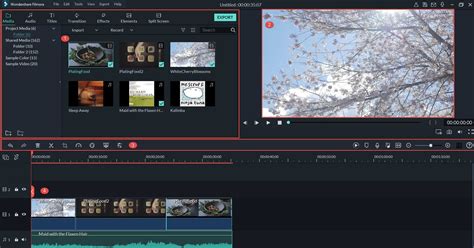
Before diving into the editing process, the first step is to ensure you have Wondershare Filmora installed on your device. The software is available for both desktop and mobile platforms, offering flexibility for creators on the go. For desktop users, the installation process is straightforward, typically involving downloading the installer from the official Wondershare website and following the on-screen prompts.
Once Filmora is installed, launching the application opens up the user interface. A crucial initial step for any project is setting up the aspect ratio. This determines the dimensions of your video and is essential for ensuring compatibility with different platforms and viewing devices. For instance, if you are creating content for YouTube, a 16:9 aspect ratio is standard. For social media platforms like Instagram or TikTok, you might opt for a 9:16 vertical aspect ratio or a 1:1 square aspect ratio. Filmora provides a clear option to select your desired aspect ratio during project creation, allowing you to tailor your video to its intended audience and platform.
Importing Your Media: Bringing Your Vision to Life
The foundation of any video project lies in its media assets - your video clips, images, and audio files. Wondershare Filmora offers a seamless and versatile import process, ensuring you can easily bring your content into the editing environment. You can import videos from a variety of sources, whether they are stored on your local drives, captured directly from cameras or phones, or residing on third-party drives.
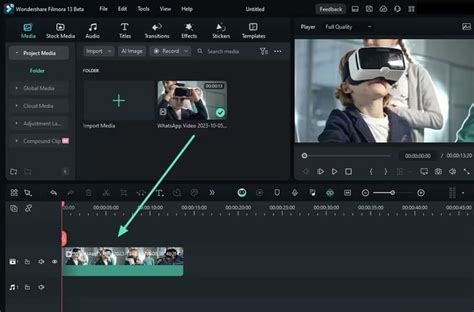
To import media, you typically click on the "Import" button or drag and drop your files directly into the Media Library within Filmora. The software supports a wide range of video, audio, and image formats, minimizing the need for pre-conversion. This user-friendly approach to media import is a significant advantage for beginners, as it removes a common barrier to entry in the video editing workflow. Understanding how to import videos from different sources efficiently is the first step in organizing your project and preparing for the editing phase.
Core Video Editing Features: The Building Blocks of Your Story
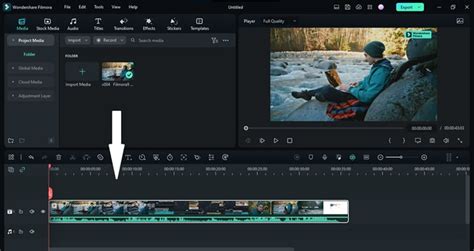
Filmora's strength lies in its intuitive yet powerful suite of video editing features, designed to be accessible for beginners while offering depth for more advanced users. The timeline is the central hub where your video editing magic happens. Here, you will arrange your clips, trim them to perfection, and add various effects to enhance your narrative.
Trimming and Cutting: Shaping Your Narrative
The most fundamental editing operations involve trimming and cutting video clips to remove unwanted sections and create a smooth flow. Filmora makes this process incredibly simple. You can select a clip on the timeline, position the playhead at the desired start or end point, and use the "split" tool to divide the clip. Alternatively, you can drag the edges of a clip to trim its duration. Mastering these basic cutting and trimming techniques is essential for pacing your video and ensuring that only the most relevant footage makes it into your final production.
Transitions: Seamlessly Connecting Your Scenes
Transitions are visual effects used to move from one clip to another. They play a crucial role in enhancing the narrative flow and visual appeal of your video. Filmora offers an extensive library of transitions, ranging from simple fades and dissolves to more dynamic wipes and effects. To apply a transition, you simply drag and drop it from the Transitions panel onto the point where two clips meet on the timeline. Experimenting with different transitions can significantly impact the mood and style of your video, so exploring the available options is highly recommended.
Text and Titles: Adding Context and Personality
Text overlays and titles are vital for conveying information, adding context, and branding your videos. Filmora provides a robust text editing tool with a wide array of pre-designed title templates, as well as the flexibility to create custom text animations. You can choose from various fonts, colors, sizes, and styles, and even add animations to make your text more engaging. Whether you're adding an opening title, lower thirds to identify speakers, or captions to explain a process, Filmora's text features make it easy to add a professional touch.
Effects and Filters: Enhancing Visual Appeal
Beyond basic editing, Filmora offers a rich collection of visual effects and filters that can transform the look and feel of your footage. These can range from simple color correction and grading tools to more complex visual effects like green screen (chroma key), motion tracking, and AI-powered effects. Color correction is particularly important for ensuring consistency between different clips and achieving a desired aesthetic. Filters can quickly apply a specific mood or style, such as vintage, black and white, or cinematic looks. Understanding how to leverage these effects can elevate your videos from amateur to professional.
Audio Editing: The Unsung Hero of Video Production
Often overlooked by beginners, audio editing is as critical as video editing in creating a polished final product. Poor audio quality can detract from even the most visually stunning video. Wondershare Filmora provides a comprehensive set of audio editing tools to address this, covering everything from basic adjustments to advanced techniques.
Basic Audio Adjustments: Volume, Fading, and Balancing
At its core, audio editing involves managing volume levels, applying fades, and ensuring audio tracks are balanced. Filmora allows you to easily adjust the volume of individual audio clips directly on the timeline. You can also apply audio fades - fading in at the beginning of a clip and fading out at the end - to create smoother transitions and prevent abrupt audio changes. This is particularly useful for music beds and voiceovers.
Advanced Audio Mixer: Fine-Tuning Your Sound
For more intricate control over your audio, Filmora's Audio Mixer offers advanced features. This tool allows you to adjust the volume of multiple audio tracks simultaneously, balance dialogue with background music, and apply equalization to shape the sound. Whether you have several layers of sound - like narration, sound effects, and music - the Audio Mixer provides the granular control needed to ensure everything sounds clear and professional.
AI-Powered Audio Editing: Efficiency and Innovation
In line with the latest technological advancements, Filmora incorporates AI-powered audio editing features. These tools can automate complex audio tasks, significantly improving editing efficiency. For example, AI tools can be used for background noise reduction, automatically removing unwanted hums or static from your recordings. Another powerful AI feature is voice enhancement, which can clarify dialogue and make it sound richer and more professional. These AI-driven capabilities are game-changers for beginners, as they simplify sophisticated audio processing and deliver impressive results with minimal effort.
Exploring Filmora Across Devices: Seamless Cross-Platform Editing
Wondershare Filmora recognizes that creators work in diverse environments and on multiple devices. To accommodate this, the software is not limited to desktop installations. Wondershare Filmora is also available for mobile devices, making it a truly versatile editing solution.
Mobile Editing: Creativity on the Go
Filmora for mobile devices, compatible with both Android and iOS systems, brings the power of video editing directly to your smartphone or tablet. This allows you to edit footage on the go, whether you're capturing content during a trip or need to make quick edits for social media. The mobile app retains many of the core editing functionalities of its desktop counterpart, ensuring a consistent editing experience across platforms.
Cross-Platform Plan: Uninterrupted Workflow
To further enhance user convenience, Filmora offers a cross-platform plan. This innovative feature allows individuals to use their Filmora subscription on multiple devices simultaneously. By logging in with the same account, you can seamlessly transition between editing on your desktop and continuing on your mobile device, or vice versa. This synchronization ensures that your projects and assets are accessible wherever you are, fostering an uninterrupted and efficient creative workflow. This is particularly beneficial for creators who manage their content across different devices throughout the day.
Beyond the Basics: Resources for Continuous Learning
Wondershare Filmora is more than just software; it's a platform that supports creators in their journey. For those looking to deepen their understanding and refine their editing skills, comprehensive resources are available.
Official Tutorials and Guides
Wondershare provides an abundance of official tutorials and guides. These resources are meticulously crafted to cover every aspect of the software, from introductory lessons to advanced techniques. For example, a resource like "Wondershare Filmora 12 - Complete Filmora Video Editor Tutorial!" offers an in-depth look at the software's capabilities. Similarly, "Wondershare Filmora Tutorial for beginners!" serves as an excellent starting point for new users. These official materials are invaluable for learning how to use Wondershare Filmora 12 with this comprehensive tutorial and for understanding the steps for each video editing feature.
External Learning Resources
Beyond official channels, the creator community actively shares knowledge. Resources like the "Primal Video Method" offer a broader perspective on streamlining video editing workflows, applicable not just to Filmora but to any video editor. This free PDF guide emphasizes learning how to edit videos faster and more efficiently, focusing on an ultimate process to help you streamline your video editing workflow and minimize wasted time. Such external guides provide supplementary insights that can significantly boost your editing prowess.
Embracing an Efficient Editing Workflow
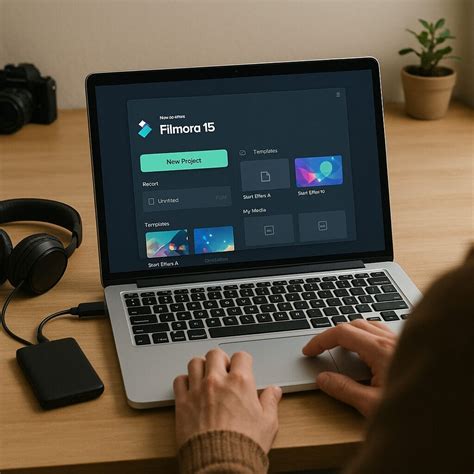
Mastering Wondershare Filmora 12 equips you with the tools to create stunning videos with ease. However, true mastery extends beyond knowing the features; it involves developing an efficient editing workflow. This means understanding how to organize your media, utilize keyboard shortcuts, leverage templates, and employ smart editing techniques to save time.
Templates and Stock Media: Accelerating Production
Filmora includes built-in templates and stock media libraries, which can significantly accelerate your production process. Templates provide pre-designed project structures, animations, and effects that you can customize with your own content. Stock media, such as video clips, images, and music, can be readily incorporated into your projects without the need to source them elsewhere. Utilizing these resources can save considerable time and effort, especially for projects with tight deadlines.
Community and Continuous Improvement
Joining a community of creators can provide support, inspiration, and opportunities for learning. Many platforms and forums are dedicated to Wondershare Filmora users, where you can share your work, ask questions, and learn from others' experiences. Staying updated with the latest video tech tips, tool reviews, and AI workflows, often delivered through newsletters or creator blogs, is also crucial for continuous improvement. For instance, subscribing to updates from reputable sources can help you discover new techniques and tools that enhance your editing capabilities.
By systematically exploring Filmora's features, understanding its cross-platform capabilities, and committing to continuous learning, beginners can transform from novice users into confident video creators. The journey of mastering video editing is ongoing, but with tools like Wondershare Filmora and access to comprehensive learning resources, it is an accessible and rewarding path.