Photoshop's Harmonize tool, a cutting-edge feature currently in its beta phase, is poised to revolutionize the way we approach photo compositing. Designed to automatically match the color, lighting, and shadows of a subject to its new background, this AI-powered tool promises to save significant time and effort. However, like any powerful new technology, understanding its nuances and limitations is key to unlocking its full potential. This tutorial delves into the mechanics of the Harmonize tool, explores its practical applications, and offers advanced techniques to overcome its current constraints, ensuring professional-grade results.
Understanding the Core Functionality of Harmonize
The fundamental purpose of the Harmonize tool is to create a more natural and unified look in photo composites. Blending a subject into a new background is often the trickiest part of compositing, requiring meticulous attention to detail to ensure realism. Photoshop's Harmonize feature makes this process surprisingly easy by automatically analyzing the target background and adjusting the subject layer to match its visual characteristics.
When you drag a cutout layer, representing your subject, to the top tab of the image you intend to combine it with - for instance, a beach scene - and then release your cursor in the center of the image, a new generative layer is created on top. This layer is where the magic of harmonization happens. Photoshop's Harmonize masks out and shows just the areas that have changed from the original background, effectively blending the subject.
The tool utilizes AI, specifically mentioning the Firefly Model 3, to achieve this seamless integration. It analyzes the lighting, color temperature, and shadow patterns of the background and applies corresponding adjustments to the selected subject layer. This results in a more cohesive and believable composite, as the subject appears to naturally inhabit the new environment.
Practical Application: Integrating Subjects with Ease
Let's consider a practical example. Imagine you want to add a pair of headphones to a kitchen counter. First, you would start by selecting the headphones layer. Next, clicking "Harmonize" in the taskbar initiates the process. Photoshop will automatically generate multiple variations of your composite, allowing you to choose the best fit for your vision. This is particularly useful when dealing with portraits, where changing the lighting on a person's face to match a new background can be a complex manual task. By simply masking the person and clicking Harmonize, you can achieve a more realistic lighting integration in seconds.
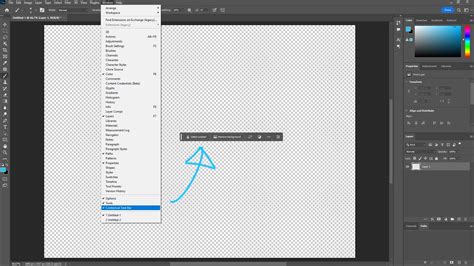
Another scenario involves integrating a subject into a background. After placing your subject image onto your background image, with the subject layer selected, you click the Harmonize button. This button is readily available in the Contextual Task Bar or can be found under the Layer > Harmonize menu. The AI then works to match the subject's lighting and color to the background, creating a unified and realistic composite.
Addressing the Resolution Limitation: The "Resolution Hack"
One of the primary limitations of the current Harmonize tool is its resolution. It creates images up to only 1024x1024 pixels. When this small generated area is stretched across a larger canvas to fit the entire image, it can lead to a soft or blurred appearance, especially noticeable on the background where the mask reveals the original, higher-resolution image. This is because the tool is generating a much bigger area than is strictly needed, thereby "wasting" its limited resolution.
To combat this, a "resolution hack" has emerged as a crucial workaround. This technique involves making a precise selection around your subject before applying Harmonize.
Here's how the resolution hack is implemented:
- Make a Selection: Utilize the Rectangular Marquee Tool (or any other selection tool) to make a selection precisely around the area of your subject that you want to harmonize. This focuses the AI's attention and the resulting generation on a smaller, more manageable area.
- Copy to New Layer: Press Cmd/Ctrl+J to copy this selection to a new layer. This isolates your subject on its own layer, ready for harmonization.
- Apply Harmonize: With this new, smaller selection layer active, apply the Harmonize tool. The AI will now work within the confines of your selection, generating content at its native 1024x1024 resolution but applied to a much smaller area.
- Observe the Difference: When comparing the Harmonize result without this resolution hack, you'll notice it appears soft and fuzzy. However, with the resolution hack in place, the resulting image is significantly sharper and more detailed, as the limited resolution is now concentrated on a smaller, more relevant area.
An alternative method to achieve a similar outcome involves using the Crop Tool. First, crop tightly around your subject. Then, click Harmonize. Afterward, go to Image > Reveal All to restore the full canvas. This approach effectively concentrates the harmonization process on the subject area before expanding the canvas back to its original dimensions.
Beyond Automation: The Enduring Value of Human Creativity
The advent of powerful AI tools like Harmonize inevitably brings forth a sensitive question: Is this the end of our skills? Is everything automated now? This is a valid concern, and one that many creative professionals have been pondering since the announcement of such features.
However, consider this: if you are working in Adobe Camera Raw (ACR) or Lightroom, do you simply press the "Auto" button and move on? Or do you take the time to fine-tune the adjustments to achieve a look that truly resonates with you? The latter is far more common, as there are numerous creative directions one can take, and a one-size-fits-all approach rarely yields the best results.
While AI-driven tools like Harmonize are becoming increasingly sophisticated, and their imperfections (like resolution limitations and occasional AI-generated mistakes) will undoubtedly improve over time, they cannot replicate the unique vision and storytelling intent of a human artist. Only you know exactly the story you want to tell and precisely how you want things to look.
Furthermore, many artists, myself included, genuinely enjoy the process of compositing. It's a craft that allows for immense creative expression and the development of a distinct artistic style.
A Personal Experiment: Manual Compositing vs. AI
To illustrate this point, let's consider an experiment conducted on a personal composite. The final image was a meticulously crafted composite, created entirely by hand, without any AI assistance, relying on traditional Photoshop techniques.
Here is the original photo captured in a studio, placed on top of the background composite, without any initial adjustments.

Initially, the integration might appear realistic. However, compared to the manual work, a significant amount of stylization was applied to achieve a more custom and unique look that aligned with the artist's vision for the composite. This level of creative control and stylistic enhancement is precisely where human artistry continues to shine.
While Harmonize is an interesting tool that can help save time with composites, it's crucial to recognize its role as an assistant rather than a replacement for creative decision-making.
Advanced AI Integration: Generative Fill and Generative Upscale
Beyond Harmonize, Photoshop's latest release offers other powerful AI tools that can further enhance your composites. When subject elements, such as clothing, don't quite fit the background environment, you can integrate other generative AI tools.
Leveraging Generative Fill
Accessing Generative Fill allows you to utilize partner models, such as Gemini 2.5 Nano Banana (if available), with text prompts to modify parts of the subject. For instance, you could change clothing to match the season or environment, further refining the integration of your subject.
The Power of Generative Upscale
The final part of this advanced workflow introduces Generative Upscale, a tool designed to enlarge small images while intelligently filling in missing detail. This is perfect for working with old or low-resolution scans that need to be incorporated into larger, high-resolution composites.
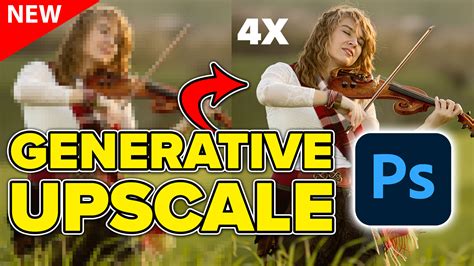
It's important to be aware of the size limitations with Generative Upscale: the final long edge cannot exceed 6144 pixels. For an image to be eligible for 4x upscaling, the long edge should ideally be around 1500 pixels, as $1500 \times 4 = 6000$, which stays within the limit. To use Generative Upscale, navigate to Image > Generative Upscale, where you can choose to scale the image by 2x or 4x.
Harmonize: A Powerful Assistant, Not a Replacement
In conclusion, Photoshop's Harmonize tool is a significant advancement, making photo compositing faster and more natural by automatically blending lighting and color. Its true power, however, is unleashed when it is combined with traditional Photoshop tools and a few smart tricks, such as the resolution hack, to keep your final results sharp and professional.
While AI tools can automate certain aspects of the creative process, they cannot replace the artist's vision, intent, and the nuanced control required for truly unique and compelling visual storytelling. The future of compositing likely lies in a synergistic relationship between human creativity and artificial intelligence, where tools like Harmonize serve as powerful assistants, enabling artists to achieve their visions more efficiently and effectively.
Try out the Harmonize tool, refine your workflow with these techniques, and consider exploring resources like the "Selections and Masking Mastery Course" to further hone your fundamental Photoshop skills. This comprehensive course, offered by digital graphics expert Jesús Ramirez, founder of the renowned Photoshop Training Channel, provides in-depth lessons, practice files, and custom brushes to elevate your compositing abilities.
Remember, the goal is not just to automate, but to augment. By understanding and mastering tools like Harmonize, you can elevate your creative process, push the boundaries of your artistry, and tell your stories with unprecedented visual impact. Share your favorite tips and experiences with Harmonize in the comments below!