The digital age has democratized creativity, placing powerful editing tools into the hands of individuals regardless of their professional background. Among these tools, Pixlr has emerged as a remarkably versatile and accessible platform, catering to a wide spectrum of users, from complete novices to seasoned graphic designers. This article serves as a comprehensive tutorial, guiding you through the essential features and functionalities of Pixlr, enabling you to transform your images with ease and precision. Whether you're looking to enhance personal photos, create compelling social media graphics, or refine professional projects, understanding how to effectively use Pixlr is an invaluable skill.
Understanding the Pixlr Ecosystem: Pixlr X vs. Pixlr E
Pixlr offers two distinct yet complementary editing environments, each designed to serve different user needs and skill levels. Recognizing the strengths of each will help you choose the right tool for your task.
Pixlr X: The Intuitive Gateway for Quick Edits
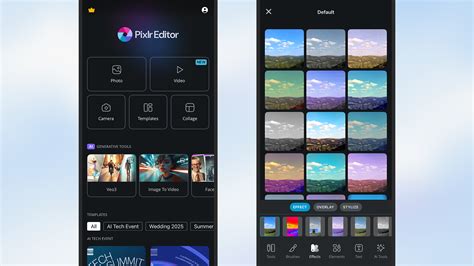
For beginners or those seeking rapid enhancements, Pixlr X is the ideal starting point. Its design philosophy centers on user-friendliness and speed.
- User-Friendly Interface: Pixlr X boasts an intuitive interface that minimizes the learning curve. Tools are clearly labeled, and the workflow is streamlined, allowing users to make significant edits within seconds. This makes it an excellent platform for those new to photo editing.
- Wide Range of Tools: Despite its simplicity, Pixlr X offers a surprisingly wide array of tools. From basic adjustments like brightness and contrast to more creative effects like filters, frames, and overlays, it provides everything needed for everyday photo editing tasks.
- AI-Driven Creative Suite: The platform leverages AI to offer smart and efficient editing solutions. This means many complex tasks can be automated or simplified, allowing users to focus on their creative vision rather than getting bogged down in technicalities.
- Templates and Elements: Pixlr X features an ever-growing collection of templates, filters, frames, and design elements. These pre-made assets are invaluable for creating professional-looking graphics quickly, especially for social media or personal branding.
Pixlr E: The Advanced Canvas for Creative Control
For users with more experience in photo editing, or for those tackling complex projects, Pixlr E provides a more sophisticated and powerful editing experience. It closely resembles the functionality of professional desktop software.
- Advanced Tools and Resources: Pixlr E is built for users who require more granular control over their edits. It incorporates advanced tools and creative resources typically found in professional software, enabling intricate manipulations and detailed adjustments.
- Challenging Creative Limits: This suite is perfect for pushing creative boundaries. Users can delve into layer-based editing, advanced selection tools, and precise manipulation techniques that are essential for professional graphic design and photography.
- Layer-Based Editing: A cornerstone of professional editing, Pixlr E supports layer-based workflows. This allows for non-destructive editing, where each adjustment or element is placed on its own layer, providing maximum flexibility to modify or remove changes without affecting other parts of the image.
- Customization and Precision: Pixlr E offers a high degree of customization, allowing users to fine-tune every aspect of their design. This precision is crucial for achieving polished and professional results.

Getting Started with Pixlr: Essential Workflow Steps
Embarking on your Pixlr journey involves understanding how to open images, navigate the basic tools, and utilize key features. The platform is designed to be accessible on any web browser, making it readily available to a global audience.
Opening Images: Your Creative Starting Point
The first step in any editing process is to bring your image into the software. Pixlr offers several convenient ways to do this:
- From Your Device: The most common method is to upload an image directly from your computer or mobile device. Simply click the "Open Image" button and navigate to the file's location.
- From a URL: If your image is hosted online, you can paste its URL directly into Pixlr to open it. This is useful for editing images found on websites or cloud storage.
- From Cloud Storage: Pixlr integrates with popular cloud storage services like Google Drive and Dropbox, allowing you to directly access and open images stored in your accounts.
- Using Templates: Pixlr also offers a library of pre-designed templates that you can start with. This is an excellent option for creating social media posts, invitations, or other graphic designs without starting from scratch.
Basic Editing Tools: The Foundation of Enhancement
Once your image is open, you'll encounter a suite of basic tools that form the bedrock of image manipulation. Mastering these will allow you to make fundamental improvements to your photos.
- Cropping and Resizing: Essential for composition and fitting images to specific dimensions. You can easily crop out unwanted areas or resize the image to meet platform requirements.
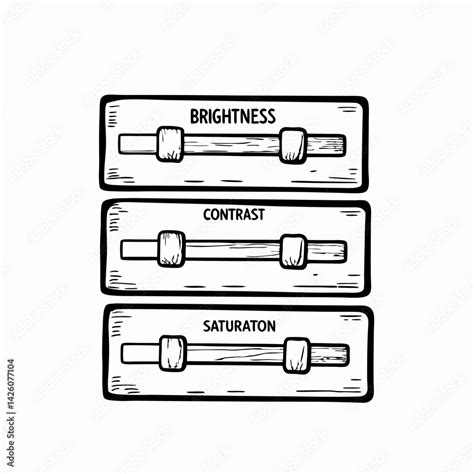
- Adjustments (Brightness, Contrast, Saturation): These core tools allow you to control the overall look and feel of an image.
- Brightness: Controls how light or dark the image appears.
- Contrast: Adjusts the difference between the darkest and lightest areas, impacting the image's punch and depth.
- Saturation: Modifies the intensity of colors. Increasing saturation makes colors more vibrant, while decreasing it can lead to a more muted or monochrome look.
- Color Balance: Allows you to adjust the overall color cast of an image, correcting for lighting conditions or achieving a specific mood.
- Sharpening and Blurring:
- Sharpening: Enhances edges and details, making an image appear crisper. Use sparingly to avoid an unnatural look.
- Blurring: Softens details, which can be used to reduce noise, create depth of field effects, or smooth out imperfections.
Enhancing Depth and Detail: Dodge and Burn
The 'Dodge' and 'Burn' tools, historically used in darkroom photography, are available in Pixlr to selectively lighten or darken areas of an image, respectively. These tools are invaluable for:
- Adding Dimension: By strategically dodging highlights and burning shadows, you can create a sense of depth and three-dimensionality in your subjects.
- Drawing Attention: You can use these tools to subtly guide the viewer's eye to specific points of interest within the image.
- Correcting Tonal Issues: They can be used to recover details in overexposed or underexposed areas, bringing balance to the overall image.
Pixlr E Tutorial - Lesson 23 - Dodge and Burn
Advanced Techniques and Features in Pixlr
Beyond the fundamental tools, Pixlr offers a range of powerful features that unlock more sophisticated editing possibilities.
Mastering Text: Adding Impact and Information
Text is a critical element for conveying messages, branding, and enhancing visual appeal. Pixlr provides robust tools for incorporating and customizing text.
- The 'Text' Tool: This tool allows you to add text boxes to your image. You can then type your desired content directly into the box.
- Customization Options: Once text is added, you gain access to a wide array of customization options:
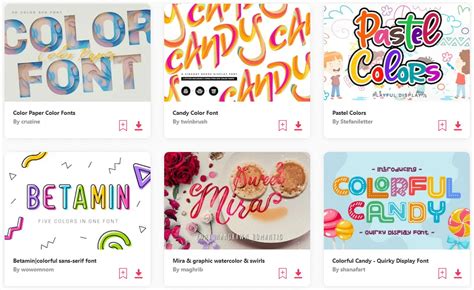
- Font Selection: Choose from a vast library of fonts to match the tone and style of your design.
- Size and Color: Adjust the font size and color to ensure readability and aesthetic harmony.
- Alignment: Control the text's alignment (left, right, center, justified) within its container.
- Spacing: Modify letter spacing (kerning) and line spacing (leading) for improved readability and visual appeal.
- Effects: Apply effects like outlines, shadows, and transformations to make your text stand out.
Background Removal: Isolating Your Subject
Removing the background from an image is a common and often crucial editing task. Pixlr's background remover is a powerful feature, offering multiple subtools to achieve clean results.
- Effectiveness of the Tool: Pixlr's background remover is designed to work effectively, providing a range of options for different image complexities.
- Multiple Subtools: The background remover typically comes with several subtools, allowing for precise selection and removal:
- Magic Wand: Selects contiguous areas of similar color.
- Lasso Tools: Allow for freehand or polygonal selections.
- Eraser Tool: Manually erases parts of the image.
- AI-Powered Removal: Pixlr often incorporates AI to automatically detect and remove backgrounds with a single click, which is particularly useful for simpler images.
- Clipping Path as an Alternative: For professional-grade background removal, especially for product photography where crisp edges are paramount, the concept of a "clipping path" is often employed. While Pixlr's tools are excellent for many tasks, for absolute precision on complex objects, a manual clipping path created in more advanced software might be considered. However, Pixlr's built-in tools are remarkably effective for a wide range of uses.
Pixlr E Tutorial - Lesson 23 - Dodge and Burn
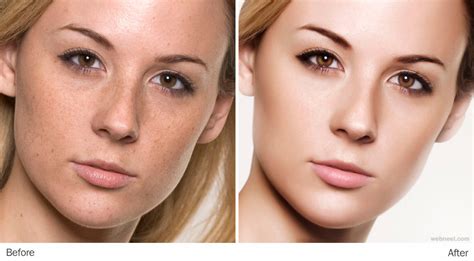
Retouching: Perfecting Portraits and Products
Retouching is essential for professional photography, whether it's for portraits or product shots. Pixlr offers tools to help you refine your images.
- Smoothing Skin: Tools like the "Smooth" or "Heal" brush can be used to gently soften skin texture, reduce blemishes, and even out skin tone. It's important to use these tools subtly to maintain a natural appearance.
- Removing Imperfections: Small blemishes, dust spots, or distracting elements can be removed using tools like the "Clone Stamp" or "Healing Brush." These tools work by sampling pixels from one area of the image and applying them to another, effectively covering up unwanted marks.
- Enhancing Features: In portrait retouching, you might subtly enhance eye brightness or whiten teeth. For product photography, retouching can involve removing reflections, cleaning up surfaces, or ensuring consistent lighting.
- Following Industry Trends: Retouching techniques evolve with industry trends. Staying updated on effective retouching methods ensures your work remains relevant and professional.
Leveraging Pixlr for Trends and Branding
Pixlr is not just about editing; it's a platform that helps creators stay relevant and build strong visual identities.
Adapting to Photography Trends
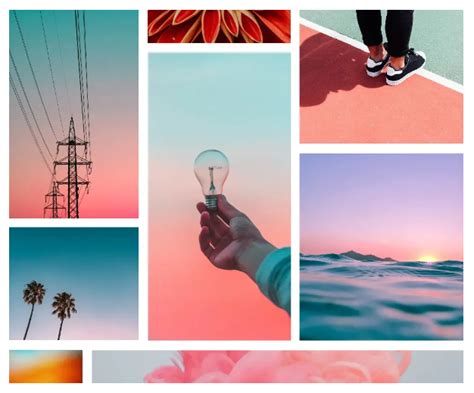
The photography landscape is constantly evolving, with new aesthetic trends emerging regularly. Pixlr's accessible tools and extensive libraries make it easier than ever to experiment with and adopt these trends.
- Templates and Filters: Pixlr's vast collection of templates and filters can instantly give your photos a trendy look, from vintage film effects to modern minimalist styles.
- Elements and Fonts: The platform's design elements and font options allow for creative embellishments that align with current visual styles.
- Ease of Experimentation: With Pixlr, you can quickly try out different looks and techniques inspired by current photography trends without a steep learning curve.
Aesthetic Portraits and Personal Branding
In today's visually driven world, having an aesthetic and unique profile picture or personal brand imagery is crucial for standing out.
- Creating Unique Portraits: Pixlr allows you to edit portraits to achieve a distinct look that reflects your personality or brand. This can involve color grading, subtle retouching, or adding creative overlays.
- Strong Branding: Consistent visual elements across your online presence help build a strong brand identity. Pixlr's templates and tools make it easy to create cohesive graphics for social media, websites, and other platforms.
- Networking and Recognition: An intriguing and professional visual presence can significantly aid in networking by making you more memorable and recognizable.
Pixlr Promotions and Subscription Benefits
Pixlr occasionally offers special promotions, making its powerful features even more accessible. For instance, a past promotion offered a significant discount on subscriptions, highlighting the value proposition of the platform.
- Subscription Tiers: Pixlr typically offers different subscription tiers, providing access to a wider range of premium features, assets, and storage.
- Value for Content Creators: The platform understands the importance of creative resources and innovative tools for content creators. The user-centric design ensures that the editing and designing process is made easier, smarter, and faster.
- Timely Opportunities: Keeping an eye out for promotions can be an excellent way to invest in a powerful creative suite at a reduced cost, allowing for the realization of even more ambitious creative visions.
Conclusion
Pixlr stands out as a powerful, versatile, and remarkably user-friendly photo editing platform. Whether you are a beginner looking to make quick enhancements with Pixlr X or an experienced designer seeking advanced control with Pixlr E, Pixlr offers the tools and resources to elevate your image editing and graphic design capabilities. By understanding its core functionalities, exploring its advanced features, and staying abreast of current trends, you can leverage Pixlr to create captivating visuals, build a strong personal brand, and achieve your creative goals. The accessibility and comprehensive nature of Pixlr make it an indispensable tool for anyone looking to master the art of digital image manipulation.