Adobe InDesign offers a suite of powerful tools designed to streamline the creative process, and among them, the Scissors tool stands out as a remarkably effective, yet often underutilized, feature for precise path manipulation. Whether you're working with intricate vector shapes, text frames, or complex layouts, understanding how to leverage the Scissors tool can significantly enhance your efficiency and creative control. This tool allows you to make clean breaks in lines, paths, and frames, enabling you to isolate and manipulate individual segments of your design elements with ease.
Locating and Accessing the Scissors Tool
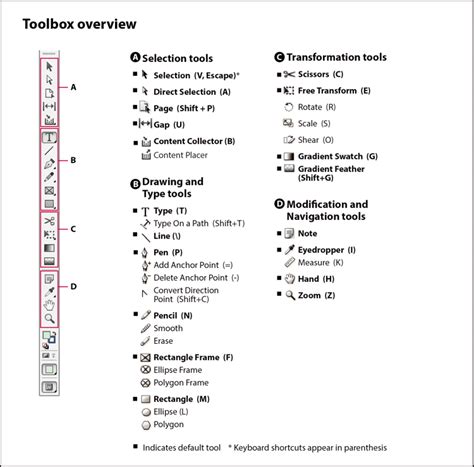
The first step to effectively using the Scissors tool is knowing where to find it within InDesign's comprehensive interface. The Tools panel, typically docked on the left side of your workspace, houses this handy instrument. If your Tools panel is not visible, you can easily display it by navigating to Window > Tools.
However, the Scissors tool isn't always immediately apparent. It is often nested within a group of related tools, most commonly found under the Pen tool family. To reveal the Scissors tool, simply click and hold down on the Pen tool icon. A small flyout menu will appear, presenting a selection of related tools. There, you will find the icon resembling a pair of scissors. Clicking on this icon will select the Scissors tool, and your cursor will transform into a scissor icon, indicating that you are ready to make a cut.
Understanding the Functionality of the Scissors Tool
The core function of the Scissors tool is to divide a path or a frame at a specific point. Once the tool is selected, you simply click on the path or frame you wish to divide. InDesign will then split that element precisely at the point where you clicked, creating two independent segments.
This functionality is particularly useful when you need to isolate a portion of a shape. For instance, imagine you've drawn a perfect circle, but you only wish to retain half of it. By selecting the Scissors tool and clicking on two opposite points on the circle's path, you can effectively cut it in two. Subsequently, you can use the Selection tool (the black arrow) to select and delete the unwanted half, leaving you with the desired segment.
For text frames, the Scissors tool operates in a similar fashion. Clicking on the border of a text frame will split it into two separate frames. The text content will naturally flow from the first frame into the second, allowing for flexible layout adjustments and unique typographic arrangements.
Precision Cutting with Anchor Points
InDesign's intelligence extends to the application of the Scissors tool, especially when dealing with existing anchor points on a path. If you hover the Scissors tool over an existing anchor point on a path, it will often snap to that point. This snapping behavior ensures a clean and accurate cut precisely at the point where your path segments meet or change direction. This is crucial for maintaining the integrity of your vector artwork and avoiding unintended distortions.
Integrating the Scissors Tool with Other InDesign Features
The true power of the Scissors tool is amplified when it's used in conjunction with other InDesign features. After making a cut with the Scissors tool, you will typically switch back to the Selection tool (V on the keyboard) to manipulate the resulting segments. This allows you to move, resize, rotate, or further edit the individual pieces independently without affecting other parts of your design.
The provided information highlights a practical application of these tools in preparing an image for painting, specifically using Live Paint in Adobe Illustrator (though the principles are transferable to InDesign's vector capabilities). In this context, the Eraser, Knife, and Scissors tools are used to clean up overlapping lines and create open paths, which are essential for Live Paint to function correctly by allowing individual sections to be filled with color.
The process described involves:
- Eraser Tool: Used to erase sections of an image, creating individual shapes on each side.
- Knife Tool: Employed to create lines and shape by making custom cuts across a path.
- Scissors Tool: Utilized to select specific points on a path, effectively separating segments.
For example, to remove unwanted overlapping sections of a sketch, one might use the Scissors tool to click on two anchor points along a path. This action separates the path into distinct segments. By then selecting the unwanted segment with the Selection tool and pressing Delete, the excess portion is removed, leaving an open line ready for further manipulation or coloring. This is demonstrated by the process of preparing a rocket illustration, where overlapping elements need to be precisely cut and removed to allow for future coloring.
How to Use the Scissors Tool in Adobe InDesign (Cut Objects Easily!)
Advanced Applications and Workflow Enhancements
Mastering the Scissors tool is a small step, but it’s one that can lead to significant improvements in your efficiency and creative control within InDesign. For instance, when creating complex graphics such as logos or illustrations, precise adjustments are often needed without redrawing entire elements from scratch. The Scissors tool allows for this level of granular control, enabling you to modify existing shapes with surgical precision.
Moreover, combining the Scissors tool with other editing features in InDesign opens up even greater possibilities. Imagine cutting out parts of text frames to create unique typography effects or to precisely control text flow between different sections of a layout. The ability to independently manipulate these newly created segments provides a level of creative freedom that is invaluable for sophisticated design work.
The shortcut for the Scissors tool is C on the keyboard, which can further speed up your workflow once you become comfortable with its application. By integrating this tool into your regular design process, you can achieve more refined and professional results with greater ease. The ability to make clean breaks in paths and frames is fundamental to vector editing, and the Scissors tool provides a direct and efficient method for achieving this. This level of control is what distinguishes professional design work, allowing for intricate details and precise adjustments that bring a vision to life.