ibisPaint, a powerful and versatile digital drawing application, has expanded its reach to the Windows platform, bringing a wealth of features traditionally found in desktop-grade software to a wider audience. Initially conceived to share the joy of digital art through time-lapse videos of the drawing process, ibisPaint has evolved into a comprehensive social drawing app available on smartphones, tablets, and now, personal computers. This article explores the extensive features and functionalities that make ibisPaint for Windows a compelling choice for both aspiring artists and seasoned professionals.
Enhancing the Drawing Workflow with New Tools
ibisPaint for Windows has introduced a significant number of enhancements designed to streamline the artistic process and provide greater control. One notable addition is the advanced functionality within the vector tool. This includes a precise line erasure feature that allows for the meticulous refinement of artwork.
Vector Eraser Precision
The vector tool now boasts a sophisticated eraser that offers granular control over line removal. To begin by removing an [overhanging part] of a line, users can select the [Vector Eraser] and set the mode to [Up to Intersection]. This mode enables the user to precisely target and erase only the portion of a line that extends beyond a point of intersection. Furthermore, the choice between [Fade] or [Round] line end shapes provides an additional layer of customization for the erased edges.
For removing a [whole line], the process is equally intuitive. By selecting the [Whole Line] option and then [dragging] across the entire line, it can be deleted in one swift action. Similarly, the tool facilitates the removal of [short lines] with ease, offering a streamlined approach to cleaning up vector paths.
Brush Shape Simplification
A significant improvement for vector tool users is the introduction of a feature to simplify brush and curve shapes. This function is invaluable for reducing the number of vertices in an object while striving to maintain its original shape as closely as possible. When the Brush Shape Simplification mode is activated, [control points] of the brush shape become visible. The [Strength] slider dictates the degree of simplification; moving it further to the right decreases the number of control points. To preserve sharp corners that might otherwise be rounded by the simplification process, users can adjust the [Angle Threshold] slider to the right.
How to Simplify a Landscape Painting (full demonstration)
Intuitive Interface and Input Enhancements
ibisPaint for Windows prioritizes user experience through intuitive controls and enhanced input methods, catering to both mouse and keyboard users.
Quick Eyedropper and Input Control
The Quick Eyedropper tool can now be launched simply by right-clicking the mouse, offering a faster way to sample colors directly from the canvas. This efficiency is further amplified by the ability to undo and redo filter parameters, allowing for iterative refinement of effects without losing previous adjustments. The filter adjustment process has been refined to revert to the previous state, ensuring greater control over applied filters.
The application also features a dedicated numeric keypad popup for precise numerical input. This keypad includes essential buttons such as the [Backspace Button] for deleting digits, a [Forward Button] to navigate between input fields (displayed only when multiple fields exist), a [Decimal Point Button] for non-integer inputs (hidden for integer-only fields), and a [+/- Button] to toggle between positive and negative values. Users can also opt to input numbers directly using their keyboard while the numeric keypad is displayed.
Stylus Hovering and Tool Switching
For users employing styluses that support hovering, ibisPaint for Windows displays a [Cross Mark] and a [Thickness Mark] while hovering. Activating [Show Thickness Mark while Hovering] in the Settings window visually indicates the current brush or eraser thickness. Similarly, [Show Cross Mark while Hovering] displays the pen tip position. To optimize the experience for frequent Quick Eyedropper users, the activation time can be adjusted to a value smaller than the default.
The addition of the [Switch Tool] function, assignable to a shortcut button on supported styluses, allows for rapid toggling back to the previously used tool, minimizing workflow interruptions.
Advanced Customization and Creative Expression
ibisPaint for Windows empowers users with advanced tools for creating custom brushes, managing artwork, and applying sophisticated filters.
Custom Brush Creation
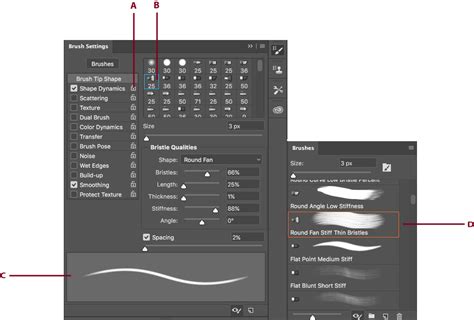
The ability to create custom brush patterns opens up a new dimension of artistic expression. From "My Gallery," users can select "Create New" and then choose [Brush Pattern] to initiate a new canvas specifically for brush design. In [Edit Pattern] Mode, users can draw their desired pattern on the [Canvas]. Switching to [Test Drawing] mode allows for immediate experimentation with the newly created brush. Within Test Drawing mode, the [Brush Settings button] in the Brush window provides access to adjust fade, shape, and other parameters, allowing for fine-tuning of the brush's behavior. Once created, the brush pattern is automatically uploaded to the server and becomes readily available in the Brush Window for use on regular canvases.
Artworks Folder and Floating Layer Window
Organization is significantly enhanced with the introduction of the [Artworks Folder] feature within "My Gallery." This allows users to categorize their artworks into separate folders, facilitating efficient management by grouping favorites or separating work-in-progress from completed pieces.
The [Floating Layer Window] feature provides persistent access to the Layer window, keeping it visible within the working area. The size of this floating window can be adjusted by dragging its [bottom right corner], ensuring it fits seamlessly into the user's workspace.
New Filters and Layer Management
The "AI" filter category has been expanded with the addition of the [Watercolor Filter]. This filter allows users to adjust the saturation using a dedicated [Saturation slider], achieving a distinct watercolor effect.
A significant convenience for layer management is the enhanced eyedropper tool. When using the eyedropper, the name of the layer containing the "drawing at that position" is now displayed. Tapping this displayed layer name automatically sets it as the working layer, simplifying the process of selecting and editing specific elements within a complex artwork.
Cross-Platform Compatibility and Input Methods
ibisPaint for Windows offers robust compatibility with various input devices and operating systems, ensuring a consistent experience across different platforms.
Keyboard Shortcuts and Gestures
The application supports keyboard shortcuts for iPhones (iOS 14.0 or later), iPads (iPadOS 14.0 or later), Android devices, and Windows PCs when a Bluetooth or USB keyboard is connected. This includes functionalities like [Switch to Brush tool] by pressing the "B key" and [Switch to Eraser tool] by pressing the "E key" (note: original text mentioned "B key" for switching to brush and implies a similar shortcut for eraser, though not explicitly stated). For iPhone and iPad users, "Layer Selection for Drawings" can be performed by dragging while holding down the Option and Shift keys.
Changing the brush size is also streamlined. On iPhone and iPad, users can drag their stylus while pressing the Command and Option keys simultaneously. On Android devices and Windows PCs, the same action can be achieved by dragging the stylus while pressing the Ctrl and Alt keys.
Apple Pencil Pro Integration
ibisPaint for Windows fully supports the barrel roll function of Apple Pencil Pro. This advanced feature allows the brush pattern to rotate in accordance with the physical rotation of the Apple Pencil Pro. The barrel roll setting is accessible within the brush window when Apple Pencil is selected in the settings. To enable it, users navigate to the [Back button], select the [Brush tool], open the [Brush window], tap on [Any brush], and then select [Shape]. The visual difference between the barrel roll switch being off and on is clearly demonstrated. The squeeze gesture, involving pressing the Apple Pencil Pro firmly with fingers, is also integrated, though its specific functionality within ibisPaint is not detailed in the provided text.
Advanced Features for Manga and Illustration Creation
ibisPaint has long been a preferred tool for manga and illustration artists, and the Windows version continues this tradition with specialized features.
Manga Manuscript Functionality
The [Manga Manuscript Function] is a cornerstone for creating manga-compliant artwork. Users can select a new template that generates a canvas specifically designed for manga production, adhering to paper standards. This includes customizable inner frame and trimming frame settings. By tapping [Manuscript Type] and selecting from the [Manuscript Type List], users can generate canvases with optimal 600 dpi resolution for professional printing, particularly for A4 and B4 sized drafts.
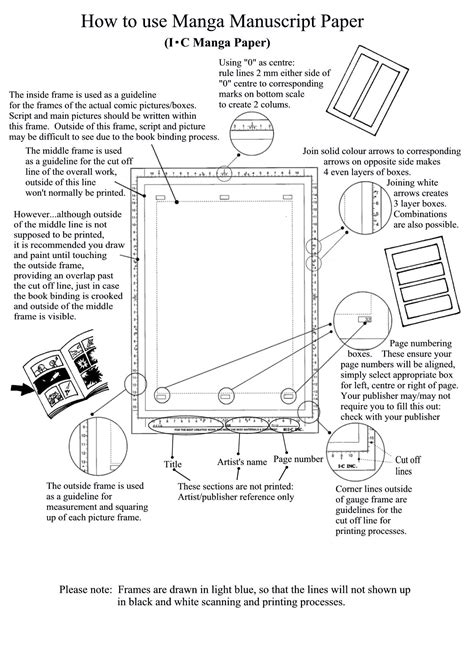
The [View Menu] offers controls to toggle the display of inner and trimming frames, allowing artists to switch between composition views and final output perspectives. Within [Manga Manuscript Settings], users can adjust inner frame size, bleed width, and border color.
Screen Tones and Color Modes
The application supports a range of [46 types of screen tones], which can be applied and adjusted to add depth and texture to manga. To prevent uneven screen tone finishes in printed manuscripts, users can opt for the [Black & White] color mode when drawing manga. This mode can be selected by tapping [Color Mode] and choosing [Black & White]. Additionally, users can select between "Color," "Gray Scale," and "Black & White" color modes when creating a new canvas, offering flexibility for different project requirements.
Enhanced Visuals and Workflow Management
ibisPaint for Windows provides tools to refine visual output and manage the workflow more effectively.
High-Resolution Image Output
When saving and sharing artwork, ibisPaint for Windows enables the output of high-resolution images using AI. The output image size is double the original canvas size, offering significantly more detail. A [Partition Bar] in the center of the screen allows for a direct comparison between the original and the AI-upscaled image.
Adjustment Layers and Color History
The introduction of [Adjustment Layers] provides a non-destructive way to apply and modify filters. Users can select from 21 types of filters, toggle them on or off by hiding the layer, or adjust settings after application. For example, [Hue Saturation Lightness] can be adjusted within an Adjustment Layer to fine-tune colors.
The [Color Palette] now includes a [Color History] feature, displaying up to 100 recently used colors. This allows for quick selection and reuse of frequently employed hues.
Interpolation and Grid Display
The method of interpolation used when displaying the canvas zoomed in can now be adjusted via the [Display when Zoomed] setting. This affects whether the enlarged image appears blurred (interpolation on) or pixelated (interpolation off). Furthermore, gridlines can be displayed on the canvas by accessing the [View Menu] and toggling [Grid]. This is particularly useful for precise alignment of text, images, and for drawing pixel art.
Advanced Editing and Management Tools
ibisPaint for Windows continues to refine its editing capabilities and asset management.
Selection Area Expansion and Layer Transformation
The ability to expand or contract selection areas has been added, proving highly beneficial when cutting or extracting portions of images. Expanding the selection area, for instance, by adjusting the [Expand by] setting in the [Selection Area window] after using the [Magic Wand] tool, helps to prevent fringe artifacts where background colors might remain on the edges of the extracted image.
The [Transform tool] now allows for simpler zooming in/out and rotation of layers by dragging with one finger. This streamlines the process of manipulating layer elements.
Material and Brush Search
Navigating the extensive library of over 18,000 materials and numerous brushes is now significantly easier with the implementation of search functionalities. Users can search for materials using keywords in the [Material Tool], quickly retrieving desired assets. The [Brush Search] feature within the Brush window allows users to enter the name of a desired brush in the Search Box, displaying results in a list for easy selection.
AI-Powered Features and Performance Enhancements
Artificial intelligence plays an increasingly significant role in ibisPaint, enhancing both creative output and performance.
AI Filters and Noise Reduction
The [AI] filter category now includes [Background Removal], a feature that allows users to specify an object to be cut out from its background. Users can refine selections using a minus button to switch to background selection mode and toggle [Show Mask] to preview the result.
The [AI Disturbance] function is designed to add noise to illustrations, which can prevent image-generating AIs from accurately interpreting the original style. The intensity of this noise can be adjusted using a [Slider].
Texture Memory and Performance
The [Texture Memory Size] setting allows users to manually adjust the memory used for creating artwork by turning off [Auto Adjust Texture Memory Size]. Increasing this value may improve performance but could lead to instability, while decreasing it might enhance stability at the cost of performance. This setting is not present on the Windows version.
Customization and User Preferences
ibisPaint for Windows offers a high degree of customization to tailor the user interface and operational preferences.
Interface and Gesture Customization
Users can customize various aspects of the interface through the Settings window. This includes enabling/disabling gestures like [Undo by Two Fingers Tap] and [Redo by Three Fingers Tap]. The activation time for the [Quick Eyedropper] can be adjusted, and users can choose whether to rotate the canvas with two fingers. The visibility of the [Reference Window] can be toggled, and users can select different window color themes.
The [Tool Select Position] and the [Number of Columns in Tool Select Popup] can be adjusted to suit individual preferences and screen sizes. Options to [Show Label in Tool Selection], [Show Message on Undo], and control [Sound] effects offer further personalization.
Layer management also benefits from customization, with options to set [Layer Row Height] and [Layer Row Height (Floating)] for the floating window. The ability to [Drag Left Side to Reorder Layers] and choose the [Layer Window Thumbnail] display (Whole or Only Contents) enhances workflow efficiency.
Cloud Synchronization and Storage
[Cloud Synchronization] ensures that artworks are safely stored and can be accessed across multiple devices. Users can choose to synchronize automatically even with a mobile network or disable this to conserve data. The option to [Do not sleep during synchronization] prevents interruptions during large uploads. Management of synchronized items includes options to [Confirm deletion], [Delete Only Local File], or [Delete File on Cloud As Well]. Cloud storage capacity can be increased through Prime Membership.
Stylus Settings and Input Behavior
For stylus users, ibisPaint provides detailed settings. [Use Pressure Sensitivity] allows for fine brush pressure adjustments, with options to modify sensitivity curves. [Touch Offset] can be adjusted if there are perceived positioning discrepancies when drawing. The application lists [Supported Stylus] devices and allows for connection and configuration. [Palm Rejection] can be enabled for comfortable drawing with the palm resting on the screen, though it may disable touch input for fingers. Options to [Show Thickness Mark while Hovering] and [Show Cross Mark while Hovering] provide visual feedback. Buttons on supported styluses can be assigned functions like undo or tool switching.
Settings for saving various parameters, such as Bucket settings, Stabilizer settings, Selection Area, Filter Parameters, and Adjustment Layer Parameters, can be configured to persist or reset upon returning to "My Gallery." The behavior of added layers becoming the current layer can also be set. The brush thickness can be made dependent on canvas size or remain constant.
Prime Membership and Accessibility
ibisPaint for Windows offers a Prime Membership that unlocks additional benefits, enhancing the overall user experience.
Prime Membership Perks
Subscription to a Prime Membership provides advantages such as increased Cloud Storage capacity, access to exclusive Prime materials, and Prime fonts. This membership also allows for the removal of advertisements. Information regarding Prime Membership can be found within the ibisPaint application or through the "Show Product Info" option in the Settings window.
Font Management and Tutorials
Users can uninstall downloaded fonts if storage is a concern, with an option to delete all downloaded fonts or individual fonts from the Font List window. The option to [Show Tutorials Again] is available for users who wish to revisit the introductory guides for various features.
ibisPaint for Windows presents a comprehensive and ever-evolving suite of tools, making it a powerful and accessible platform for digital art creation across a wide range of devices and skill levels. Its continuous updates and commitment to incorporating user feedback ensure that it remains at the forefront of digital drawing applications.