Extracting audio from video files can be a surprisingly straightforward process, essential for tasks ranging from creating podcasts to isolating music for new projects. While numerous tools exist, this guide focuses on leveraging the capabilities of Kapwing, an online editor known for its user-friendliness and accessibility. We'll explore how to effectively detach audio from your video content using Kapwing, delving into its features and comparing it with other popular methods.
The Need for Audio Extraction
The ability to separate audio from a video is a fundamental skill in digital content creation. Whether you're a podcaster wanting to repurpose interview footage, a musician looking to sample a sound from a film, or a student needing to extract lecture audio, having a reliable method is crucial. The process can sometimes seem daunting, but modern tools have simplified it considerably.

Why Extract Audio?
- Podcast Creation: Extract dialogue from video interviews or presentations to create audio-only content.
- Music Sampling: Isolate specific musical pieces or sound effects from videos for use in new compositions.
- Audio Archiving: Save important audio segments from videos for later reference or analysis.
- Sound Design: Extract ambient sounds or sound effects for use in other media projects.
- Accessibility: Convert video content into audio formats for individuals who prefer or require listening over watching.
Kapwing: A User-Friendly Approach to Audio Extraction
Kapwing stands out as a powerful yet accessible online editor that simplifies the process of audio extraction. It eliminates the need for complex software installations and offers a streamlined workflow suitable for beginners and experienced creators alike.
How to Extract Audio with Kapwing: A Step-by-Step Guide
Kapwing's interface is designed for intuitive use. To extract audio from a video using Kapwing, follow these steps:
Upload Your Video:
- Navigate to Kapwing's website and start a new project.
- You can upload your video file directly from your device (laptop, desktop, or mobile).
- Alternatively, paste the URL of a video hosted online (e.g., from YouTube, Instagram) into Kapwing's "Add Media" section.
- Kapwing supports a wide range of video file formats, including MP4, MOV, MKV, and WebM, ensuring compatibility with most sources.
Access the Editor and Detach Audio:
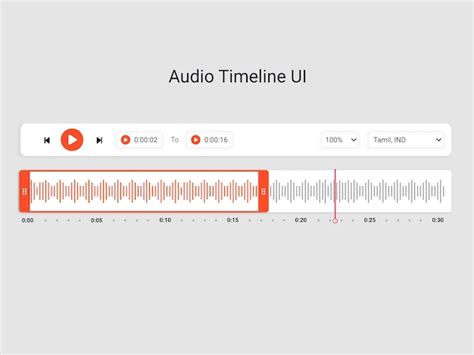
- Once your video is uploaded, it will appear on the Kapwing timeline.
- Locate the video layer on the timeline.
- Right-click on the video layer.
- From the context menu that appears, select the "Detach Audio" option. For keyboard users, the shortcut is Shift + ⌘ + A on Mac or Shift + Ctrl + A on Windows.
- Upon selecting "Detach Audio," a new audio track will appear as a separate element on your timeline, typically positioned below the video track. If the option is unavailable, it indicates that the original video file either had no audio or the audio did not upload correctly.
Edit and Refine (Optional):
- With the audio detached, you now have an independent audio track.
- You can then edit this audio track further. This includes trimming it to a specific section, adjusting its volume, applying effects, or even replacing it entirely with new audio.
- If your goal is solely to extract the audio, you can now delete the original video track from the timeline.
Export Your Audio:
- Once you are satisfied with the detached audio, navigate to the "Export Project" button.
- Kapwing will present you with various export options. To save your extracted audio, choose an audio format. Kapwing primarily offers MP3 and WAV as export options for audio.
- Click "Export" to process the conversion.
- Finally, download your extracted audio file to your device.
Kapwing's Audio Extraction Capabilities
Kapwing's strength lies in its accessibility and feature set. The platform is cloud-based, meaning no downloads or installations are required, and it's accessible from any device with a web browser.
- Format Support: Kapwing supports a wide array of audio file formats for import and export, including MP3 and WAV.
- Online Accessibility: Extract audio from videos hosted on various platforms like YouTube, Instagram, or even directly from your iPhone or Android device, all within your web browser.
- Ease of Use: The "Detach Audio" function is a one-click operation, making it incredibly straightforward.
- Editing Tools: Beyond extraction, Kapwing offers tools to clean audio, remove background noise, add music, and adjust volume, enhancing the extracted audio.
- Free Version Limitations: While Kapwing offers a free version, it's important to note that exports from the free account will include a watermark. Advanced AI-powered tools, like "Clean Audio," also require a paid subscription.
Beyond Kapwing: Other Methods for Audio Extraction
While Kapwing is a top contender for online audio extraction, understanding other tools provides a broader perspective.
Desktop Video Editors
- VSDC Free Video Editor: For Windows users, VSDC is a powerful, free option. It allows for audio extraction, separating multiple audio streams, creating audio visualizations, and batch processing. After importing a video, you select the audio track on the timeline and choose "Export Audio" from the "Export" tab. VSDC supports numerous import and export formats (WAV, M4A, OGG, MP3, AAC, AMR) and offers various audio editing features.
- Adobe Audition: A professional-grade audio workstation compatible with both macOS and Windows. It offers robust audio extraction capabilities from single or multiple video files, with extensive format support for import and export, and granular control over settings like bitrate and sample rate.
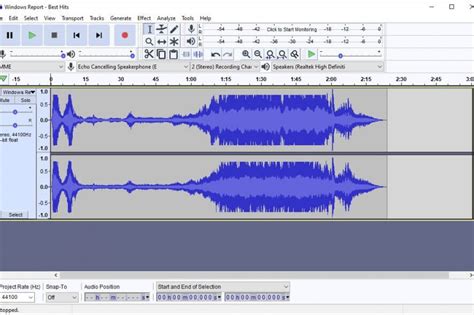
- Audacity: A free and open-source audio editor for macOS, Linux, and Windows. While Audacity itself doesn't directly import video files, it can extract audio if the video is first converted to an audio format using a third-party tool like FFmpeg. You can then import the audio into Audacity for further editing.
Command-Line Tools
- FFmpeg: A free and open-source command-line tool that is extremely powerful and versatile for multimedia processing. For audio extraction, a typical command would be:
ffmpeg -i input_video.mp4 -q:a 0 -map a output_audio.mp3. While highly efficient, its command-line interface can be intimidating for users who prefer a graphical interface.
Mobile Applications
- CapCut: Available on iOS and Android, CapCut offers a simple method for audio extraction. Upload your video, select the file on the timeline, choose "Extract Audio," delete the video portion, and export the project as an MP3.
Media Players with Extraction Capabilities
- VLC Media Player: A ubiquitous free, open-source media player available on all major platforms. VLC can convert video files to audio. Go to "Media" > "Convert/Save," add your video file, select your desired audio format (MP3, FLAC, OGG, WAV, AAC) from the profile settings, and initiate the conversion.
macOS Specific Tools
- QuickTime Player: For macOS users, QuickTime Player offers a basic audio extraction feature. Open the video, go to "File" > "Export As," and select "Audio Only." The primary drawback is that it typically exports in M4A format, with other options often requiring the now-discontinued QuickTime Pro.
Considerations for Audio Quality and Format
When extracting audio, several factors influence the final output quality and usability.
File Formats
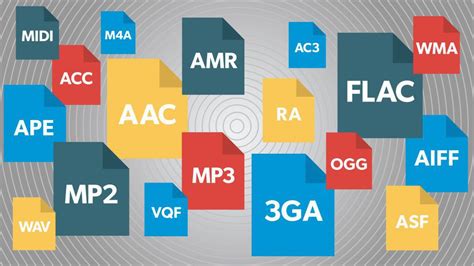
- MP3: The most common and widely compatible audio format. It uses lossy compression, meaning some data is discarded to reduce file size, but for most applications, the quality is excellent. MP3 is ideal for podcasts, general sharing, and streaming.
- WAV: An uncompressed audio format that preserves the full audio fidelity of the original recording. WAV files are significantly larger than MP3s and are generally preferred for professional audio editing and mastering where preserving every detail is paramount.
- M4A (AAC): An audio format often used by Apple devices and services. It offers good quality with efficient compression, similar to MP3.
- FLAC (Free Lossless Audio Codec): A lossless audio format that provides the highest quality without the large file sizes of WAV. It's less common for general use but favored by audiophiles.
Audio Quality
The quality of the extracted audio is inherently linked to the quality of the audio in the original video. Tools like VSDC and Adobe Audition offer more granular control over export settings (bitrate, sample rate, channels), allowing for higher fidelity extraction. Kapwing, while user-friendly, provides a more automated process, with MP3 and WAV being the primary high-quality options.
Extracting Specific Portions
Many tools, including VSDC and Kapwing, allow you to extract only a portion of the audio. This is achieved by trimming the audio track to the desired start and end points before exporting. This feature is invaluable when you only need a specific soundbite or music segment.
Conclusion: Choosing the Right Tool for Audio Extraction
The "best" tool for extracting audio from video depends on your specific needs, technical expertise, and operating system.
- For simplicity and online accessibility: Kapwing is an excellent choice, offering a no-download solution with an intuitive interface. It's ideal for quick extractions and basic editing.
- For Windows users seeking robust free features: VSDC Free Video Editor provides a comprehensive suite of tools for extraction and editing.
- For professional-grade audio manipulation: Adobe Audition is the industry standard, offering unparalleled control and quality.
- For command-line enthusiasts and advanced users: FFmpeg offers unmatched power and flexibility.
- For quick edits on mobile: CapCut provides a convenient on-the-go solution.
Regardless of the tool chosen, the ability to extract audio from video is a valuable skill in the modern digital landscape. Kapwing, with its focus on user experience and web-based convenience, makes this process accessible to a broad range of creators.