Photoshop actions are powerful tools designed to automate repetitive tasks within Adobe Photoshop, allowing users to achieve complex image manipulations with a single click. These prerecorded sequences of commands can significantly streamline your workflow, enabling you to create dynamic pictures in less time. Whether you're a seasoned professional or a beginner looking to enhance your editing efficiency, understanding how to install and manage Photoshop actions is a crucial skill. This guide will walk you through the entire process, from acquiring actions to organizing your panel.
Understanding the Actions Panel
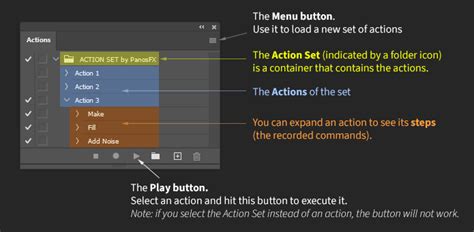
The Actions Panel is the central control center for all your Photoshop actions. It's where you can load, play, create, edit, and store your action sets. This panel has a consistent appearance across different versions of Adobe Photoshop, including Photoshop Elements. To access its features, you'll typically find a fly-out menu, often represented by a small arrow or three horizontal lines, which reveals options like "Load Actions."
Acquiring and Preparing Your Actions
Photoshop actions are usually distributed in a compressed format, most commonly a zip file. Upon downloading an action set, the first step is to decompress this zip file. This process will create a dedicated folder containing the action file itself, typically with a ".atn" extension, along with other potentially useful files such as documentation or supplementary assets.
To maintain a well-organized system, it's highly recommended to create a dedicated folder on your hard disk for storing these add-ons. For instance, you might name this folder "Photoshop Add-ons" or a more specific name like "PanosFX Add-ons" if you are organizing actions from a particular creator. This central repository makes it easier to locate and manage your action files in the future. Storing them in a consistent location also prevents them from getting lost among various download folders.
Installing Photoshop Actions: The "Load Actions" Method
The primary method for installing Photoshop actions involves using the "Load Actions" feature within the Actions Panel. Once you have decompressed your downloaded zip file and located the ".atn" file, follow these steps:
- Open the Actions Panel: If the Actions Panel is not already visible, you can open it by going to
Window > Actionsin the Photoshop menu. - Access the Fly-out Menu: Locate the fly-out menu within the Actions Panel. This is usually found in the upper-right corner of the panel and is often represented by a small set of horizontal lines or a downward-pointing arrow.
- Select "Load Actions": From the drop-down options presented by the fly-out menu, choose "Load Actions."
- Navigate and Select the Action File: A file browser window will appear. Navigate to the folder where you saved your decompressed action file (".atn"). Select the desired action file and click "Load."
Once loaded, the action set will appear as a new folder within your Actions Panel, containing individual actions that you can now use.
Testing Your Newly Installed Actions
After successfully loading an action set, it's essential to test its functionality. The best way to do this is by opening a new photograph in Photoshop that you wish to edit.
- Open a Photo: Navigate to
File > Openand select an image from your computer. - Select the Background Layer: In the Layers Panel, ensure that the background layer of your image is selected. Many actions are designed to operate on the base layer.
- Locate and Play the Action: In the Actions Panel, find the newly loaded action set and the specific action you want to test. Click on the action to select it.
- Execute the Action: Click the "Play" button, which is typically represented by a triangle icon at the bottom of the Actions Panel.
Watch as Photoshop executes the prerecorded steps. You should observe the image undergoing various transformations as defined by the action. This immediate feedback allows you to confirm that the action is working correctly and producing the desired results. If the action doesn't produce the expected outcome, you may need to revisit the installation process or consult any provided documentation for troubleshooting.
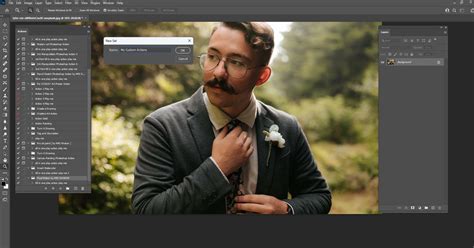
Organizing Your Actions Panel: Unloading Action Sets
As you accumulate more actions, your Actions Panel can become cluttered, making it difficult to find the specific tools you need. It's good practice to unload action sets that you are not currently using. This not only keeps your panel tidy but can also contribute to a smoother performance by freeing up system resources.
To unload an Action Set:
- Locate the Action Set: In the Actions Panel, identify the action set (the folder containing the individual actions) that you wish to remove.
- Select the Set: Click on the action set to highlight it.
- Delete the Set: Click the trash can icon located at the bottom of the Actions Panel.
It's important to understand that unloading an action set from the panel does not delete the actual action file (".atn") from your hard drive. It merely removes it from Photoshop's active list. You can easily reload the action set later if you need it again by following the installation steps outlined previously. This flexibility ensures that you can maintain an organized workspace without permanently losing your valuable tools.
How to create actions in photoshop
Advanced Considerations and Best Practices
Understanding Action Structure: Photoshop actions are essentially macro-like recordings. They capture a sequence of commands, including menu selections, tool usage, brush strokes, and adjustments. Some actions are simple, performing a single task like a color correction, while others are complex, chaining together multiple steps to achieve a sophisticated effect.
Compatibility: Always ensure that the actions you download are compatible with your version of Photoshop. While many actions are backward-compatible, some may utilize features exclusive to newer versions. The documentation provided with the action set is usually the best source of information regarding compatibility.
Editing Actions: For advanced users, the Actions Panel also allows for editing existing actions. You can record new steps, delete unwanted steps, or modify parameters of existing steps. This offers a high degree of customization, allowing you to tailor actions to your specific workflow and preferences. To edit an action, you typically need to select a specific step within the action and then click the "Record" button (or a similar editing mode) to add new steps, or use other controls to modify or delete existing ones.
Creating Your Own Actions: Beyond installing pre-made actions, Photoshop empowers you to create your own. This is an incredibly powerful way to automate your unique editing processes. To create an action, you simply start recording, perform the desired steps, and then stop recording. This allows you to build custom tools for tasks like batch resizing, applying specific branding elements, or performing complex color grading.
System Memory and Performance: While Photoshop actions are designed to improve efficiency, a large number of loaded action sets can potentially impact Photoshop's performance, especially on systems with limited RAM. Regularly reviewing and unloading unused action sets is a simple yet effective way to maintain optimal system responsiveness.
File Management: As mentioned, consistent file management is key. When you download actions from various sources, consider creating subfolders within your main "Photoshop Add-ons" directory to categorize them by type (e.g., "Color Grading," "Retouching," "Artistic Effects") or by creator. This hierarchical organization will save you significant time when searching for a specific action.
Backup Strategy: It's always wise to back up your custom action sets, especially if you've spent time creating or heavily customizing them. Copying your ".atn" files to an external hard drive or cloud storage service ensures that you don't lose your valuable work in case of hardware failure or accidental deletion.
By diligently following these steps for installation, management, and organization, you can effectively leverage the power of Photoshop actions to enhance your creative output and significantly reduce the time spent on repetitive editing tasks. The ability to automate complex processes is a cornerstone of efficient digital image manipulation, and mastering Photoshop actions is a direct path to achieving that goal.