Kapwing Studio emerges as a powerful, yet accessible, online platform for modern creators seeking to produce a diverse range of content, from engaging videos and viral memes to dynamic GIFs, polished images, and compelling designs. This tutorial is meticulously crafted to guide you through the intricacies of Kapwing's most popular and helpful tools, empowering you to create professional-grade content with ease, regardless of your prior editing experience. We will delve into the fundamental editing functionalities, explore advanced features, and highlight the platform's unique Smart Tools designed to streamline your workflow and foster seamless collaboration.
Understanding the Kapwing Ecosystem: More Than Just an Editor
At its core, Kapwing is an online content creation platform that democratizes the creative process by offering a free entry point for aspiring and established creators alike. Its versatility extends beyond simple video editing; it is a comprehensive suite where you can conceptualize and execute a wide array of digital assets. The platform's intuitive design means that you don’t need any prior experience to get started. This accessibility is a cornerstone of Kapwing's philosophy, making sophisticated editing tools available to everyone.
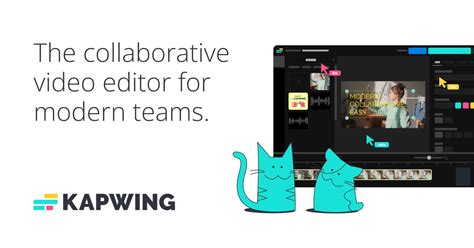
The true power of Kapwing lies in its cloud-based architecture. Being completely online, it eradicates the need for complex software installations and hardware limitations. This online nature also makes collaboration remarkably straightforward. You can easily share workspaces with teammates, and a groundbreaking feature allows multiple individuals to edit a single project simultaneously. This collaborative capability is a significant advantage for teams of creators who need to work in tandem, share feedback, and iterate on projects efficiently.
Core Editing Functionalities: Building Blocks of Your Content
Kapwing Studio provides a robust set of fundamental editing tools that form the backbone of any content creation project. These are the essential functions that allow you to manipulate your media and bring your vision to life.
Trimming and Splitting: Precision Control Over Your Timeline
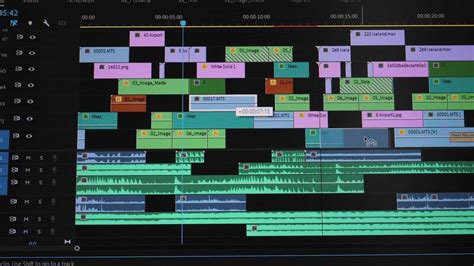
The ability to precisely control the duration of your video clips is paramount. Trimming allows you to shorten a clip by removing unwanted sections from either the beginning or the end. This is crucial for removing dead air, mistakes, or irrelevant footage. Splitting, on the other hand, enables you to divide a single clip into two or more separate segments at any point along the timeline. This is invaluable for rearranging the order of clips, inserting transitions, or applying different effects to distinct parts of your video.
To trim a clip, you typically select the clip on the timeline, and then drag the handles at either end of the clip inwards. For splitting, you position the playhead at the desired split point and activate the split function, which will then divide the clip into two distinct parts. Mastering these basic yet powerful tools is the first step towards creating polished and professional-looking videos.
Adding Overlays: Enhancing Visual Depth and Information
Kapwing Studio excels in its ability to layer different media elements, adding visual interest and conveying additional information.
Video Overlays: Dynamic Visual Enhancements
Video overlays allow you to place one video clip on top of another. This technique is widely used for various purposes, such as creating picture-in-picture effects, adding B-roll footage that complements the main subject, or incorporating dynamic backgrounds. For instance, you might use a video overlay to show a reaction shot while the main video continues, or to display an animated graphic that illustrates a point being discussed. The positioning, scaling, and opacity of the overlay video can be adjusted to seamlessly integrate it with the base layer.
Image Overlays: Static Graphics and Branding
Similar to video overlays, image overlays enable you to place static images onto your video. This is incredibly useful for adding logos, watermarks, text boxes, or any other graphical elements that need to remain consistently visible throughout a scene or the entire video. Branding is a key application here; consistently displaying your logo ensures brand recognition. Image overlays can also be used creatively for annotations, call-to-action buttons, or to create visually appealing collage-like effects.
Audio Editing Essentials: The Sound of Success
While visual content often takes center stage, audio quality is equally critical for viewer engagement. Kapwing Studio offers essential tools to refine your audio.
Adjusting Volume and Muting: Fine-Tuning Your Soundscape
The ability to control the volume of individual audio tracks is fundamental. You can increase the volume of dialogue to make it more prominent, decrease the volume of background music so it doesn't overpower speech, or mute specific audio segments entirely if they are distracting or unnecessary. This level of control ensures that your audience can clearly hear what they need to, whether it's dialogue, sound effects, or music.
Adding Background Music and Sound Effects: Setting the Mood
Kapwing provides access to a library of royalty-free music and sound effects, or you can upload your own. Adding background music can significantly enhance the emotional impact of your video, set a particular tone, or simply make it more enjoyable to watch. Sound effects can be used to emphasize actions, add realism, or create comedic timing. Careful selection and placement of audio elements are key to creating a cohesive and immersive viewing experience.
Transcribing and Subtitling: Accessibility and Reach
Kapwing's commitment to accessibility is evident in its robust subtitling features. You can manually add subtitles to your videos, which is essential for viewers who are deaf or hard of hearing, or for those who prefer to watch videos with the sound off. Furthermore, Kapwing offers tools to automatically transcribe your audio and generate subtitles, a process that can save a significant amount of time. These subtitles not only improve accessibility but also enhance SEO by making your video content searchable.
Leveraging Kapwing's Smart Tools: Efficiency and Innovation
Beyond the foundational editing features, Kapwing Studio boasts a suite of "Smart Tools" that leverage artificial intelligence and advanced algorithms to automate complex tasks and introduce innovative editing capabilities. These tools are designed to save you time, enhance your content, and unlock new creative possibilities.
Smart Cut: Effortless Removal of Silence and Pauses
One of the most time-consuming aspects of video editing is meticulously going through footage to remove awkward silences, long pauses, or filler words. Kapwing's Smart Cut tool automates this process with remarkable efficiency. By analyzing the audio waveform, Smart Cut can intelligently identify and remove segments of silence or speech that fall below a certain threshold, effectively speeding up your video and making it more dynamic. This is particularly useful for interviews, podcasts, vlogs, and any content where natural speech patterns can lead to extended periods of silence. The tool typically allows for customization of sensitivity, ensuring that you retain natural speech flow without sacrificing conciseness.
Clean Audio: Enhancing Clarity and Removing Distractions
Background noise, echoes, and other audio imperfections can significantly detract from the professional quality of your videos. The Clean Audio tool in Kapwing Studio utilizes AI to identify and reduce unwanted background noise, such as humming, static, or ambient sounds, while preserving the clarity of the primary audio source (e.g., voice). This results in a cleaner, more professional-sounding audio track, making your content more pleasant and easier to understand. It’s an invaluable tool for creators working in less-than-ideal recording environments.
Magic Subtitles: Automated Transcription and Translation
The creation of accurate subtitles can be a laborious process. Kapwing's Magic Subtitles feature automates this by transcribing your video's audio and generating synchronized subtitles. This not only saves considerable time but also improves the accessibility of your content. Beyond basic transcription, some iterations of this technology can even offer translation services, allowing you to reach a wider, global audience by providing subtitles in multiple languages. The accuracy of AI-powered transcription is continually improving, making this a powerful feature for content creators.
Resizing and Converting: Adapting Content for Every Platform
In today's multi-platform digital landscape, content needs to be optimized for various aspect ratios and formats. Kapwing provides straightforward tools for resizing your videos to fit different social media platforms, such as TikTok (9:16), Instagram Stories, YouTube (16:9), or square formats (1:1). You can also convert your videos between various file formats, ensuring compatibility across different devices and platforms. This flexibility allows you to repurpose your content efficiently without compromising on quality.
Looping and Reversing: Creative Effects and Storytelling
The ability to loop a video or a section of a video can be used to create engaging GIFs or to emphasize a particular moment. Reversing a video clip can add a unique, often artistic or comedic, effect, making ordinary actions appear extraordinary. These tools, while seemingly simple, open up avenues for creative storytelling and visual experimentation.
Collaboration Features: Building Content as a Team
Kapwing's online nature fosters an environment where teams can collaborate seamlessly on content creation projects.
Shared Workspaces: Centralized Project Management
Workspaces in Kapwing act as shared digital environments where team members can access, organize, and manage all their project assets. This centralization ensures that everyone is working with the latest versions of files and projects, reducing confusion and streamlining workflow. Instead of emailing large files back and forth, team members can simply access the shared workspace.
Simultaneous Editing: Real-Time Co-Creation
Perhaps the most revolutionary collaboration feature is the ability for multiple users to edit the same project simultaneously. This real-time co-editing capability allows team members to work on different aspects of a project concurrently, see each other's changes as they happen, and provide immediate feedback. This dramatically speeds up the production process and encourages a dynamic, interactive approach to content creation. Imagine one person working on the video cuts while another is adding text overlays or adjusting audio - all within the same project, at the same time.
Getting Started with Kapwing Studio: A Step-by-Step Approach
Embarking on your content creation journey with Kapwing Studio is designed to be intuitive and straightforward.
- Sign Up or Log In: Visit the Kapwing website and create a free account or log in if you already have one.
- Start a New Project: Click on "New Project" or "Start Creating" and choose the type of content you wish to create (e.g., Video Editor, Image Maker, GIF Maker).
- Upload Your Media: Upload your video clips, images, and audio files from your device, or use Kapwing's stock media library. You can also paste URLs from platforms like YouTube or TikTok.
- Utilize the Timeline Editor: Once your media is uploaded, you'll be presented with the Kapwing Studio timeline. Here, you can arrange your clips, trim them, split them, and add transitions.
- Add Text, Overlays, and Audio: Use the tools on the left-hand side to add text, images, shapes, and adjust audio levels. Explore the music and sound effects library.
- Apply Smart Tools: Experiment with Smart Cut to remove silences, Clean Audio to improve sound quality, and Magic Subtitles to generate captions.
- Export Your Project: Once you are satisfied with your creation, click the "Export" button. You can choose your desired file format and resolution. Kapwing will process your video, and you can then download it or share it directly to social media.
Advanced Techniques and Creative Applications
As you become more comfortable with Kapwing Studio, you can explore more advanced techniques to elevate your content.
Picture-in-Picture (PiP) Effects: Contextualizing Content
Creating picture-in-picture effects is a popular technique for tutorials, reaction videos, and presentations. In Kapwing, you can achieve this by uploading your main video and then uploading the secondary video or image that you want to appear as an overlay. You can then resize and reposition the overlay layer to your desired location on the screen, often in a corner, allowing both videos to be viewed simultaneously. This is excellent for demonstrating software while also showing the presenter, or for showing a gameplay feed alongside a streamer's reaction.
Green Screen (Chroma Key) Effects: Seamless Background Replacement
While not explicitly mentioned in the initial prompt, many online editors like Kapwing include a chroma key feature, often referred to as a green screen effect. This tool allows you to remove a specific color (typically green or blue) from a video layer, making it transparent. You can then place another video or image behind it, creating the illusion that the subject is in a different environment. This is a staple in professional video production for creating dynamic backgrounds without needing to be on location. To use it, you would upload your green screen footage, place it on a track above your desired background, and then apply the chroma key effect, selecting the green color to be removed.
Animated Text and Graphics: Bringing Static Elements to Life
Kapwing offers various options for animating text and graphic elements. You can apply pre-set animations to text boxes, making them fade in, slide in, or bounce onto the screen. For more custom animations, you might layer simple shapes or graphics and use keyframes (if available in advanced settings) to control their movement, scale, and opacity over time. Animated elements can significantly increase viewer engagement and help to highlight key information.
Meme Generation: Capitalizing on Trends
Kapwing's dedicated meme generator allows you to easily create viral memes. You can upload an image or use one from their library, add top and bottom text in classic meme style, and export it as a JPG or GIF. This tool is perfect for social media marketers and individuals looking to participate in internet culture. The simplicity of the interface ensures that anyone can quickly create a humorous or topical meme.
GIF Creation: Short, Looping Animations
Creating GIFs from video clips is another core capability. You can import a video, select a specific segment, and then export it as an animated GIF. This is ideal for creating short, attention-grabbing animations for social media, messaging apps, or websites. Kapwing allows you to control the dimensions and frame rate of your GIF, ensuring optimal file size and visual quality.
Optimizing Your Workflow and Content Strategy
Kapwing Studio isn't just a tool; it's a platform that can fundamentally change how you approach content creation.
Iterative Design and Feedback Loops
The ease of sharing projects and collaborating in real-time encourages an iterative design process. Teams can quickly share drafts, gather feedback from stakeholders or other team members, and make adjustments rapidly. This continuous loop of creation, feedback, and refinement leads to a higher quality final product.
Content Repurposing: Maximizing Reach
The resizing and conversion tools are crucial for content repurposing. A single video produced for YouTube can be easily adapted into vertical formats for TikTok and Instagram Reels, square formats for Instagram feeds, and even short GIF snippets for Twitter. This maximizes the reach of your original content with minimal additional effort.
Building a Brand Identity
Consistent use of logos, brand colors, and fonts across all your video and image content, facilitated by overlay and text tools, helps to build a strong and recognizable brand identity. Kapwing allows you to upload brand assets and apply them consistently, reinforcing brand recognition with every piece of content you publish.
Conclusion: Empowering Creators of All Levels
Kapwing Studio stands out as an indispensable online platform for contemporary content creators. Its comprehensive suite of tools, ranging from fundamental editing functions like trimming and splitting to advanced AI-powered features such as Smart Cut and Magic Subtitles, caters to a wide spectrum of user needs. The platform's emphasis on accessibility, allowing users with no prior experience to create professional-grade content, is a significant draw.
Furthermore, Kapwing’s robust collaboration capabilities, including shared workspaces and simultaneous editing, make it an ideal solution for teams striving for efficiency and synergy. Whether you are a solo creator looking to enhance your personal brand, a marketer aiming to produce engaging social media content, or part of a larger team managing complex projects, Kapwing Studio provides the tools and flexibility to achieve your creative goals. Its free-to-start model further lowers the barrier to entry, empowering a new generation of creators to bring their ideas to life in the digital realm. The continuous development of new features and the ongoing improvement of existing tools ensure that Kapwing remains at the forefront of online content creation platforms.